Guide · macOS 26
How to use dictation on Mac, and when to use an app instead
How to use dictation on Mac: turn it on in System Settings → Keyboard → Dictation, click where you want the text, press your Dictation shortcut — such as the Microphone key — and speak.
This guide covers every Dictation setting on macOS 26, what to do when Mac dictation is not working, and when an app such as NoteOwl helps more than the built-in one.
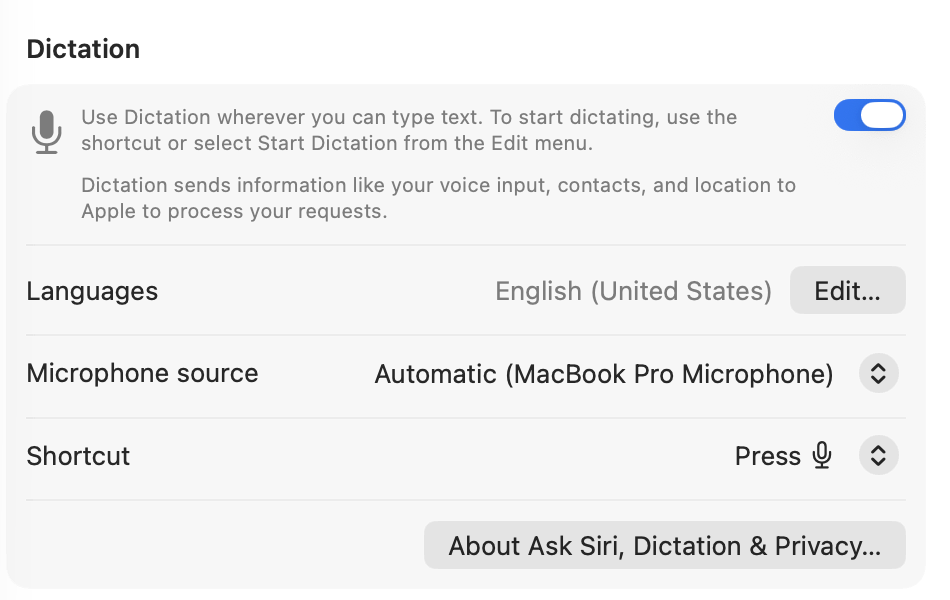
How do you turn on dictation on a Mac?
Open System Settings → Keyboard, scroll down to Dictation and turn on the switch. Then choose your languages, microphone and shortcut in the settings below it.[1]
- 1
Open Keyboard settings
Choose Apple menu → System Settings, then click Keyboard in the sidebar.
- 2
Turn on Dictation
Scroll down to Dictation and turn on the switch beside “Use Dictation wherever you can type text. To start dictating, use the shortcut or select Start Dictation from the Edit menu.”
- 3
Choose your languages
Next to Languages, click Edit… and select each language you dictate in.
- 4
Choose a microphone
Pick one from the Microphone source pop-up menu, or leave it on Automatic.
- 5
Choose a shortcut
Pick how you start Dictation from the Shortcut pop-up menu (the options are below).
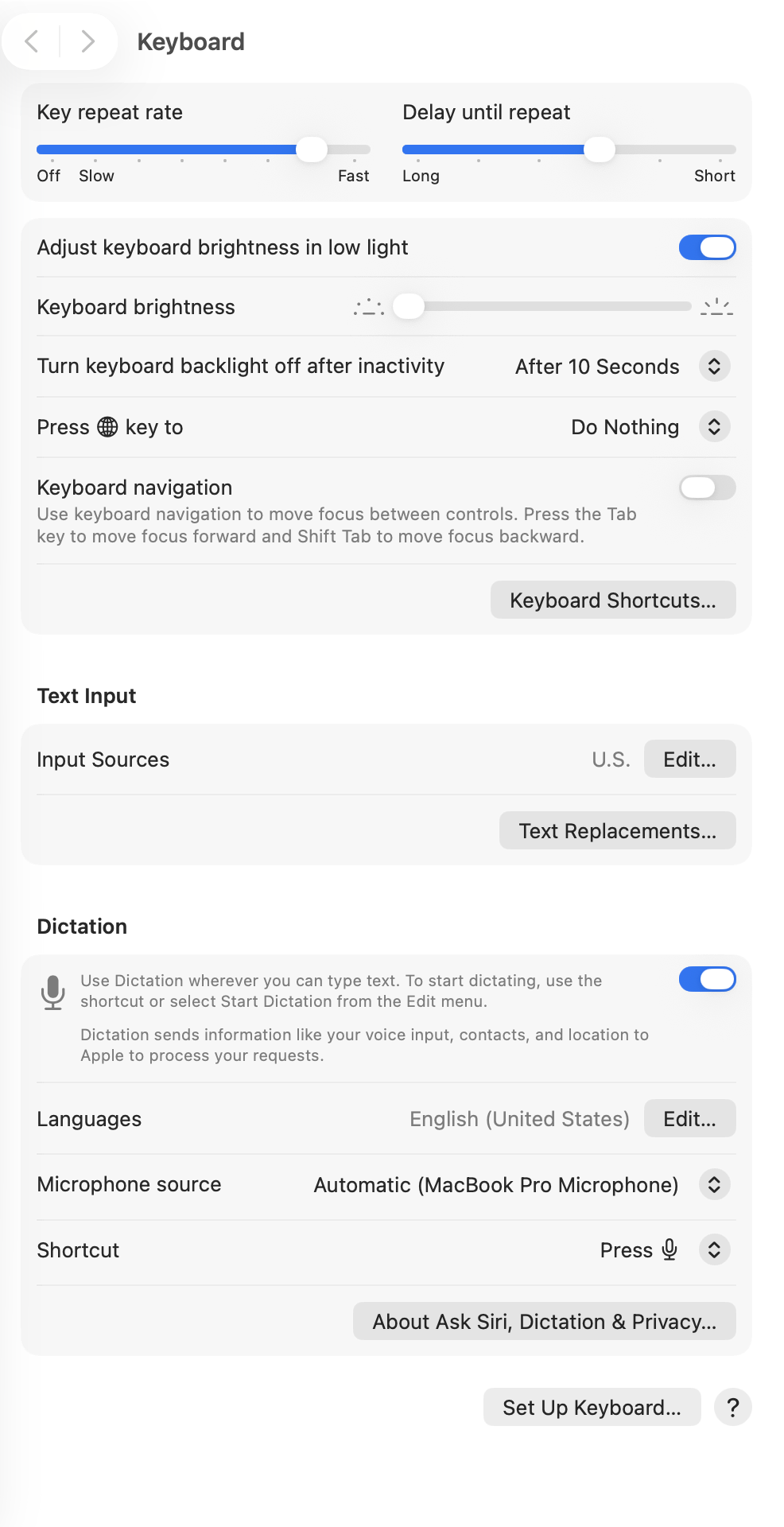
Which keyboard shortcut starts dictation on a Mac?
The one you pick under Shortcut in Keyboard settings. macOS 26 lists the seven options below; you can also start Dictation from the Edit menu with Start Dictation.[1]
- Press 🎤︎
- What you pressPress and release the Microphone key, in the row of function keys, if your keyboard has one. Pressing and holding it activates Siri instead.
- Press Control Key Twice
- What you pressPress the Control key twice.
- Press 🌐︎ Twice
- What you pressPress the Globe key twice (🌐︎; labelled fn on many Mac keyboards).
- Press Right Command Key Twice
- What you pressPress the right-hand Command key twice.
- Press Left Command Key Twice
- What you pressPress the left-hand Command key twice.
- Press Either Command Key Twice
- What you pressPress either Command key twice.
- Customize…
- What you pressPress the keys you want to use, for a shortcut that isn’t in the list.
| Shortcut option | What you press |
|---|---|
| Press 🎤︎ | Press and release the Microphone key, in the row of function keys, if your keyboard has one. Pressing and holding it activates Siri instead. |
| Press Control Key Twice | Press the Control key twice. |
| Press 🌐︎ Twice | Press the Globe key twice (🌐︎; labelled fn on many Mac keyboards). |
| Press Right Command Key Twice | Press the right-hand Command key twice. |
| Press Left Command Key Twice | Press the left-hand Command key twice. |
| Press Either Command Key Twice | Press either Command key twice. |
| Customize… | Press the keys you want to use, for a shortcut that isn’t in the list. |
How do you dictate text on a Mac?
Click where you want the text, press your Dictation shortcut, and speak when you hear the tone or see the cursor pulse. Press Escape or the shortcut again to stop; Dictation also stops after 30 seconds without speech.[1]
Punctuation
In supported languages, Dictation adds commas, periods and question marks as you speak. For any other mark, say its name, such as “exclamation mark”.
New lines
Say “new line” or “new paragraph”.
Emoji
Say the name of an emoji, such as “heart emoji” or “car emoji”.
Keep typing
On a Mac with Apple silicon you can type while you speak; there’s no need to stop dictation.
Two languages
If you set up more than one language, you can switch as you dictate: press the Globe key, if you have one, and choose the language.
Stopping
Press Escape, the Microphone key or your shortcut. Dictation also stops after 30 seconds without speech.
Why is dictation not working on my Mac?
Usually Dictation is off, the shortcut or language isn’t what you expect, or the Mac is listening to the wrong microphone. Work through Apple’s checks in this order.[2]
- 01
Dictation is turned on
Check the switch in System Settings → Keyboard → Dictation.
- 02
The language and region are right
Next to Languages, click Edit… and select the language you’re speaking.
- 03
You’re pressing the right shortcut
Check what is set under Shortcut, or start from the Edit menu with Start Dictation to rule the shortcut out.
- 04
The Mac is listening to the right microphone
If your Mac has no built-in microphone, connect one and select it in Microphone source or in Sound settings. With an external microphone, make sure its input volume is high enough.
- 05
Nothing is blocking the microphone
Keep clothing and your hands away from it, sit as you normally do, speak clearly at a normal volume, and avoid background noise.
- 06
You’re online
Apple says you may need an internet connection; check Network in System Settings.
Does Mac dictation send your voice to Apple?
The Dictation setting on macOS 26.3 says it sends your voice input to Apple to process requests. Apple’s guide adds that Keyboard settings show whether your dictation is processed on your Mac instead.[1]
“Dictation sends information like your voice input, contacts, and location to Apple to process your requests.”
“You can check Keyboard settings to see whether your voice inputs and transcripts for general text Dictation are processed on your device and not sent to Siri servers.”
When should you use an app instead of Mac dictation?
When you want more than words at the cursor: the right tone for each app, a copy of everything you said, pauses that don’t cut you off, or dictation that works offline. NoteOwl’s dictation does those on your Mac, and it is free.
For short messages in one language, Apple’s built-in Dictation may be all you need.
- Price
- Mac DictationFree, built into macOS
- NoteOwlFree and unlimited
- How you start it
- Mac DictationYour Dictation shortcut, or Edit → Start Dictation
- NoteOwlTap fn; tap it again to stop
- Long pauses
- Mac DictationStops after 30 seconds without speech
- NoteOwlPauses don’t end it
- Tone for each app
- Mac DictationNo
- NoteOwlCasual in Slack, professional in Mail, exact in code editors
- Tidy-up after you speak
- Mac DictationNo
- NoteOwlPolish, shorten or clarify, with your raw words kept
- History of what you said
- Mac DictationNo
- NoteOwlEvery dictation saved, raw words beside the polished text
- Languages
- Mac DictationThe ones you select in Languages; switch as you dictate
- NoteOwl34, detected automatically, including Hindi and English in one sentence
- Internet
- Mac DictationApple says you may need a connection
- NoteOwlNot needed after the one-time model download
- Mac requirements
- Mac DictationBuilt into macOS
- NoteOwlmacOS 26 or later, Apple silicon, 16 GB memory
| Mac Dictation | NoteOwl | |
|---|---|---|
| Price | Free, built into macOS | Free and unlimited |
| How you start it | Your Dictation shortcut, or Edit → Start Dictation | Tap fn; tap it again to stop |
| Long pauses | Stops after 30 seconds without speech | Pauses don’t end it |
| Tone for each app | No | Casual in Slack, professional in Mail, exact in code editors |
| Tidy-up after you speak | No | Polish, shorten or clarify, with your raw words kept |
| History of what you said | No | Every dictation saved, raw words beside the polished text |
| Languages | The ones you select in Languages; switch as you dictate | 34, detected automatically, including Hindi and English in one sentence |
| Internet | Apple says you may need a connection | Not needed after the one-time model download |
| Mac requirements | Built into macOS | macOS 26 or later, Apple silicon, 16 GB memory |
How do you dictate into any app with NoteOwl?
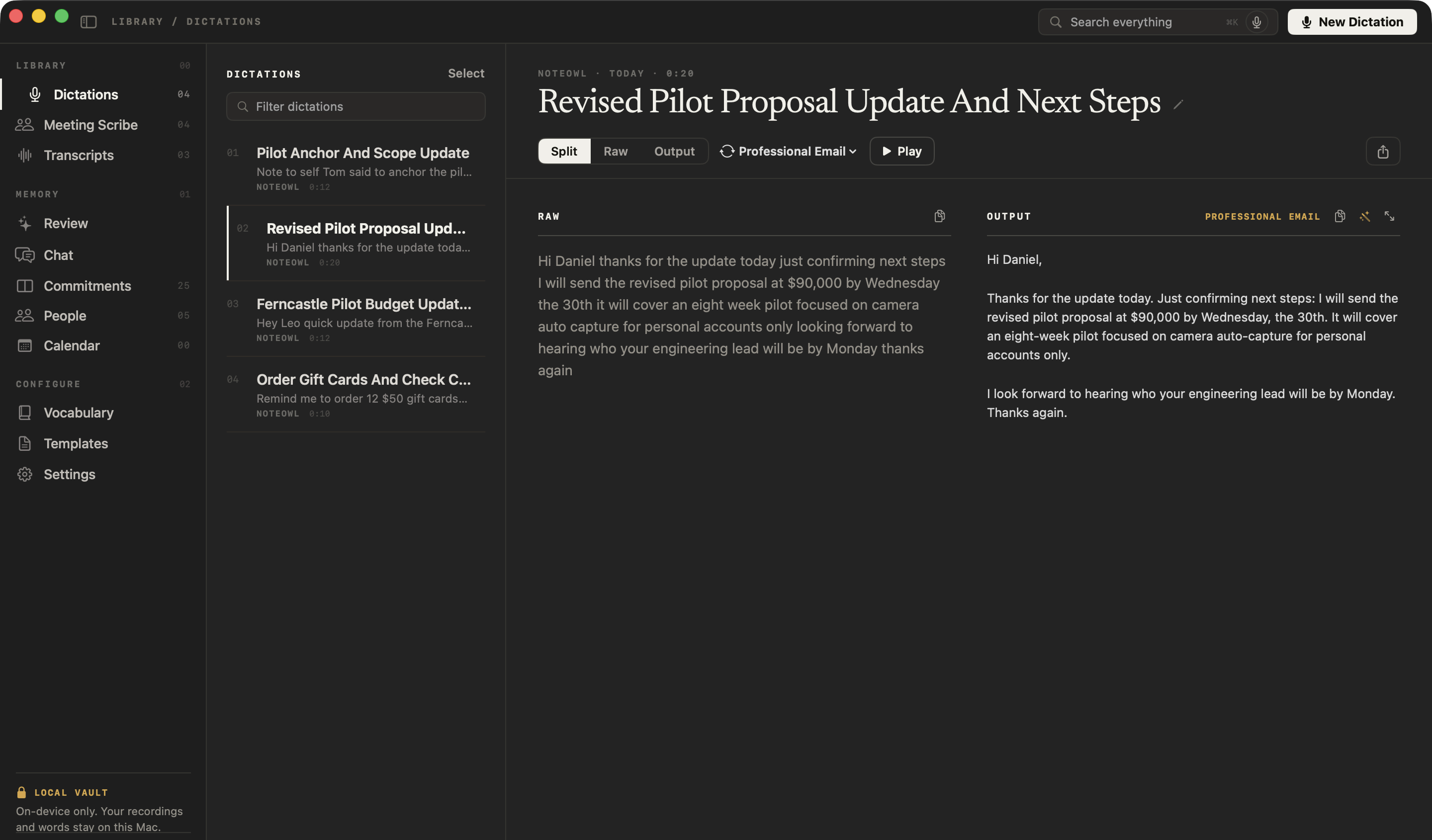
Tap fn, talk, and tap fn again. The words type live at your cursor in any app, one tap polishes them in the right tone for that app, and every dictation is saved in NoteOwl — free and unlimited, on your Mac.
- 1
Download NoteOwl
Setup asks for the permissions dictation needs: Microphone, to hear you; Accessibility, to type where your cursor is; Input Monitoring, so the fn key works.
- 2
Tap fn and talk
Click where you want the text, tap fn and speak. The words type live at your cursor, in any app.
- 3
Tap fn again
The words stay at your cursor, one tap on Polish rewrites them in the right tone for that app, and the dictation is saved in NoteOwl.
Read the transcript
Typing is slow. Talking isn’t.
Tap fn, and just talk.
(Dictating) “Um, so, quick update for the team. The budget’s ninety thousand, and, uh, we start on the twenty-first. Can you all send me your plans by Friday?”
Your words land right where you’re typing. In any app.
Tap Polish, and it’s tidied up. Filler words gone, punctuation fixed.
And it all runs on your Mac.
NoteOwl. Free to download. Dictation’s free, forever.
Sources
Last checked . Screenshots and setting names are from System Settings on macOS 26.3.
FAQ
Questions about dictation on Mac
How do I turn on dictation on my Mac?
Choose Apple menu → System Settings → Keyboard, scroll down to Dictation and turn on the switch. Then choose your languages with Edit… next to Languages, a Microphone source and a Shortcut.
What is the keyboard shortcut for dictation on a Mac?
It is whatever is set under Shortcut in System Settings → Keyboard → Dictation: the Microphone key, Control twice, the Globe key twice, a Command key twice, or a custom shortcut. You can also choose Edit → Start Dictation.
Why does dictation stop by itself on my Mac?
Mac dictation stops automatically when it hears no speech for 30 seconds, according to Apple. Press your Dictation shortcut to start again. NoteOwl’s dictation does not stop on pauses; you tap fn again when you are done.
Does Mac dictation work offline?
Apple says you may need an internet connection for Dictation, and that Keyboard settings show whether your dictation is processed on your Mac. NoteOwl’s dictation runs on your Mac and works offline after a one-time model download.
How do you add punctuation when dictating on a Mac?
In supported languages, Mac dictation adds commas, periods and question marks automatically. Say the name of any other mark, such as “exclamation mark”, and say “new line” or “new paragraph” to break the text.
Can I dictate in two languages on a Mac?
Yes. Add both under Languages → Edit… in Keyboard settings, then switch as you dictate with the Globe key. NoteOwl detects 34 languages automatically, including Hindi and English mixed in one sentence, with nothing to switch.
Is there free dictation software for Mac besides Apple’s?
Yes. NoteOwl’s dictation into any app is free and unlimited, forever: tap fn, talk, and the words type at your cursor; one tap polishes them in the right tone for the app. It needs macOS 26 or later and a Mac with Apple silicon.
Related
Keep exploring
What this guide recommends
- Free dictation into any appFree, unlimited speech to text in every app on your Mac: tap fn, talk, and the words type at your cursor; one tap polishes them in the right tone for that app
- Custom vocabularyTeach NoteOwl names, jargon and spellings once, and every dictation, meeting and import uses them
- NoteOwl vs Wispr FlowWhy NoteOwl over Wispr Flow: free dictation that runs on your Mac, plus meeting notes, and the total cost
More guides
- Writing meeting minutesHow to write meeting minutes step by step, with the format, an example, and how NoteOwl writes them for you
- Taking meeting notesHow to take meeting notes before, during and after a meeting, with or without an AI note taker
- Voice memo to textHow to turn a Voice Memos recording into text on a Mac, with Apple’s own tools and with NoteOwl
Try free dictation that types in any app
Free to download. Runs entirely on your Mac.
macOS 26 or later · Apple Silicon (M1 or newer) · 16 GB memory minimum, 24 GB recommended
About NoteOwl
NoteOwl is private AI meeting notes and memory for the Mac. It captures meetings without a bot joining the call, labels every speaker, writes summaries and action items, and builds a memory of every conversation that you can chat with — fully offline, because the speech recognition and the AI run on the Mac itself. Dictation into any app is free; Pro is a one-time purchase.
NoteOwl pricing: what’s free and what Pro adds
Last updated