Template
Training notes template
This training notes template turns a session into a learning recap in four sections — the learning objectives, the key skills, steps or procedures taught, the main takeaways, and the tips or common pitfalls to remember — and it copies as plain text into Google Docs, Notion, a wiki or any notes app.
In NoteOwl, the Training template writes training session notes in this format from the recording of a training call, or a recording you import, on your Mac; an example is below.
Training · 4 sections
- 01Learning objectives
- 02Key skills, steps or procedures
- 03Main takeaways
- 04Tips and common pitfalls
What should training notes include?
Four things: the learning objectives, the key skills, steps or procedures taught, the main takeaways, and the tips or common pitfalls to remember. Write the steps in the order they were taught, with the exact names and settings, so the notes still work as a how-to months later.
- Learning objectives
- What to writeWhat people should be able to do after the session, each starting with a verb: explain, set up, fix. Two to four is plenty.
- Key skills, steps or procedures
- What to writeWhat was taught, in the order it was taught, with the exact names, settings and numbers people will need later.
- Main takeaways
- What to writeThe few things to remember if people forget everything else. The trainer often sums them up at the end.
- Tips and common pitfalls
- What to writeThe shortcuts, the mistakes people make and how to avoid them, and what to do when something goes wrong.
| Section | What to write |
|---|---|
| Learning objectives | What people should be able to do after the session, each starting with a verb: explain, set up, fix. Two to four is plenty. |
| Key skills, steps or procedures | What was taught, in the order it was taught, with the exact names, settings and numbers people will need later. |
| Main takeaways | The few things to remember if people forget everything else. The trainer often sums them up at the end. |
| Tips and common pitfalls | The shortcuts, the mistakes people make and how to avoid them, and what to do when something goes wrong. |
A training notes template to copy
Paste it into Google Docs, Notion, a wiki or Apple Notes and fill it in during or straight after the session. It is plain text, so it keeps its shape anywhere. Trainers can share it before the session, so everyone takes notes the same way.
The sections match NoteOwl’s Training template, so training notes you write by hand and notes NoteOwl writes read the same.
TRAINING NOTES

Session:
Date:
Trainer:
Attendees:

1. LEARNING OBJECTIVES
By the end, I can:
- (verb) ...
- (verb) ...

2. KEY SKILLS, STEPS OR PROCEDURES
Step 1:
Step 2:
Step 3:
Names, settings or numbers to remember:

3. MAIN TAKEAWAYS
-
-
-

4. TIPS AND COMMON PITFALLS
Tip:
Pitfall | How to avoid it
        |

QUESTIONS TO FOLLOW UP
Question | Who will answer | By when

Materials (slides, checklist, recording):
How do you write learning objectives for a training session?
Start each one with a verb that says what people can do after the session — explain, set up, fix — instead of understand or know. Then you can check every objective, and your training notes show whether the session met it.
- Understand the new process
- Write thisWalk a customer through the new process, step by step
- Know the product
- Write thisExplain the three plans and who each one is for
- Learn about security
- Write thisSpot a suspicious email and report it the same day
- Be familiar with the tools
- Write thisSet up a new starter’s account without help
- Handle problems
- Write thisFix the three most common problems, and know when to escalate
| Not this | Write this |
|---|---|
| Understand the new process | Walk a customer through the new process, step by step |
| Know the product | Explain the three plans and who each one is for |
| Learn about security | Spot a suspicious email and report it the same day |
| Be familiar with the tools | Set up a new starter’s account without help |
| Handle problems | Fix the three most common problems, and know when to escalate |
What do good training notes look like?
Like this: NoteOwl’s Training notes for a session in which a designer trains a bank’s support agents on a new camera sign-up flow. The steps are in the order they were taught, and each common problem comes with its fix.
Training Recap: The New Camera Flow for Support
Trainer: Leo Martins · Attendees: Jess Morgan and Owen Lind (support team), Priya Shah
Learning Objectives
- Explain the new camera flow to a customer.
- Walk a customer through it step by step on the phone.
- Fix the three problems seen most in testing.
Key Skills, Steps, and Procedures
- Who sees it: the pilot is for personal accounts only. Business customers still get the old upload screen. First ask: "Do you see a white frame on the camera screen?" If they do, they are in the pilot.
- The steps:
- Step 1: the customer taps Scan your licence, and the camera opens with the white frame.
- Step 2: they hold the phone flat above the licence. There is no button to press: the app takes the photo by itself once all four corners are inside the frame and the picture is sharp.
- Step 3: the app checks it straight away and says if something is wrong, such as glare or a blurry image.
- Step 4: the selfie is its own step, right after the licence, in the same session.
- If the photo fails: only the photo step repeats, and everything the customer typed is kept.
- The three common problems:
- Glare: mostly from plastic card holders. Ask them to take the licence out and put it on something dark.
- Older Android phones: some can't focus up close. If the frame stays grey, ask them to lift the phone higher.
- Camera permission: if they said no, the camera screen stays black. They need to allow the camera for the Ferncastle app in their phone settings.
- Escalation: after three failed tries, the app shows a Take photo button. If that fails too, escalate to the pilot channel with the phone model.
Main Takeaways
- Ask about the white frame first.
- Glare, focus and the camera permission cover most problems.
- Never ask for a photo by email.
Tips and Common Pitfalls
- Log the phone model every time, even when it works in the end. Priya's team needs it for the Android numbers.
- Don't ask a customer to email a licence photo: compliance requires that the photo doesn't stay on the phone after upload. Priya will add this to the team FAQ.
- Materials: Leo sends the slides and a one-page checklist to Priya today.
How do you get training notes written automatically?
Record the training call in NoteOwl — it takes meeting notes without a bot — or import a recording of the session, then choose Summarize as → Training. NoteOwl writes the objectives, steps, takeaways and pitfalls on your Mac with on-device AI models, and nothing is uploaded.
- 1
Record or import the session
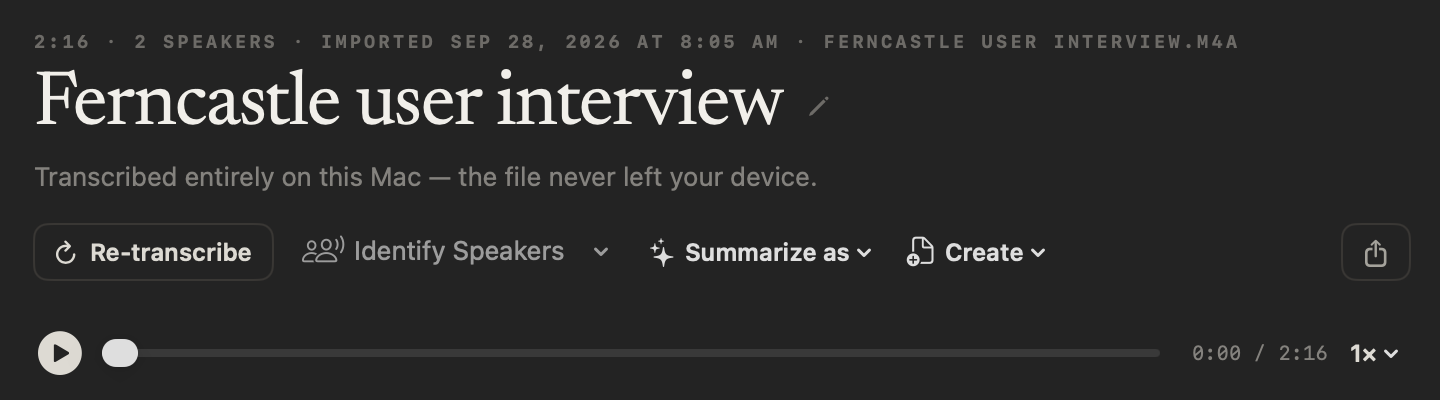
Press ⌥Space or click Start Meeting when a training call begins; no bot joins the call. For a session recorded elsewhere, click Import Recording on the Transcripts screen and choose the file.
- 2
Let NoteOwl transcribe it
When the call ends, or the import finishes, NoteOwl writes the speaker-labelled transcript and a summary, on your Mac.
- 3
Choose Summarize as → Training
Open Summarize as, above a meeting’s summary or at the top of an imported recording, and pick Training. NoteOwl rewrites it as a learning recap: objectives, skills and steps, takeaways and pitfalls.
- 4
Share the recap
Copy the notes as Markdown into your wiki, course notes or team chat, or use Export to save them as Markdown or PDF.
Tell everyone you’re recording. Meeting notes, imported recordings and templates are part of NoteOwl Pro, with a 7-day free trial in the app. Every session also gets NoteOwl’s standard summary: see AI meeting summaries.
What does NoteOwl’s Training template ask for?
The four sections above: the instruction names the takeaways, tips and pitfalls together. This is the template’s instruction to NoteOwl, word for word; you can change it, or write your own, in NoteOwl’s Templates screen (see how to customize a template).
“Summarize this training session as a learning recap: the learning objectives, the key skills, steps, or procedures taught, and the main takeaways with any tips or common pitfalls to remember.”
FAQ
Questions about training notes
How do you take notes during a training session?
Write down the steps as they are shown, with the exact names and settings, and mark anything you need to ask about; leave the takeaways for the end. If you record the session in NoteOwl, it writes the notes from the recording, so you can follow along instead of typing.
What is the difference between learning objectives and takeaways?
Learning objectives are set before the session: what people should be able to do by the end. Takeaways come out of it: the few things worth remembering. Good training notes have both, so you can check whether the session did what it set out to do.
Can I use this training notes template for a course, webinar or onboarding?
Yes. It is plain text, so it pastes into Google Docs, Notion, a wiki or Apple Notes, and it fits a workshop, a webinar, a course module or a new starter’s onboarding as well as a team training session. For lectures, NoteOwl’s Student Lecture template fits better.
Can NoteOwl write training notes automatically?
Yes. Record the training call in NoteOwl, or import a recording, then choose Summarize as → Training, and it writes the learning objectives, skills and steps, takeaways and pitfalls, on your Mac with on-device AI models. Meeting notes, imported recordings and templates are part of NoteOwl Pro: $79 once for one Mac, with a 7-day free trial in the app.
Can NoteOwl take notes from a recorded webinar or training video?
Yes. Import the recording on the Transcripts screen — mp3, wav, m4a, aiff, flac, aac or mp4 — and NoteOwl transcribes it on your Mac, labels the speakers and writes a summary; then choose Summarize as → Training. Nothing is uploaded.
Is recording a training session with NoteOwl private?
NoteOwl records, transcribes and summarizes the session on your Mac with on-device AI models, so the recording, the transcript and the notes are never uploaded, and no bot joins the call. Tell the trainer and the attendees that you are recording before you start.
Can I change the sections of NoteOwl’s Training template?
Yes. In NoteOwl’s Templates screen you can customize the Training template — for example, to add the questions attendees asked or a short quiz — or write your own, then summarize any recorded session again in the new format.
Related
- All 22 meeting notes templates Stand-ups, 1:1s, sales calls, interviews and more, with their sections.
- AI note taker for managers 1:1s and team meetings with no bot, and every commitment tracked both ways.
- Transcribe audio to text Import a recording and get a speaker-labelled transcript on your Mac.
- AI meeting summaries The decisions and action items NoteOwl writes when a meeting ends.
Keep exploring
More templates
- To-do list templateA to-do list template to copy, what each section holds, an example, and how NoteOwl writes it
- Meeting summary templateA meeting summary template to copy, what each section holds, an example, and how NoteOwl writes it
- Presentation notes templateA presentation notes template to copy, what each section holds, an example, and how NoteOwl writes it
- Journal templateA journal template to copy, what each section holds, an example, and how NoteOwl writes it
Get your training notes written on your Mac
Free to download. Runs entirely on your Mac.
macOS 26 or later · Apple Silicon (M1 or newer) · 16 GB memory minimum, 24 GB recommended
About NoteOwl
NoteOwl is private AI meeting notes and memory for the Mac. It captures meetings without a bot joining the call, labels every speaker, writes summaries and action items, and builds a memory of every conversation that you can chat with — fully offline, because the speech recognition and the AI run on the Mac itself. Dictation into any app is free; Pro is a one-time purchase.
NoteOwl pricing: what’s free and what Pro adds
Last updated