Guide · Action items
How to track action items after a meeting
How to track action items after a meeting: before it ends, write each one down as a task with one owner and a due date; send the list the same day; keep every item in one place; check in before each date; and review the list at the next meeting.
This guide covers each step, what a good action item looks like, where to keep them and how to follow up — and how NoteOwl pulls action items out of your meetings on your Mac and tracks what you owe and what you’re owed.
Action items · 8 steps
01Before the meeting ends
Write each one as a task · Give it one owner · Agree a due date · Read the list back
02After the meeting
Send the list the same day · Keep them in one list · Check in before the due date · Review them at the next meeting
How do you track action items after a meeting, step by step?
In two stages. Before the meeting ends, write each action item as a task with one owner and a due date, then read the list back. Afterwards, send it the same day, keep it in one list, check in before each date and review it at the next meeting.
Before the meeting ends
- 1
Write each one as a task
Start with a verb and make the finish line clear: “Send the revised quote to Acme”, not “quote”.
- 2
Give it one owner
Name one person, not “the team” or “marketing”. If several people are involved, the owner is the one who pulls the others in.
- 3
Agree a due date
Ask “by when?” before the meeting moves on, and write down a real date. “Friday 2 October” can be checked; “ASAP” and “next week” can’t.
- 4
Read the list back
In the last few minutes, read out every action item with its owner and date, so nobody leaves unsure what they agreed to.
After the meeting
- 5
Send the list the same day
Share the action items with everyone who was there and anyone who has to act on them, while people can still correct them.
- 6
Keep them in one list
Copy them into one place the whole team can see, with the owner, the due date, the status and the meeting each came from.
- 7
Check in before the due date
A day or two before an item is due, ask its owner how it’s going. A short message about that one item is enough.
- 8
Review them at the next meeting
Start with the open action items: mark each one done, give it a new date, or drop it on purpose, and say which.
What should an action item include?
Six things: the task, starting with a verb; one owner; a due date; its status; the meeting it came from; and anything the owner needs to start. The owner and the due date are the two most often left out.
- The task
- What to writeA verb and a clear finish line
- Example“Send the revised quote to Acme”
- The owner
- What to writeOne named person
- Example“Priya”
- The due date
- What to writeA real date, agreed in the meeting
- Example“Friday 2 October”
- The status
- What to writeOpen, in progress or done
- Example“Open”
- Where it came from
- What to writeThe meeting and its date
- Example“Acme pricing call, 28 September”
- What the owner needs
- What to writeAnything needed to start, if it isn’t obvious
- Example“Use the new volume discount”
| What to write | Example | |
|---|---|---|
| The task | A verb and a clear finish line | “Send the revised quote to Acme” |
| The owner | One named person | “Priya” |
| The due date | A real date, agreed in the meeting | “Friday 2 October” |
| The status | Open, in progress or done | “Open” |
| Where it came from | The meeting and its date | “Acme pricing call, 28 September” |
| What the owner needs | Anything needed to start, if it isn’t obvious | “Use the new volume discount” |
Where should you keep action items from meetings?
In one list that everyone involved can see, not scattered through each meeting’s notes. A shared document, a spreadsheet or your team’s task tool all work, as long as every item has its owner, due date and status in one place.
- A shared document or spreadsheet
- Works well forSmall teams and one-off projects: everyone can see and edit it
- Watch out forNobody gets a reminder, and someone has to keep it tidy
- Your team’s task or project tool
- Works well forTeams that already plan their work there: each item gets an assignee, a date and a reminder
- Watch out forSomeone has to copy the action items in after every meeting
- Your own to-do list
- Works well forWhat you promised to do yourself
- Watch out forNobody else can see it, and it misses what others owe you
- The meeting notes alone
- Works well forKeeping each item with its context
- Watch out forItems get buried one meeting at a time, and nobody sees them together
| Where | Works well for | Watch out for |
|---|---|---|
| A shared document or spreadsheet | Small teams and one-off projects: everyone can see and edit it | Nobody gets a reminder, and someone has to keep it tidy |
| Your team’s task or project tool | Teams that already plan their work there: each item gets an assignee, a date and a reminder | Someone has to copy the action items in after every meeting |
| Your own to-do list | What you promised to do yourself | Nobody else can see it, and it misses what others owe you |
| The meeting notes alone | Keeping each item with its context | Items get buried one meeting at a time, and nobody sees them together |
How do you follow up on action items?
Send a short recap the same day with every item, its owner and its due date; check in with each owner a day or two before the date; and open the next meeting with the list. Keep each reminder about one item.
NoteOwl can draft the recap for you from the meeting itself: see the meeting follow-up email. Either way, you send it yourself.
Subject: Action items from [meeting], [date]

Hi all,

Thanks for today. Here's what we agreed:

- [Task] — [owner], by [date]
- [Task] — [owner], by [date]
- [Task] — [owner], by [date]

Still open:
- [Question] — [who will find out], by [date]

If I've got anything wrong, reply and I'll fix it. We'll go through these at the start of [next meeting].
Why do action items get forgotten after a meeting?
Because nobody owns them, nobody said when they’re due, or they’re buried in notes nobody opens again. Most of the fixes take seconds, in the meeting itself. Here are six mistakes, and what to do instead.
- 01
No owner, or a group as the owner
“The team will look into it” means nobody will. Name one person.
- 02
No date, or “ASAP”
Without a date an item never becomes urgent. Agree a real one before moving on.
- 03
Too vague to start
“Pricing” isn’t a task. “Draft three pricing options for Acme” is.
- 04
Buried in the notes
Pull every action item into one list instead of leaving them in each meeting’s notes.
- 05
Never sent
An owner can’t do what they don’t know about. Send the list the same day.
- 06
Never reviewed
Open the next meeting with the list, and close, re-date or drop each item.
How does NoteOwl track action items for you?
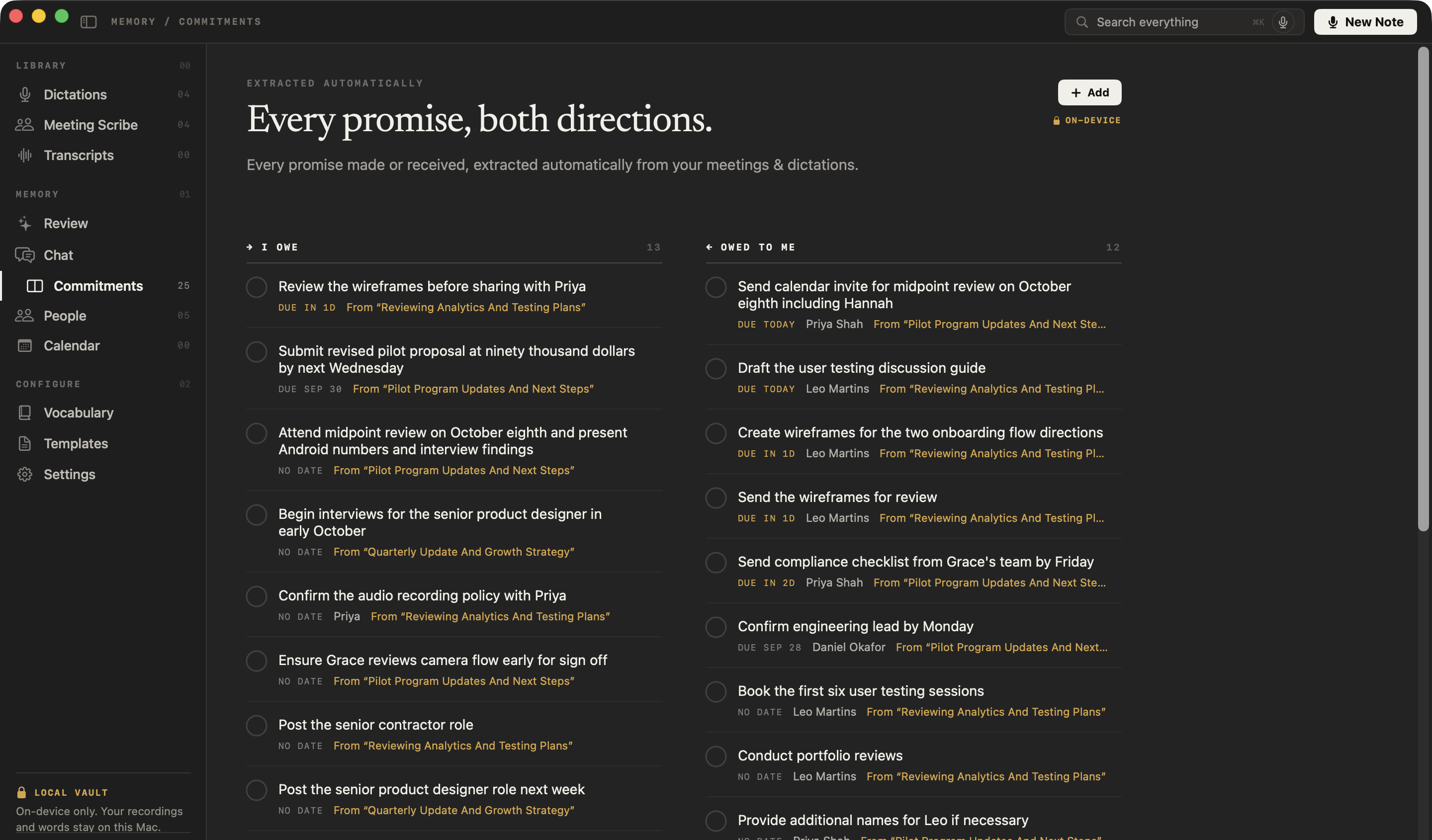
It pulls them out of every meeting you record, on your Mac: who will do what, for whom, and by when. The ones that involve you land on the Commitments board, under I owe or Owed to me, sorted by what’s due and linked to where each was said.
More on NoteOwl’s meeting action items tracker, and the Commitments board, step by step.
- 1
Record the meeting
Press ⌥Space or click Start Meeting. NoteOwl records your microphone and your Mac’s audio, with no bot in the call. A recording you import works too.
- 2
Check the action items
When you stop, NoteOwl lists the action items under Actions in the meeting, each with its owner and a due date when one was said. Edit them, add your own or re-extract them.
- 3
Track them on the board
The ones that involve you land on the Commitments board under I owe or Owed to me: overdue first, then due today, then the next three days.
- 4
Tick them off
Mark one done in the meeting or on the board and it’s done everywhere, including your daily Review and the other person’s profile.
NoteOwl needs your name, under Who you are in Settings → Memory, to tell which way a promise runs; promises between two other people aren’t on your board. It all runs on your Mac with on-device AI models. Action items and the Commitments board are part of NoteOwl Pro: $79 once, with a 7-day free trial in the app.
FAQ
Questions about tracking action items
What is the best way to track action items after a meeting?
Write each action item as a task with one owner and a due date before the meeting ends, send the list the same day, keep every item in one shared list, and review it at the next meeting. NoteOwl does the capturing for you: it lists the action items when the call ends.
Who should own a meeting action item?
One named person: the one who will do it, or make sure it gets done. Avoid a team or a department as the owner. If several people are involved, the owner is the one who pulls the others in and reports back.
What if nobody gives a due date for an action item?
Ask “by when?” before the meeting moves on, and write down a real date. If nobody can commit yet, write down when the owner will confirm a date instead, so the item still has something to check against.
Should action items go in the meeting minutes?
Yes. Minutes and meeting notes should list every action item with its owner and due date. Copy them into your team’s task list as well, because action items that live only in the minutes are easy to forget.
How does NoteOwl know which action items are mine?
From your name. Enter it under Who you are in NoteOwl’s Settings → Memory, and NoteOwl puts promises you make under I owe and promises made to you under Owed to me. Promises between two other people aren’t on your board.
Can NoteOwl send action items to my task app?
No. NoteOwl keeps action items on your Mac. Copy them from a meeting, or export the meeting as Markdown or PDF, where they appear as a checklist with owners and due dates where known, and paste them wherever your team tracks work.
Is NoteOwl’s action item tracking free?
Action items, the Commitments board and the daily Review are part of NoteOwl Pro, a one-time $79 purchase for one Mac, with a 7-day free trial in the app and no card. Every step in this guide also works by hand.
Related
- Meeting action items tracker What you owe and what you’re owed, from every meeting, sorted by what’s due.
- Meeting follow-up email Have NoteOwl draft the recap from the meeting itself.
- How to take meeting notes Before, during and after: what to write down, and three methods.
- Track what you owe and what you’re owed The Commitments board, step by step, in NoteOwl’s docs.
Keep exploring
What this guide recommends
- Action items and commitmentsAction items that involve you become commitments: what you owe and what you are owed, sorted by what is due
- To-do list templateA to-do list template to copy, what each section holds, an example, and how NoteOwl writes it
- Follow-up emailAsk NoteOwl to draft the follow-up email from a meeting: decisions, owners and dates, written on your Mac
More guides
- Cornell notesThe Cornell note-taking method: the cue column, notes and summary, the five steps, a template to copy, an example, and how it fits a recorded lecture
- Lecture recording to notesHow to transcribe a recorded lecture on a Mac and turn it into study notes, with NoteOwl or with Voice Memos’ free transcript
- Dictation on MacApple’s built-in Dictation on macOS 26: settings, shortcuts, fixes when it isn’t working, and when an app helps
Let NoteOwl keep track of who promised what
Free to download. Runs entirely on your Mac.
macOS 26 or later · Apple Silicon (M1 or newer) · 16 GB memory minimum, 24 GB recommended
About NoteOwl
NoteOwl is private AI meeting notes and memory for the Mac. It captures meetings without a bot joining the call, labels every speaker, writes summaries and action items, and builds a memory of every conversation that you can chat with — fully offline, because the speech recognition and the AI run on the Mac itself. Dictation into any app is free; Pro is a one-time purchase.
NoteOwl pricing: what’s free and what Pro adds
Last updated