Lecture recorder · Pro
Lecture recorder for Mac
NoteOwl is a lecture recorder for your Mac: record lectures in the lecture hall through your Mac’s microphone, record an online class with no bot joining, or import a lecture you already have, and NoteOwl transcribes it on your Mac.
Then it turns the lecture into study notes with the Student Lecture template, and keeps every lecture searchable. Recording lectures is part of NoteOwl Pro, with a 7-day free trial in the app.
Record a lecture · 3 ways
01In the lecture hall
Through your Mac’s microphone. Press ⌥Space when the lecturer starts.
02In an online class
Zoom, Teams or Google Meet, with no bot joining the class.
03From a recording
A lecture you downloaded or recorded on your phone: drag the file in.
Each one ends the same way: a transcript, then study notes, written on your Mac.
How do you record lectures on a Mac?
Open NoteOwl and press ⌥Space, or click Start Meeting in Meeting Scribe, when the lecture begins. NoteOwl records through your Mac’s microphone in the room, or your Mac’s audio as well in an online class, and writes the transcript when you stop.
- 1
Start recording
When the lecture begins, press ⌥Space in any app, or click Start Meeting in NoteOwl’s Meeting Scribe screen.
- 2
Listen, and jot what matters
NoteOwl records as the lecturer talks. Type a note under Notes & questions, such as “ask about question 3”, and it feeds the summary.
- 3
Stop when it ends
Press ⌥Space again or click Stop. NoteOwl writes the transcript and a summary on your Mac.
- 4
Turn it into study notes
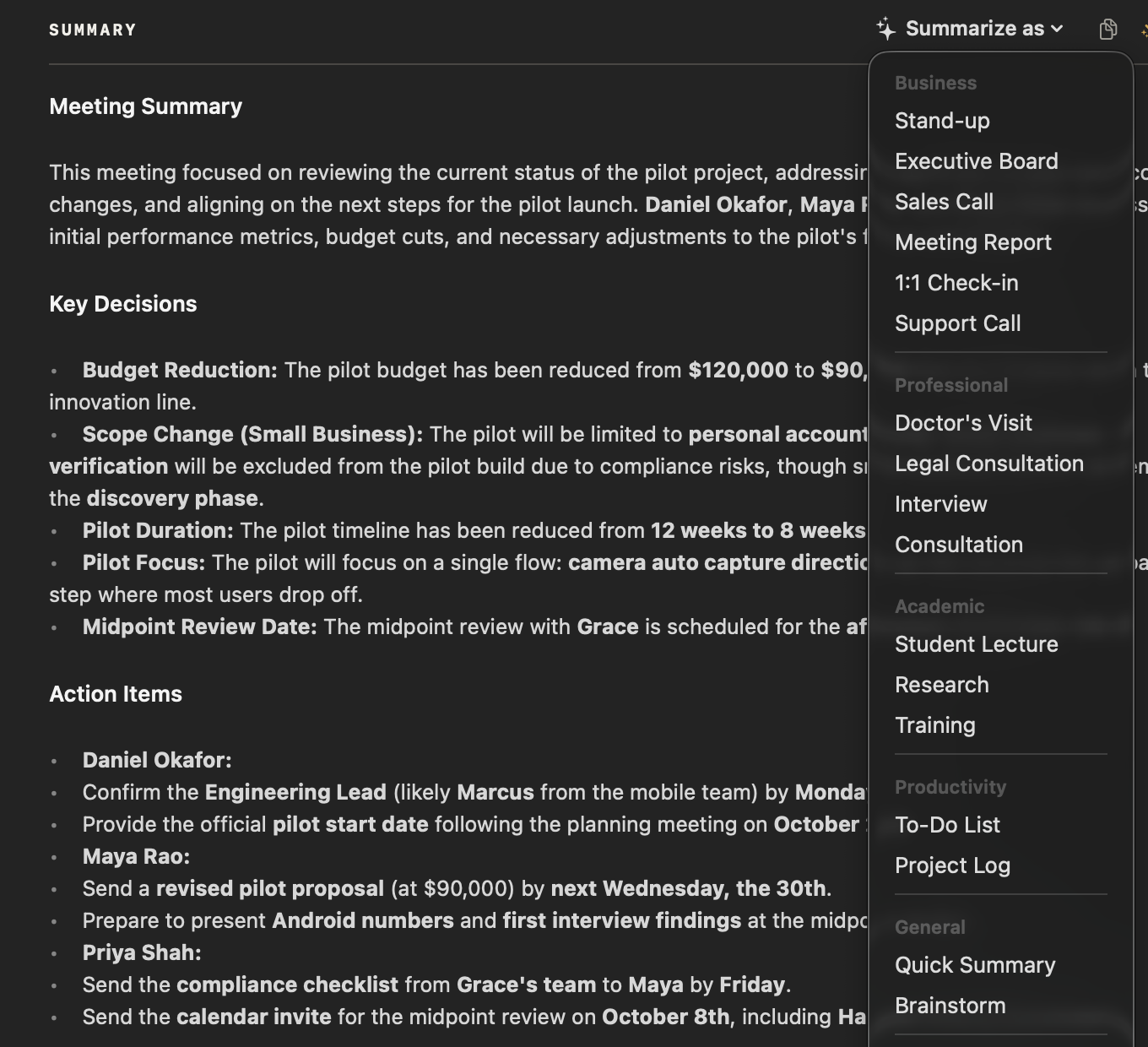
Choose Summarize as → Student Lecture: the main topics, key concepts and definitions, examples, and what’s flagged for the exam.
Meeting Scribe needs the Microphone and Screen Recording permissions, in a lecture hall as on a call: see the macOS permissions NoteOwl asks for and how recording works, step by step.
Can NoteOwl record a lecture in the room, online, or from a file?
All three. In the room, NoteOwl records what your Mac’s microphone hears. In an online class, it records your microphone and your Mac’s audio, with no bot. A lecture you already have, you import as a file. Each one gets a transcript and study notes.
- How you start
- In the lecture hall⌥Space or Start Meeting
- Online class⌥Space or Start Meeting, or accept “Scribe this meeting?” when the call starts
- A recording you haveImport Recording on the Transcripts screen, or drag the file in
- What NoteOwl records
- In the lecture hallYour Mac’s microphone, which hears the lecturer and the room
- Online classYour microphone and your Mac’s audio, as two channels; no bot joins the class
- A recording you haveThe file: mp3, wav, m4a, aiff, flac, aac or mp4
- Speakers
- In the lecture hallThe room is one channel, recorded through your microphone
- Online classYour voice is labelled You and the class’s audio Others; several voices on the call are split into Speaker 1, Speaker 2…
- A recording you haveSpeaker 1, Speaker 2… labelled after the transcript appears
- What you get
- In the lecture hallTranscript, summary, then Summarize as → Student Lecture
- Online classTranscript, summary, then Summarize as → Student Lecture
- A recording you haveTranscript, summary, then Summarize as → Student Lecture
| In the lecture hall | Online class | A recording you have | |
|---|---|---|---|
| How you start | ⌥Space or Start Meeting | ⌥Space or Start Meeting, or accept “Scribe this meeting?” when the call starts | Import Recording on the Transcripts screen, or drag the file in |
| What NoteOwl records | Your Mac’s microphone, which hears the lecturer and the room | Your microphone and your Mac’s audio, as two channels; no bot joins the class | The file: mp3, wav, m4a, aiff, flac, aac or mp4 |
| Speakers | The room is one channel, recorded through your microphone | Your voice is labelled You and the class’s audio Others; several voices on the call are split into Speaker 1, Speaker 2… | Speaker 1, Speaker 2… labelled after the transcript appears |
| What you get | Transcript, summary, then Summarize as → Student Lecture | Transcript, summary, then Summarize as → Student Lecture | Transcript, summary, then Summarize as → Student Lecture |
How do you record a lecture and turn it into notes?
Record it, then choose Summarize as → Student Lecture above its summary. NoteOwl rewrites the lecture as study notes: the main topics, key concepts and definitions, important examples, and anything the lecturer flagged for the exam.
The sections, a template to copy and a full example: lecture notes template. Before the exam, ask chat with your meetings about any lecture, with every answer citing the passage it came from.
Can you transcribe a lecture you already recorded?
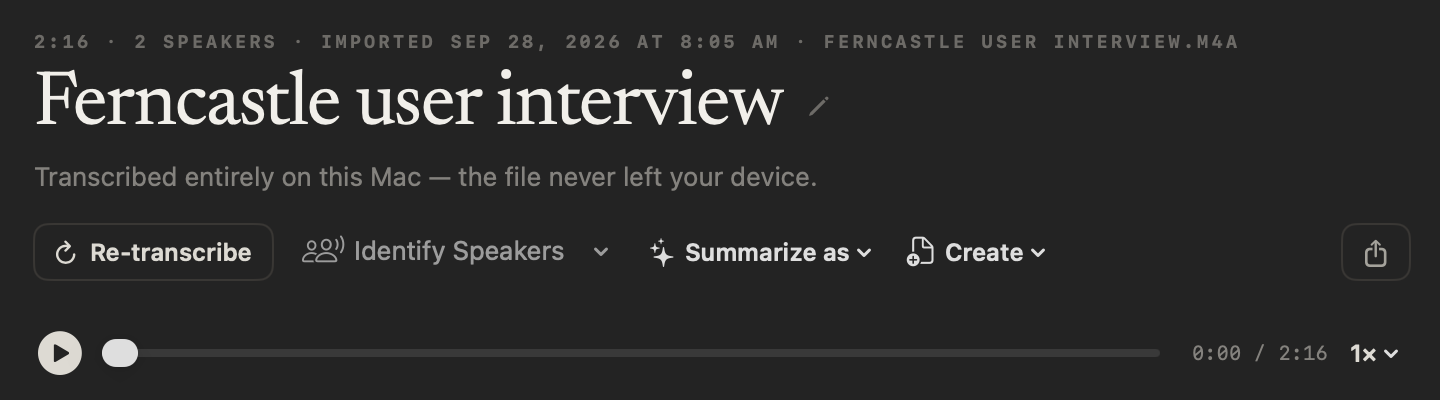
Yes. Drag the file onto NoteOwl’s Transcripts screen, or click Import Recording: mp3, wav, m4a, aiff, flac, aac or mp4, one at a time. NoteOwl transcribes it on your Mac, labels the speakers and writes a summary.
Every step, from a lecture file to study notes: transcribe a lecture recording. More on importing: transcribe audio to text on your Mac.
How long a lecture can NoteOwl record?
As long as the lecture runs: NoteOwl sets no time limit. It saves the audio to disk as it records, so if your Mac crashes or the battery dies halfway through, Retry from audio rebuilds the transcript and notes from what was saved.
No time limit
A two-hour seminar records like a fifty-minute lecture; long recordings are summarized in parts and then combined.
Saved as it records
The audio is written to disk while you listen, so a crash or a quit keeps what has been captured.
Works offline
Recording, transcription and notes run on your Mac, so weak campus Wi-Fi doesn’t matter.
Is NoteOwl’s lecture recorder free?
No. Recording and importing lectures, transcripts and study notes are part of NoteOwl Pro. Dictation into any app and voice notes of your own voice are free and unlimited, so dictating an essay costs nothing.
NoteOwl Pro is $79 once for one Mac, with a 7-day free trial in the app and no card. Whatever your plan, Export all data saves everything you’ve recorded as plain files.
- Record lectures in the room or in an online class
- FreeNo
- ProYes
- Import a lecture recording
- FreeNo
- ProYes
- Transcripts, summaries and the Student Lecture template
- FreeNo
- ProYes
- Dictation into any app, and voice notes of your own voice
- FreeUnlimited
- ProUnlimited
- Export all data as plain files
- FreeYes
- ProYes
| Free | Pro | |
|---|---|---|
| Record lectures in the room or in an online class | No | Yes |
| Import a lecture recording | No | Yes |
| Transcripts, summaries and the Student Lecture template | No | Yes |
| Dictation into any app, and voice notes of your own voice | Unlimited | Unlimited |
| Export all data as plain files | Yes | Yes |
Recording lectures with NoteOwl, at a glance
The facts, in one table. NoteOwl is a lecture recorder, note taker and searchable memory in one, and it runs on your Mac with on-device AI models, so your lectures stay there and it works offline.
- Where it is
- Meeting Scribe (⌥Space or Start Meeting) for a live lecture; Transcripts (Import Recording) for a file
- In the room
- Records through your Mac’s microphone; no call app needed
- Online classes
- Zoom, Microsoft Teams, Google Meet or any app that plays sound; no bot joins
- Lecture length
- No limit; audio is saved to disk as it records
- If the battery dies
- Retry from audio rebuilds the transcript and notes from what was saved
- Study notes
- Summarize as → Student Lecture: topics, definitions, examples, exam points
- Languages
- 34, detected automatically
- Where it runs
- On your Mac with on-device AI models; works offline after the one-time model download
- Plan
- NoteOwl Pro, $79 once for one Mac; 7-day free trial in the app, no card
- Requirements
- macOS 26 or later, Apple Silicon (M1 or newer), 16 GB memory minimum, 24 GB recommended
FAQ
Questions about recording lectures
Can I use my Mac as a lecture recorder?
Yes. NoteOwl records a lecture through your Mac’s microphone when you press ⌥Space or click Start Meeting, transcribes it on your Mac, and turns it into study notes. Recording lectures is part of NoteOwl Pro, with a free trial in the app.
Where should I put my Mac to record a lecture?
As close to the lecturer, or to a loudspeaker the lecture plays through, as you can, with the microphone uncovered. NoteOwl records what your Mac’s microphone hears, so a clearer recording gives a cleaner transcript and better study notes.
Can NoteOwl record an online lecture on Zoom or Teams?
Yes. NoteOwl records your microphone and your Mac’s audio, so it records an online lecture on Zoom, Microsoft Teams, Google Meet or Webex with no bot joining the class. It keeps your voice apart from the class’s audio, and splits several voices on the call into separate speakers.
Can NoteOwl turn a lecture I already recorded into notes?
Yes. Import the recording on NoteOwl’s Transcripts screen — mp3, wav, m4a, aiff, flac, aac or mp4 — and NoteOwl transcribes it on your Mac and writes a summary; then choose Summarize as → Student Lecture for study notes. Importing recordings is part of NoteOwl Pro.
How long a lecture can NoteOwl record?
NoteOwl has no time limit on a recording. It saves the audio to disk as it records, and if your Mac crashes or the battery runs out, Retry from audio rebuilds the transcript and notes from what was saved.
Can NoteOwl record lectures without internet?
Yes. NoteOwl records, transcribes and writes study notes on your Mac with on-device AI models, so after the one-time model download it works with no internet connection, and your lecture recordings never leave the Mac.
Is NoteOwl’s lecture recorder free?
No. Recording and importing lectures, and the study notes NoteOwl writes from them, are part of NoteOwl Pro: $79 once for one Mac, with a 7-day free trial in the app and no card. Dictation into any app and voice notes of your own voice are free.
Related
- AI note taker for students Record, import and ask your lectures, on your own Mac.
- Lecture notes template The Student Lecture sections, a template to copy and an example.
- Lecture recording to notes Every step from a lecture file to a transcript and study notes.
- Transcribe audio to text Import any recording and get a speaker-labelled transcript on your Mac.
Keep exploring
Related features
- Subtitle generatorTurn a recording into an SRT subtitle file with timecodes and speaker names, on your Mac
- Custom vocabularyTeach NoteOwl names, jargon and spellings once, and every dictation, meeting and import uses them
- Export your notesExport meetings, dictations and notes as Markdown or PDF, imported transcripts as text or SRT, or everything as plain files; nothing is locked in
Free tools
- Online voice recorderRecord your voice in the browser with a level meter, timer and pause, play it back, and save it as MP3 or WAV; nothing is uploaded
- MP4 to MP3 converterTurn an MP4 video’s sound into an MP3 in your browser, Zoom and Teams recordings included; nothing is uploaded
- Lecture summarizerUpload a lecture recording or paste its transcript and get the key concepts, the terms the lecture explains and the moments to rewatch
Record your next lecture on your Mac
Free to download. Runs entirely on your Mac.
macOS 26 or later · Apple Silicon (M1 or newer) · 16 GB memory minimum, 24 GB recommended
About NoteOwl
NoteOwl is private AI meeting notes and memory for the Mac. It captures meetings without a bot joining the call, labels every speaker, writes summaries and action items, and builds a memory of every conversation that you can chat with — fully offline, because the speech recognition and the AI run on the Mac itself. Dictation into any app is free; Pro is a one-time purchase.
NoteOwl pricing: what’s free and what Pro adds
Last updated