Subtitles · Pro
Subtitle generator for Mac: turn audio into an SRT file
NoteOwl is a subtitle generator for Mac: import an audio or video recording, let NoteOwl transcribe it, then choose Save Subtitles to get an SRT file with numbered cues, timecodes and each speaker’s name.
The recording is transcribed on your Mac by on-device AI models and is never uploaded. Importing recordings is part of NoteOwl Pro, with a 7-day free trial in the app.
Read the transcript
Need subtitles for a recording? Your transcript already has them.
NoteOwl transcribed it on your Mac. Every line is timed, and labelled with who said it.
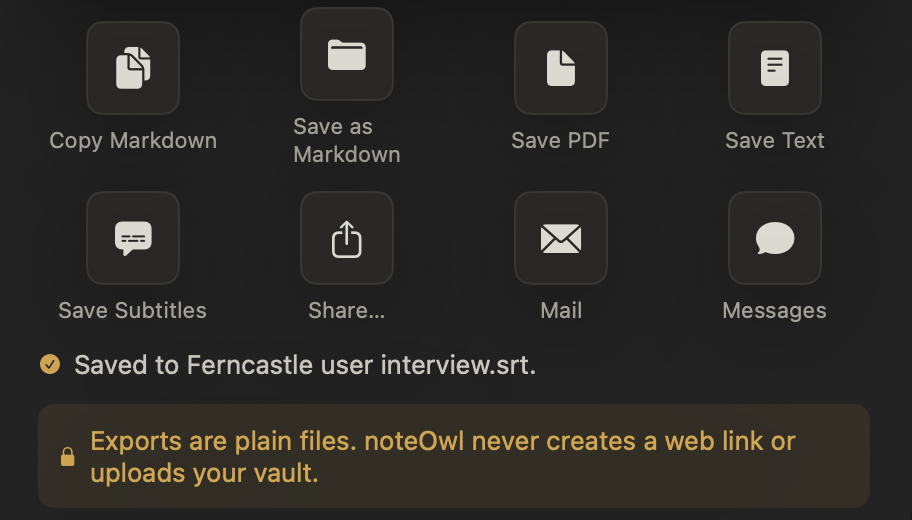
Choose Export, then Save Subtitles.
There’s your SRT file. Every subtitle numbered, timed to the recording, with the speaker’s name.
Ready for your video editor, a video player, or a video site.
NoteOwl. Free to download.
How do you make an SRT file from audio on a Mac?
Import the recording into NoteOwl’s Transcripts and let it transcribe. Then open the recording, click the Share button at the top right and choose Save Subtitles. NoteOwl writes the .srt file on your Mac, where you choose.
- 1
Import the recording
In NoteOwl’s Transcripts, click Import Recording in the title bar, or drop an audio or video file on the list: mp3, wav, m4a, aiff, flac, aac or mp4.
- 2
Let NoteOwl transcribe it
NoteOwl transcribes the file on your Mac, with the time of every line and, by default, the speakers labelled.
- 3
Click Share, then Save Subtitles
Open the recording and click the Share button at the top right, or right-click it in the list and choose Export…. Then click Save Subtitles.
- 4
Save the .srt file
Pick a folder and click Save. The file is named after the recording, and NoteOwl confirms where it saved it.
What does NoteOwl’s SRT file look like?
Like this: six cues from an SRT file NoteOwl saved from a two-minute interview, unedited. Each cue has a number, its timecodes and the speaker’s name before the words.
A cue number
Counting up from 1, with no gaps.
Timecodes
A start and an end, written HH:MM:SS,mmm, taken from when that line of the transcript starts and ends.
The speaker’s name
Then a colon and the words, when NoteOwl has labelled the speakers.
Nothing untimed
A line with no timing can’t be a subtitle, so NoteOwl leaves it out and tells you how many it skipped.
New to the format? Read what an SRT file is, cue by cue.
27
00:01:36,160 --> 00:01:39,760
Leo Martins: if you could change one thing what would it be?

28
00:01:40,160 --> 00:01:44,560
Rosa Alvarez: Let me use the phone camera to take the license photo right there in the app

29
00:01:45,280 --> 00:01:47,120
Rosa Alvarez: and tell me straight away if it's good enough

30
00:01:48,800 --> 00:01:49,200
Leo Martins: that's really

31
00:01:49,760 --> 00:01:53,040
Leo Martins: helpful. Is there anything else you'd want us to know

32
00:01:54,800 --> 00:01:58,240
Rosa Alvarez: just that people like me open these accounts between customers
Cues 27–32 of the SRT file NoteOwl saved from “Ferncastle user interview”, a 2:16 recording imported in NoteOwl. The text is exactly as NoteOwl wrote it.
Which recordings can NoteOwl turn into subtitles?
Any recording NoteOwl transcribes. Import an audio or video file — mp3, wav, m4a, aiff, flac, aac or mp4 — and NoteOwl transcribes the sound on your Mac, timing every line and labelling the speakers, ready to save as subtitles.
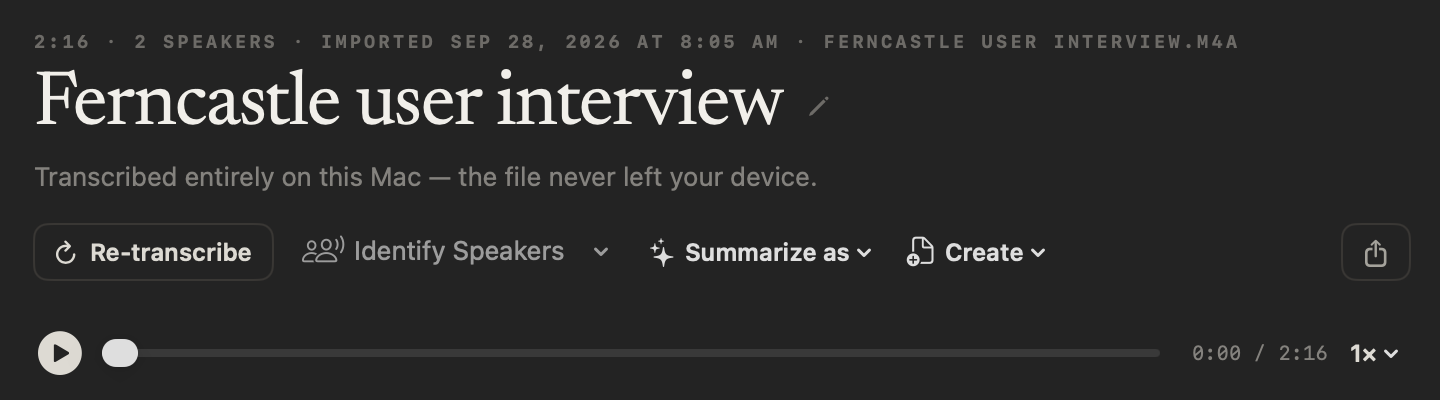
The header of an imported recording says it plainly: “Transcribed entirely on this Mac — the file never left your device.”
- Save Subtitles
- What you getAn .srt file: numbered cues with timecodes and speaker names
- Save Text
- What you getA .txt file: each line labelled with its speaker, without timecodes
- Save as Markdown
- What you getA .md file with the summary, the action items and the transcript with speaker names and timestamps
- Save PDF
- What you getThe same notes as a PDF, on US Letter pages
- Copy Markdown
- What you getThe same notes on the clipboard, ready to paste
- Share… · Mail · Messages
- What you getThe notes handed to the app you pick
| Choice | What you get |
|---|---|
| Save Subtitles | An .srt file: numbered cues with timecodes and speaker names |
| Save Text | A .txt file: each line labelled with its speaker, without timecodes |
| Save as Markdown | A .md file with the summary, the action items and the transcript with speaker names and timestamps |
| Save PDF | The same notes as a PDF, on US Letter pages |
| Copy Markdown | The same notes on the clipboard, ready to paste |
| Share… · Mail · Messages | The notes handed to the app you pick |
Where can you use the subtitles?
Anywhere that reads SRT, which is one of the most widely supported subtitle formats. The file is plain text, so it also opens in any text editor if you want to fix a word or a timecode by hand.
Video editors
Import the file as a caption track, so the timed text lines up with your clips and can be edited with them.
Video players
Many players load an SRT file opened alongside the video, and show it as subtitles.
Video sites
Many video sites accept an SRT file as the subtitles or captions for a video you upload.
A timed transcript
Plain text with a time on every line, so you can search it, quote from it and find the moment in the recording.
Does NoteOwl upload your audio to make subtitles?
No. NoteOwl transcribes with on-device AI models, so the recording, the transcript and the SRT file all stay on your Mac, and the file is saved only where you choose. It works offline, and NoteOwl never creates a web link to your recordings.
“Transcribed entirely on this Mac — the file never left your device.”
Are NoteOwl’s subtitles free?
No. Importing recordings is part of NoteOwl Pro, so subtitles from your files are too. Dictation into any app and voice notes are free and unlimited, forever, and anything you imported during the trial can still be exported after it.
NoteOwl Pro is $79 once for one Mac, with a 7-day free trial in the app and no card.
- Dictation into any app
- FreeUnlimited
- ProUnlimited
- Voice notes
- FreeUnlimited
- ProUnlimited
- Import recordings to turn into subtitles
- FreeNo
- ProYes
- Meetings, summaries and action items
- FreeNo
- ProYes
| Free | Pro | |
|---|---|---|
| Dictation into any app | Unlimited | Unlimited |
| Voice notes | Unlimited | Unlimited |
| Import recordings to turn into subtitles | No | Yes |
| Meetings, summaries and action items | No | Yes |
NoteOwl subtitles at a glance
The facts, in one table. NoteOwl turns audio to SRT on your Mac with on-device AI models, so it works offline and nothing is uploaded.
- Where it is
- Transcripts → a recording → Share → Save Subtitles
- File
- .srt, plain UTF-8 text, named after the recording
- Each cue
- A number, a start and end timecode (HH:MM:SS,mmm), and “Speaker Name: words”
- Also saves
- Plain text (.txt), Markdown and PDF
- Recordings
- Audio and video files: mp3, wav, m4a, aiff, flac, aac, mp4
- Where it runs
- On your Mac, with on-device AI models; nothing is uploaded
- Plan
- Importing recordings is NoteOwl Pro, $79 once for one Mac; 7-day free trial in the app
- Requirements
- macOS 26 or later, Apple Silicon (M1 or newer), 16 GB memory minimum, 24 GB recommended
What else does NoteOwl do?
Subtitles are one thing a transcript can become. NoteOwl is private AI meeting notes and memory for Mac: it records meetings without a bot, labels every speaker, writes summaries and action items, and lets you chat with everything you’ve recorded.
AI meeting notes without a bot
NoteOwl records your microphone and your Mac’s audio, so it takes notes on Zoom, Google Meet or Teams with nothing joining the call — then writes the speaker-labelled transcript, the summary and the action items on your Mac.
AI meeting summaries
Choose Summarize as on the same imported recording, and NoteOwl writes notes from it in the template you pick, on your Mac.
FAQ
Questions about making subtitles
How do I make an SRT file from audio on a Mac?
Import the recording into NoteOwl’s Transcripts, which transcribes it on your Mac, then click the Share button and choose Save Subtitles. NoteOwl saves an SRT file with numbered cues, timecodes and speaker names where you choose. Importing recordings is part of NoteOwl Pro.
Can NoteOwl make subtitles from a video file?
Yes. NoteOwl imports video files such as mp4 as well as audio, transcribes the sound on your Mac and saves the subtitles as an SRT file. Load that file with the original video in your video editor, player or video site.
Are speaker names included in NoteOwl’s subtitles?
Yes. When NoteOwl has labelled the speakers, each cue in its SRT file starts with the speaker’s name and a colon, such as “Rosa Alvarez: Let me use the phone camera…”. A line’s timecodes come from when it was said.
Why are some lines missing from my SRT file?
A subtitle needs a start and an end time, so NoteOwl leaves out any line of the transcript that has no timing, and says how many it skipped when it saves the file. If a transcript has no timings at all, NoteOwl says there are no subtitles to write.
Can I save the transcript without timecodes?
Yes. Save Text, beside Save Subtitles on NoteOwl’s Share sheet, saves the transcript as a .txt file with each line labelled with its speaker and no timecodes. Save as Markdown and Save PDF keep the summary, the action items and the timestamps.
Does NoteOwl upload my audio to make subtitles?
No. NoteOwl transcribes the recording on your Mac with on-device AI models and writes the SRT file on your Mac, saved only where you choose. NoteOwl never uploads your recordings and never creates a web link to them.
Is NoteOwl’s subtitle generator free?
No. Importing recordings is part of NoteOwl Pro, a one-time $79 purchase for one Mac, with a 7-day free trial in the app and no card. Recordings you import during the trial can still be exported afterwards. Dictation into any app and voice notes are free.
Related
- Transcribe audio to text A speaker-labelled transcript of any recording, written on your Mac.
- What is an SRT file? The format cue by cue, what SRT stands for, and SRT vs VTT.
- Export your notes Markdown, PDF, text and subtitles, or all your data in one zip.
- Import a recording Which files NoteOwl takes, and what happens when you drop one in.
- Export a note, or all of your data Every export option in NoteOwl, step by step.
Keep exploring
Related features
- Custom vocabularyTeach NoteOwl names, jargon and spellings once, and every dictation, meeting and import uses them
- Export your notesExport meetings, dictations and notes as Markdown or PDF, imported transcripts as text or SRT, or everything as plain files; nothing is locked in
- Free dictation into any appFree, unlimited speech to text in every app on your Mac: tap fn, talk, and the words type at your cursor; one tap polishes them in the right tone for that app
Who uses it
- AI transcription for journalistsInterviews transcribed speaker by speaker with timestamps, quotes checked against the audio, nothing uploaded
- AI transcription for podcastersEpisodes imported and transcribed speaker by speaker on your Mac, show notes from the Podcast Show Notes template, SRT subtitles; nothing uploaded
Free tools
- Subtitle generatorA free AI subtitle generator: drop in a video or recording and download SRT or VTT subtitles timed to the speech, two short lines per cue; only the sound is sent, nothing is stored
- Audio to text converterTranscribe audio to text free: drop in an MP3, M4A, WAV or other recording and get an AI transcript with times, as text, SRT, VTT or Word; nothing is stored
- Subtitle converterConvert subtitles between SRT, VTT, SBV and ASS, or to plain text, in your browser; SSA scripts and meeting transcripts work too
- SRT to VTT converterConvert SRT to VTT, VTT to SRT, or either to clean text with each speaker’s lines merged, in your browser; Zoom and Teams transcripts work
Turn your recordings into subtitles on your Mac
Free to download. Runs entirely on your Mac.
macOS 26 or later · Apple Silicon (M1 or newer) · 16 GB memory minimum, 24 GB recommended
About NoteOwl
NoteOwl is private AI meeting notes and memory for the Mac. It captures meetings without a bot joining the call, labels every speaker, writes summaries and action items, and builds a memory of every conversation that you can chat with — fully offline, because the speech recognition and the AI run on the Mac itself. Dictation into any app is free; Pro is a one-time purchase.
NoteOwl pricing: what’s free and what Pro adds
Last updated