Quick start: your first ten minutes
Last updated Checked against NoteOwl 1.0.0
To get started with NoteOwl, tap fn and dictate into any app, press ⌥ Space to record a meeting, then open Chat and ask about it. Dictation is free, and meetings and Chat are NoteOwl Pro, which you can try for 7 days with no card.
What will I do in the first ten minutes?
Three things, each one building on the last. You'll type with your voice, record a conversation, and ask NoteOwl what was said in it.
- Tap fn in any app, say a sentence, and tap fn again. Your words appear at the cursor.
- Press ⌥ Space, have your meeting, and press ⌥ Space again. NoteOwl writes the summary and action items.
- Open Chat and ask a question about the meeting. NoteOwl answers and shows the sources it used.
Before you start
- NoteOwl is installed and set up: its permissions are granted and the one-time download of its on-device AI models has finished.
- NoteOwl is running. Its waveform icon is in the menu bar.
- Meetings and Chat are part of NoteOwl Pro. If you haven't bought it, start the free trial: see what's free and what's in NoteOwl Pro.
Dictate your first words
Dictation works in any app and is part of NoteOwl Free.
- Click where you want the words to go: an email, a message or a note.
- Tap fn. The NoteOwl panel opens at the top of the screen and starts listening.
- Say a sentence or two. Your words appear at the cursor as you speak.
- Tap fn again, or press ● Stop in the panel. The panel shows where the words went, for example Inserted into Mail.
NoteOwl also saves the dictation in Dictations, with a polished copy in the tone for that app. Press Polish in the panel to use the polished copy instead: see set the dictation tone for each app.
To unlock meetings and Chat, open a Pro screen such as Meeting Scribe, verify your email address and choose Start 7-day Pro trial. If you're signed in, NoteOwl also offers Try Pro for 7 days after your first dictation. To keep the trial for later, choose Continue with Free.
How do I record my first meeting?
Press ⌥ Space in any app, or click Start Meeting on the Meeting Scribe screen. NoteOwl records your microphone and your Mac's audio, so no bot joins the call. Press ⌥ Space again, or click Stop Meeting, when it ends.
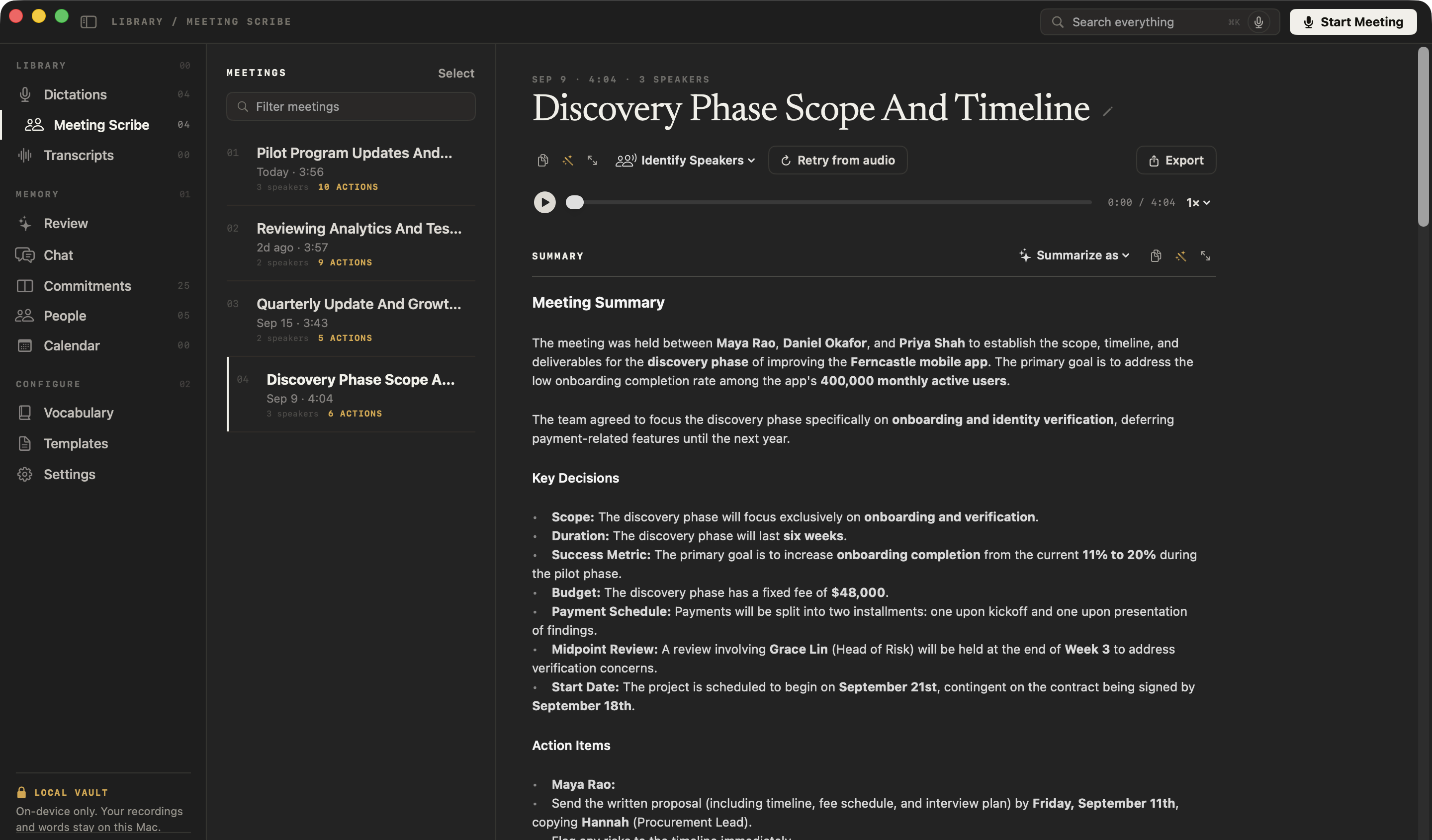
- Open NoteOwl and click Meeting Scribe in the sidebar.
- Click Start Meeting at the top right of the window, or press ⌥ Space from any app.
- Join your call in Zoom, Google Meet, Teams, FaceTime or any other call app.
- When the meeting ends, click Stop Meeting or press ⌥ Space again. The button reads Processing… while NoteOwl writes the transcript, summary and action items on your Mac.
- Click Open the meeting to read the summary, the action items and the full transcript.
To hear the other people on a call, NoteOwl needs the macOS Screen Recording permission, which is how macOS shares your Mac's audio. Let the people you're meeting with know that you're taking notes.
How do I ask a question about my meeting?
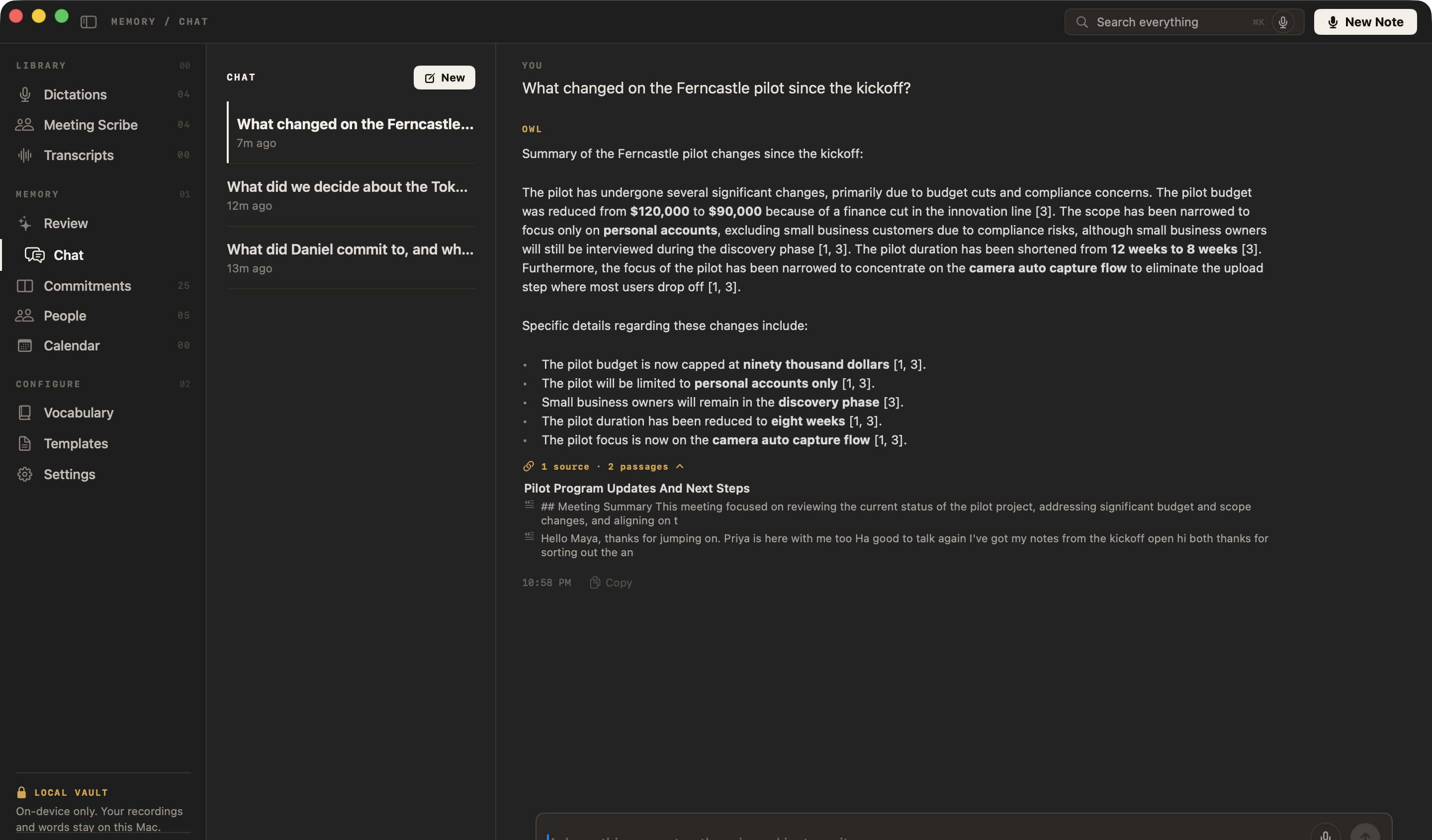
Open Chat, start a new chat and type your question. NoteOwl answers from your own meetings and notes, and lists the sources it used, so you can check where each answer came from.
- Click Chat in the sidebar.
- Click New chat. If you already have chats, click New above the list.
- Type a question in the box at the bottom, such as "What did we decide?", and press Return. You can also click the microphone and say it.
- Read the answer. Click the line under it, such as 1 source · 2 passages, to see the passages it came from, and click a passage to open it.
If nothing you've recorded answers the question, NoteOwl says so instead of guessing.
What's free and what's in NoteOwl Pro
NoteOwl Free gives you unlimited dictation into any app and voice notes. NoteOwl Pro adds meetings, summaries, memory and Chat for $79, once.
Dictate into any app with the fn key
Tap fn to start dictating in any Mac app and tap it again to stop. NoteOwl types your words at the cursor and keeps exactly what you said.