Template
Presentation notes template
This presentation notes template has four sections — the main message, the key points section by section, memorable lines or standout moments, and the audience’s questions with their answers — and it copies as plain text into Google Docs, Notion, Word or any notes app.
In NoteOwl, the Presentation template writes these notes from the recording of a talk, demo or webinar, on your Mac; an example is below.
Presentation · 4 sections
- 01Main message
- 02Key points, by section
- 03Memorable lines or standout moments
- 04Audience questions and answers
Copy the template ↓Speaker notes or presentation notes? ↓See an example ↓
What should presentation notes include?
Four things: the main message, the key points of each section, the lines or moments worth remembering, and every audience question with its answer. Start with the main message: if someone reads nothing else, they still know what the talk was for.
- Main message
- What to writeThe one idea the presenter wanted people to leave with, in a sentence or two.
- Key points, by section
- What to writeWhat each part of the talk covered, in the order it was given, with the numbers and examples used.
- Memorable lines or standout moments
- What to writeLines worth quoting, word for word, and the moments people will talk about afterwards, such as a demo or a surprising number.
- Audience questions and answers
- What to writeEach question, who asked it, and the answer given. Mark any question left for a follow-up.
| Section | What to write |
|---|---|
| Main message | The one idea the presenter wanted people to leave with, in a sentence or two. |
| Key points, by section | What each part of the talk covered, in the order it was given, with the numbers and examples used. |
| Memorable lines or standout moments | Lines worth quoting, word for word, and the moments people will talk about afterwards, such as a demo or a surprising number. |
| Audience questions and answers | Each question, who asked it, and the answer given. Mark any question left for a follow-up. |
A presentation notes template to copy
Paste it into Google Docs, Notion, Word or Apple Notes and fill it in as you listen, or straight after the talk. It is plain text, so it keeps its shape anywhere. Add a line for each section the presenter covers.
The sections match NoteOwl’s Presentation template, so notes you write by hand and notes NoteOwl writes read the same.
PRESENTATION NOTES

Presentation:
Presenter:
Date:
Audience:

1. MAIN MESSAGE
One or two sentences: the idea to leave with.

2. KEY POINTS, BY SECTION
Section 1:
-
Section 2:
-
Section 3:
-

3. MEMORABLE LINES OR STANDOUT MOMENTS
- "Quote, word for word." — Name
- A moment worth remembering

4. AUDIENCE QUESTIONS
Q (name):
A:
Q (name):
A:

Follow-ups promised:
What is the difference between speaker notes and presentation notes?
Speaker notes are written before a talk, by the presenter, to help deliver it. Presentation notes are written during or after it, to remember what was said and share it. This template is for the second kind.
Presenters can use it too: send it to the audience after the talk, with the questions answered.
- Written
- Speaker notesBefore the presentation
- Presentation notesDuring or after it
- Written by
- Speaker notesThe presenter
- Presentation notesSomeone in the audience, or the presenter afterwards
- What they hold
- Speaker notesPrompts, talking points and timings for each slide
- Presentation notesThe main message, key points, standout lines and audience questions
- Where they live
- Speaker notesUnder each slide in PowerPoint, Keynote or Google Slides
- Presentation notesA document or email shared after the talk
- Who reads them
- Speaker notesOnly the presenter
- Presentation notesThe audience, people who missed it, and the team
| Speaker notes | Presentation notes | |
|---|---|---|
| Written | Before the presentation | During or after it |
| Written by | The presenter | Someone in the audience, or the presenter afterwards |
| What they hold | Prompts, talking points and timings for each slide | The main message, key points, standout lines and audience questions |
| Where they live | Under each slide in PowerPoint, Keynote or Google Slides | A document or email shared after the talk |
| Who reads them | Only the presenter | The audience, people who missed it, and the team |
What do good presentation notes look like?
Like this: NoteOwl’s Presentation notes for a three-minute presentation on a video call, a design studio’s midpoint findings for the bank it is working with. The main message comes first, and every audience question keeps its answer.
Presentation: Ferncastle Discovery Midpoint Review
Presenter: Maya Rao · Audience: Grace Lin, Daniel Okafor, Priya Shah and Hannah (procurement)
Main Message
People don't give up on Ferncastle; they give up on one screen, the photo of their ID.
Key Points
1. The numbers
- Week one completion is 11% overall and only 7% on Android. Almost all of the drop is at the photo upload screen, where roughly a third of new customers leave.
2. What customers told us
- 10 of the 12 interviews are done. Every participant had a photo rejected at least once, and half were sent back to the very start and had to type everything again.
3. The pilot: camera auto capture
- The camera takes the photo itself when the licence is sharp, draws the outline of a card on the screen, and says what's wrong in plain words ("too blurry, hold still").
- If a photo fails, only that step repeats, and nothing people typed is lost.
- The selfie is its own step, after the licence photo, as the checklist allows.
- Customers try the prototype in weeks five and six on real phones, including two older Android phones from Marcus's device lab.
Standout Moments
- A bakery owner's words: "People like me open these accounts between customers. If it takes more than five minutes, we give up."
- The summing-up: one screen, one flow, eight weeks, personal accounts only.
Audience Questions
- Grace Lin: Where does the licence photo go once it's uploaded? Answer: it is deleted from the phone straight after upload, as the checklist asks. Marcus checked that Android now does the same as iPhone.
- Daniel Okafor: What completion do you expect from auto capture? Answer: no promise from ten interviews; the kickoff target stays at 20% in the first week.
- Priya Shah: Will the small business owners see the prototype? Answer: yes, in discovery, though they stay out of the pilot build.
- Hannah: Does the new scope change the cost of discovery? Answer: no. Discovery stays at $48,000; the pilot proposal is $90,000.
Next: Maya sends Grace the prototype after the call.
How do you get presentation notes written automatically?
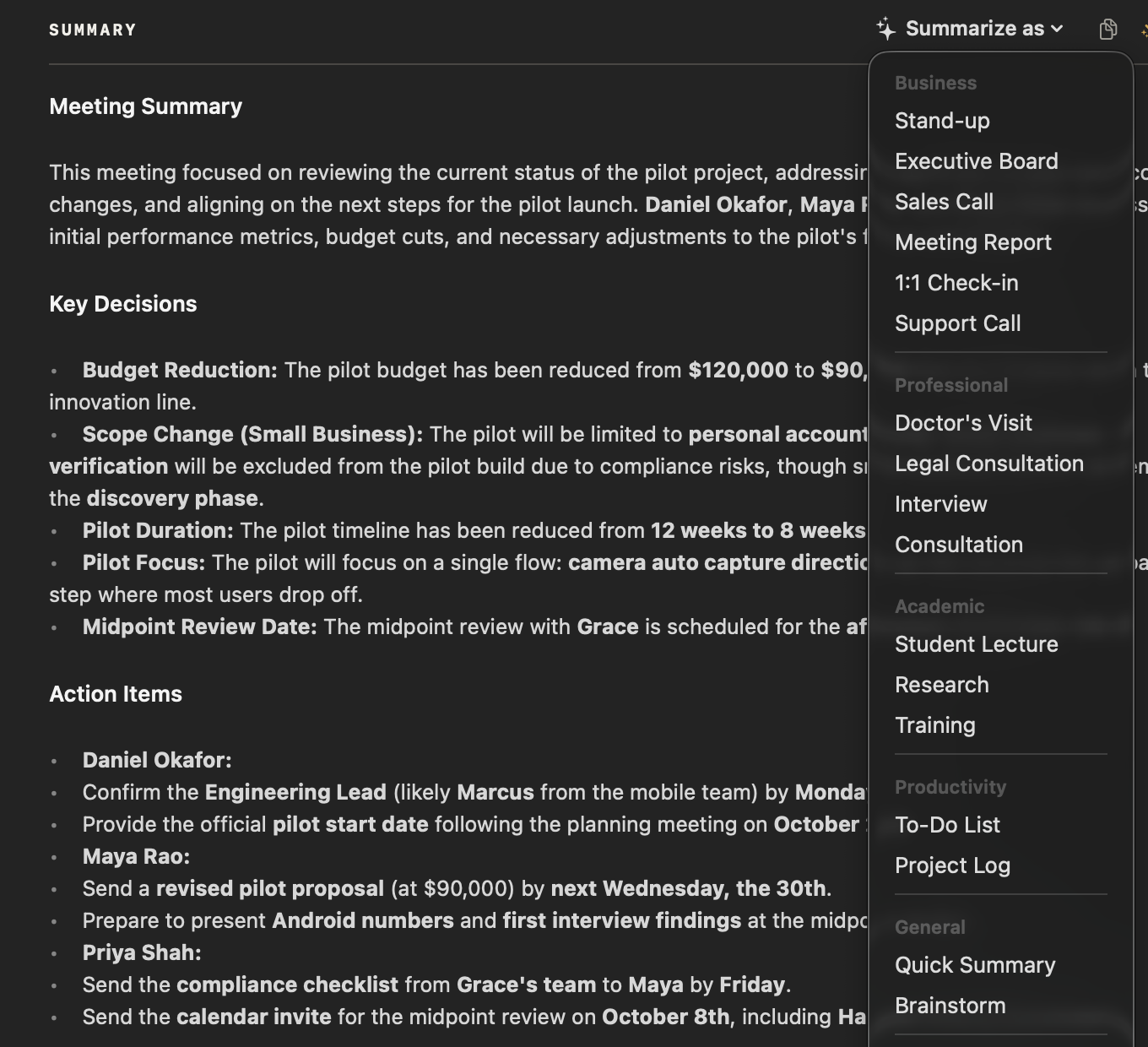
Record the presentation in NoteOwl — on a video call or webinar it takes notes without a bot — then choose Summarize as → Presentation. NoteOwl writes the notes from the recording, on your Mac with on-device AI models, and nothing is uploaded.
- 1
Record the presentation
Press ⌥Space or click Start Meeting when the call or webinar begins. NoteOwl records your microphone and your Mac’s audio; no bot joins.
- 2
Open it in Meeting Scribe
When it ends, NoteOwl writes the speaker-labelled transcript and a summary, on your Mac.
- 3
Choose Summarize as → Presentation
Above the summary, open Summarize as and pick Presentation, in the Content group. NoteOwl rewrites it as the main message, the key points by section, standout moments and audience questions.
- 4
Share the notes
Copy them into an email or your team chat, or use Export to save them as Markdown or PDF.
Tell everyone you’re recording. Meeting notes and templates are part of NoteOwl Pro, with a 7-day free trial in the app. A talk you already have as a file can be imported and transcribed instead.
What does NoteOwl’s Presentation template ask for?
Exactly the four sections above. This is the template’s instruction to NoteOwl, word for word; you can change it, or write your own, in NoteOwl’s Templates screen.
“Summarize this presentation: the main message, the key points organized by section, memorable lines or standout moments, and any audience questions with their answers.”
For the steps, see choose or write a summary template in the NoteOwl docs.
FAQ
Questions about presentation notes
How do you take notes during a presentation?
Listen for the main message first, then note each section’s key points, any line worth quoting and every audience question with its answer. Write short bullets while you listen and sort them into the four sections afterwards, or record the presentation and let NoteOwl do the sorting.
Should presentation notes include the Q&A?
Yes. The audience questions show what was unclear or what mattered most to the people listening, and the answers are often commitments made in public. Note each question, who asked it and the answer given, and mark anything the presenter promised to follow up.
Can I use this presentation notes template in Google Docs or Notion?
Yes. It is plain text, so it pastes into Google Docs, Notion, Word, OneNote or Apple Notes and keeps its four sections. It also works as a presentation summary template to send to people who missed the talk.
Can NoteOwl write presentation notes automatically?
Yes. Record the presentation in NoteOwl, then choose Summarize as → Presentation, and it writes the main message, the key points by section, the standout moments and the audience questions with their answers, on your Mac with on-device AI models. Meeting notes and templates are part of NoteOwl Pro: $79 once for one Mac, with a 7-day free trial in the app.
Can NoteOwl write notes from a recorded talk or webinar?
Yes. Import the recording on NoteOwl’s Transcripts screen (mp3, wav, m4a, aiff, flac, aac or mp4) and NoteOwl transcribes it on your Mac; then choose Summarize as → Presentation at the top of the recording. Importing recordings is part of NoteOwl Pro.
How does NoteOwl know who asked each question?
NoteOwl labels each speaker in the transcript: your microphone is You, and the other voices on the call are told apart when it ends. Rename a speaker once and NoteOwl learns that voice, so later recordings can name them for you. Voice profiles stay on your Mac.
Can I change the sections of NoteOwl’s Presentation template?
Yes. In NoteOwl’s Templates screen you can customize the Presentation template, for example to add a section for follow-ups, or write your own, then summarize any recorded presentation again in the new format.
Related
- Meeting summary template Three to five key points and a one-line takeaway, for any meeting.
- All 22 meeting notes templates Stand-ups, 1:1s, sales calls, board meetings and more, with their sections.
- AI meeting summaries The summary NoteOwl writes for every meeting and recording, and Summarize as.
- Transcribe audio to text Import a recorded talk or webinar and get a speaker-labelled transcript, on your Mac.
Keep exploring
More templates
- Journal templateA journal template to copy, what each section holds, an example, and how NoteOwl writes it
- Memories templateA memories template to copy, what each section holds, an example, and how NoteOwl writes it
- Legal consultation notes templateA legal consultation notes template to copy, what each section holds, an example, and how NoteOwl writes it on your Mac
- Therapy session notes templateTherapy session notes templates to copy, what each section holds, and how NoteOwl writes them on your Mac
Get your presentation notes written on your Mac
Free to download. Runs entirely on your Mac.
macOS 26 or later · Apple Silicon (M1 or newer) · 16 GB memory minimum, 24 GB recommended
About NoteOwl
NoteOwl is private AI meeting notes and memory for the Mac. It captures meetings without a bot joining the call, labels every speaker, writes summaries and action items, and builds a memory of every conversation that you can chat with — fully offline, because the speech recognition and the AI run on the Mac itself. Dictation into any app is free; Pro is a one-time purchase.
NoteOwl pricing: what’s free and what Pro adds
Last updated