Transcription · Pro
Transcription software for your Mac
NoteOwl is transcription software that runs on your Mac: drag in an mp3, wav, m4a, aiff, flac, aac or mp4 file and get a transcript with a time on every line and the speakers labelled, then a summary and action items.
It all runs on the Mac, so the file never leaves your device. Importing recordings is part of NoteOwl Pro, with a 7-day free trial in the app.
Read the transcript
Got an interview recording you still haven’t listened to?
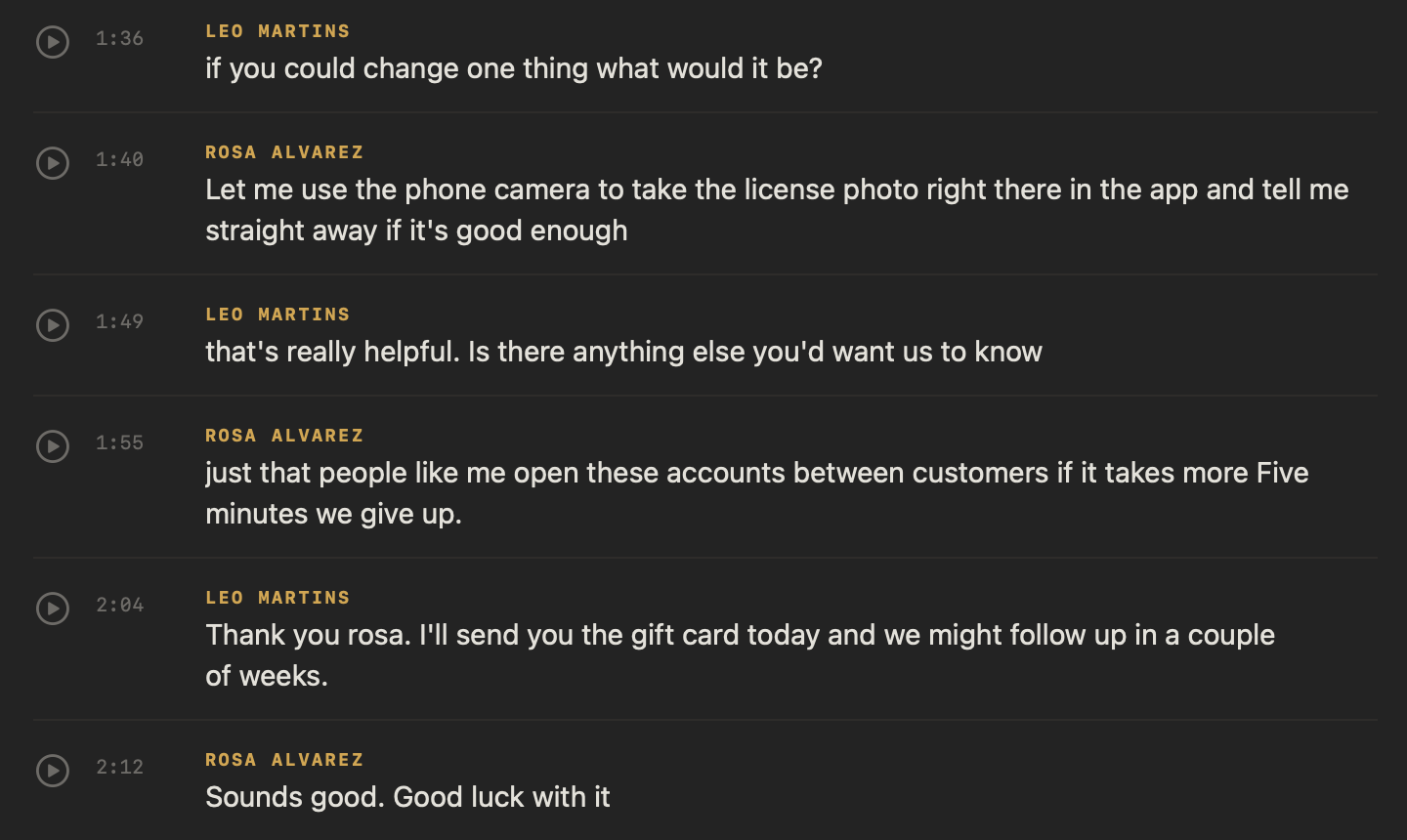
Drag it into NoteOwl.
It’s transcribed right here, on your Mac. Nothing’s uploaded.
Then you get a title, a summary, and the action items.
And every line, with who said it.
Tap any line to hear it again.
(The interview) “It asked me to upload a photo of my driving licence, and I took it on the kitchen counter.”
NoteOwl. Free to download. Drop in your next recording.
How do you transcribe a recording on a Mac?
Open Transcripts in NoteOwl and click Import Recording at the top right, or drag an audio or video file onto the window. NoteOwl transcribes it on your Mac, labels the speakers and writes a summary, and the file never leaves your device.
- 1
Open Transcripts
In NoteOwl’s sidebar, click Transcripts, under Library.
- 2
Import the file
Click Import Recording at the top right and choose an audio or video file, or drag the file onto the Transcripts screen.
- 3
Let it transcribe
NoteOwl transcribes the file on your Mac and shows its progress in the list, then writes a summary, action items and a title.
- 4
Read, replay and share
Play any line to hear it again, name the speakers, and save the transcript as Markdown, PDF, text or SRT subtitles.
Every step, with what each button does, is in the docs: transcribe an audio or video file.
Which audio and video files can NoteOwl transcribe?
Audio and video recordings in mp3, wav, m4a, aiff, flac, aac and mp4, one file at a time. To transcribe video to text, drop in the mp4: NoteOwl transcribes its sound and keeps an audio copy for playback, not the picture.
Turning an m4a to text works like any other file. For a recording in Apple’s Voice Memos, see how to transcribe a voice memo on Mac.
- MP3
- File.mp3
- KindAudio
- WAV
- File.wav
- KindAudio
- M4A
- File.m4a
- KindAudio
- AIFF
- File.aiff
- KindAudio
- FLAC
- File.flac
- KindAudio
- AAC
- File.aac
- KindAudio
- MP4
- File.mp4
- KindVideo: NoteOwl transcribes its sound
| Format | File | Kind |
|---|---|---|
| MP3 | .mp3 | Audio |
| WAV | .wav | Audio |
| M4A | .m4a | Audio |
| AIFF | .aiff | Audio |
| FLAC | .flac | Audio |
| AAC | .aac | Audio |
| MP4 | .mp4 | Video: NoteOwl transcribes its sound |
What do you get after NoteOwl transcribes a file?
A transcript with the speakers labelled and a time on every line, then a summary, action items and a title, all written on your Mac. Above it sit the recording’s length, its speakers and the file it came from.
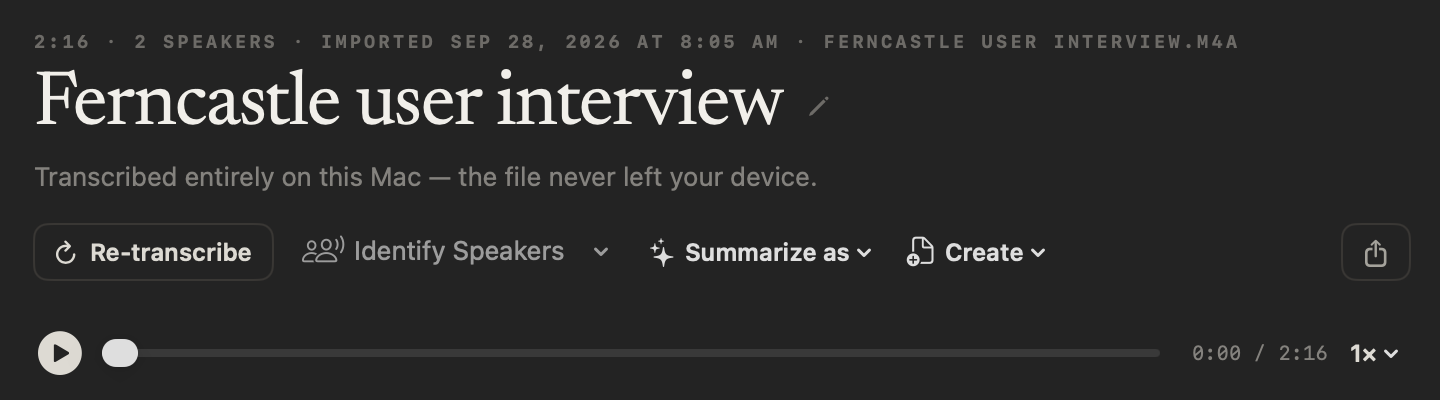
A time on every line
Each line shows when it was said, with a play button that replays it.
Speakers labelled
Speaker 1, Speaker 2 and so on, ready for you to rename with real names.
A summary and action items
Written on your Mac from the whole recording, as soon as the transcript is saved.
A title of its own
NoteOwl names the recording from what was said. Click the pencil beside the title to rename it.
Part of your memory
Search finds the recording, and Chat can answer questions from it, citing the line it used.
Summarize as and Create
Rewrite the summary in any of the 22 built-in templates or your own, or turn the transcript into a report, an email draft, a blog post or a social post.
Does NoteOwl label who is speaking?
Yes. Right after the transcript appears, NoteOwl separates the voices on your Mac and labels each line Speaker 1, Speaker 2 and so on. Click Rename speakers above the transcript and type real names: every line updates at once.
More on transcription with speaker identification, in meetings and imports.
Automatic, on by default
Settings → Memory → Automatically identify speakers labels each file right after its transcript appears.
Identify Speakers
Run it again at any time: Automatic, or choose 2 to 8 speakers when you know how many were talking. Your choice is kept when you re-transcribe.
Rename speakers
Give each speaker a real name and the whole transcript updates. Where it’s safe to, NoteOwl also learns that voice for future recordings, and a voice it has learned gets its name, not a number.
Fix one line
Right-click a line and choose Assign to, to give it to another speaker.
Can you replay the audio behind each line?
Yes. NoteOwl keeps an audio copy of every file you import, so the play button beside each line replays that moment. The player above the transcript plays the whole recording, at 0.75×, 1×, 1.25×, 1.5× or 2× speed.
Tap a line to replay it
Each line has its speaker, its time and a play button that plays just that moment.
Play the whole recording
Play or stop, drag through it, and see where you are against its full length.
Slow it down or speed it up
0.75×, 1×, 1.25×, 1.5× or 2×, from the speed menu beside the player.
Copy what you need
Select any words, right-click a line to copy it, or click Copy above the transcript for all of it, each line with its speaker.
Can you re-transcribe a file later?
Yes, at any time. Because the audio is kept, Re-transcribe runs speech to text again on the saved recording and replaces the transcript, with the vocabulary rules you have now. You don’t need the original file.
It asks first
“Runs speech-to-text again on this recording and replaces the current transcript. The audio is kept.”
It uses your vocabulary
Names and jargon you have added to Vocabulary since the import are spelled your way in the new transcript.
It says what changed
NoteOwl tells you how many lines it replaced, or that the text came out the same.
It keeps your choices
A title you gave the recording stays, and so does the number of speakers you chose in Identify Speakers.
To spell names and jargon your way from the first pass, add them to custom vocabulary before you import.
How do you export the transcript?
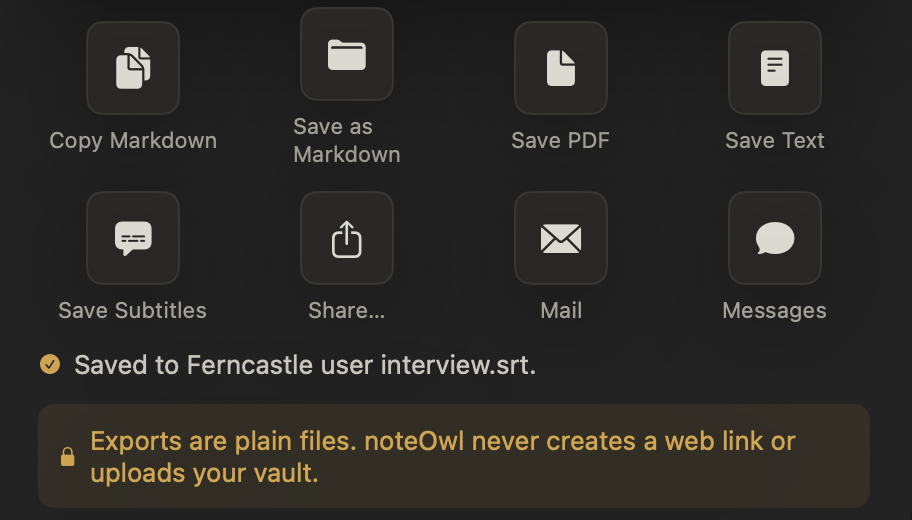
Click the Share button beside the recording’s title, or right-click it in the list and choose Export…, then copy or save it as Markdown, save a PDF, save the transcript as a .txt file or as SRT subtitles, or send it with Share…, Mail or Messages.
Subtitles are timed from the transcript: see what an SRT file is and NoteOwl’s subtitle generator. Every option is on exporting your notes.
How is NoteOwl different from online transcription software?
Online transcription software uploads your file and transcribes it on the service’s servers. NoteOwl transcribes it on your Mac with on-device speech recognition: the recording never leaves the device, and after the one-time model download it works with no internet connection.
Comparing specific apps? See NoteOwl vs TurboScribe and NoteOwl vs MacWhisper, side by side with sources.
- Where the file is transcribed
- NoteOwl, on your MacOn your Mac
- An online serviceOn the service’s servers
- Your recording
- NoteOwl, on your MacNever leaves your Mac
- An online serviceUploaded to the service
- With no internet connection
- NoteOwl, on your MacWorks, after the one-time model download
- An online serviceCan’t reach the service
| NoteOwl, on your Mac | An online service | |
|---|---|---|
| Where the file is transcribed | On your Mac | On the service’s servers |
| Your recording | Never leaves your Mac | Uploaded to the service |
| With no internet connection | Works, after the one-time model download | Can’t reach the service |
“Transcribed entirely on this Mac — the file never left your device.”
Is audio transcription free in NoteOwl?
No. Importing and transcribing audio and video files is part of NoteOwl Pro, along with speaker labels, summaries and meetings. Dictation into any app and voice notes are free and unlimited, forever.
NoteOwl Pro is $79 once for one Mac, with a 7-day free trial in the app and no card. Files you import during the trial stay on your Mac afterwards, and you can still read and export them.
- Dictation into any app
- FreeUnlimited
- ProUnlimited
- Voice notes recorded in NoteOwl
- FreeUnlimited
- ProUnlimited
- Import and transcribe audio and video files
- FreeNo
- ProYes
- Speaker labels, summaries and templates
- FreeNo
- ProYes
- Read and export what you imported
- FreeYes
- ProYes
| Free | Pro | |
|---|---|---|
| Dictation into any app | Unlimited | Unlimited |
| Voice notes recorded in NoteOwl | Unlimited | Unlimited |
| Import and transcribe audio and video files | No | Yes |
| Speaker labels, summaries and templates | No | Yes |
| Read and export what you imported | Yes | Yes |
Just need one file done?
Use NoteOwl’s free audio to text tool in your browser: it transcribes up to 30 minutes of each recording, 3 files a day, with no sign-up. NoteOwl, the transcription app on your Mac, gives you unlimited transcription of recordings of any length, with speakers and nothing uploaded.
NoteOwl transcription at a glance
The facts, in one table. NoteOwl transcribes with on-device AI models on your Mac, so your recordings stay there and it works offline.
- Where it is
- Transcripts, in NoteOwl’s sidebar: Import Recording, or drag a file in
- Formats
- mp3, wav, m4a, aiff, flac, aac and mp4 (for video, its sound)
- How many
- One file at a time
- Languages
- 34, detected automatically
- Speakers
- Labelled right after the transcript appears; Identify Speakers and Rename speakers to adjust
- Playback
- Tap a line to replay it; the whole recording at 0.75× to 2×
- Re-transcribe
- Any time, from the saved audio, with your current vocabulary
- Export
- Markdown, PDF, plain text (.txt) or SRT subtitles (.srt)
- Where it runs
- On your Mac; the file never leaves it
- Plan
- NoteOwl Pro, $79 once for one Mac; 7-day free trial in the app
- Requirements
- macOS 26 or later, Apple Silicon (M1 or newer), 16 GB memory minimum, 24 GB recommended
What else does NoteOwl do?
Files are one way in. NoteOwl is private AI meeting notes and memory for Mac: it records meetings without a bot, labels every speaker, writes summaries and action items, and lets you chat with everything you’ve recorded or imported.
AI meeting notes without a bot
Skip the file: NoteOwl records your microphone and your Mac’s audio, so it takes notes on Zoom, Google Meet or Teams with nothing joining the call.
Free speech to text for Mac
Tap fn, talk and tap again: the words type at your cursor in any app, free and unlimited.
FAQ
Questions about transcribing audio
How do I transcribe audio to text on a Mac?
Open NoteOwl’s Transcripts screen and click Import Recording, or drag the file onto it. NoteOwl transcribes mp3, wav, m4a, aiff, flac, aac and mp4 files on your Mac, labels the speakers and writes a summary. Importing recordings is part of NoteOwl Pro.
Can NoteOwl transcribe video to text?
Yes. Drop an mp4 into NoteOwl’s Transcripts and it transcribes the sound on your Mac, with the speakers labelled and a time on every line. NoteOwl keeps an audio copy for playback, not the video, so keep your original file.
Does NoteOwl upload my audio files?
No. NoteOwl transcribes every file you import on your Mac, with on-device speech recognition, and the file never leaves your device. After the one-time model download it works with no internet connection.
Can NoteOwl transcribe several files at once?
No. NoteOwl imports one recording at a time: choose a file with Import Recording, or drag one file onto Transcripts. If you drop several files together, NoteOwl imports only one of them, so import the next when the first is done.
Which languages can NoteOwl transcribe?
NoteOwl understands 34 languages, detected automatically, in imported recordings as in dictation and meetings. The full list is on NoteOwl’s Languages page.
Can I fix names NoteOwl gets wrong in a transcript?
Yes. Add them to NoteOwl’s Vocabulary, and every file you import after that spells them your way. For a file you already imported, click Re-transcribe: NoteOwl transcribes the saved audio again with your current rules.
Is audio transcription free in NoteOwl?
No. Importing and transcribing audio and video files is part of NoteOwl Pro, a one-time $79 purchase for one Mac, with a 7-day free trial in the app and no card. Dictation into any app and voice notes are free and unlimited.
Related
- Transcribe an audio or video file Every step, in NoteOwl’s docs: import, speakers, replay and re-transcribe.
- Transcription with speaker identification Every line says who said it, and a voice you name is recognised later.
- Custom vocabulary Teach NoteOwl names and jargon once, and imports spell them your way.
- How to transcribe a voice memo on Mac Apple’s own Voice Memos transcript, and when to use NoteOwl instead.
Keep exploring
Related features
- Lecture recorderRecord lectures in the room through your Mac’s microphone, in an online class with no bot, or from a file, then turn them into study notes
- Subtitle generatorTurn a recording into an SRT subtitle file with timecodes and speaker names, on your Mac
- Custom vocabularyTeach NoteOwl names, jargon and spellings once, and every dictation, meeting and import uses them
Who uses it
- AI note taker for researchersUser interviews transcribed speaker by speaker, past recordings imported, searchable and askable across a study; nothing uploaded
- AI transcription for journalistsInterviews transcribed speaker by speaker with timestamps, quotes checked against the audio, nothing uploaded
- AI transcription for podcastersEpisodes imported and transcribed speaker by speaker on your Mac, show notes from the Podcast Show Notes template, SRT subtitles; nothing uploaded
- StudentsLectures recorded in the room or an online class, or imported, turned into study notes you can ask questions of before the exam; dictating essays is free
Guides
- Voice memo to textHow to turn a Voice Memos recording into text on a Mac, with Apple’s own tools and with NoteOwl
- Record Mac audioHow to record the sound your Mac plays (system audio) with Apple’s own tools, and how NoteOwl records calls without a bot
- Lecture recording to notesHow to transcribe a recorded lecture on a Mac and turn it into study notes, with NoteOwl or with Voice Memos’ free transcript
Free tools
- Audio to text converterTranscribe audio to text free: drop in an MP3, M4A, WAV or other recording and get an AI transcript with times, as text, SRT, VTT or Word; nothing is stored
- Video to textTurn video to text free: drop in an MP4, MOV, M4V, MKV or WebM video and get an AI transcript with times, as text, SRT, VTT or Word; only the sound is sent, nothing is stored
- M4A to MP3 converterConvert M4A to MP3 in your browser, iPhone and Mac voice memos included, at 128, 192 or 320 kbps; nothing is uploaded
- MP4 to MP3 converterTurn an MP4 video’s sound into an MP3 in your browser, Zoom and Teams recordings included; nothing is uploaded
- SRT to VTT converterConvert SRT to VTT, VTT to SRT, or either to clean text with each speaker’s lines merged, in your browser; Zoom and Teams transcripts work
Turn your recordings into text on your Mac
Free to download. Runs entirely on your Mac.
macOS 26 or later · Apple Silicon (M1 or newer) · 16 GB memory minimum, 24 GB recommended
About NoteOwl
NoteOwl is private AI meeting notes and memory for the Mac. It captures meetings without a bot joining the call, labels every speaker, writes summaries and action items, and builds a memory of every conversation that you can chat with — fully offline, because the speech recognition and the AI run on the Mac itself. Dictation into any app is free; Pro is a one-time purchase.
NoteOwl pricing: what’s free and what Pro adds
Last updated