Guide · Mac
How to transcribe a lecture recording and turn it into notes
To go from a lecture recording to notes on a Mac, import the file into NoteOwl’s Transcripts screen: NoteOwl transcribes it on your Mac with the speakers labelled, then Summarize as → Student Lecture turns it into study notes — topics, definitions, examples and exam points.
Then ask the lecture questions and get answers that cite the passage. Importing recordings is part of NoteOwl Pro; for a lecture recorded in Voice Memos, Apple’s free transcript is an option too.
Lecture recording to notes · AI on your Mac
- 01Import the recording
- 02Transcript, speakers labelled
- 03Summarize as → Student Lecture
- 04Ask it questions before the exam
Where do you get a lecture recording?
From your phone’s voice recorder, a recorded online class, your course’s own recordings where it lets you download them, or a classmate. What you need on your Mac is the file: audio or video, in any of the formats below.
Recorded it in Voice Memos on your iPhone? See how to transcribe a voice memo on Mac for getting the file out.
- Recorded on your phone
- What you usually haveAn audio file, such as .m4a. From Voice Memos, drag the recording to a Finder window to save it.
- A recorded online class
- What you usually haveUsually a video file, such as .mp4. NoteOwl transcribes its sound.
- Your course’s lecture recordings
- What you usually haveA video or audio file, where your course lets you download recordings.
- Shared by a classmate
- What you usually haveAny of the formats below, sent as a file.
| Source | What you usually have |
|---|---|
| Recorded on your phone | An audio file, such as .m4a. From Voice Memos, drag the recording to a Finder window to save it. |
| A recorded online class | Usually a video file, such as .mp4. NoteOwl transcribes its sound. |
| Your course’s lecture recordings | A video or audio file, where your course lets you download recordings. |
| Shared by a classmate | Any of the formats below, sent as a file. |
- Audio
- Formatsmp3, wav, m4a, aiff, flac, aac
- Video
- Formatsmp4: NoteOwl transcribes the sound and keeps an audio copy for playback
- How many
- FormatsOne file at a time
| Kind | Formats |
|---|---|
| Audio | mp3, wav, m4a, aiff, flac, aac |
| Video | mp4: NoteOwl transcribes the sound and keeps an audio copy for playback |
| How many | One file at a time |
How do you transcribe a lecture recording on a Mac?
Open NoteOwl’s Transcripts screen and click Import Recording, or drag the lecture file onto the window. NoteOwl transcribes it on your Mac, labels the speakers and writes a summary; the file never leaves your Mac. Importing recordings is part of NoteOwl Pro.
- 1
Get the recording onto your Mac
Save the file in a folder you can find. For a Voice Memos recording, drag it from Voice Memos to a Finder window.
- 2
Open Transcripts in NoteOwl
Choose Transcripts in NoteOwl’s sidebar, under Library.
- 3
Import the file
Click Import Recording in the title bar, or drag the file onto the window. NoteOwl takes one file at a time.
- 4
Let NoteOwl transcribe it
NoteOwl transcribes the lecture on your Mac, labels the speakers, and writes a summary and a title.
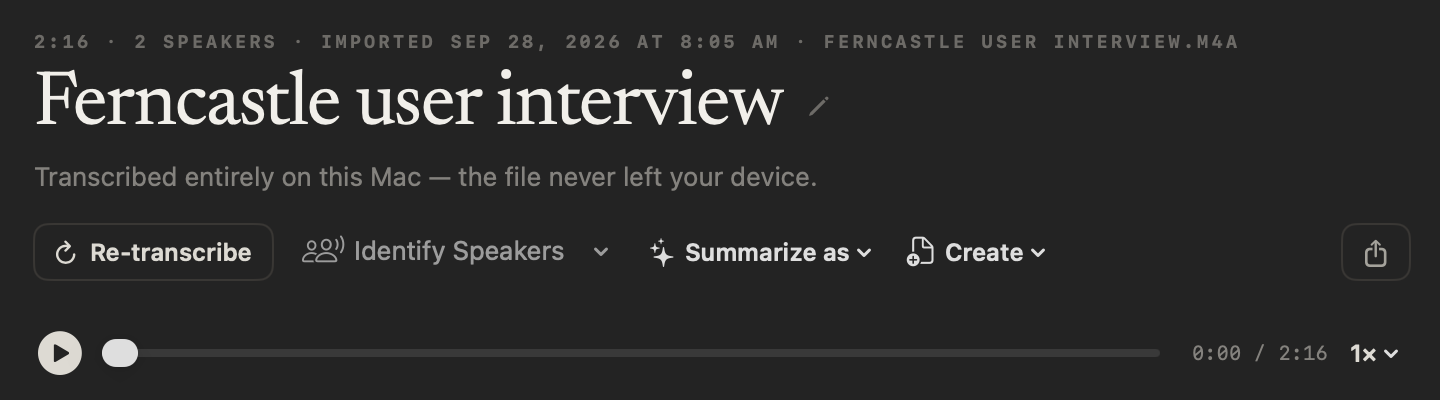
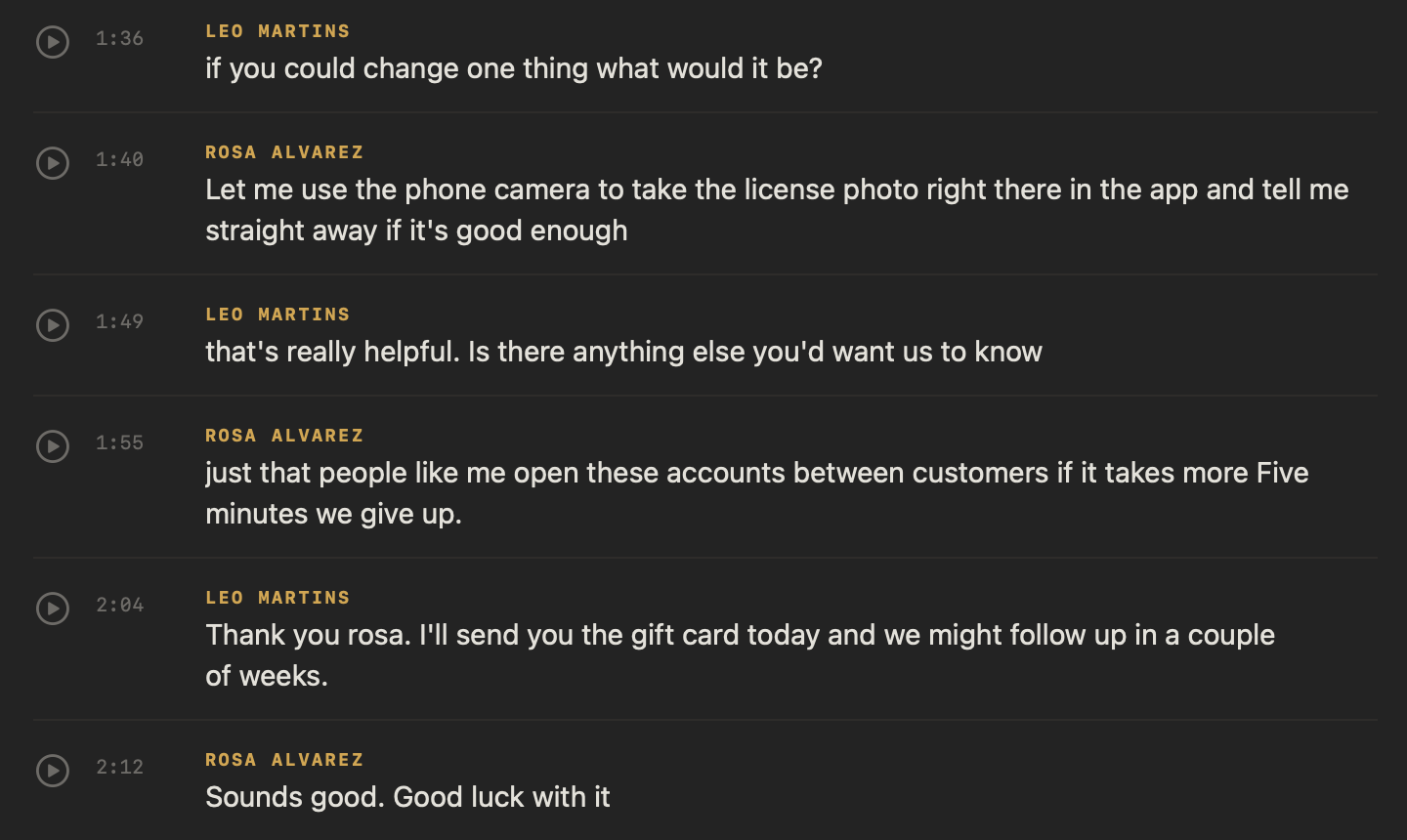
Turning any other recording to text works the same way. Every import option, from speakers to re-transcribing: transcribe audio to text on your Mac.
How do you turn a lecture transcript into study notes?
Open Summarize as at the top of the imported lecture and pick Student Lecture, under Academic. NoteOwl rewrites it as study notes: the main topics, key concepts and definitions, important examples, and anything flagged for the exam.
What each section holds, a template to copy and a full example: lecture notes template. Prefer a cue column? See how to take Cornell notes.
Student Lecture · 4 sections
- 01Main topics
- 02Key concepts and definitions
- 03Important examples
- 04Flagged for the exam
Copy the notes as Markdown into your notes app, or export them, with the transcript, as Markdown, PDF, text or SRT subtitles.
Can AI answer questions about a lecture recording?
Yes, with NoteOwl Pro. Ask chat with your meetings a question and it answers only from your own imported and recorded lectures, citing the passage it used. It says so when nothing matches instead of guessing.
Press ⌘K to search every lecture at once. To record the next one yourself, in the room or online, see NoteOwl’s lecture recorder.
Questions you could ask a lecture
- What did the lecturer say will be on the midterm?
- How was the midpoint method explained?
- Where did she work through the coffee cart example?
Can you transcribe a lecture recording for free?
If it’s in Voice Memos, yes: Voice Memos shows a transcript on macOS 15 or later on a Mac with Apple silicon, though not in every country or region.[1] Speaker labels, study notes and cited answers need NoteOwl Pro.
- Price
- Voice MemosFree, built into macOS
- NoteOwlImport is part of NoteOwl Pro: $79 once, 7-day free trial
- Mac requirements
- Voice MemosmacOS 15 or later, Apple silicon
- NoteOwlmacOS 26 or later, Apple Silicon (M1 or newer), 16 GB memory minimum, 24 GB recommended
- Which recordings
- Voice MemosRecordings in Voice Memos
- NoteOwlAudio and video files: mp3, wav, m4a, aiff, flac, aac or mp4
- Speaker labels
- Voice MemosNot mentioned in Apple’s guide
- NoteOwlYes, added right after the transcript appears
- Study notes
- Voice MemosWith Apple Intelligence, Writing Tools can summarize a transcript
- NoteOwlSummarize as → Student Lecture: topics, definitions, examples, exam points
- Questions about the lecture
- Voice MemosSearch titles and transcripts
- NoteOwlChat answers from your lectures, citing the passage; ⌘K searches them all
- Languages
- Voice MemosNot listed in Apple’s Voice Memos guide
- NoteOwl34, detected automatically
| Voice Memos | NoteOwl | |
|---|---|---|
| Price | Free, built into macOS | Import is part of NoteOwl Pro: $79 once, 7-day free trial |
| Mac requirements | macOS 15 or later, Apple silicon | macOS 26 or later, Apple Silicon (M1 or newer), 16 GB memory minimum, 24 GB recommended |
| Which recordings | Recordings in Voice Memos | Audio and video files: mp3, wav, m4a, aiff, flac, aac or mp4 |
| Speaker labels | Not mentioned in Apple’s guide | Yes, added right after the transcript appears |
| Study notes | With Apple Intelligence, Writing Tools can summarize a transcript | Summarize as → Student Lecture: topics, definitions, examples, exam points |
| Questions about the lecture | Search titles and transcripts | Chat answers from your lectures, citing the passage; ⌘K searches them all |
| Languages | Not listed in Apple’s Voice Memos guide | 34, detected automatically |
Sources
Last checked . Apple’s Voice Memos facts are from its User Guide for macOS Tahoe 26.
FAQ
Questions about transcribing lecture recordings
How do I transcribe a recorded lecture on a Mac?
Open NoteOwl’s Transcripts screen and click Import Recording, or drag the lecture file onto it. NoteOwl transcribes mp3, wav, m4a, aiff, flac, aac and mp4 files on your Mac, labels the speakers and writes a summary. Importing recordings is part of NoteOwl Pro.
Can NoteOwl turn a lecture recording into study notes automatically?
Yes. After NoteOwl transcribes an imported lecture, choose Summarize as → Student Lecture and NoteOwl rewrites it as study notes: the main topics, key concepts and definitions, important examples, and anything flagged for the exam, written on your Mac.
Can NoteOwl transcribe a lecture video?
Yes. Drop an mp4 into NoteOwl’s Transcripts and NoteOwl transcribes its sound on your Mac, with the speakers labelled and a time on every line. NoteOwl keeps an audio copy for playback, not the video, so keep the original file.
Can I transcribe several lecture recordings at once in NoteOwl?
No. NoteOwl imports one recording at a time: choose a file with Import Recording, or drag one file onto Transcripts, and import the next lecture when the first is done. Every imported lecture is then searchable together.
Does NoteOwl upload lecture recordings to transcribe them?
No. NoteOwl transcribes every lecture recording you import on your Mac with on-device AI models, so the file never leaves your Mac, and after the one-time model download it works with no internet connection.
Can I transcribe a lecture recording for free on a Mac?
If the lecture is in Voice Memos, yes: Apple says Voice Memos shows a transcript on macOS 15 or later on a Mac with Apple silicon, though not in every country or region. Importing a recording into NoteOwl, with speaker labels, study notes and cited answers, is part of NoteOwl Pro.
Related
- Lecture notes template The Student Lecture sections, a template to copy and an example.
- How to take Cornell notes The method, a template to copy, and how it fits a recorded lecture.
- Lecture recorder for Mac Record the next lecture in the room or online, instead of importing it.
- How to transcribe a voice memo on Mac Apple’s own Voice Memos transcript, step by step.
Keep exploring
What this guide recommends
- Audio to textTranscription software for your Mac: drop in an audio or video file and get a speaker-labelled transcript with timestamps, unlimited, with nothing uploaded
- Lecture notes templateA template to copy for study notes from a lecture: topics, definitions, examples and exam points, with an example, and how NoteOwl writes it
- Chat with your meetingsAsk your own meetings a question on your Mac, even offline; every answer cites the passage it came from
- Voice memo to textHow to turn a Voice Memos recording into text on a Mac, with Apple’s own tools and with NoteOwl
More guides
- Dictation on MacApple’s built-in Dictation on macOS 26: settings, shortcuts, fixes when it isn’t working, and when an app helps
- Writing meeting minutesHow to write meeting minutes step by step, with the format, an example, and how NoteOwl writes them for you
- Taking meeting notesHow to take meeting notes before, during and after a meeting, with or without an AI note taker
Free tools
- Audio to text converterTranscribe audio to text free: drop in an MP3, M4A, WAV or other recording and get an AI transcript with times, as text, SRT, VTT or Word; nothing is stored
- M4A to MP3 converterConvert M4A to MP3 in your browser, iPhone and Mac voice memos included, at 128, 192 or 320 kbps; nothing is uploaded
- MP4 to MP3 converterTurn an MP4 video’s sound into an MP3 in your browser, Zoom and Teams recordings included; nothing is uploaded
Turn your lecture recordings into study notes
Free to download. Runs entirely on your Mac.
macOS 26 or later · Apple Silicon (M1 or newer) · 16 GB memory minimum, 24 GB recommended
About NoteOwl
NoteOwl is private AI meeting notes and memory for the Mac. It captures meetings without a bot joining the call, labels every speaker, writes summaries and action items, and builds a memory of every conversation that you can chat with — fully offline, because the speech recognition and the AI run on the Mac itself. Dictation into any app is free; Pro is a one-time purchase.
NoteOwl pricing: what’s free and what Pro adds
Last updated