Speaker recognition
Transcripts that know who said what
NoteOwl gives you transcription with speaker identification on your Mac: every line of a meeting transcript says who said it and when, and you can play any line to hear it again.
Name a speaker once and NoteOwl recognises that voice in later meetings; the voice profile stays on your Mac, and speaker labels come with NoteOwl Pro.
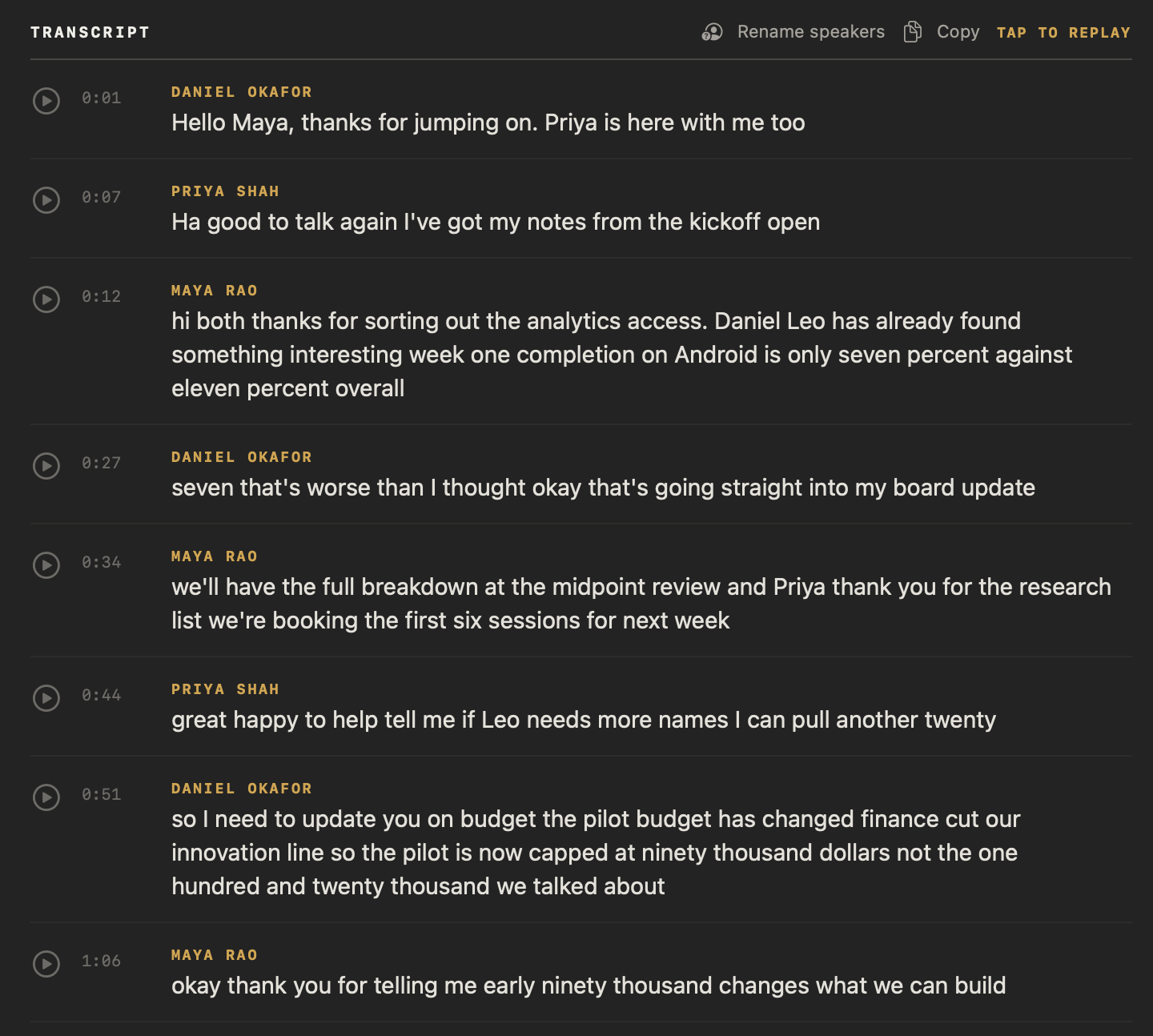
Read the transcript
Your transcript says Speaker 3 will send the checklist by Friday. So… who’s Speaker 3?
This is NoteOwl. It takes notes on your calls, right on your Mac, and labels every line with who said it.
Name a voice once. Every line updates, and NoteOwl learns her voice. On your Mac, nowhere else.
Now open another meeting she was in. NoteOwl already knows that voice.
There she is. Priya’s sending the checklist.
NoteOwl. Free to download. Try it on your next call.
How does speaker identification work in NoteOwl?
When a meeting ends, NoteOwl separates the voices and labels every line of the transcript with who said it. Your microphone is you; everyone else on the call is split out from your Mac’s audio. Name a speaker once, and later meetings label them for you.
- 1
Record or import
Record a call from your Mac with no bot joining it, or import an audio or video file.
- 2
The voices are separated
When the call ends, NoteOwl splits the other people on it into separate speakers; your microphone is always You. An import is labelled right after its transcript appears.
- 3
Name them once
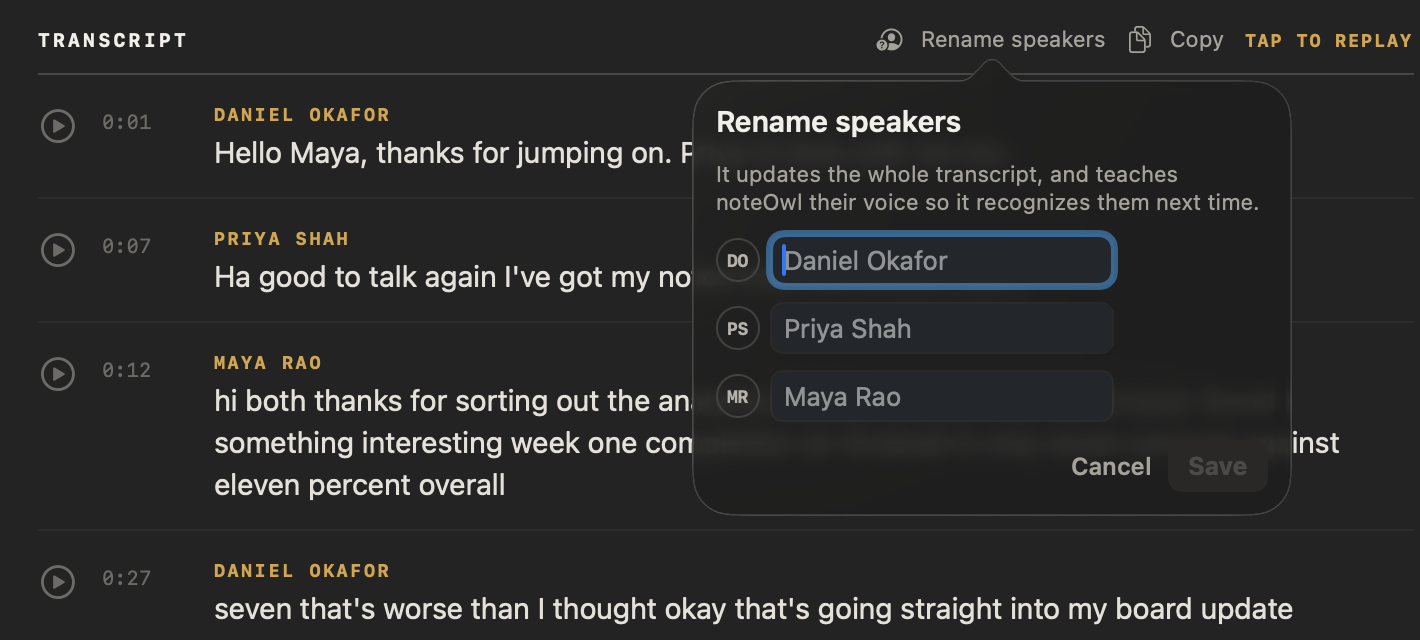
Click Rename speakers above the transcript, type real names and click Save. Every line updates at once.
- 4
Recognised next time
NoteOwl learns each voice you name. When a later meeting ends, it compares the voices it separated with them and fills in the names.
What is speaker diarization?
Speaker diarization is splitting a recording by who is speaking, answering “who spoke when” before anyone’s name is known. NoteOwl runs it on your Mac for meetings and imports; speaker recognition then puts real names on the voices you have named.
More plain definitions, from speaker diarization to SRT files, are in the NoteOwl glossary.
- The question it answers
- Speaker diarizationWho spoke when?
- Speaker recognitionWhose voice is this?
- Needs a name first
- Speaker diarizationNo: voices are labelled Speaker 1, Speaker 2 and so on
- Speaker recognitionYes: you name a speaker once
- In NoteOwl
- Speaker diarizationAutomatic when a meeting ends, and right after an import is transcribed
- Speaker recognitionAutomatic in later meetings, once you have named that voice
- Where it runs
- Speaker diarizationOn your Mac
- Speaker recognitionOn your Mac; the voice profile never leaves it
| Speaker diarization | Speaker recognition | |
|---|---|---|
| The question it answers | Who spoke when? | Whose voice is this? |
| Needs a name first | No: voices are labelled Speaker 1, Speaker 2 and so on | Yes: you name a speaker once |
| In NoteOwl | Automatic when a meeting ends, and right after an import is transcribed | Automatic in later meetings, once you have named that voice |
| Where it runs | On your Mac | On your Mac; the voice profile never leaves it |
How do you rename speakers in a transcript?
Open the meeting and click Rename speakers above the transcript. Type a real name for each speaker and click Save: every line updates at once, and NoteOwl learns that voice so it can label the person in later meetings.
Yours to correct
Wrong number of speakers
Open Identify Speakers under the meeting’s title and choose how many people spoke, from 2 to 8, or Automatic. NoteOwl separates the voices again and keeps that count.
One person split in two
Give both speakers the same name and they become one. NoteOwl never learns a voice from a merge, so two people can’t blend into one voice profile.
A line under the wrong name
In an imported transcript, right-click the line and choose Assign to.
Hear it again
Press play beside any line to hear exactly what was said, in that person’s voice.
Copy with names
Copy puts the whole transcript on your clipboard with every speaker’s name and time.
Does NoteOwl recognise voices in later meetings?
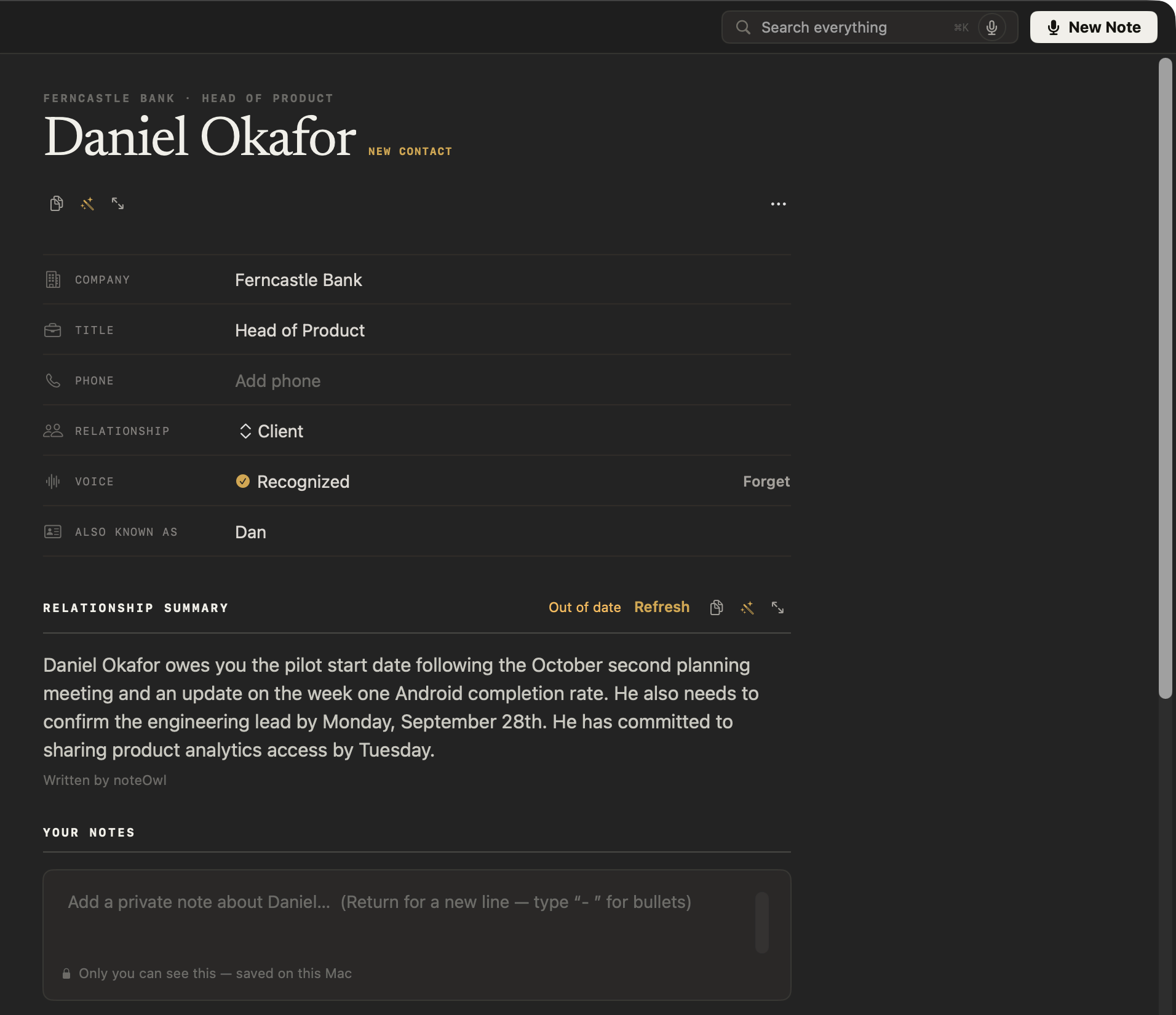
Yes, once you name them. NoteOwl keeps a voice profile for everyone you name; when a later meeting ends, it compares each voice it separated with those profiles and fills in the names. The person’s profile in People shows the voice as recognised.
Every named voice belongs to a profile in the personal CRM NoteOwl builds from your meetings, with what’s still open between you.
Where are voice profiles stored?
Only on your Mac. NoteOwl builds each voice profile on your Mac and never uploads it. Forget on the person’s profile removes it, and Export all data leaves voice profiles out unless you tick them, because it marks them Sensitive.
NoteOwl records the call itself, as an AI note taker without a bot, so the speakers are separated on your Mac too. Speaker labels and voice recognition are part of NoteOwl Pro; dictation and voice notes are free.
- Every line shows
- The speaker’s name, a timestamp and a play button
- Your side of a call
- Your microphone, labelled You
- Everyone else
- Separated from your Mac’s audio when the meeting ends, and named once you’ve named their voice
- Imported recordings
- Speakers labelled right after the transcript appears (Settings → Memory → Automatically identify speakers, on by default)
- Naming a speaker
- Rename speakers updates the whole transcript and teaches NoteOwl the voice
- Recognition
- A named voice is labelled for you in later meetings
- Voice profiles
- Stored only on your Mac; Forget removes one; left out of Export all data unless you choose them
- Where the AI runs
- On your Mac, with on-device AI models; works offline
- Plan
- NoteOwl Pro, $79 once for one Mac; 7-day free trial in the app
- Requirements
- macOS 26 or later, Apple Silicon (M1 or newer), 16 GB memory minimum, 24 GB recommended
FAQ
Questions about speaker identification
Does NoteOwl identify speakers in a transcript?
Yes. NoteOwl labels every line of a meeting transcript with who said it and when. Your microphone is labelled You, the other people on the call are separated automatically when the meeting ends, and imported recordings are labelled right after the transcript appears.
What is speaker diarization?
Speaker diarization is splitting a recording by who is speaking, answering “who spoke when” before anyone’s name is known. NoteOwl runs speaker diarization on your Mac for meetings and imported recordings, then puts real names on the voices you have named.
How do I rename a speaker in NoteOwl?
Open the meeting in NoteOwl, click Rename speakers above the transcript, type a real name for each speaker and click Save. The whole transcript updates at once, and NoteOwl learns that voice so it can label the person in later meetings.
Does NoteOwl remember voices between meetings?
Yes. When you name a speaker, NoteOwl keeps a voice profile for that person on your Mac and fills in their name when a later meeting ends. The person’s profile in NoteOwl People shows the voice as recognised, and Forget removes it.
Are NoteOwl’s voice profiles uploaded anywhere?
No. NoteOwl builds and keeps voice profiles only on your Mac and never uploads them. Export all data in NoteOwl leaves voice profiles out unless you choose to include them, because it marks them Sensitive.
What if NoteOwl gets the number of speakers wrong?
Open Identify Speakers under the meeting’s title and choose how many people spoke, from 2 to 8, and NoteOwl separates the voices again. If NoteOwl split one person in two, give both speakers the same name in Rename speakers and they become one.
Is speaker identification free in NoteOwl?
Speaker labels and voice recognition come with meetings and imported recordings, which are part of NoteOwl Pro: a one-time $79 purchase for one Mac with no subscription. You can try Pro free for 7 days in the app with no card; dictation and voice notes stay free.
Related
- All NoteOwl features Meeting notes, transcription, chat and memory, dictation, templates and languages.
- People profiles A personal CRM that fills itself from your meetings, voice included.
- AI note taker without a bot How NoteOwl records any call from your Mac, with nothing joining it.
- Search all your meetings One search across every meeting, dictation and imported recording on your Mac.
Keep exploring
Related features
- Follow-up emailAsk NoteOwl to draft the follow-up email from a meeting: decisions, owners and dates, written on your Mac
- Meeting prepA prep page for every meeting on your calendar: who is coming, your notes, and what your memory holds about them, on your Mac
- AI meeting notes without a botHow NoteOwl records calls from your Mac with no bot joining, and what you get when the call ends
Who uses it
Know who said what in your next meeting
Free to download. Runs entirely on your Mac.
macOS 26 or later · Apple Silicon (M1 or newer) · 16 GB memory minimum, 24 GB recommended
About NoteOwl
NoteOwl is private AI meeting notes and memory for the Mac. It captures meetings without a bot joining the call, labels every speaker, writes summaries and action items, and builds a memory of every conversation that you can chat with — fully offline, because the speech recognition and the AI run on the Mac itself. Dictation into any app is free; Pro is a one-time purchase.
NoteOwl pricing: what’s free and what Pro adds
Last updated