Template
Support call notes template
This support call notes template has four sections — the customer’s issue, the troubleshooting or steps already tried, the resolution or solution provided, and any follow-ups or unresolved items — and it copies as plain text into a help desk ticket, Google Docs, Notion or any notes app.
In NoteOwl, the Support Call template writes these notes from the recording of a customer support call, on your Mac; an example is below.
Support Call · 4 sections
- 01The customer’s issue
- 02Troubleshooting or steps already tried
- 03Resolution or solution provided
- 04Follow-ups or unresolved items
What should support call notes include?
Four things: the customer’s issue in their words, the troubleshooting or steps already tried, the resolution or workaround, and any follow-ups or unresolved items with an owner. Add the ticket or reference number, so the next person can pick up the case without asking the customer again.
- The customer’s issue
- What to writeWhat the customer was trying to do, what went wrong — the exact error message, in their words — and since when. Add the account, device and app version.
- Troubleshooting or steps already tried
- What to writeEvery step tried, before and during the call, and what each one showed, so nobody asks the customer to repeat it.
- Resolution or solution provided
- What to writeWhat fixed it, or the workaround given, and whether the customer confirmed it works. If nothing fixed it, say so.
- Follow-ups or unresolved items
- What to writeWhat is still open, who owns it and by when — a callback, an escalation or a bug report — with the ticket or reference number.
| Section | What to write |
|---|---|
| The customer’s issue | What the customer was trying to do, what went wrong — the exact error message, in their words — and since when. Add the account, device and app version. |
| Troubleshooting or steps already tried | Every step tried, before and during the call, and what each one showed, so nobody asks the customer to repeat it. |
| Resolution or solution provided | What fixed it, or the workaround given, and whether the customer confirmed it works. If nothing fixed it, say so. |
| Follow-ups or unresolved items | What is still open, who owns it and by when — a callback, an escalation or a bug report — with the ticket or reference number. |
A support call notes template to copy
Paste it into a help desk ticket, a CRM note, Google Docs or Apple Notes and fill it in during or straight after the call. It is plain text, so it keeps its shape anywhere.
The sections match NoteOwl’s Support Call template, so call notes you write by hand and notes NoteOwl writes read the same.
SUPPORT CALL NOTES

Customer:
Account / company:
Date:
Agent:
Ticket or reference:
Device / app version:

1. THE CUSTOMER'S ISSUE
- What they were trying to do:
- What went wrong (the exact error message):
- Since when:

2. TROUBLESHOOTING / STEPS ALREADY TRIED
Step | Tried by | Result
     | Customer |
     | Agent    |

3. RESOLUTION
- What fixed it, or the workaround:
- Confirmed working by the customer: yes / no

4. FOLLOW-UPS / UNRESOLVED ITEMS
Item                                  | Owner | By when
Callback / escalation / bug report    | Name  | Date

Status: resolved / escalated / waiting on the customer
What questions should you ask on a support call?
Questions that fill the four sections: what happened and since when, what has already been tried, whether the fix worked, and what is still open. Ask what the customer tried before you suggest anything, and write down the exact error message they read out.
- The customer’s issue
- Questions to askWhat were you trying to do? What exactly do you see — can you read me the message? When did it start, and has it ever worked?
- Troubleshooting
- Questions to askWhat have you tried so far? Which device, browser or app version are you using? Can you try this while I’m on the line?
- Resolution
- Questions to askIs it working now? Can you try it once more, so we both know it’s fixed?
- Follow-ups
- Questions to askIs anything else not working? What’s the best way to reach you if we need to follow up?
| Section | Questions to ask |
|---|---|
| The customer’s issue | What were you trying to do? What exactly do you see — can you read me the message? When did it start, and has it ever worked? |
| Troubleshooting | What have you tried so far? Which device, browser or app version are you using? Can you try this while I’m on the line? |
| Resolution | Is it working now? Can you try it once more, so we both know it’s fixed? |
| Follow-ups | Is anything else not working? What’s the best way to reach you if we need to follow up? |
What do good support call notes look like?
Like this: NoteOwl’s Support Call notes for a three-minute call in which a bank’s support agent helps a small business owner whose ID photo keeps failing. The troubleshooting says what each step ruled out, and every open item has someone to follow it up.
Support Call Summary: Carlos Mendes (Mendes Plumbing)
Agent: Jess Morgan, Ferncastle business support · Reference: FC-20417
Customer's Issue
- Carlos Mendes is opening a business account for his plumbing company in the Ferncastle app.
- The app has rejected the photo of his driving licence three times (twice yesterday, once this morning), saying the photo is unclear.
- Each time it sent him back to the start, so he had to type his name, address and business number again.
Troubleshooting / Steps Already Tried
- Before the call: took the photo in daylight by the window, wiped the camera, restarted the phone and updated the app. Same message every time.
- Phone: an Android phone, about four years old. The app update rules out the app version.
- On the call: the licence was in a clear plastic holder. Jess explained that the plastic reflects light and the app reads the glare as a blurry photo.
- Carlos took the licence out of the holder, put it on something dark and held the phone flat above it with the flash off.
Resolution
- The licence photo was accepted on the next try.
- The selfie holding the licence was taken facing a window, with the licence out of the holder.
- The application was submitted. Business applications are checked within two working days, and Carlos will get an email when the account is open.
Follow-ups / Unresolved Items
- Business number: Carlos is worried it has a typo after typing it four times. Jess can't check it from support, so she added a note to the application: if there is a problem, the team will email him rather than reject it.
- Call back: if Carlos has heard nothing by Thursday afternoon, Jess will call him back herself.
- Product feedback: logged for the product team: when the photo fails, the app shouldn't lose what the customer has typed. Reference: FC-20417.
How do you get support call notes written automatically?
Record the support call in NoteOwl — it takes meeting notes without a bot — then choose Summarize as → Support Call. NoteOwl writes the issue, the troubleshooting, the resolution and the follow-ups from the recording, on your Mac with on-device AI models, and nothing is uploaded.
- 1
Record the call
Press ⌥Space or click Start Meeting when the call begins, in Zoom, Google Meet, Teams or FaceTime. NoteOwl records your microphone and your Mac’s audio; no bot joins the call.
- 2
Open it in Meeting Scribe
When the call ends, NoteOwl writes the speaker-labelled transcript and a summary, on your Mac.
- 3
Choose Summarize as → Support Call
Above the summary, open Summarize as and pick Support Call. NoteOwl rewrites the notes as the customer’s issue, the troubleshooting tried, the resolution and the follow-ups.
- 4
Add it to the ticket
Copy the notes as Markdown and paste them into the ticket in your help desk, or use Export to save them as Markdown or PDF.
Tell the customer you’re recording. Meeting notes and templates are part of NoteOwl Pro, with a 7-day free trial in the app. Every call also gets NoteOwl’s standard summary: see AI meeting summaries.
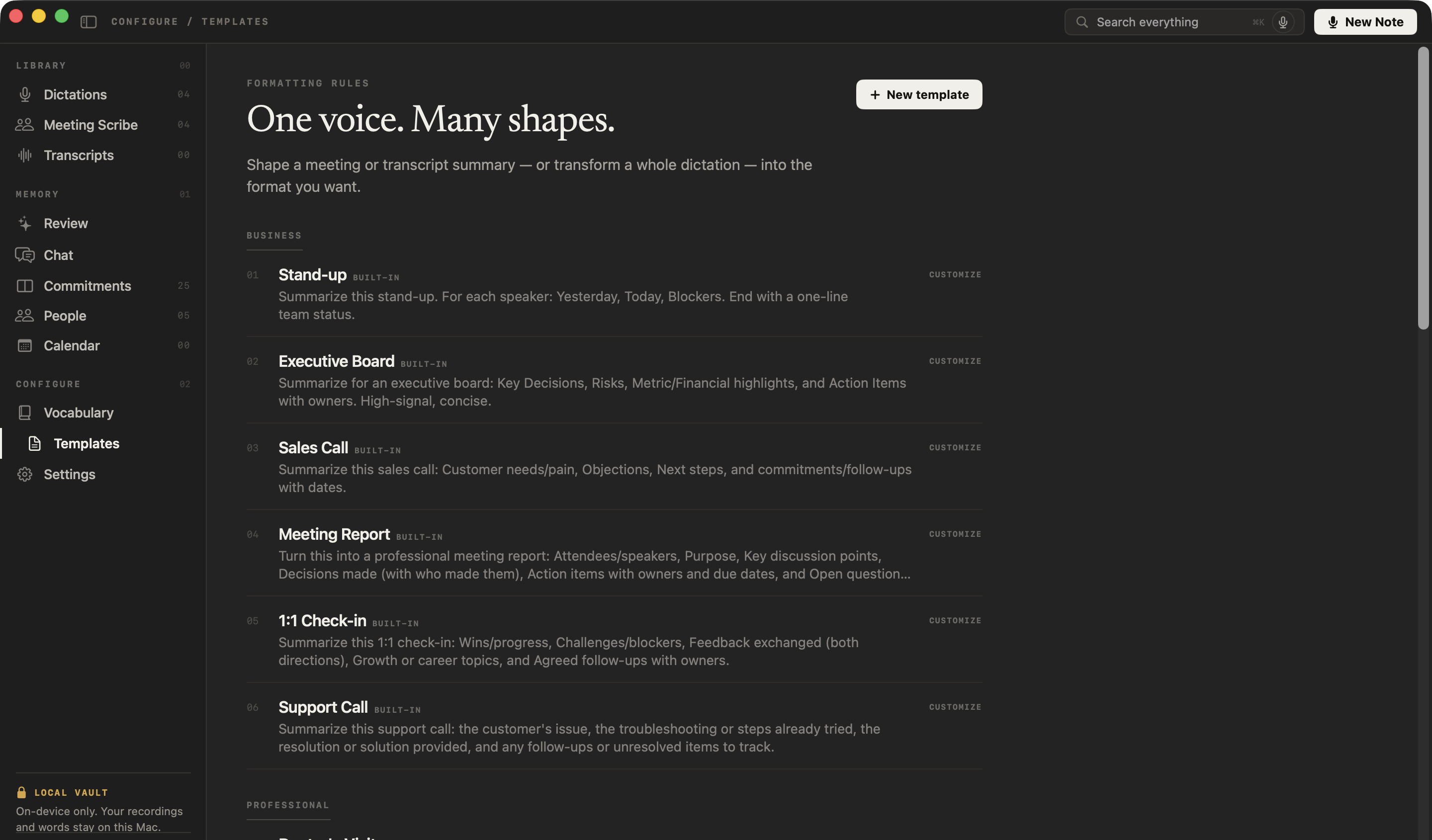
What does NoteOwl’s Support Call template ask for?
Exactly the four sections above. This is the template’s instruction to NoteOwl, word for word; you can change it, or write your own, in NoteOwl’s Templates screen (see how to customize a template).
“Summarize this support call: the customer's issue, the troubleshooting or steps already tried, the resolution or solution provided, and any follow-ups or unresolved items to track.”
FAQ
Questions about support call notes
How do you write up a customer support call?
Straight after the call, write the customer’s issue in their words, every troubleshooting step tried and what it showed, the resolution or workaround, and anything still open with an owner and a date. Add the ticket number. NoteOwl’s Support Call template writes it in those four sections from the recording.
What if the problem isn’t solved on the call?
Say so under the resolution, with any workaround you gave, and list everything still open under follow-ups: who owns it, what happens next and by when, such as an escalation, a bug report or a callback. Give the customer the reference number before you hang up.
Can I use this customer support call template in my help desk?
Yes. It is plain text, so it pastes into a help desk ticket, a CRM note, Google Docs, Notion or Apple Notes and keeps its four sections. NoteOwl doesn’t connect to a help desk, so its notes go in by copy and paste too.
Can NoteOwl write support call notes automatically?
Yes. Record the support call in NoteOwl, then choose Summarize as → Support Call, and it writes the customer’s issue, the troubleshooting tried, the resolution and the follow-ups from the recording, on your Mac with on-device AI models. Meeting notes and templates are part of NoteOwl Pro: $79 once for one Mac, with a 7-day free trial in the app.
Should I tell the customer the call is being recorded?
Yes. Tell the customer before you start and follow your company’s recording policy. NoteOwl sends no bot and no notice to the call, so telling them is up to you, and in many places it is the law. The recording and the notes stay on your Mac.
Can I find what a customer said on an earlier call?
Yes. NoteOwl keeps every recorded call in a searchable memory on your Mac, so you can search for the customer or the error, or ask Chat about it, and the answer cites the call it came from. Chat and memory are part of NoteOwl Pro.
Can I change the sections of NoteOwl’s Support Call template?
Yes. In NoteOwl’s Templates screen you can customize the Support Call template — for example, to add the product area or how severe the problem is — or write your own, then summarize any recorded call again in the new format.
Related
- All 22 meeting notes templates Stand-ups, 1:1s, sales calls, interviews and more, with their sections.
- Sales call notes template Customer needs, objections, next steps and follow-ups with dates.
- Action items and commitments Follow-ups with owners and dates, and one board of what you owe and what you’re owed.
- AI meeting summaries The decisions and action items NoteOwl writes when a meeting ends.
Keep exploring
More templates
- Consultation notes templateA consultation notes template to copy, what each section holds, an example, and how NoteOwl writes it
- Training notes templateA training notes template to copy, what each section holds, an example, and how NoteOwl writes it
- To-do list templateA to-do list template to copy, what each section holds, an example, and how NoteOwl writes it
- Meeting summary templateA meeting summary template to copy, what each section holds, an example, and how NoteOwl writes it
Get your support call notes written on your Mac
Free to download. Runs entirely on your Mac.
macOS 26 or later · Apple Silicon (M1 or newer) · 16 GB memory minimum, 24 GB recommended
About NoteOwl
NoteOwl is private AI meeting notes and memory for the Mac. It captures meetings without a bot joining the call, labels every speaker, writes summaries and action items, and builds a memory of every conversation that you can chat with — fully offline, because the speech recognition and the AI run on the Mac itself. Dictation into any app is free; Pro is a one-time purchase.
NoteOwl pricing: what’s free and what Pro adds
Last updated