Guide · macOS 26
How to transcribe a voice memo on Mac
To transcribe a voice memo on Mac, open Voice Memos, click the recording and click the Transcription button: on macOS 15 or later on a Mac with Apple silicon, Voice Memos shows the transcript, and you can copy the text from it.
For a transcript with speaker labels, a summary, or a text or subtitle file, save the memo as a file and drop it into NoteOwl, which transcribes it on your Mac; importing recordings is part of NoteOwl Pro.
Voice memo to text · 2 ways
01Voice Memos, built into macOS
The Transcription button shows the text to read, search and copy. Free; macOS 15 or later on Apple silicon.
02NoteOwl, from the memo’s file
Speaker labels, a summary with action items, and export as text or subtitles. Transcribed on your Mac; import is part of NoteOwl Pro.
How do you see a Voice Memos transcript on a Mac?
Open Voice Memos, click the recording and click the Transcription button. The transcript appears; select any text, Control-click it and choose Copy to paste it elsewhere. Apple says this needs macOS 15 or later and a Mac with Apple silicon.[1]
The search field in Voice Memos finds recordings by their title or by words in their transcript, and with Apple Intelligence, Writing Tools can summarize a transcript.[1]
In Voice Memos on macOS 26
- 1
Open Voice Memos
Go to the Voice Memos app on your Mac.
- 2
Click the recording
Select the voice memo you want as text.
- 3
Click the Transcription button
The transcript appears. Select a word in it and the playhead appears at that point in the audio.
- 4
Copy the text
Select the text you want, Control-click it and choose Copy, then paste it into a Mail message, a note or a document.
Why doesn’t my voice memo have a transcript?
Usually because the Mac or the region doesn’t support it: Voice Memos transcribes on macOS 15 or later with Apple silicon, and audio transcription isn’t available in every country or region. An older memo is transcribed automatically when you open it.[1]
Your Mac
Voice Memos transcribes on macOS 15 or later, on a Mac with Apple silicon.
Your country or region
Apple says audio transcription isn’t available in all countries or regions.
An older recording
A memo made in macOS 14 or earlier, or on a device that doesn’t transcribe, is transcribed automatically when you open it, if it has speech in it.
You’re recording now
Click the Transcription button while you record to watch the transcript appear live, with the current word highlighted.
None of these? Save the memo as a file and transcribe it with NoteOwl instead, as below.
How do you save a voice memo as a file on a Mac?
Drag the recording from Voice Memos to a Finder window, and it’s saved in that folder as an audio file. Or select it, click the Share button and choose an app or service, such as Mail or Notes.[2]
- 1
Drag it to Finder
Drag the recording from Voice Memos to a Finder window to save it in that folder as an audio file, usually .m4a. You can also drag it straight into an email, a note or a message.
- 2
Or use the Share button
Select the recording, click the Share button and choose an app or service, such as Mail or Notes.
- 3
On your iPhone?
With iCloud on for Voice Memos, recordings from your iPhone appear in Voice Memos on your Mac. In System Settings, click your name, then iCloud, then See All next to Saved to iCloud, and turn on Voice Memos.
How do you transcribe a voice memo with speaker labels?
Import it into NoteOwl. Save the memo as a file, then drop it on NoteOwl’s Transcripts screen or click Import Recording. NoteOwl transcribes it on your Mac, labels each speaker, and writes a summary with action items.
How NoteOwl tells voices apart, and names them: transcription with speaker identification.
- 1
Save the memo as a file
In Voice Memos, drag the recording to a Finder window, into any folder.
- 2
Open Transcripts in NoteOwl
Choose Transcripts in NoteOwl’s sidebar.
- 3
Drop the file on the window
Or click Import Recording in the title bar and choose it. NoteOwl takes one file at a time.
- 4
Read, search and export
NoteOwl transcribes the memo on your Mac, labels the speakers, and writes a summary with action items. Export the transcript as text, SRT subtitles, Markdown or PDF.
What you get
- A transcript with the time of each line and, by default, the speakers labelled; play any line to hear it.
- A summary with action items, written when the transcript is done.
- Export as text, an SRT subtitle file, Markdown or PDF, from the Share button or right-click → Export….
- The same import takes mp3, wav, m4a, aiff, flac, aac and mp4 files, one at a time.
The file is transcribed with on-device AI models and never leaves your Mac. Importing recordings is part of NoteOwl Pro: $79 once, with a 7-day free trial in the app.
Voice Memos or NoteOwl: which should you use?
Voice Memos, to read or copy what you said: it’s free and built in. NoteOwl, when a memo has more than one voice, or you want a summary, action items, a subtitle file, or one search across your memos and meetings.
- Price
- Voice MemosFree, built into macOS
- NoteOwlImport is part of NoteOwl Pro: $79 once, 7-day free trial
- Mac requirements
- Voice MemosmacOS 15 or later, Apple silicon
- NoteOwlmacOS 26 or later, Apple Silicon (M1 or newer), 16 GB memory minimum, 24 GB recommended
- What it transcribes
- Voice MemosRecordings in Voice Memos
- NoteOwlAudio and video files: mp3, wav, m4a, aiff, flac, aac or mp4
- Speaker labels
- Voice MemosNot mentioned in Apple’s guide
- NoteOwlYes, added right after the transcript appears
- Summary
- Voice MemosWith Apple Intelligence, Writing Tools can summarize a transcript
- NoteOwlWritten automatically, with action items
- Getting the text out
- Voice MemosSelect it, Control-click, Copy
- NoteOwlCopy, or export as text, SRT subtitles, Markdown or PDF
- Search
- Voice MemosTitles and transcripts, inside Voice Memos
- NoteOwlSearch everything (⌘K): memos, meetings and notes at once, with Pro
- Languages
- Voice MemosNot listed in Apple’s Voice Memos guide
- NoteOwl34, detected automatically
| Voice Memos | NoteOwl | |
|---|---|---|
| Price | Free, built into macOS | Import is part of NoteOwl Pro: $79 once, 7-day free trial |
| Mac requirements | macOS 15 or later, Apple silicon | macOS 26 or later, Apple Silicon (M1 or newer), 16 GB memory minimum, 24 GB recommended |
| What it transcribes | Recordings in Voice Memos | Audio and video files: mp3, wav, m4a, aiff, flac, aac or mp4 |
| Speaker labels | Not mentioned in Apple’s guide | Yes, added right after the transcript appears |
| Summary | With Apple Intelligence, Writing Tools can summarize a transcript | Written automatically, with action items |
| Getting the text out | Select it, Control-click, Copy | Copy, or export as text, SRT subtitles, Markdown or PDF |
| Search | Titles and transcripts, inside Voice Memos | Search everything (⌘K): memos, meetings and notes at once, with Pro |
| Languages | Not listed in Apple’s Voice Memos guide | 34, detected automatically |
How do you record a voice memo that’s saved as text?
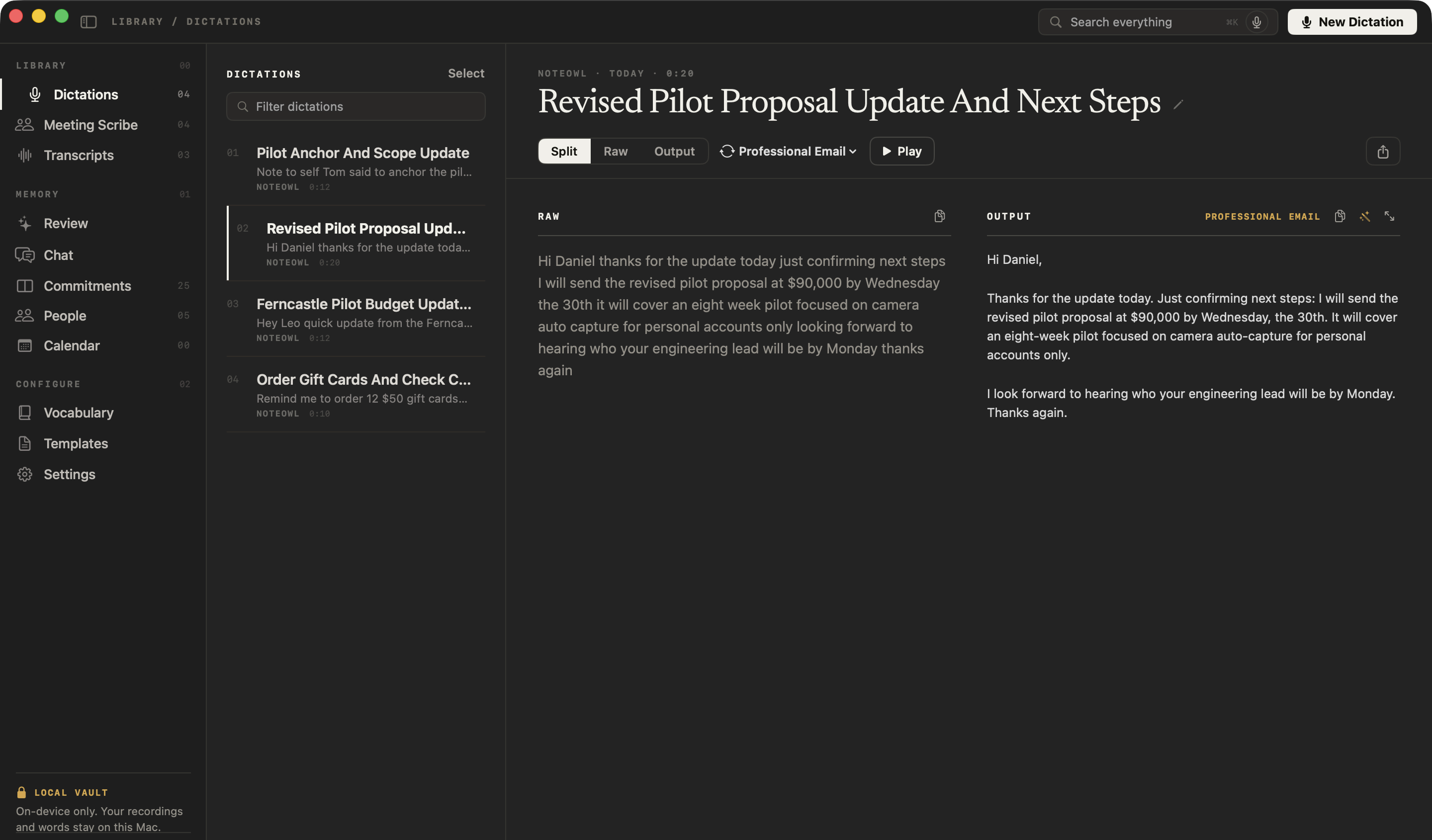
Record it in NoteOwl instead. Open Dictations, press New Dictation, talk and press Stop: the note is saved as text beside its audio, with a polished version, and there is nothing to import. Voice notes are free and unlimited.
More on NoteOwl as a voice notes app for Mac.
Sources
Last checked . Apple’s steps are from the Voice Memos User Guide for macOS Tahoe 26.
FAQ
Questions about transcribing voice memos on Mac
Can Voice Memos transcribe recordings on a Mac?
Yes. Apple says Voice Memos transcribes the speech in recordings on macOS 15 or later on a Mac with Apple silicon, though not in every country or region: click a recording, then the Transcription button. NoteOwl can also transcribe a voice memo file on your Mac, with speaker labels and a summary.
How do I copy the transcript of a voice memo on a Mac?
In Voice Memos, click the recording, click the Transcription button, select the text, Control-click it and choose Copy, then paste it where you need it. In NoteOwl, the transcript of an imported voice memo can be copied, or exported as text, SRT subtitles, Markdown or PDF.
Can I search voice memos by what was said?
Yes. In Voice Memos on a Mac, the search field finds recordings with your words in the title or the transcript, according to Apple. NoteOwl Pro’s Search everything (⌘K) finds passages across imported voice memos, meetings and notes at once.
How do I transcribe a voice memo with more than one speaker?
Import it into NoteOwl: drag the memo from Voice Memos to a Finder window, then drop the file on NoteOwl’s Transcripts screen. NoteOwl transcribes the voice memo on your Mac and labels each speaker, and you can set how many people spoke if it guesses wrong.
Can I turn a voice memo into a text file or subtitles?
Yes, with NoteOwl. Import the voice memo into NoteOwl’s Transcripts, then click the Share button, or right-click and choose Export…, to save the transcript as a text file, an SRT subtitle file, Markdown or PDF. Voice Memos itself lets you copy the transcript’s text.
Does NoteOwl upload my voice memos to transcribe them?
No. NoteOwl transcribes voice memos and other recordings on your Mac with on-device AI models, so the file never leaves your Mac, and no internet connection is needed once the models have been downloaded.
Is transcribing voice memos free in NoteOwl?
Importing and transcribing recordings such as voice memos is part of NoteOwl Pro, a one-time $79 purchase for one Mac, with a 7-day free trial in the app and no card. Voice notes you record inside NoteOwl are free and unlimited.
Related
- Voice notes app for Mac Record in NoteOwl and each note is saved as searchable text, audio kept. Free.
- Transcription with speaker identification Every line says who said it, and a voice you name is recognised later.
- What is an SRT file? The subtitle format NoteOwl exports, with an example and how it differs from VTT.
- How to use dictation on Mac Apple’s built-in Dictation on macOS 26, and when an app helps more.
Keep exploring
What this guide recommends
- Audio to textTranscription software for your Mac: drop in an audio or video file and get a speaker-labelled transcript with timestamps, unlimited, with nothing uploaded
- Voice notes on your MacVoice notes and dictations saved as searchable text on your Mac, with the raw words beside the polished version; free
- Subtitle generatorTurn a recording into an SRT subtitle file with timecodes and speaker names, on your Mac
More guides
- Record Mac audioHow to record the sound your Mac plays (system audio) with Apple’s own tools, and how NoteOwl records calls without a bot
- Tracking action itemsHow to capture, assign and follow up action items after a meeting, by hand and with NoteOwl
- Cornell notesThe Cornell note-taking method: the cue column, notes and summary, the five steps, a template to copy, an example, and how it fits a recorded lecture
Free tools
- Audio to text converterTranscribe audio to text free: drop in an MP3, M4A, WAV or other recording and get an AI transcript with times, as text, SRT, VTT or Word; nothing is stored
- M4A to MP3 converterConvert M4A to MP3 in your browser, iPhone and Mac voice memos included, at 128, 192 or 320 kbps; nothing is uploaded
Turn your recordings into searchable notes
Free to download. Runs entirely on your Mac.
macOS 26 or later · Apple Silicon (M1 or newer) · 16 GB memory minimum, 24 GB recommended
About NoteOwl
NoteOwl is private AI meeting notes and memory for the Mac. It captures meetings without a bot joining the call, labels every speaker, writes summaries and action items, and builds a memory of every conversation that you can chat with — fully offline, because the speech recognition and the AI run on the Mac itself. Dictation into any app is free; Pro is a one-time purchase.
NoteOwl pricing: what’s free and what Pro adds
Last updated