Record a meeting on your Mac
Last updated Checked against NoteOwl 1.0.0
To record a meeting with NoteOwl, press ⌥ Space in any app or click Start Meeting on the Meeting Scribe screen, and do the same again to stop. NoteOwl records your microphone and your Mac's audio with no bot in the call, then writes the transcript, summary and action items on your Mac.
Recording meetings is part of NoteOwl Pro, which you can try free for 7 days: see start the 7-day NoteOwl Pro trial.
How do I start and stop a meeting recording?
Press ⌥ Space in any app, or click Start Meeting at the top right of the Meeting Scribe screen. To stop, press ⌥ Space again, click Stop Meeting, or click Stop in the NoteOwl panel at the top of the screen.
- Open NoteOwl and click Meeting Scribe in the sidebar.
- Click Start Meeting, or press ⌥ Space from any app. The NoteOwl panel opens at the top of the screen with the meeting's name, a timer and Stop.
- Join your call, or start talking with the people in the room.
- When the meeting ends, click Stop Meeting or Stop, or press ⌥ Space. The button reads Processing… while NoteOwl writes the transcript and notes on your Mac.
- When processing finishes, click Open the meeting to read the summary, the action items and the transcript.
You can also start and stop from the menu bar: click the NoteOwl icon and choose Start Meeting or Stop Meeting. Pressing Esc tucks the NoteOwl panel away without stopping the meeting.
NoteOwl listens to one thing at a time. While it's dictating or hearing a question you asked with ⌥ Z, Start Meeting is unavailable until that finishes.
What does NoteOwl record?
Two channels: your microphone, labelled You, and your Mac's audio, labelled Others, which is how the other people on a call reach your Mac. Your Mac's audio includes any other sound it plays during the meeting, such as notifications. NoteOwl doesn't record your screen.
While a meeting records, the Capture section of the Meeting Scribe screen shows each channel. Recorded and a time means audio is arriving, and No audio on this channel means none is. Below them, Saved to disk as it records — a crash or a quit keeps what has been captured. confirms the audio is safe. If something does go wrong, see recover a meeting after a crash or power loss.
To record the other people on a call, NoteOwl needs the macOS Screen & System Audio Recording permission, shown in NoteOwl as Screen Recording. It's how macOS shares a Mac's audio with an app. Without it, the meeting doesn't start and NoteOwl says Meeting capture needs Screen Recording & Microphone access. See macOS permissions NoteOwl asks for.
While the meeting records you can:
- Rename it. Click the title on the Meeting Scribe screen and type a name. NoteOwl keeps a name you chose instead of writing its own.
- Take notes. Under Notes & questions, type a note and click Add. Anything you add there is kept with the meeting and given to the summary as context.
Can NoteOwl offer to take notes when a call starts?
Yes. When a call app is open and your microphone is in use, NoteOwl asks Scribe this meeting? at the top of the screen. Click Start scribing to record, or Not now to ignore it. The offer closes by itself after 20 seconds.
Choose how this works in Settings → Auto-Context, under Offer to scribe meetings:
| Setting | What happens when NoteOwl notices a call |
|---|---|
| Offer (the default) | NoteOwl asks Scribe this meeting? and records only if you click Start scribing |
| Auto-start | NoteOwl starts recording straight away, without asking |
| Off | Nothing. You start every meeting yourself |
NoteOwl looks for these apps: Zoom, Microsoft Teams, FaceTime, Webex, Discord, Slack, and the Chrome, Safari, Firefox and Edge browsers, for calls such as Google Meet. It's a best guess: it offers when one of these apps is open while your microphone is in use, so it can also offer when you use the microphone for something else. It offers once per call.
What do I get when the meeting ends?
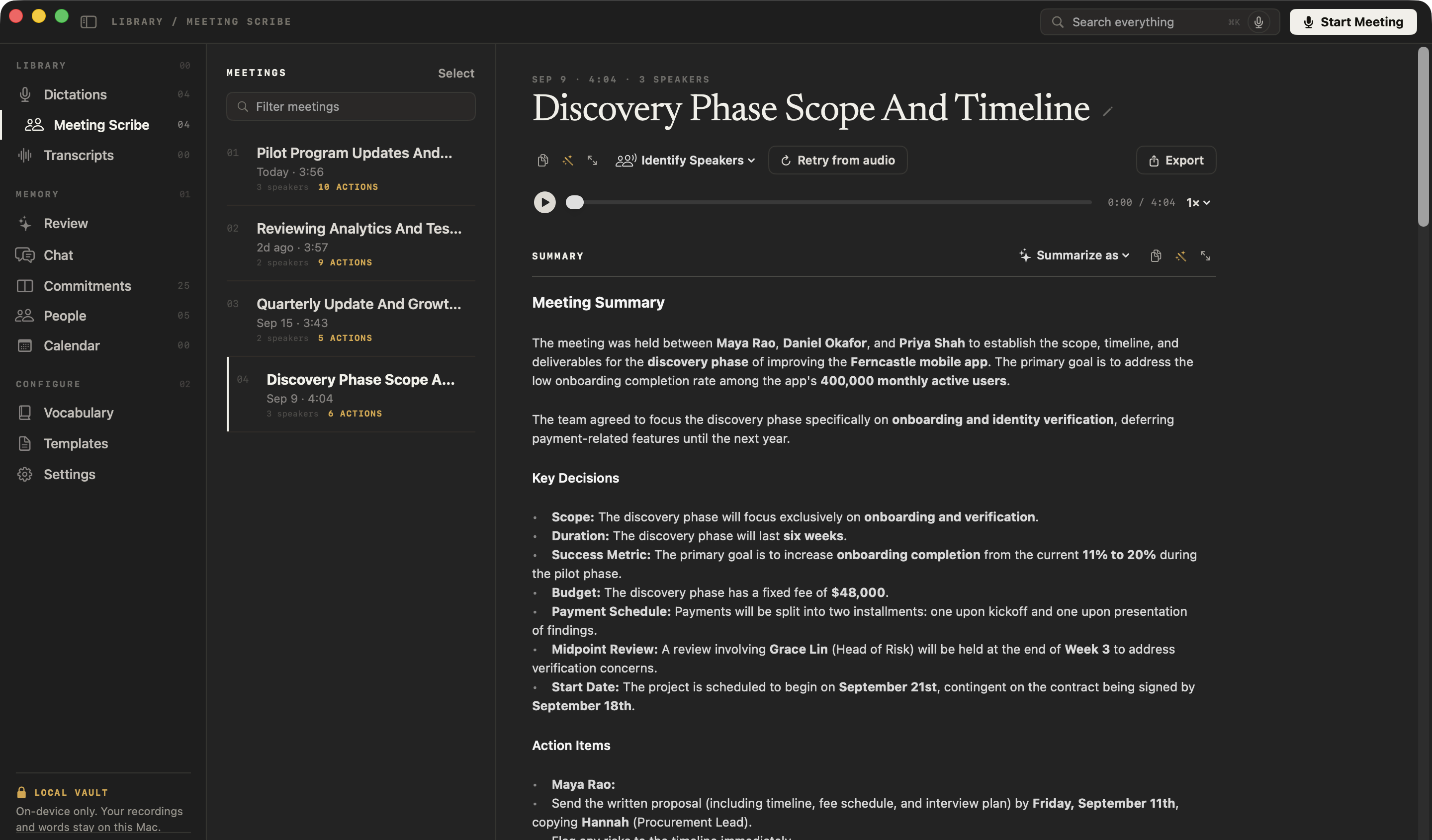
A transcript labelled by speaker, a summary with the decisions and next steps, and a list of action items, all written on your Mac. NoteOwl also names the meeting from what was said and adds it to your memory, so you can ask about it in Chat.
After you stop, the Processing section shows each step as it runs: Saving the recording, Transcript, Speakers, Summary, Memory and Search index. The list row then shows the number of speakers and action items.
- Transcript. Your microphone is labelled You, and the voices in your Mac's audio are split into Speaker 1, Speaker 2 and so on. Click Rename speakers above the transcript to name them. NoteOwl then recognises those voices in later meetings.
- Summary and action items. See summaries, decisions and action items.
- Recording. Play it from the top of the meeting, or click the play button beside any line of the transcript to hear that line.
Tell people you're taking notes
NoteOwl doesn't join the call or post anything in it, so the people you're meeting with can't see that you're taking notes. Tell them at the start, whether the meeting is on a call or in a room.
Recording laws differ from place to place, and some require everyone's consent before a conversation is recorded. You're responsible for getting any consent the law requires where you and the other people are, as the NoteOwl Terms say. This is general guidance, not legal advice.
NoteOwl never starts recording by itself unless you choose Auto-start under Offer to scribe meetings. With the default, Offer, it only asks.
Common questions
Does a bot join the call when NoteOwl records a meeting?
No. NoteOwl records your microphone and your Mac's audio on your Mac, so nothing joins the call and nothing appears in it. That is also why you should tell the people you're meeting with that you're taking notes.
Does NoteOwl work with Zoom, Microsoft Teams and Google Meet?
Yes. NoteOwl records the sound your Mac plays, so it works with any call app, including calls in a web browser. Its call detection looks for Zoom, Microsoft Teams, FaceTime, Webex, Discord, Slack, Chrome, Safari, Firefox and Edge.
Is there a time limit on a NoteOwl meeting recording?
No. NoteOwl sets no time limit on a meeting. The audio is saved to disk as it records, and a long meeting is summarized in parts that are then combined.
Can I record meetings with NoteOwl Free?
No. Recording meetings is part of NoteOwl Pro. On NoteOwl Free, ⌥Space and Start Meeting show what NoteOwl Pro adds instead, and you can try it free for 7 days with no card.
Find, play and export your dictations
NoteOwl saves every dictation in Dictations. Record voice notes with New Dictation, then filter, rename, compare raw and polished text, play and export them.
Get offered notes when a call starts
NoteOwl notices a call in Zoom, Teams, FaceTime, Webex, Discord, Slack or a browser and offers to take notes. Choose Offer, Auto-start or Off in Settings.