Transcribe an audio or video file
Last updated Checked against NoteOwl 1.0.0
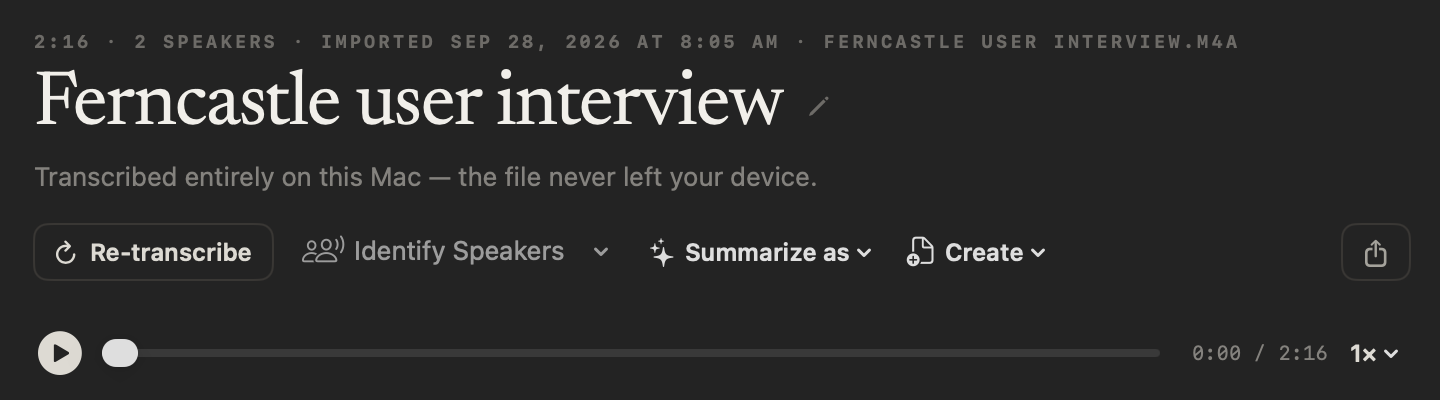
To transcribe a recording, open Transcripts in the sidebar and click Import Recording at the top right, or drag the file onto the screen. NoteOwl transcribes it on your Mac, labels the speakers, and writes a summary and action items. The file never leaves your Mac.
Importing recordings is part of NoteOwl Pro, which you can try free for 7 days: see start the 7-day NoteOwl Pro trial.
Import a file
- Click Transcripts in the sidebar, under Library.
- Click Import Recording at the top right and choose the file. Or drag the file from Finder onto the Transcripts screen, and let go when it says Drop to transcribe.
- Wait while NoteOwl transcribes it. The file appears in the list with its progress and TRANSCRIBING · ON-DEVICE, and Import Recording reads Processing….
- When it's done, NoteOwl selects the new transcript, with its summary and action items. The speakers are labelled a moment later.
Which files can I import?
Audio and video recordings in mp3, wav, m4a, aiff, flac, aac and mp4, one file at a time. For an mp4 video, NoteOwl transcribes the sound. The formats are listed in supported import and export formats.
- One file at a time. The file chooser takes one file. If you drop several files together, NoteOwl imports only one of them.
- One after another. While NoteOwl is transcribing a file, it won't start another. If you try, it says Still working — “interview.m4a” wasn’t imported. Try again when this finishes.
- Recordings only. A file that isn't audio or video is refused, for example “notes.pdf” isn’t an audio or video recording, so there was nothing to import.
What does NoteOwl do after it transcribes a file?
It finishes the recording on your Mac, in this order:
| Step | What you get |
|---|---|
| Transcript | Every line with its time, saved with an audio copy for playback |
| Summary | A summary of the whole recording, at the top of the page |
| Action items | Tasks and promises from the recording, under the summary |
| Title | A name based on what was said, unless you've already named the recording |
| Search | The recording joins your memory, so search and Chat can find it |
| Speakers | Each line labelled Speaker 1, Speaker 2 and so on, right after the transcript appears |
NoteOwl labels the speakers automatically while Automatically identify speakers is on, in Settings → Memory under Speakers. It's on by default.
If NoteOwl couldn't finish one of these steps, it says what's missing, such as “interview.m4a” is saved, without a summary. The transcript is kept either way.
Name the speakers
- Rename them. Click Rename speakers above the transcript, type a real name beside each speaker and click Save. Every line updates. Where it's safe to, NoteOwl also learns that voice for future recordings.
- Identify them again. Click Identify Speakers for Automatic, or open its menu and choose from 2 speakers to 8 speakers when you know how many people were talking. The number you choose sticks when you re-transcribe. NoteOwl then says how many it found, such as Found 2 speakers.
- Merge two speakers. If one person was split in two, click the merge button beside them in Rename speakers and choose Merge into the other speaker.
- Fix one line. Right-click the line, choose Assign to and pick the speaker who said it.
For more on speaker names and voices, see name speakers and recognise voices.
How do I replay part of the recording?
Click the play button beside a line to hear that line again. TAP TO REPLAY above the transcript is the reminder.
To play the whole recording, use the player under the title: click play, drag the slider to move through it, and choose a speed from the menu that shows 1×: 0.75×, 1×, 1.25×, 1.5× or 2×.
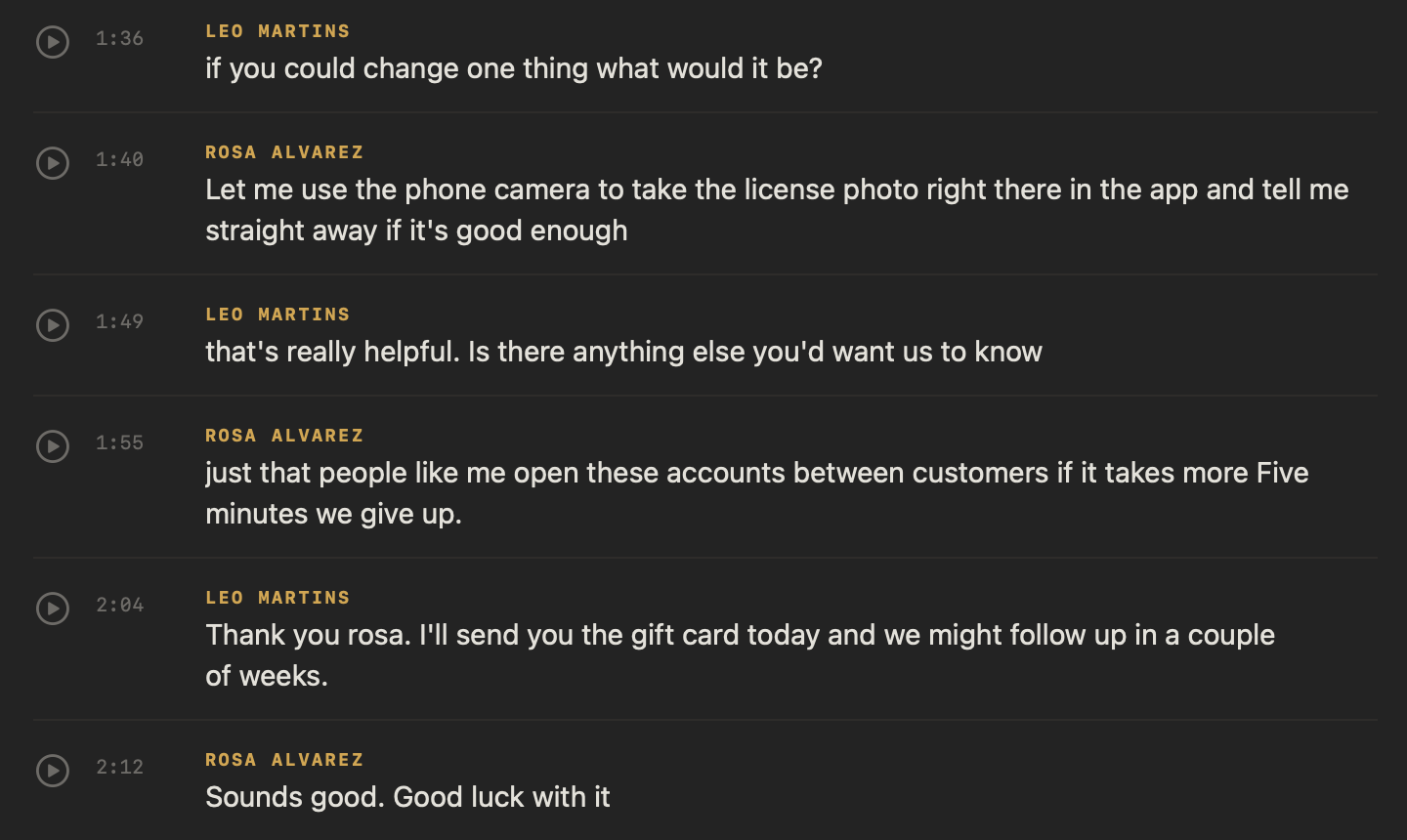
To copy text, select any words, right-click a line and choose Copy, or click Copy above the transcript for all of it, each line with its speaker's name.
Re-transcribe a file
If NoteOwl misheard something, or you've added names to Vocabulary since you imported the file, click Re-transcribe at the top of the recording, then Re-transcribe again to confirm. NoteOwl runs speech to text again on the audio it kept and replaces the transcript, using the vocabulary you have now. The confirmation says: Runs speech-to-text again on this recording and replaces the current transcript. The audio is kept.
When it's done, NoteOwl says Re-transcribed — 12 lines replaced., with the number of lines it changed, or Re-transcribed — the text came out the same. A title you gave the recording stays. While Automatically identify speakers is on, NoteOwl then labels the speakers again, keeping the number you chose in Identify Speakers.
To add names and jargon, see teach NoteOwl names and jargon.
Summarize or rewrite it
- Summarize as rewrites the summary in any of the 22 built-in templates or one of your own. See choose or write a summary template.
- Create turns the transcript into a Report, an Email draft, a Blog post or a Social post, or follows your own instruction with Custom….
Export the transcript
Click the Share button at the right of the row of buttons under the title, or right-click the recording in the list and choose Export…. Then choose Copy Markdown, Save as Markdown, Save PDF, Save Text, Save Subtitles, Share…, Mail or Messages.
Save Text saves the transcript as a .txt file, each line with its speaker. Save Subtitles saves an .srt subtitle file timed from the transcript; a line with no time is left out, and NoteOwl says how many.
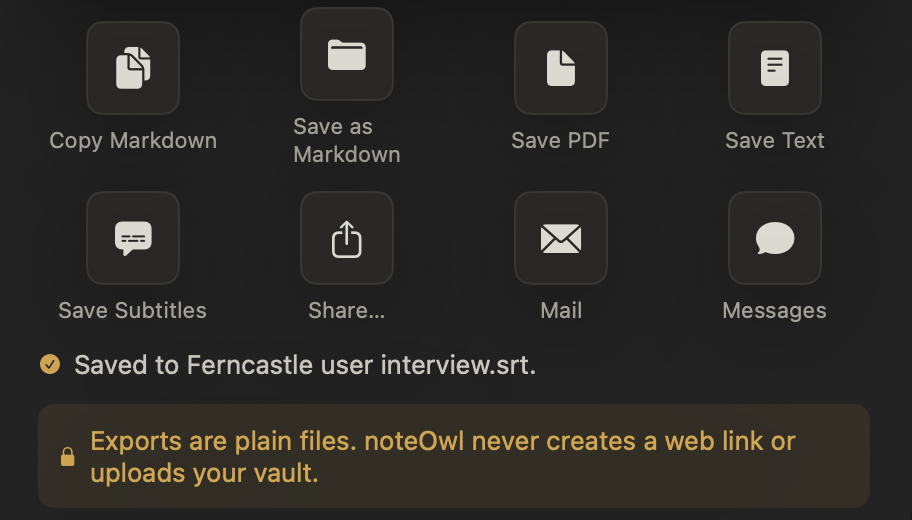
For what each format holds, see export a note, or all of your data.
Common questions
Does NoteOwl keep my original file?
No. NoteOwl keeps the transcript and an audio copy of the recording for playback, in its own folder on your Mac, and leaves your original file where it was. For a video, it keeps the sound, not the picture, so keep the original if you need it.
Do I need the original file to re-transcribe it?
No. NoteOwl re-transcribes from the audio copy it kept when you imported the file, so it works even if the original has moved. Click Re-transcribe at the top of the recording in Transcripts.
Does an imported file leave my Mac?
No. NoteOwl transcribes imported files on your Mac with on-device speech recognition, and each one's page says so in the line Transcribed entirely on this Mac — the file never left your device. It works without an internet connection.
Can I import a file on NoteOwl Free?
No. Importing recordings is part of NoteOwl Pro, so on NoteOwl Free, Import Recording shows what NoteOwl Pro adds instead of opening a file. Files you imported during the trial stay on your Mac, and you can still open and export them on Free.
Recover a meeting after a crash or power loss
NoteOwl saves a meeting's audio to disk as it records. After a crash, a force quit or a flat battery, Retry from audio rebuilds the transcript and notes.
Ask questions about your meetings in Chat
Ask NoteOwl Chat about your meetings in plain words. It answers on your Mac from your own recordings, shows the passages it used, and says when nothing matches.