Export a note, or all of your data
Last updated Checked against NoteOwl 1.0.0
To export a meeting, dictation or transcript from NoteOwl, open it, click Export or the share button, and choose Copy Markdown, Save as Markdown, Save PDF or another option. To take everything at once, open Settings, click the Memory tab and click Export all data…, which saves one zip file on your Mac.
Exports are plain files. NoteOwl never creates a web link to your notes or uploads them.
Export a meeting, dictation or transcript
- Open the item: a meeting in Meeting Scribe, a dictation in Dictations, or an imported recording in Transcripts.
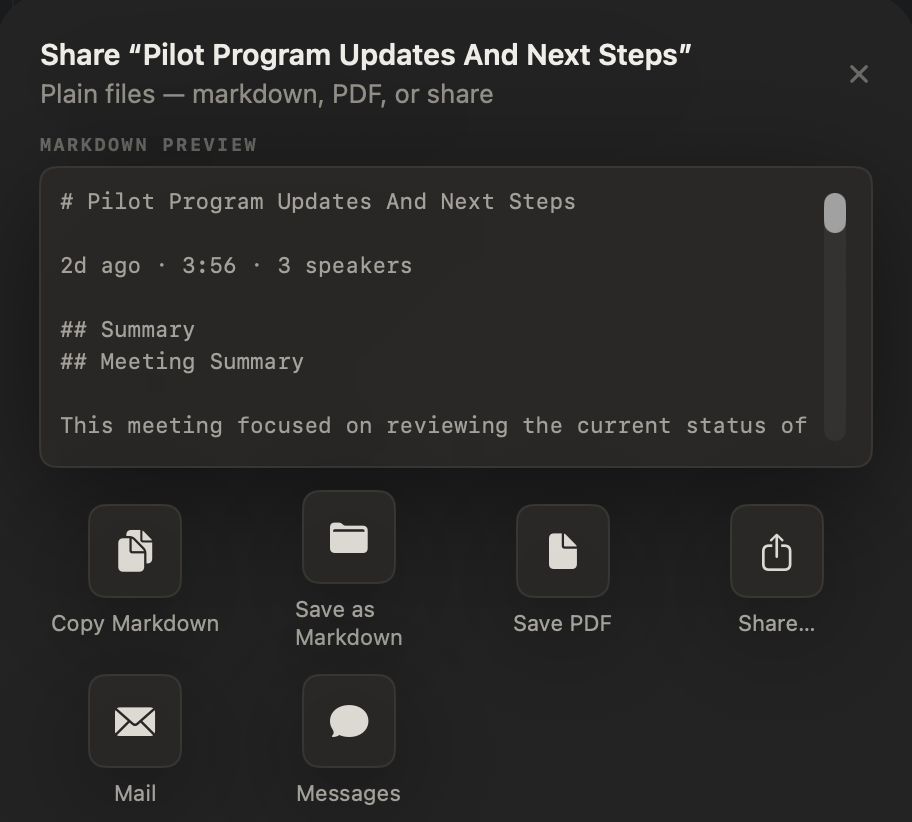
- Click Export at the top right of a meeting, or the share button at the top right of a dictation or an imported recording. In Transcripts you can also right-click a recording and choose Export…. A sheet opens with a Markdown preview.
- Click the option you want, such as Save PDF. For a file, choose where to save it and click Save. NoteOwl confirms with Saved to and the file's name.
Which formats can NoteOwl export?
Markdown, PDF, plain text and SRT subtitles, and you can hand an item to Mail, Messages or the macOS share menu.
| Option | What you get |
|---|---|
| Copy Markdown | The item as Markdown text on the clipboard |
| Save as Markdown | A .md file |
| Save PDF | A PDF of the same text |
| Save Text | A .txt file of the transcript, each line as “Speaker: words”, without times |
| Save Subtitles | An .srt subtitle file timed from the transcript |
| Share… | The macOS share menu, with the item as a Markdown file |
| A new email containing the Markdown text | |
| Messages | A new message containing the Markdown text |
Save Subtitles times each subtitle from the transcript. A line with no time is left out rather than given an invented one, and the confirmation says how many were left out. If Mail or Messages isn't set up on your Mac, NoteOwl says That app isn't set up on this Mac.
What's in an exported meeting or dictation?
Its title, its text and its transcript, as Markdown. What's included depends on the item:
- A meeting: when it was recorded, its length and speaker count; the summary; the action items as a checklist, with owners and due dates where known; and the transcript, each line with its time and speaker.
- A dictation: the cleaned-up or reformatted version under “Output”, then the raw transcript, the words as you said them.
- An imported recording: its summary and action items if it has them, then the transcript, each line with its speaker and time.
Export all your data
- Open NoteOwl and click Settings in the sidebar.
- Click the Memory tab and, under Manage data, click Export all data….
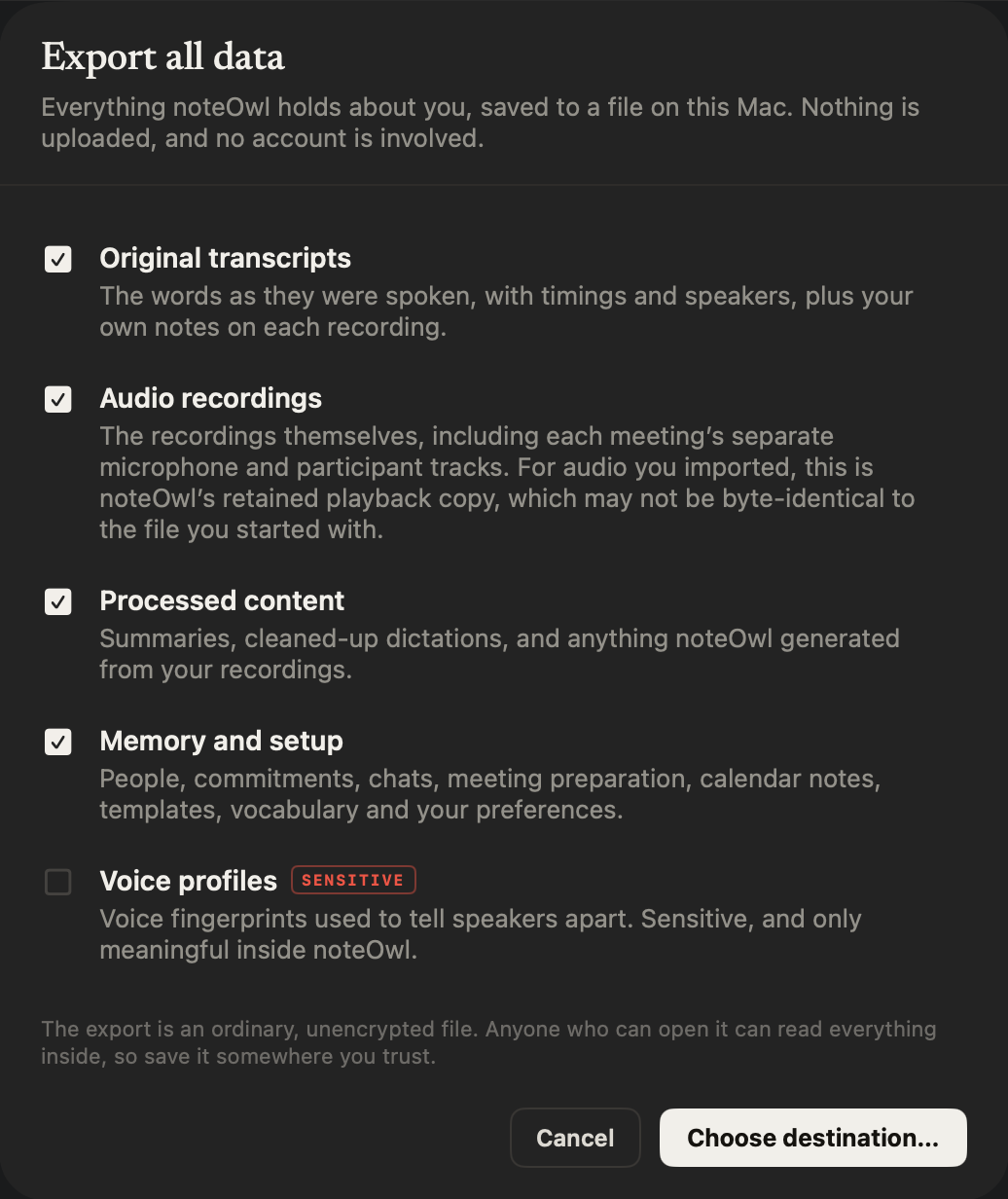
- In Export all data, tick what to include. The first four choices are ticked to start with; Voice profiles isn't.
- Click Choose destination…, pick a folder and click Export. NoteOwl suggests a name such as noteOwl Export 2026-09-27.zip.
- Wait while NoteOwl exports, or click Cancel to stop. When it says Export complete, click Show in Finder to see the file.
Delete all my data, just below, is greyed out while an export runs. To erase your library after exporting it, see delete a recording or all your data.
What does Export all data include?
Everything NoteOwl holds about you, in five parts you can tick or untick. At least one must stay ticked.
| Choice | What's in it | Ticked to start with |
|---|---|---|
| Original transcripts | The words as they were spoken, with times and speakers, plus your own notes on each recording | Yes |
| Audio recordings | The recordings, including each meeting's separate microphone and participant tracks. For audio you imported, it's the copy NoteOwl kept for playback, which may not be identical to your original file | Yes |
| Processed content | Summaries, cleaned-up dictations and everything else NoteOwl made from your recordings | Yes |
| Memory and setup | People, commitments, Chat conversations, meeting preparation, calendar notes, templates, vocabulary and your preferences | Yes |
| Voice profiles | The voice fingerprints NoteOwl uses to tell speakers apart and recognise voices. Marked Sensitive, and only meaningful inside NoteOwl | No |
What's inside the export file?
One zip file. Inside, README.md explains the contents and manifest.json lists every other file with its size and SHA-256 checksum, so you can check that nothing is missing or changed. Which folders appear depends on what you ticked.
| In the zip | What it holds |
|---|---|
documents/<id>/ | One folder per recording: document.json (title and date), transcript.md and segments.json (the words), source.md (the recording as NoteOwl stores it, with your notes), and outputs.json and outputs/ (summaries and other generated content) |
documents/<id>/audio/ | mixed.wav, plus you.wav and others.wav for a meeting |
memory/ | Chat conversations, people and commitments, each as Markdown and JSON, plus meeting preparation, templates, vocabulary, calendar, notes on people and preferences as JSON |
voice/ | Your voice profiles, if you ticked them |
The README also lists what's deliberately left out, including NoteOwl's internal database and search index, whose contents are exported in readable form instead, the on-device AI models, and your NoteOwl Pro licence, which stays in the macOS Keychain.
Who can read an exported file?
Anyone who can open it. The export is an ordinary zip file, and whoever has it can read everything inside. Save it somewhere you trust, and tick Voice profiles only if you need them.
What if NoteOwl says “Nothing was exported”?
NoteOwl couldn't read part of what you ticked, so it made no file rather than one that quietly leaves data out. It lists each item it couldn't read. Click Export readable data anyway to export the rest; the zip's README and manifest then name what's missing.
NoteOwl also won't start an export while it's recording or finishing a recording, and asks you to try again if your data changes during the export.
Common questions
Does NoteOwl upload anything when I export?
No. Every NoteOwl export is a file saved on your Mac, or is handed to a Mac app you choose, such as Mail or Messages. NoteOwl never creates a web link to your notes and never uploads them.
Is Export all data part of NoteOwl Pro?
No. Export all data works on NoteOwl Free as well as NoteOwl Pro, and it takes everything in your NoteOwl library, meetings included.
Can I import a NoteOwl export back into NoteOwl?
No. NoteOwl 1.0.0 has no way to read an export back in. The export is a copy for you to keep or open in other apps. The words are in Markdown and JSON files, and the audio is in WAV files.
Use NoteOwl offline
Once its on-device AI models have downloaded, NoteOwl works with no internet connection, including dictation, meetings, Chat and a NoteOwl Pro licence.
Delete a recording or all your data
Delete one meeting, dictation or transcript in NoteOwl, or erase your whole library with Delete all my data in Settings → Memory, and see what stays.