Name speakers and recognise voices
Last updated Checked against NoteOwl 1.0.0
To name the speakers in a NoteOwl meeting, click Rename speakers above the transcript, type a name beside each speaker and click Save. NoteOwl updates the whole transcript and learns each named voice, so it can put that name on the same voice in later meetings.
Meetings, speaker names and voice recognition are part of NoteOwl Pro, which you can try free for 7 days: see start the 7-day NoteOwl Pro trial.
How does NoteOwl tell the speakers apart?
By channel, then by voice. Your microphone is labelled You. Your Mac's audio, where the other people on a call are heard, is labelled Others; when it holds two or more voices, NoteOwl splits them into Speaker 1, Speaker 2 and so on.
This happens on your Mac at the Speakers step after you stop recording, before NoteOwl writes the summary, so the summary and action items are written from the speaker-labelled transcript. See record a meeting on your Mac for the other steps.
Two limits follow from how it works:
- One microphone is one speaker. NoteOwl separates voices in your Mac's audio, not in your microphone, so several people in a room sharing your Mac's microphone are all labelled You.
Name the speakers in a meeting
- Open NoteOwl, click Meeting Scribe in the sidebar and open the meeting.
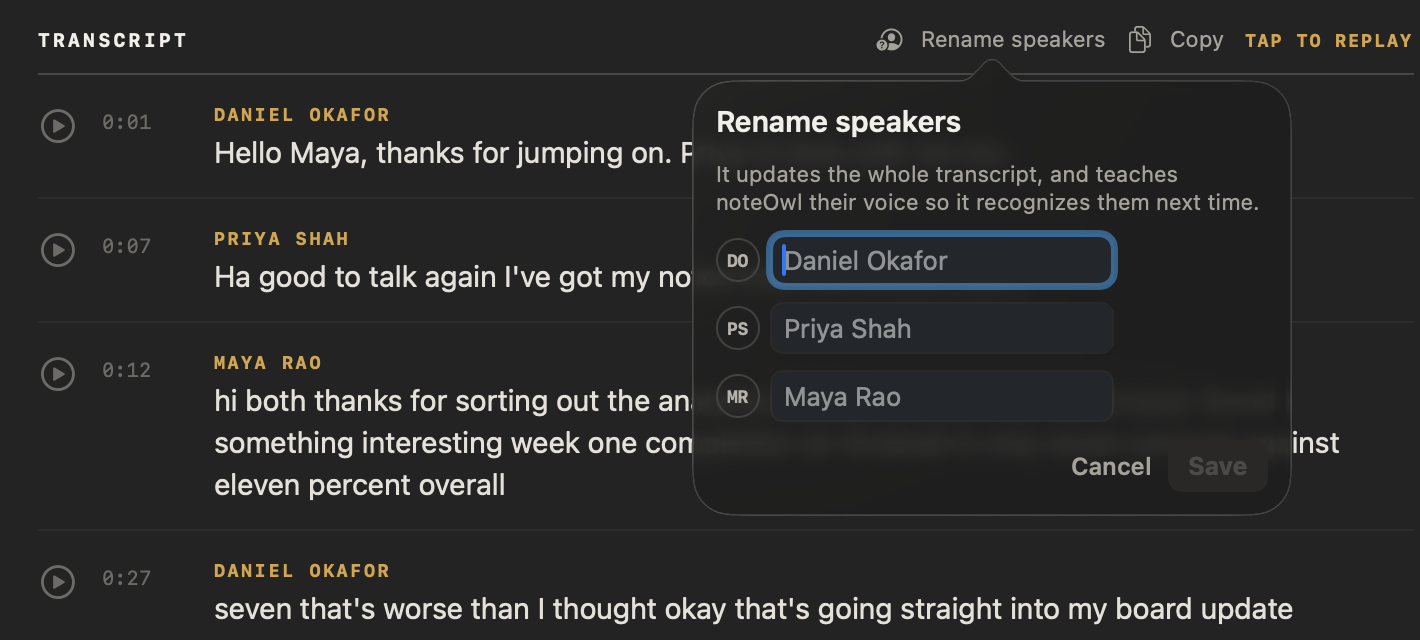
- Above the transcript, click Rename speakers. A box opens with a field for each speaker in the meeting.
- Type a name in the field beside each speaker you want to name. Leave a field empty to keep that speaker's label.
- Click Save, or press Return. NoteOwl changes the label on every line that speaker said, throughout the transcript.
Click Cancel to close the box without changing anything. Recordings you import in Transcripts have a Rename speakers button too.
How does NoteOwl recognise voices in later meetings?
When you save a name, NoteOwl learns that speaker's voice from the meeting's recording. In a later meeting, when a voice it splits out as Speaker 1, Speaker 2 and so on matches a voice it has learned, NoteOwl puts the name there instead.
- It needs some speech to learn from. If a speaker said less than about a second, NoteOwl says there's too little to learn their voice. The new name still applies to the transcript.
- Naming someone again helps. Naming the same person in another meeting updates the voice NoteOwl has learned for them.
What if NoteOwl split one person into two speakers?
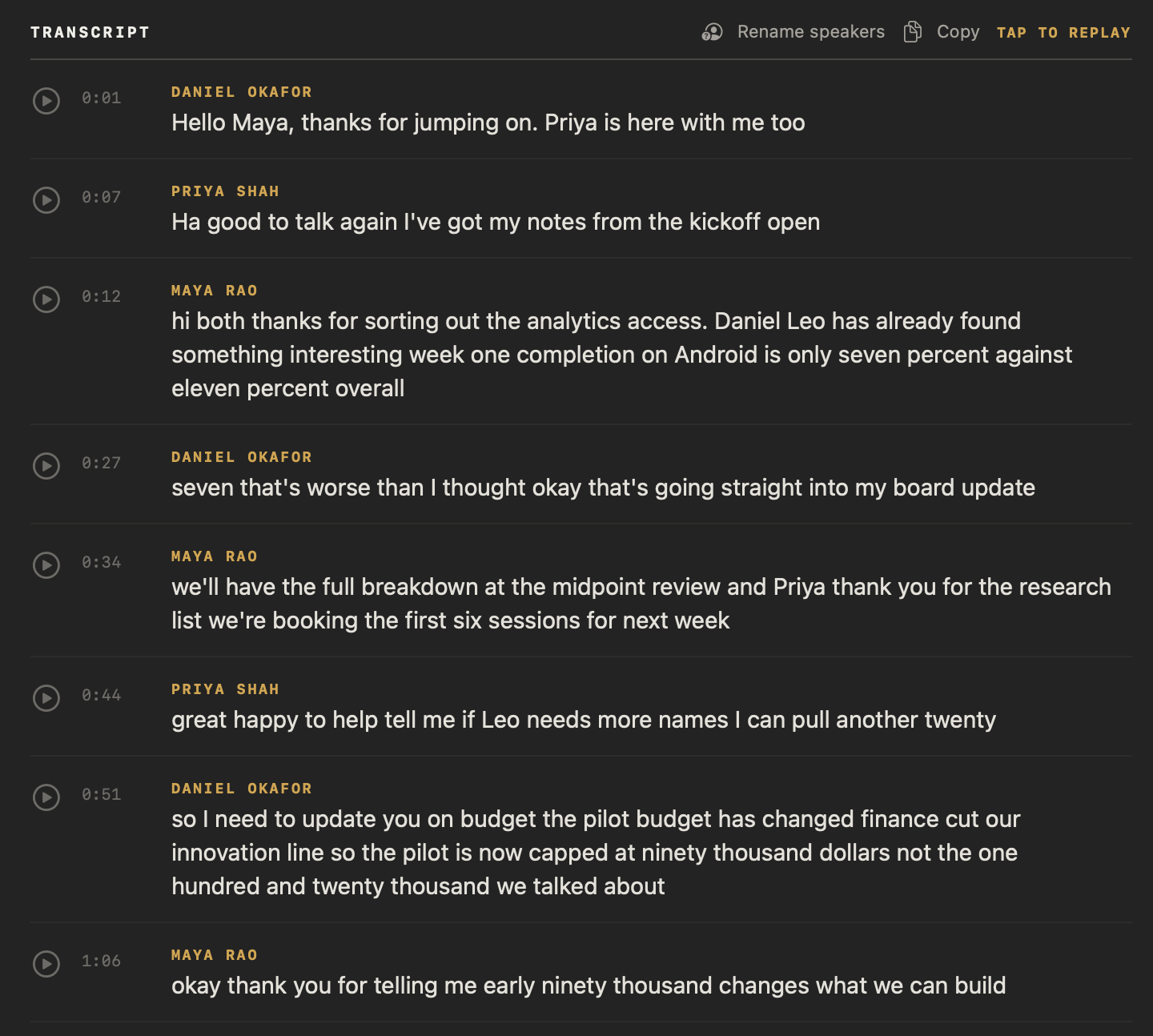
Give both the same name. In Rename speakers, type the same name beside each of them and click Save. NoteOwl merges their lines under that name, and learns the voice from only one of the two, because merged lines can hold more than one voice.
Does Automatically identify speakers affect meetings?
No. Meetings always get their speakers separated when you stop recording. Automatically identify speakers, in Settings → Memory under Speakers, is on by default and covers other recordings, such as files you import in Transcripts.
How do I stop NoteOwl recognising someone?
Open the person in People and click Forget in their Voice row. NoteOwl deletes the voice it learned for them, so it stops naming them in new meetings. Their name stays on transcripts you already have, and their profile stays in People.
The Voice row reads Recognized when NoteOwl has learned someone's voice and Not learned yet when it hasn't. Delete all my data in Settings → Memory also removes every voice NoteOwl has learned: see delete a recording or all your data.
Common questions
Does NoteOwl upload voices to recognise speakers?
No. NoteOwl separates speakers and learns voices on your Mac. The voices it learns are kept in NoteOwl's own files on your Mac and are never sent anywhere.
Does NoteOwl learn someone's voice without asking?
No. NoteOwl learns a voice only when you give a speaker a name in Rename speakers and save it. Separating the speakers in a meeting doesn't store anyone's voice, and Forget in People removes a voice NoteOwl has learned.
Will NoteOwl put names on meetings I recorded before?
No. NoteOwl matches voices while it processes a meeting after you stop recording, so a meeting processed before you named someone keeps its labels. Name the speakers in that meeting with Rename speakers.
Summaries, decisions and action items
NoteOwl writes a meeting summary with key decisions and action items when you stop. Rewrite it in any of 22 templates and track action items as commitments.
Recover a meeting after a crash or power loss
NoteOwl saves a meeting's audio to disk as it records. After a crash, a force quit or a flat battery, Retry from audio rebuilds the transcript and notes.