Set the dictation tone for each app
Last updated Checked against NoteOwl 1.0.0
NoteOwl picks a tone for the app you're dictating into: a professional email in Mail, a casual message in Slack and literal text in code editors. You can change the tone for every app or for one app in Settings → Auto-Context, and your raw words are always kept.
How does NoteOwl choose the tone for each app?
With Match each app on, which is the default, NoteOwl looks at the app you're dictating into and uses the tone made for it. Apps it has no tone for get Polish, which tidies your words without changing their tone.
| Where you dictate | Tone NoteOwl uses |
|---|---|
| Apple Mail, Microsoft Outlook | Professional Email |
| Slack | Casual Message |
| VS Code, Xcode, Zed, Terminal, iTerm2 | Code |
| Apple Notes, Obsidian, Notion, Drafts | Tidy Notes |
| Every other app, including Messages and NoteOwl itself | Polish |
Change the tone for one app
- Open NoteOwl and click Settings in the sidebar. Settings opens on the Auto-Context tab.
- Under Per-app overrides, find the app: Apple Mail, Slack, Messages, VS Code, Notes or Obsidian.
- Click the menu beside the app. It shows Auto until you change it.
- Choose Polish, Professional Email, Casual Message, Tidy Notes, Code or Keep exact. Your next dictation into that app uses the new tone.
To undo it, choose Auto. The app then follows the setting for every app again.
Change the tone for every app
In Settings → Auto-Context, choose one of three options:
- Match each app, the default: each app gets its own tone, as in the table above.
- Light polish: every app gets Polish.
- Keep exact: NoteOwl keeps your words as they are, in every app.
A per-app override always wins over this setting. For example, with Keep exact on and Slack set to Casual Message, NoteOwl still writes a Casual Message copy of your Slack dictations.
What does each tone do?
Every tone except Keep exact removes filler words and false starts and fixes punctuation and capitals, without changing what you meant. The tones differ in how much else they change.
| Tone | What it does |
|---|---|
| Polish | Tidies your words and nothing more: no change of tone, and no headings, bullets, greetings or sign-offs |
| Professional Email | Complete sentences in short paragraphs. Adds a greeting and sign-off only when what you said calls for them, and never writes a subject line |
| Casual Message | Short, conversational sentences, with no greeting or sign-off unless you say one. Bullets only if you spoke a list |
| Tidy Notes | Light structure: a spoken list becomes bullets and a spoken heading becomes a heading, in Markdown |
| Code | Keeps names, symbols and casing as you say them, such as camelCase and snake_case, reads code punctuation literally, and adds no prose |
| Keep exact | No rewriting at all. Your words stay exactly as NoteOwl heard them |
When does NoteOwl apply the tone?
After you stop. While you talk, NoteOwl types your words at the cursor exactly as it hears them. When you stop, it writes a copy in that app's tone and saves it with the dictation. The text in your app only changes if you ask.
- Press Polish in the NoteOwl panel to swap the words you dictated for the copy in that app's tone. The panel then says, for example, Replaced in Mail, and Undo puts your original words back.
- If NoteOwl can't edit the app directly, it puts the new text on your clipboard and the panel tells you to press ⌘V.
- If NoteOwl couldn't type into the app at all, because it doesn't have the macOS Accessibility permission, it copies the version in that app's tone and the panel says Copied — press ⌘V.
- With Keep exact, NoteOwl saves no polished copy. Pressing Polish then tidies your words with plain Polish.
Are my original words kept?
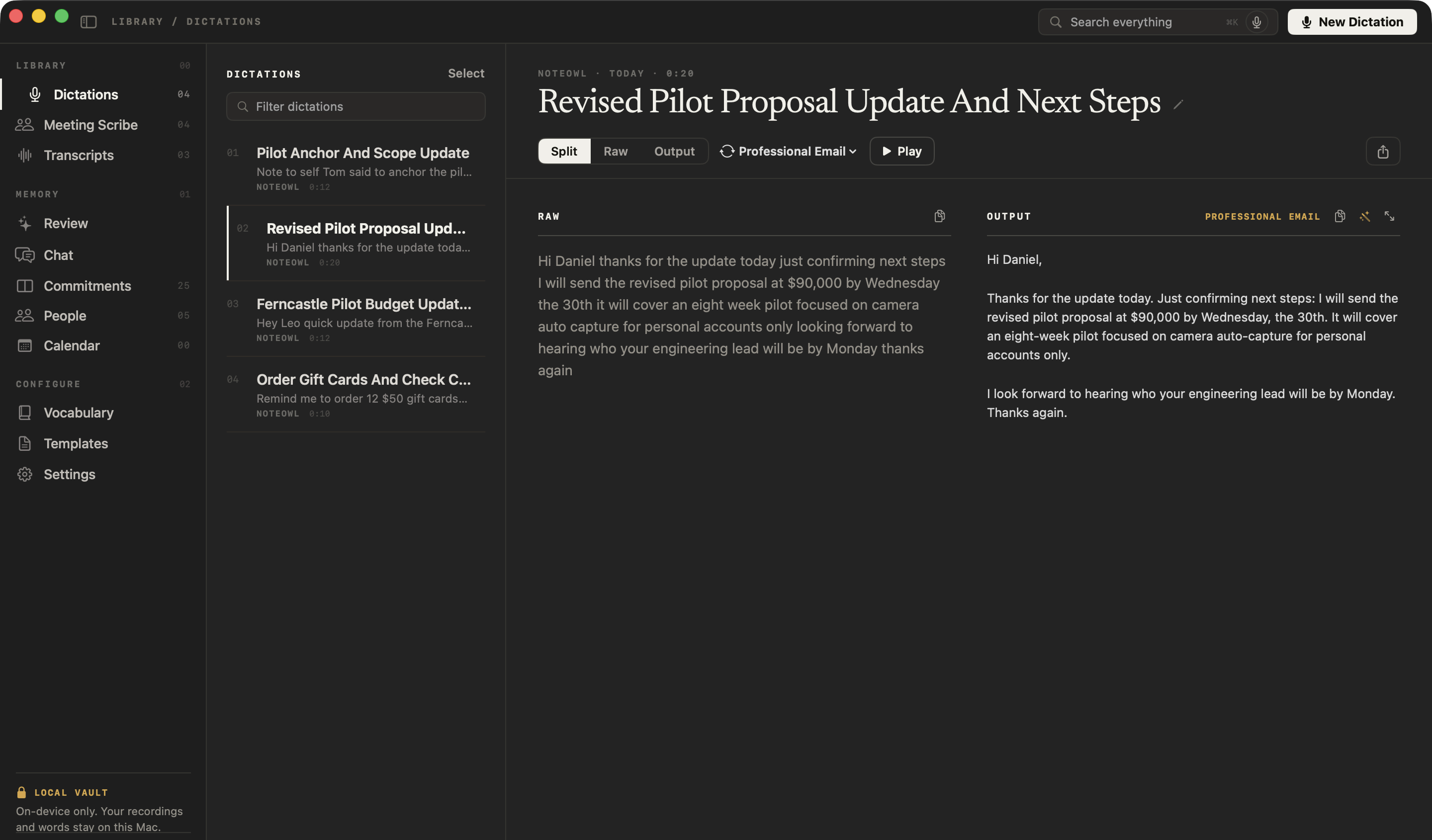
Yes. NoteOwl saves every dictation in Dictations with both versions. Raw shows exactly what NoteOwl heard, Output shows the version in the app's tone, and Split shows the two side by side.
To try a different tone on a saved dictation, click the menu beside Split, Raw and Output, which is named after the current tone. Under Cleanup, choose Polish, Verbatim, Professional Email, Casual Message, Tidy Notes or Code. NoteOwl writes a new output, and the raw words don't change.
Common questions
Does NoteOwl change my words while I dictate?
No. NoteOwl types your words at the cursor as it hears them. The tone for that app is applied afterwards, to a polished copy that replaces the typed words only if you press Polish in the NoteOwl panel.
Is the tone for each app part of NoteOwl Free?
Yes. Choosing a tone for each app, pressing Polish after a dictation and reformatting a saved dictation are all part of NoteOwl Free, with no limit.
Can I set a NoteOwl dictation tone for an app that isn't listed?
Not in NoteOwl 1.0.0. Per-app overrides cover Apple Mail, Slack, Messages, VS Code, Notes and Obsidian. Every other app follows the setting at the top of Settings → Auto-Context.
Dictate into any app with the fn key
Tap fn to start dictating in any Mac app and tap it again to stop. NoteOwl types your words at the cursor and keeps exactly what you said.
Polish, shorten or clarify a dictation
After you dictate, NoteOwl offers Polish, Shorten, Clarify, Make formal and Make friendly. Each rewrites your words in the app, and Undo puts them back.