Find, play and export your dictations
Last updated Checked against NoteOwl 1.0.0
NoteOwl saves every dictation in Dictations, in the sidebar: the words you dictate into other apps with fn, and the voice notes you record inside NoteOwl with New Dictation. Open one to read your raw words beside the polished version, play it back, rename it or export it.
Dictations is part of NoteOwl Free, with no limit.
How do I record a voice note?
Open Dictations, click New Dictation at the top right of the window, talk, then click Stop. NoteOwl transcribes the recording on your Mac, tidies it and saves the audio with the text.
- Click Dictations in the sidebar.
- Click New Dictation at the top right of the window. The button changes to Stop, and the list shows Recording…. If NoteOwl doesn't have microphone access yet, macOS asks for it first.
- Say what you want to note.
- Click Stop. The list shows Transcribing…, Cleaning up… and Saving…, and then the new voice note opens, with a title NoteOwl gave it from what you said.
A voice note is tidied with Polish, or kept exactly as you said it if Settings → Auto-Context is set to Keep exact. Your Vocabulary rules apply too.
Which dictations keep their audio?
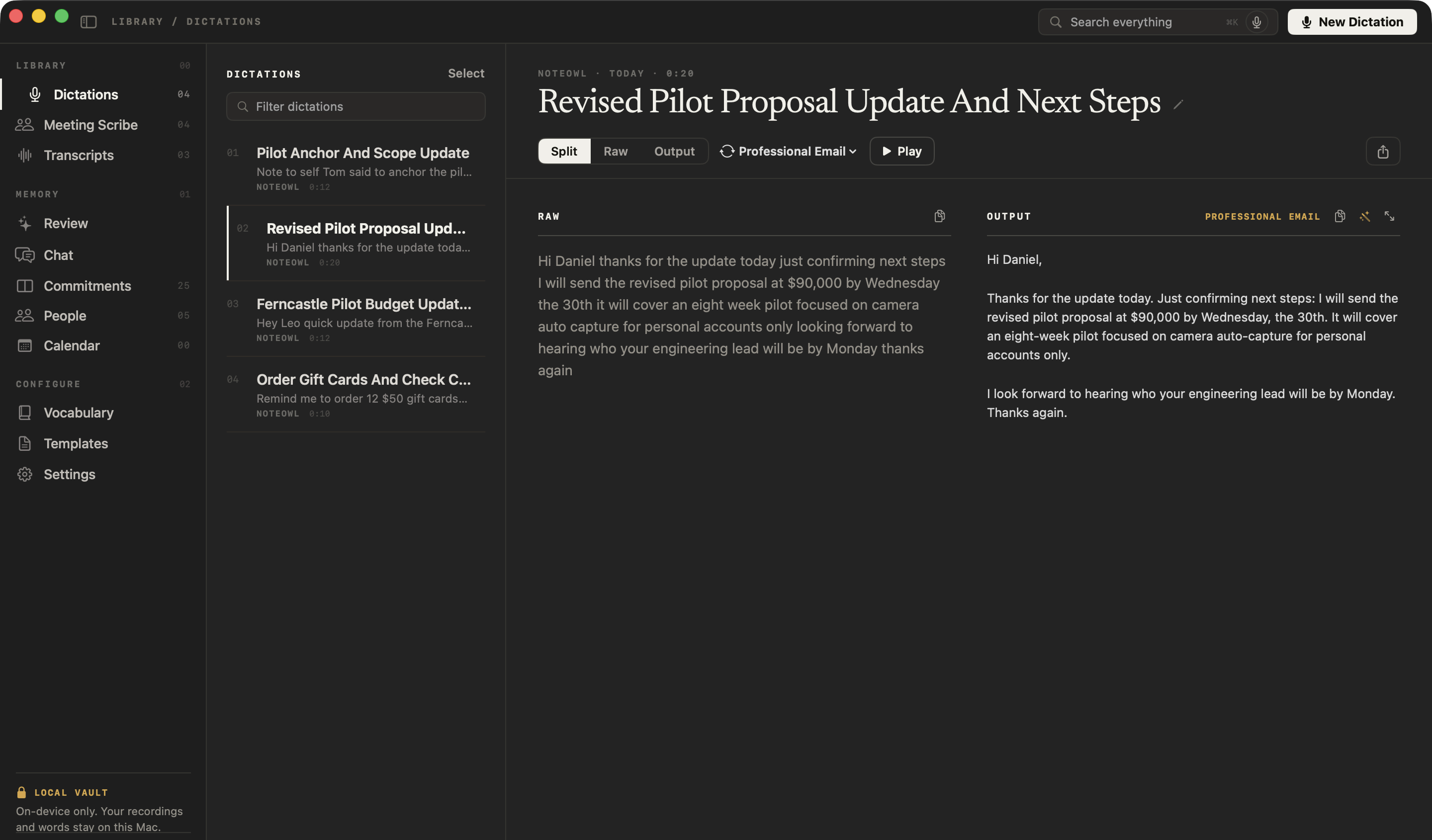
Voice notes you record with New Dictation keep their audio, and show a Play button. Dictations you make with fn in other apps are saved as text only: your raw words and the polished version, without audio.
To hear a voice note, open it and click Play. The button changes to Pause while it plays.
Find a dictation
The list shows each dictation's title, its first line, the app you dictated into and its length.
- Filter the list. Type in Filter dictations, at the top of the list. It finds your words in a title, in your raw words or in the polished version. Click the clear button, or press Esc, to show everything again.
- Move through the list. Use the ↑ and ↓ keys.
- Search everything at once. To find a dictation alongside your meetings and imported recordings, use Search everything, part of NoteOwl Pro.
How do I see what I said and the polished version?
Open the dictation and click Split, Raw or Output above it. Raw is exactly what NoteOwl heard, Output is the version in the chosen style, named above it, and Split shows the two side by side.
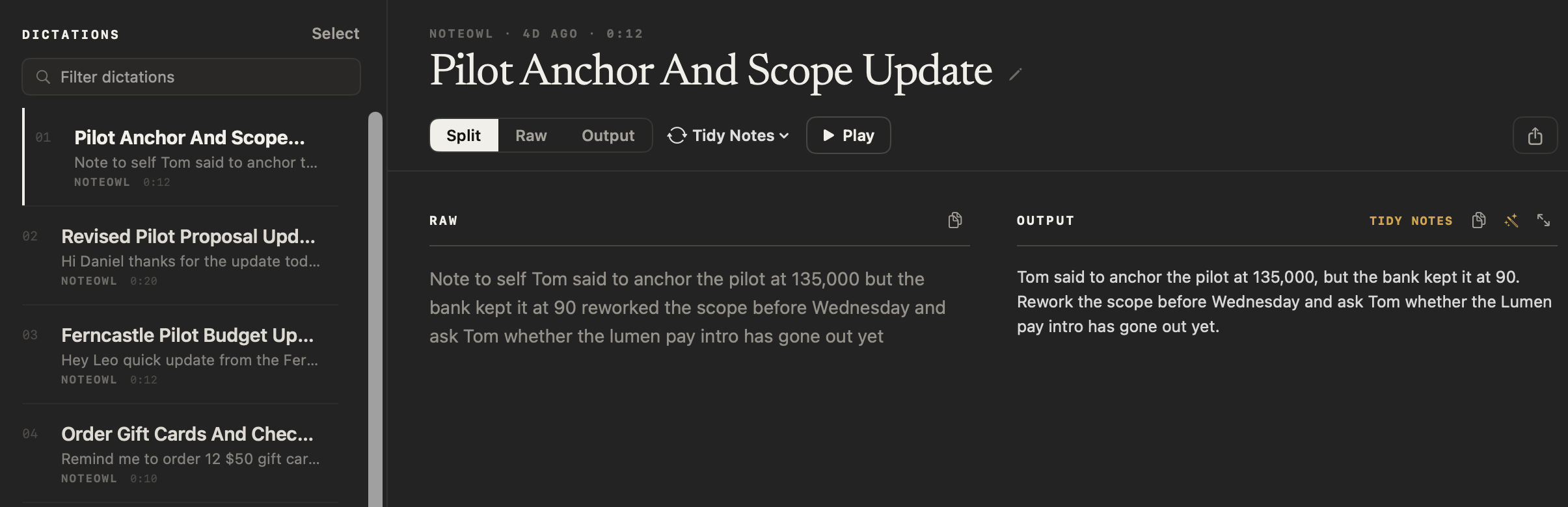
Each pane has a copy button. Above Output there are two more:
- Ask for changes, the wand: type an instruction, such as "make it more concise and formal", and click Revise. NoteOwl rewrites the output on your Mac.
- Focus, the button with two arrows: edit the output yourself, with bold, italics, headings and bullets, and save it.
Your raw words never change, whatever you do to the output.
Change the style of a dictation
Click the menu beside Split, Raw and Output. It's named after the current style, such as Tidy Notes.
- Under Cleanup, choose Polish, Verbatim, Professional Email, Casual Message, Tidy Notes or Code. The menu reads Reformatting… while NoteOwl writes a new output, which replaces the old one.
- Under Transform as, one section for each template group, choose a template, such as Meeting Report or To-Do List, to rewrite the whole dictation in its shape. Templates are part of NoteOwl Pro: see choose or write a summary template.
Verbatim keeps your words exactly as spoken, so the Output pane stays empty and says so. What each cleanup style does is explained in set the dictation tone for each app.
Rename a dictation
Click the pencil beside the dictation's title, or double-click the title, then type a new name and press Return. Press Esc to cancel.
You can also right-click a dictation in the list and choose Rename, or select it and press Return.
Export or copy a dictation
Click the share button at the top right of an open dictation. Choose Copy Markdown, Save as Markdown, Save PDF, Share…, Mail or Messages. The export holds the output under a heading naming its style, then your raw words. See export a note, or all of your data.
To copy just the text, right-click the dictation in the list and choose Copy. That copies the output, or your raw words if there's no output.
Delete dictations
Right-click a dictation and choose Delete, or select it and press Delete. NoteOwl asks Delete this dictation? before it does anything.
Deleting removes the dictation from your library permanently: its transcript, its output and its place in search. A voice note's audio file moves to the Trash, but putting it back from there doesn't restore the dictation.
To delete several, click Select at the top of the list, tick the dictations and click Delete with the number you ticked. If Filter dictations is hiding some of them, NoteOwl names the hidden ones and offers to delete only the visible ones.
Common questions
Is the Dictations screen part of NoteOwl Free?
Yes. Recording voice notes with New Dictation, filtering, renaming, playing, changing the Cleanup style and exporting dictations are all part of NoteOwl Free, with no limit. Transforming a dictation with a template and Search everything are part of NoteOwl Pro.
Does NoteOwl keep the audio of every dictation?
No. NoteOwl keeps the audio of voice notes you record inside NoteOwl with New Dictation, and shows Play for them. A dictation made by tapping fn in another app is saved as text only, your raw words beside the polished version.
Do my dictations go into NoteOwl's memory?
Voice notes you record inside NoteOwl always do. Dictations into other apps join NoteOwl's memory only if you turn on Dictations into other apps feed memory in Settings → Memory, which is off to start with.
Polish, shorten or clarify a dictation
After you dictate, NoteOwl offers Polish, Shorten, Clarify, Make formal and Make friendly. Each rewrites your words in the app, and Undo puts them back.
Record a meeting on your Mac
Record any call on your Mac with NoteOwl and no bot. Press ⌥Space or Start Meeting; the transcript, summary and action items are written when you stop.