Teach NoteOwl names and jargon
Last updated Checked against NoteOwl 1.0.0
To teach NoteOwl a name or a piece of jargon, open Vocabulary in the sidebar, click Add entry, type how NoteOwl writes it now under When I say… and how it should be written under Replace with…. From then on, NoteOwl spells it your way in speech it transcribes: in dictation, meetings and imports.
Vocabulary is part of NoteOwl Pro, which you can try free for 7 days: see start the 7-day NoteOwl Pro trial.
Add a vocabulary rule
- Click Vocabulary in the sidebar, under Configure.
- Click Add entry at the top right. The Add Vocabulary sheet opens.
- Under When I say…, type the word or phrase the way NoteOwl writes it now, such as "fern castle".
- Under Replace with…, type it exactly as it should appear, capitals included, such as "Ferncastle".
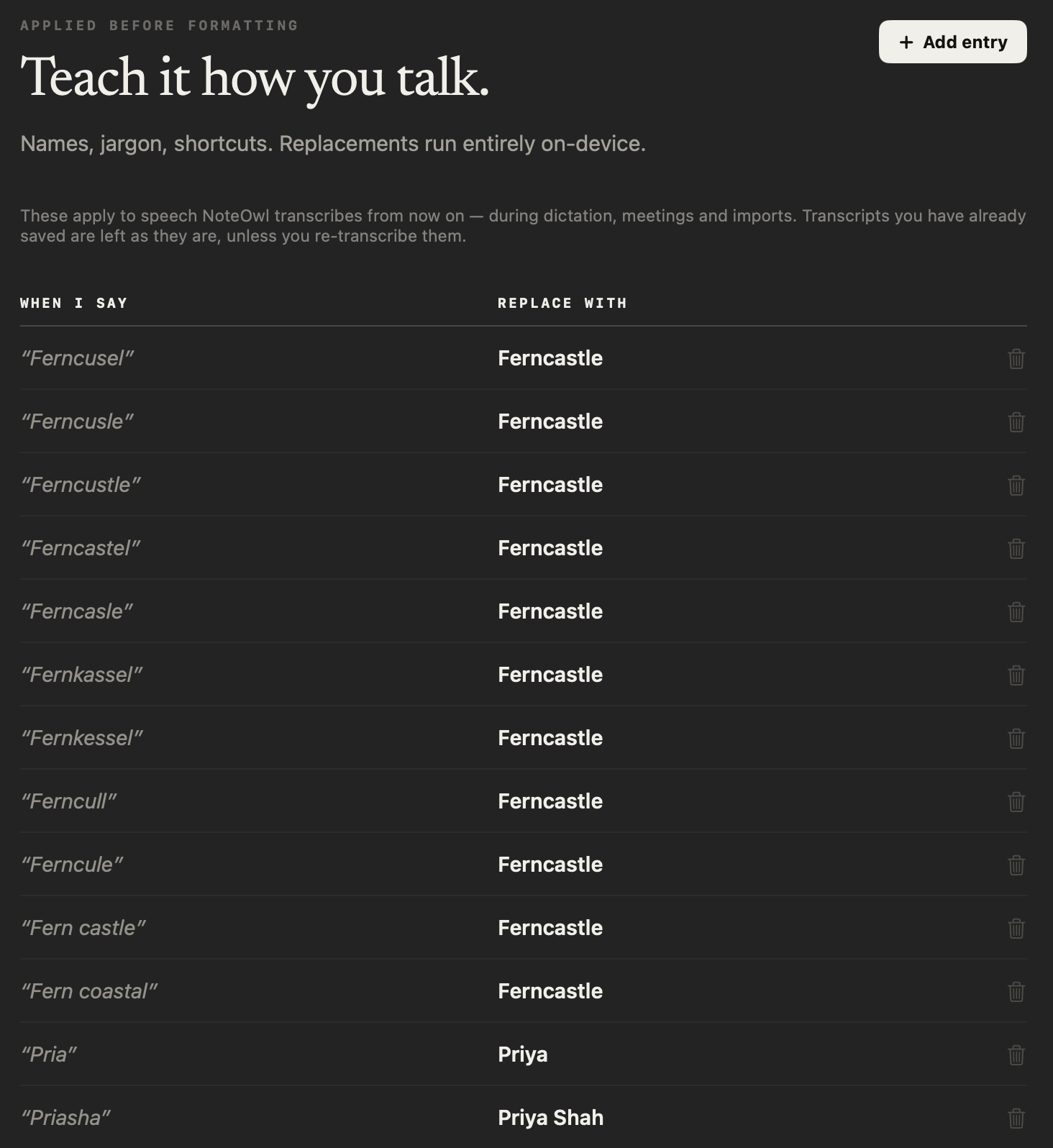
- Click Add, or press Return. The rule appears in the table, with WHEN I SAY on the left and REPLACE WITH on the right.
If NoteOwl mishears a word in several ways, add a rule for each one. You can't add two rules for the same When I say… text: NoteOwl asks you to edit the one you have.
Where do vocabulary rules apply?
To speech NoteOwl transcribes after you add them: dictation, meetings and imported recordings. The screen says so: These apply to speech NoteOwl transcribes from now on — during dictation, meetings and imports. Transcripts you already saved stay as they are, unless you re-transcribe them.
| Where | What NoteOwl corrects |
|---|---|
| Dictation into any app with fn | The words typed at your cursor, and the dictation NoteOwl saves |
| Voice notes recorded with New Dictation | The voice note's text |
| Meetings | The meeting transcript |
| Recordings imported in Transcripts | The recording's transcript |
NoteOwl applies your rules before it polishes, summarizes or reformats anything, so the corrected spelling carries through to summaries and polished text too. A meeting keeps the rules it started with, so editing a rule during a meeting applies from the next one.
How do I try a rule before I use it?
Use Try it, below the table. Type a sentence the way you'd say it, and NoteOwl shows what it would write, without recording anything. If no rule applies, it says No rule matches this yet.
Try it uses the same rules as transcription, so what it shows is what you'll get.
How does NoteOwl match what I say?
By whole words, in any mix of capitals. "fern castle" matches "Fern Castle" but not "fern castles". When two rules could match the same words, the longer When I say… text wins. NoteOwl writes the Replace with… text exactly as you typed it.
Edit or delete a rule
- Edit a rule: click it in the table. Change it in Edit Vocabulary and click Save.
- Delete a rule: click the bin at the end of its row. NoteOwl deletes it straight away and says Deleted, with the rule's When I say… text and an Undo button in case you clicked by mistake.
Changes apply to speech NoteOwl transcribes after you make them.
What if NoteOwl says my vocabulary couldn't be read?
NoteOwl found your vocabulary file but couldn't read it, so it leaves the file exactly as it is. Until it can read it, your rules aren't applied to new transcription, and adding or editing is paused so nothing overwrites the file.
Click Try again on the Vocabulary screen.
If this happens during a meeting, NoteOwl says Your vocabulary couldn’t be read — recording without your custom terms. and keeps recording.
Common questions
Does NoteOwl fix names in transcripts I already have?
No. NoteOwl applies vocabulary rules to speech it transcribes after you add them, in dictation, meetings and imports. Transcripts you already saved stay as they are unless you re-transcribe them.
Is NoteOwl's Vocabulary case-sensitive?
No. NoteOwl matches what you type under When I say… in any mix of capitals, and only as whole words. It writes the Replace with… text exactly as you typed it, capitals included.
Does NoteOwl send my vocabulary anywhere?
No. NoteOwl applies vocabulary rules on your Mac, and your list never syncs to a server. It's included when you use Export all data in Settings → Memory.
Choose or write a summary template
NoteOwl has 22 built-in summary templates in 7 groups. Rewrite a meeting summary with Summarize as, customize a template, or write your own with New template.
Where NoteOwl stores your data
NoteOwl keeps your recordings, transcripts, notes and memory in one folder on your Mac, never on its servers. Open it from Settings with Show in Finder.