Summaries, decisions and action items
Last updated Checked against NoteOwl 1.0.0
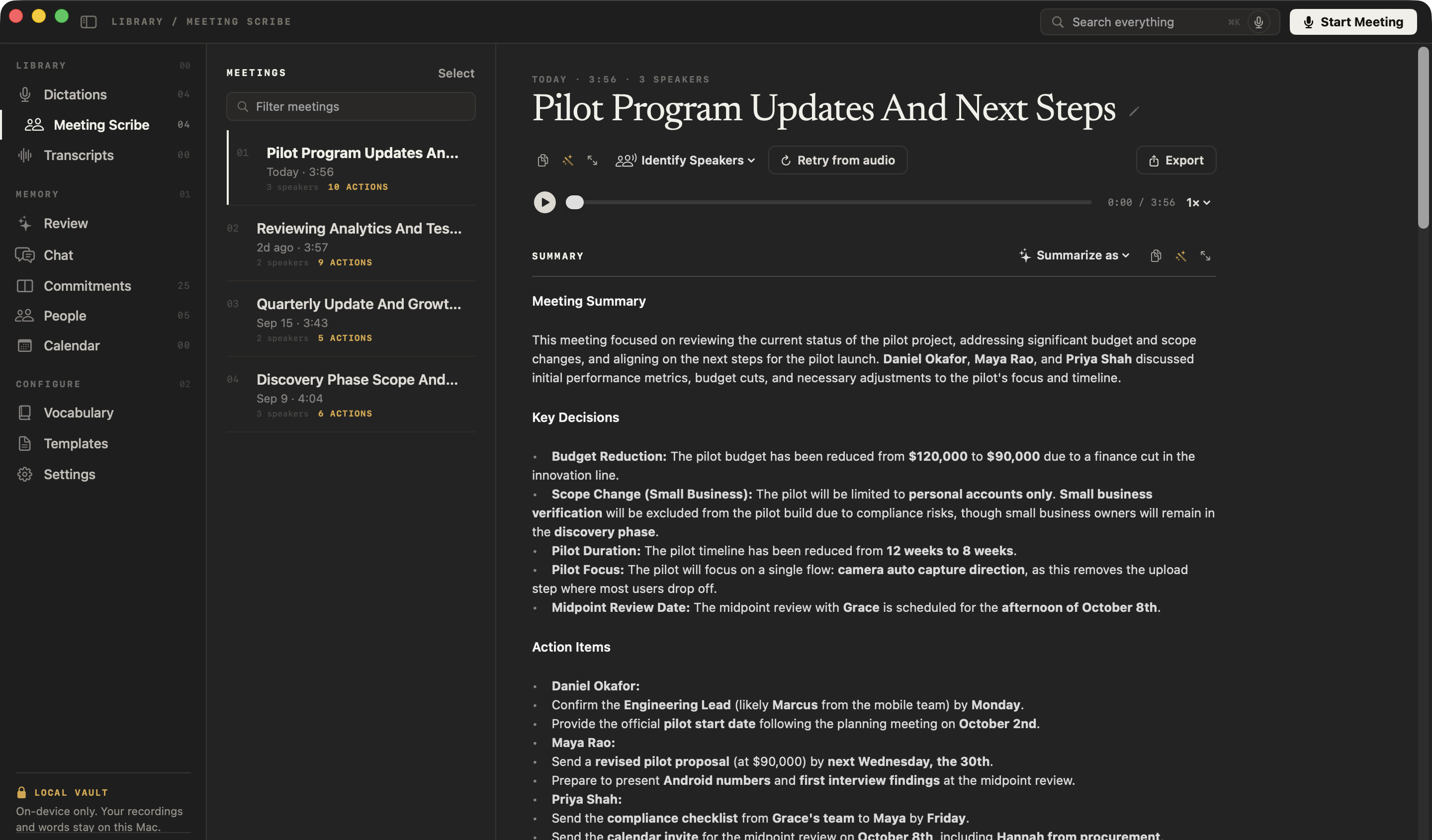
When you stop a meeting, NoteOwl writes a summary with its key decisions, updates and next steps, plus a list of action items, on your Mac. Afterwards you can rewrite the summary in any of 22 templates with Summarize as, and edit, tick off or add action items, which NoteOwl tracks as commitments.
Summaries and action items are part of NoteOwl Pro.
What's in the summary NoteOwl writes?
Five sections: Meeting Summary, Key Decisions, Action Items, Important Updates and Next Steps. NoteOwl writes it from the speaker-labelled transcript as soon as the transcript is ready, and uses any notes you added during the meeting as context.
| Section | What it covers |
|---|---|
| Meeting Summary | Why the meeting was held and what it covered |
| Key Decisions | Each decision the meeting reached |
| Action Items | What each person agreed to do, with its owner when one was named |
| Important Updates | Announcements, figures and changes worth knowing |
| Next Steps | Open issues, follow-up meetings and deadlines |
A long meeting is summarized in parts, which are then combined, so there's no length at which the summary stops.
The Action Items heading is part of the summary's text. The list you can tick off is the separate Actions section below it.
How do I change the summary to a different template?
Open the meeting, click Summarize as above the summary and choose a template. NoteOwl rewrites the summary in that template's sections, on your Mac, and the new summary replaces the one on screen. You can switch as often as you like.
- Click Meeting Scribe in the sidebar, then click the meeting.
- Above the summary, click Summarize as.
- Choose a template, for example Meeting Report under Business for formal minutes.
- Wait while the button reads Summarizing…. The new summary then replaces the old one.
The menu groups the 22 built-in templates like this:
| Group | Templates |
|---|---|
| Business | Stand-up, Executive Board, Sales Call, Meeting Report, 1:1 Check-in, Support Call |
| Professional | Doctor's Visit, Legal Consultation, Interview, Consultation |
| Academic | Student Lecture, Research, Training |
| Productivity | To-Do List, Project Log |
| General | Quick Summary, Brainstorm |
| Content | Podcast Show Notes, Presentation |
| Personal | Therapy Session, Journal, Memories |
Templates you write or customize on the Templates screen appear in the menu too. You can't choose a template before a meeting starts: every meeting gets the standard summary when you stop, and you switch afterwards.
Can I edit the summary?
Yes. Beside Summarize as, the wand opens Ask for changes: type an instruction such as "make it more concise and formal" and click Revise, and NoteOwl rewrites the summary. The button with two arrows opens Focus, where you can edit the text yourself and click Save.
To make something new from the whole meeting, such as a follow-up email or a one-page report, use the wand beside the meeting's title instead. It opens Ask about the whole thing: describe what to make and click Generate. NoteOwl writes it from the summary, the action items and the transcript and shows it in Focus, ready to copy. The original summary doesn't change.
How do I manage action items?
Action items are in the meeting's Actions section. Each one is a commitment NoteOwl tracks: tick its circle when it's done.
- Tick one off. Click the circle beside it. It's marked done in the meeting, on the Commitments board and in Review.
- Edit, copy or delete one. Right-click it and choose Edit…, Copy or Delete. Mark done and Mark not done are there too.
- Add one. Click Add, type it in New action item…, add a name in Owner (optional) if it's someone else's, and click Add. With no owner, it's recorded as yours.
- Find them again. Click Re-extract to look through the transcript for action items again. NoteOwl reports what it found, such as Found 2 new action items., or No new action items in this transcript.
On the Commitments board, action items appear under I owe or Owed to me, depending on who owns them. For this, NoteOwl needs your name: enter it under Who you are in Settings → Memory.
Common questions
Can I choose a NoteOwl summary template before a meeting starts?
No. In NoteOwl 1.0.0 every meeting gets the standard meeting summary when you stop recording. To use a template, open the meeting afterwards and choose one from Summarize as.
Does changing the template change the transcript or the action items?
No. Summarize as rewrites only the summary. NoteOwl leaves the transcript and the action items as they are. To look for action items again, click Re-extract in the meeting's Actions section.
Where do NoteOwl action items go after a meeting?
Onto the Commitments board, as something you owe or something owed to you. Ticking an action item done in the meeting also ticks it on the board and in Review.
Is the NoteOwl meeting summary written in the cloud?
No. NoteOwl writes the summary, the templates and the action items on your Mac with on-device AI models, so they work offline and nothing is uploaded.
Get offered notes when a call starts
NoteOwl notices a call in Zoom, Teams, FaceTime, Webex, Discord, Slack or a browser and offers to take notes. Choose Offer, Auto-start or Off in Settings.
Name speakers and recognise voices
NoteOwl separates the voices in a meeting transcript. Name them once with Rename speakers, and NoteOwl can recognise those voices in later meetings.