Daily review and meeting prep
Last updated Checked against NoteOwl 1.0.0
NoteOwl's Review shows what needs you today: a short brief, the commitments that are overdue, due today or due soon, and today's events. The Calendar screen reads the calendars on your Mac and gives every meeting in the next two weeks a prep page with its attendees, your notes and the open commitments involving those people.
Review and Calendar are part of NoteOwl Pro, which you can try free for 7 days: see start the 7-day NoteOwl Pro trial. Both are in the sidebar, under Memory.
What's in the daily review?
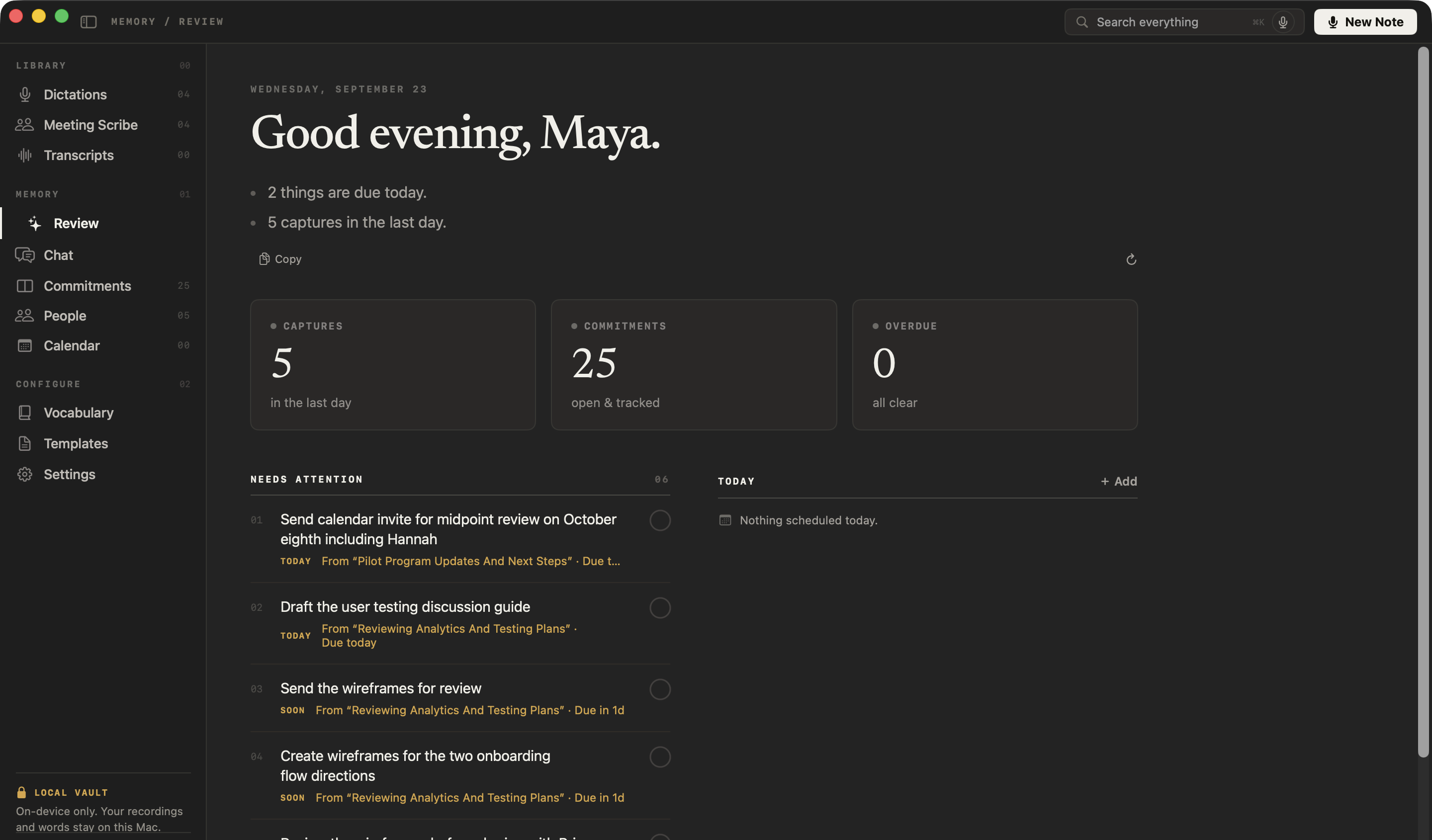
What needs you today, from NoteOwl's memory and your calendar: a short brief, three numbers, the commitments that need attention, and today's events. NoteOwl puts it together on your Mac, and refreshes it when the day changes.
| Part of Review | What it shows |
|---|---|
| The brief | A few lines under the greeting: what's overdue, what's due today, today's events and what you captured in the last day, such as 2 things are due today. Click a line to open what it's about. Copy puts the brief on the clipboard |
| Captures | How many things you captured in the last day, such as meetings, imported recordings and dictations. Click it for the list |
| Commitments | How many commitments are open. Click it to open the Commitments board |
| Overdue | How many are past their due date, or all clear. Click it to see the overdue ones |
| Needs attention | Commitments that are overdue, due today or due within three days, marked OVERDUE, TODAY or SOON, most urgent first. Click the circle to resolve one, or From and a conversation's name to open where it was said |
| Today | Today's events from your calendar, and events you added in NoteOwl. Click one to open its prep page. + Add adds an event in NoteOwl |
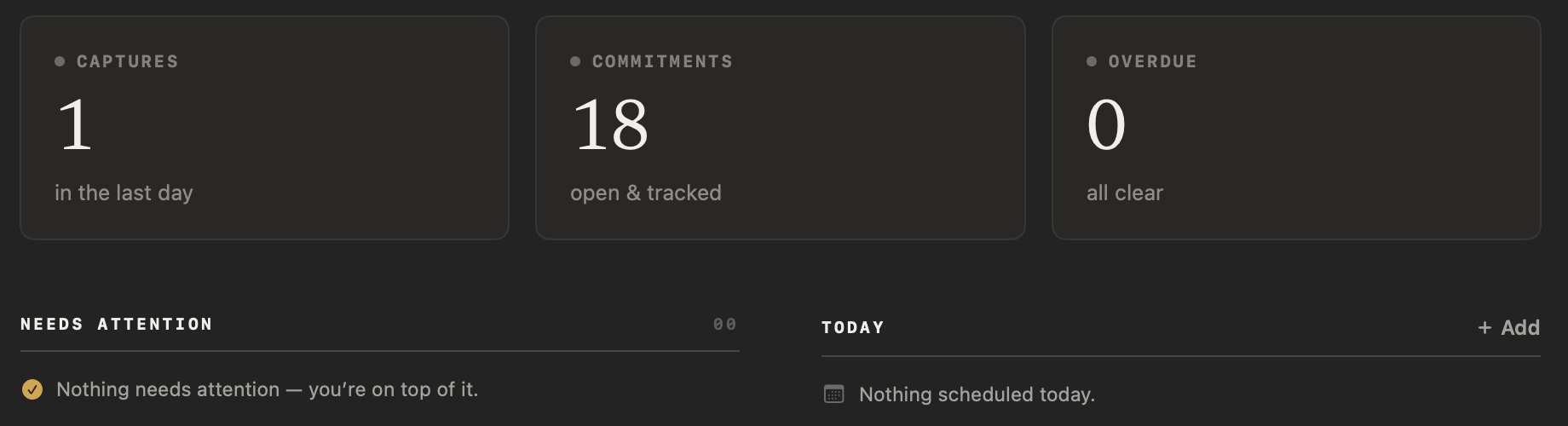
When nothing is urgent, Needs attention says Nothing needs attention — you're on top of it. If your calendar isn't connected, Today says Calendar isn't connected, so only your own items show here. Click Connect in Calendar to connect it. To read everything again, click the refresh button at the right end of the row with Copy.
Connect your calendar
Calendar reads the calendars already set up on your Mac, such as iCloud, Google and Exchange, and never changes them. Click Calendar in the sidebar, then Connect under Connect your calendar, and allow full access when macOS asks. Your events for the next two weeks appear under Upcoming, grouped by day.
NoteOwl asks macOS for access only when you click Connect, or Grant beside Calendar in Settings → General. If the prompt doesn't appear, see the Calendar or Contacts prompt doesn't appear.
Which calendars does NoteOwl read?
All the calendars set up on your Mac, until you choose: iCloud, Google, Exchange, CalDAV, subscribed and local calendars, from macOS Calendar and Internet Accounts. NoteOwl reads the next 14 days, and reads them again whenever your calendar changes.
To choose, click the filter button beside Upcoming. The Calendars panel lists each calendar under its account and says NoteOwl reads these to prepare you for meetings. It never changes them. Turn off the calendars NoteOwl shouldn't read, then click Done.
- A calendar added later isn't read until you say so, once you've made a choice. Calendar shows New calendar found, with Include and Not now.
- A missing work calendar needs adding to macOS first. In the panel, open Can't see a work calendar? and click Open Internet Accounts. NoteOwl has no sign-in of its own.
- Cancelled events and invitations you declined aren't listed. An invitation you answered Maybe is marked MAYBE, and a repeating event shows a repeat icon.
If you turn every calendar off, Calendar says No calendars selected. Click Choose calendars to pick some.
What's on a meeting's prep page?
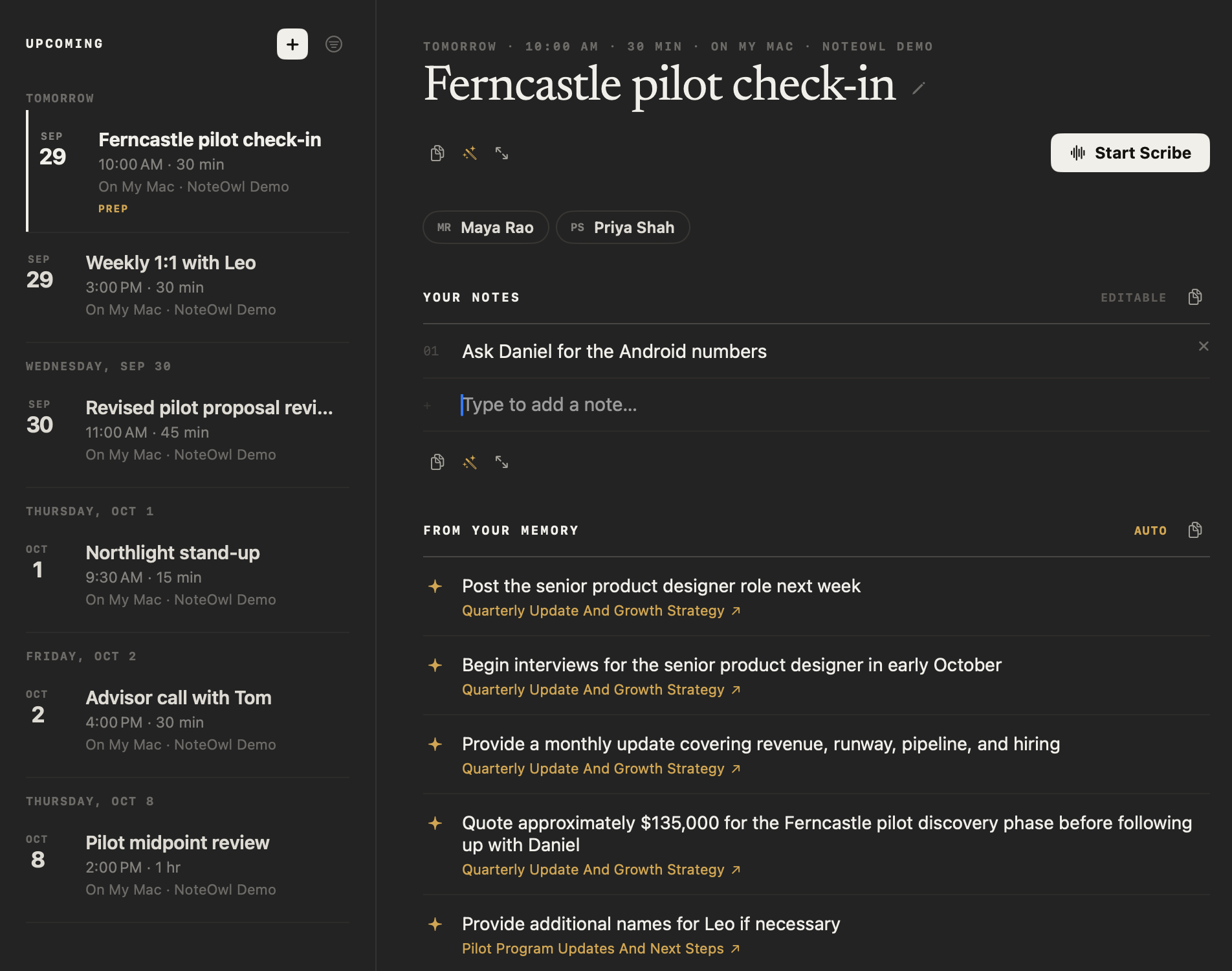
When the meeting is, who's coming, your own notes and what NoteOwl's memory holds about those people. Click an event under Upcoming and its prep page opens beside the list.
| Part of the prep page | What it shows |
|---|---|
| The header | The day, time, length and calendar, such as Tomorrow · 10:00 AM · 30 min · On My Mac · Work, then the meeting's title |
| Copy, Ask and Focus | The three buttons under the title. Copy puts the whole prep page on the clipboard. Ask writes what you describe from it on your Mac, such as a one-page report, without changing anything. Focus shows it all in one view |
| Join | Opens the meeting link, when the invite has one |
| Start Scribe | Starts recording the meeting, with your prep |
| Attendees | Everyone on the invite, by name |
| Your notes | Your own points for the meeting, marked EDITABLE |
| From your memory | Up to five open commitments involving the attendees, each with the conversation it came from, marked AUTO |
At the foot of the page, NoteOwl says: When the meeting starts, your notes and this context merge into the live Scribe summary automatically.
To rename a meeting, click the pencil beside its title. The new name is NoteOwl's only: your calendar keeps its own. You can also right-click a meeting in Upcoming for Rename in NoteOwl, Copy and, when there's a link, Join meeting.
Prepare for a meeting
- Click Calendar in the sidebar.
- Under Upcoming, click the meeting.
- Under Your notes, click Type to add a note…, type a point you want to raise and press Return. The note is saved and numbered, such as 01. Add as many as you like.
- Read From your memory. To check an item, click the name under it, such as Quarterly Update And Growth Strategy ↗, and NoteOwl opens that conversation where it was said.
- When the meeting begins, click Start Scribe.
Only Return saves a note: if you click away first, what you typed isn't kept. Your notes belong to that one meeting, so each occurrence of a repeating meeting has its own. A meeting with notes is marked PREP in Upcoming. Click × beside a note to remove it. Once you have notes, the buttons below them copy them, ask NoteOwl to rewrite them on your Mac, or open them to edit.
How does NoteOwl choose what's in From your memory?
From your commitments. NoteOwl shows the open ones in which someone on the invite owes something or is owed something, matched by name, newest first, up to five. Commitments you've marked done aren't shown.
Each item names the meeting, recording or note it came from; click it to open that conversation at the passage. A commitment you added yourself says Added by you. An event with no attendees, such as one you added in NoteOwl, has nothing here. NoteOwl looks again each time it reads your calendar, such as when you open Calendar.
The commitments themselves are on the Commitments board: see track what you owe and what you're owed. For everything about one person, see People profiles for everyone you meet.
What happens when you click Start Scribe?
NoteOwl starts recording, names the meeting after the event and opens Meeting Scribe. The attendees, your notes and the memory items are saved with the meeting, as background for its summary and action items. The transcript stays the record of what was said.
- Names on action items. The attendees help NoteOwl put the right name on who owes what.
- The prep stays with the meeting. If you rewrite the summary later with Summarize as, NoteOwl uses the same prep, even if the event has changed or been deleted.
- One meeting at a time. If another meeting is recording, the button reads Another meeting is running and takes you to it. While an earlier meeting is still being processed, it reads Processing….
If NoteOwl can't start the meeting, it says why and stays on the prep page. For recording itself, see record a meeting on your Mac.
Get a reminder before a meeting
- On the Calendar screen, click the filter button beside Upcoming.
- Under Remind me before a meeting, choose At start, 5 min, 10 min or 15 min. It starts at Off.
- If macOS asks, allow notifications from NoteOwl.
- Click Done.
The reminder is a Mac notification with the meeting's title, when it starts, such as Starts in 10 minutes., and up to three attendees. Open in NoteOwl opens the prep page, and Start Scribe starts recording. As the panel says: A reminder opens the event in NoteOwl. It never starts recording on its own.
All-day events get no reminder unless you turn on Include all-day events. Events you added in NoteOwl get reminders too. If notifications are off for NoteOwl, the panel says Notifications are turned off for NoteOwl in System Settings, so reminders can’t be shown. Turn them on in System Settings → Notifications.
Add an event in NoteOwl
For a meeting that isn't on your calendar:
- Click + beside Upcoming on the Calendar screen, or + Add under Today in Review.
- In New Event, type a Title. Month, Day and Time start at today and now; change them if you need to, such as JUL, 14 and 2:00 PM.
- Click Add Event.
The event is listed as a NoteOwl event, with its own prep page for your notes and Start Scribe. It has no attendees, so From your memory stays empty. It stays in NoteOwl and is never added to your Mac's calendar.
To delete it, right-click it and choose Delete, or click the bin on its prep page, then click Delete again. That removes the event and the notes you wrote for it. Nothing on your real calendar is touched.
Is my calendar sent anywhere?
No. NoteOwl reads your calendar on your Mac through macOS and never sends it anywhere, and it never adds, changes or deletes an event. Your prep notes, your calendar choices and the prep saved with each meeting stay in NoteOwl's files on your Mac.
Export all data includes them, and Delete all data removes them: see export a note, or all of your data and what NoteOwl sends over the network.
Common questions
Does NoteOwl change my calendar?
No. NoteOwl only reads the calendars set up on your Mac. It never adds, changes or deletes an event. Renaming a meeting in NoteOwl changes only the name NoteOwl shows, and events you add in NoteOwl stay in NoteOwl.
Why is From your memory empty for a meeting?
Because nothing open involves the people invited. NoteOwl shows commitments that are still open and name an attendee as the person who owes them or is owed them. An event with no attendees, such as one you added in NoteOwl, has nothing there.
Does a meeting reminder start recording?
No. A reminder is a Mac notification that opens the meeting's prep page in NoteOwl. Recording starts only when you click Start Scribe, on the prep page or on the notification.
Why doesn't Review show today's meetings?
Review lists today's calendar events only when your calendar is connected. Until then it shows only events you added in NoteOwl, or says Calendar isn't connected, so only your own items show here. Click Connect in Calendar, then Connect, and allow access when macOS asks.
People profiles for everyone you meet
NoteOwl's People screen keeps a profile for everyone in your conversations, with their details, a relationship summary, your private notes and a timeline.
Choose or write a summary template
NoteOwl has 22 built-in summary templates in 7 groups. Rewrite a meeting summary with Summarize as, customize a template, or write your own with New template.