Guide · Privacy
Are AI note takers safe? The privacy risks and what to ask
Are AI note takers safe? Some are, and the difference is where your recordings go. A note taker that uploads your meetings leaves storage, retention, model training and staff access to the vendor’s terms; one that runs the AI on your own computer doesn’t need to send them anywhere.
NoteOwl is a private AI note taker for Mac: it records, transcribes and summarizes with on-device AI models, nothing you record is uploaded, and it works offline after a one-time model download. Below: the six risks, the questions to ask any vendor, and NoteOwl’s answer to each.
AI note taker privacy · six risks
- 01Where your audio is processed and stored
- 02Whether your recordings train AI models
- 03How long it’s kept, and what delete means
- 04Who at the vendor can open it
- 05A bot in your calls
- 06Calendar and account access
What are the biggest AI note taker privacy concerns?
Six things decide how private an AI note taker is: where it processes and stores your recordings, whether they train AI models, how long they’re kept, who can open them, whether a bot joins your calls, and what the app can reach in your calendar and accounts.
- 01
Where your audio is processed and stored
Many AI note takers upload each recording to the vendor’s servers to transcribe and summarize it, then keep the audio and transcript there. That copy lives in your account and the vendor’s backups, and may pass through outside AI providers the vendor uses.
- 02
Whether your recordings train AI models
Some vendors’ terms let them use recordings or transcripts, sometimes with names removed, to train or improve AI models. Others promise not to, or let you opt out. The privacy policy and terms are what count, not the marketing page.
- 03
How long it’s kept, and what delete means
Recordings may be kept until you delete them, for a set period, or longer in backups. Check that deleting removes every copy, including any held by the vendor’s AI providers, and that you can export everything before you leave.
- 04
Who at the vendor can open it
Support staff, engineers and, at some companies, people checking the AI’s quality may be able to open recordings under the vendor’s own rules. So can the other companies it shares data with, usually listed as subprocessors.
- 05
A bot in your calls
A meeting bot joins as a participant everyone can see. Set to join automatically, it can enter every meeting on your calendar, including ones you didn’t mean to record, and some send their notes to every attendee afterwards.
- 06
Calendar and account access
Signing in with Google or Microsoft can give a note taker access to your calendar, contacts or email, sometimes with permission to change them. Check what it asks for, whether it works without that access, and how to remove it later.
What are the security risks of an AI notetaker?
Mostly the copies it makes. Each server, account, shared link and outside provider that holds your recordings is one more place they can leak or be reached, so most AI notetaker security risks grow with the number of copies, not with the AI itself.
Where a meeting can end up with a cloud note taker
- The vendor’s storage, and its backups
- Outside AI providers that transcribe or summarize for the vendor
- Shared links and team workspaces
- Apps you connect, such as a CRM, a chat app or a document tool
- Inboxes, when notes are emailed to attendees
With NoteOwl
One folder on your Mac. NoteOwl keeps no copy and never creates a web link to your notes; a note goes anywhere else only when you export or share it. If you back up with Time Machine, that folder is in your backups too.
What should you ask before using an AI note taker?
Eight questions cover AI note taker data privacy: where audio is processed and stored, whether it trains AI models, how long it’s kept, who can open it, whether a bot joins, what it can access and what it sends online. The privacy policy and terms hold the answers.
1. Where is my audio transcribed and summarized: on my computer, or on your servers?
2. Where are my recordings and transcripts stored, and can I keep them only on my computer?
3. Do you, or the AI providers you use, train or improve AI models on my recordings or transcripts? Is that off by default?
4. How long do you keep recordings, transcripts and backups, and does deleting remove every copy?
5. Who at your company, or at other companies, can open my recordings, and when?
6. Does a bot join my calls, and can it join without me starting it?
7. What access do you need to my calendar, contacts, email or work account, and can you change anything there?
8. What does the app send over the internet, and can I export everything and leave?
How does NoteOwl answer each question?
Privately, because the work happens on your Mac. NoteOwl records, transcribes, summarizes and answers questions with on-device AI models, nothing you record is uploaded, and it works offline after a one-time model download. Here are its answers, in the checklist’s order.
- Where is the audio processed?
- NoteOwl’s answerOn your Mac. Transcription, speaker labels, summaries and Chat run on on-device AI models, so nothing is uploaded to be processed.
- Where is it stored?
- NoteOwl’s answerIn one folder on your Mac, ~/Library/Application Support/NoteOwl. NoteOwl keeps no copy on its servers and doesn’t sync your notes to iCloud.
- Does it train AI models?
- NoteOwl’s answerNo. Your recordings and transcripts are never sent to NoteOwl or anyone else, so they can’t be used to train AI models.
- How long is it kept?
- NoteOwl’s answerUntil you delete it. Delete one recording from its list, or erase your recordings, transcripts and memory with Delete all my data in Settings → Memory.
- Who can open it?
- NoteOwl’s answerWhoever can use your Mac account, and nobody at NoteOwl: there’s no copy to open. For the trial and Pro, NoteOwl’s licensing service keeps your account and licence records, such as your email address.
- Does a bot join the call?
- NoteOwl’s answerNo. NoteOwl records your microphone and your Mac’s audio, so nothing joins Zoom, Teams, Meet or any other call. Recording meetings is part of NoteOwl Pro.
- What can it access?
- NoteOwl’s answerOnly the macOS permissions you grant: Microphone; Accessibility and Input Monitoring for dictation; Screen & System Audio Recording for meetings, audio only. Calendar and Contacts are optional, read on your Mac, and never changed or sent. There’s no Google or Microsoft sign-in.
- What does it send online?
- NoteOwl’s answerModel downloads, update checks and, for the trial and Pro, sign-in and a licence check at most once a week. None of them carries anything you record. The full list is below.
- Can you export everything and leave?
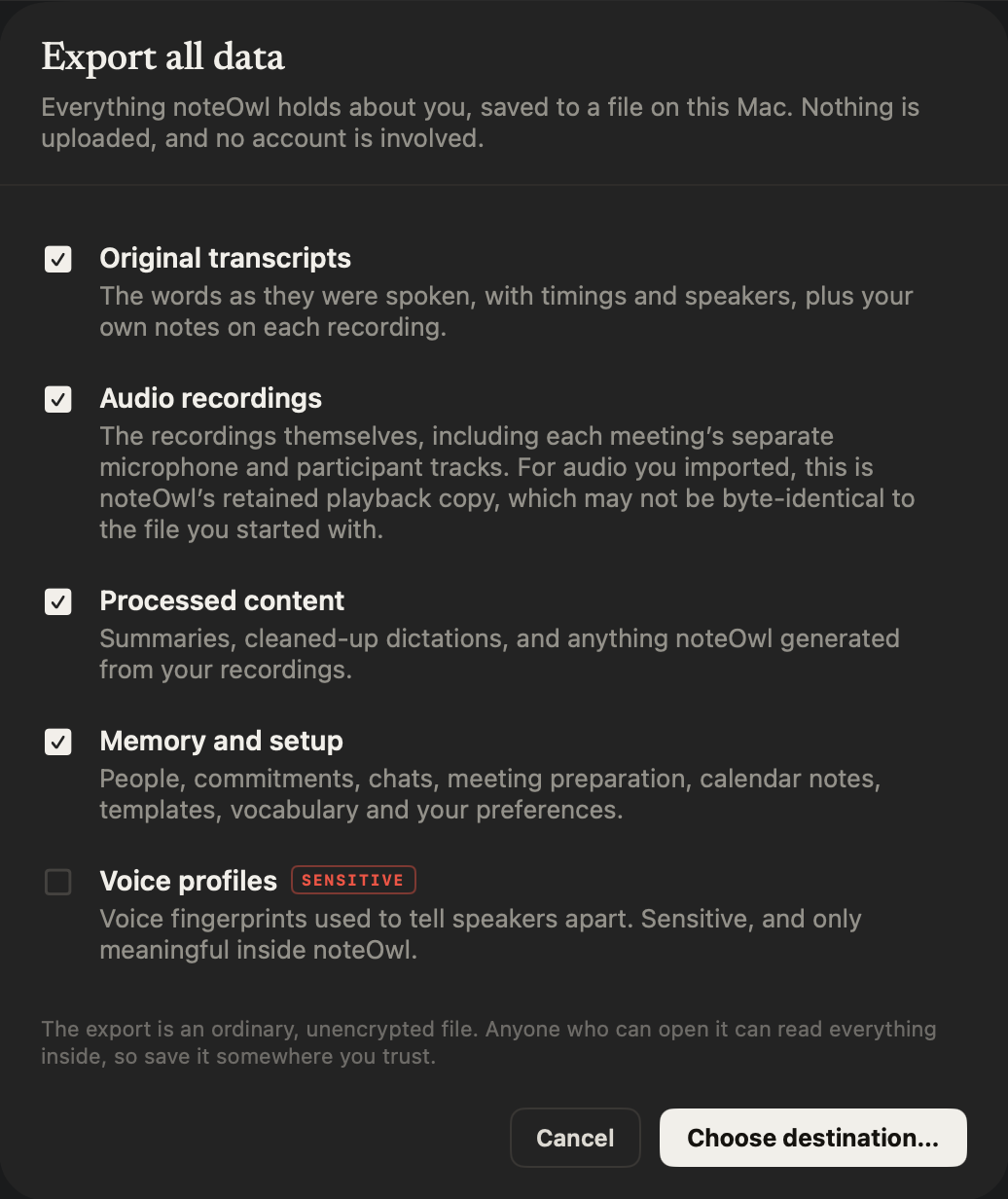
- NoteOwl’s answerYes. Export all data saves your transcripts, audio, summaries and memory to one zip file on your Mac, on Free and Pro.
| The question | NoteOwl’s answer |
|---|---|
| Where is the audio processed? | On your Mac. Transcription, speaker labels, summaries and Chat run on on-device AI models, so nothing is uploaded to be processed. |
| Where is it stored? | In one folder on your Mac, ~/Library/Application Support/NoteOwl. NoteOwl keeps no copy on its servers and doesn’t sync your notes to iCloud. |
| Does it train AI models? | No. Your recordings and transcripts are never sent to NoteOwl or anyone else, so they can’t be used to train AI models. |
| How long is it kept? | Until you delete it. Delete one recording from its list, or erase your recordings, transcripts and memory with Delete all my data in Settings → Memory. |
| Who can open it? | Whoever can use your Mac account, and nobody at NoteOwl: there’s no copy to open. For the trial and Pro, NoteOwl’s licensing service keeps your account and licence records, such as your email address. |
| Does a bot join the call? | No. NoteOwl records your microphone and your Mac’s audio, so nothing joins Zoom, Teams, Meet or any other call. Recording meetings is part of NoteOwl Pro. |
| What can it access? | Only the macOS permissions you grant: Microphone; Accessibility and Input Monitoring for dictation; Screen & System Audio Recording for meetings, audio only. Calendar and Contacts are optional, read on your Mac, and never changed or sent. There’s no Google or Microsoft sign-in. |
| What does it send online? | Model downloads, update checks and, for the trial and Pro, sign-in and a licence check at most once a week. None of them carries anything you record. The full list is below. |
| Can you export everything and leave? | Yes. Export all data saves your transcripts, audio, summaries and memory to one zip file on your Mac, on Free and Pro. |
What does NoteOwl send over the internet?
Requests to download its on-device AI models, check for updates and, for the trial and Pro, sign you in and check your licence. None of them carries your recordings, transcripts, notes or memory, and the app has no analytics or telemetry.
- On-device AI model download
- WhenOnce after you install (about 8 GB), and a model part the first time a feature needs it. While you’re online, NoteOwl can also check that its model files are current.
- What’s sentRequests for the model files, to the servers that host them. Nothing of yours.
- Apple’s language assets
- WhenOnce, only if your Mac doesn’t have them yet, when NoteOwl first indexes your notes for search. macOS downloads them from Apple.
- What’s sentNothing of yours.
- Update check
- WhenAbout once a day while NoteOwl is running, and when you choose Check for Updates…. An update downloads and installs only when you say so.
- What’s sentA request to www.noteowl.ai for the list of NoteOwl versions. No personal data.
- Sign-in and account (trial and Pro)
- WhenWhen you start the trial, buy NoteOwl Pro or activate a Mac; while you’re signed in, when NoteOwl opens or you open a licence screen; and for up to 15 minutes after you click Buy.
- What’s sentYour email address and the code NoteOwl emails you, then your sign-in session and an identifier created on this Mac. Activating also sends the Mac’s name.
- Licence check (Pro)
- WhenAt most once every 7 days, and only when you’re already online. If it fails, nothing changes.
- What’s sentOnly your licence’s identifier.
- Trial feedback
- WhenOnly if you answer the question at the end of the trial and click Send.
- What’s sentThe reason you picked and anything you typed.
| Connection | When | What’s sent |
|---|---|---|
| On-device AI model download | Once after you install (about 8 GB), and a model part the first time a feature needs it. While you’re online, NoteOwl can also check that its model files are current. | Requests for the model files, to the servers that host them. Nothing of yours. |
| Apple’s language assets | Once, only if your Mac doesn’t have them yet, when NoteOwl first indexes your notes for search. macOS downloads them from Apple. | Nothing of yours. |
| Update check | About once a day while NoteOwl is running, and when you choose Check for Updates…. An update downloads and installs only when you say so. | A request to www.noteowl.ai for the list of NoteOwl versions. No personal data. |
| Sign-in and account (trial and Pro) | When you start the trial, buy NoteOwl Pro or activate a Mac; while you’re signed in, when NoteOwl opens or you open a licence screen; and for up to 15 minutes after you click Buy. | Your email address and the code NoteOwl emails you, then your sign-in session and an identifier created on this Mac. Activating also sends the Mac’s name. |
| Licence check (Pro) | At most once every 7 days, and only when you’re already online. If it fails, nothing changes. | Only your licence’s identifier. |
| Trial feedback | Only if you answer the question at the end of the trial and click Send. | The reason you picked and anything you typed. |
Can you delete everything NoteOwl keeps?
With NoteOwl, yes, in one step: in Settings → Memory, Delete all my data erases your recordings, transcripts and memory from your Mac. It can’t be undone, so Export all data, above it, saves a zip file of everything first. With a cloud service, ask whether deleting reaches its backups.
Your NoteOwl Pro licence and the on-device AI models stay, so NoteOwl works as before without your recordings. To delete one meeting, right-click it and choose Delete; its files go to the macOS Trash. Step by step: delete a recording or all your data, or export your meeting notes as Markdown, PDF or text.
Is an AI note taker safer if no bot joins the call?
Safer in one way: nothing joins the meeting, so nothing can be let into calls automatically or send notes to attendees. But no bot doesn’t mean private: some bot-free note takers still upload the recording to be transcribed in the cloud. Where the audio goes matters more.
NoteOwl: no bot, and nothing uploaded
NoteOwl records your microphone and your Mac’s audio while the call runs, so nothing joins it, then writes the transcript, summary and action items on your Mac. It works with Zoom, Teams, Meet and any other call app on this Mac. Recording meetings is part of NoteOwl Pro.
AI meeting notes without a botHow a Mac records its own audio
Are local AI note takers more private?
Usually, yes. When the AI runs locally, on your own computer, the recording doesn’t have to leave it, so there’s no vendor copy to keep, train on, open or leak. Your notes are then as safe as your Mac, so protect the Mac itself.
Turn on FileVault
In System Settings → Privacy & Security, so the Mac’s disk can’t be read without your password or recovery key, even if the Mac is lost or stolen.
Lock your screen
Use a login password and ask for it after sleep or the screen saver. Anyone using your Mac account can open NoteOwl.
Back up
Time Machine backs up NoteOwl’s folder with the rest of your home folder, so your notes survive a lost Mac. Keep the backup disk somewhere safe.
Mind your exports
An export is an ordinary file, and anyone who has it can read it. Save it somewhere you trust, and leave voice profiles out unless you need them.
Running the AI locally needs a capable Mac. NoteOwl needs macOS 26 or later, Apple Silicon (M1 or newer) and 16 GB memory minimum, 24 GB recommended.
How can you use a cloud AI note taker more safely?
Make five changes: turn off automatic joining, opt out of model training, shorten retention, check who your notes are shared with, and remove calendar or account access you don’t use. Then delete the recordings you no longer need.
- 01
Turn off auto-join
Let the bot join only the calls you start it in, not every event on your calendar.
- 02
Opt out of model training
If the vendor offers the setting, turn it off, and check whether it was on by default.
- 03
Shorten retention
Pick the shortest period you can live with, and delete recordings and transcripts you no longer need.
- 04
Check sharing
Look at workspace defaults, public links and recap emails that go to every attendee.
- 05
Review connected apps
In your Google or Microsoft account, remove access for note takers you no longer use.
FAQ
Questions about AI note taker privacy
Are AI note takers safe for sensitive meetings?
An AI note taker is as safe as the places your recordings end up: cloud note takers keep copies on the vendor’s servers, under the vendor’s terms. NoteOwl keeps sensitive meetings on your Mac: it records, transcribes and summarizes there with on-device AI models, nothing you record is uploaded, and no bot joins the call.
Do AI note takers use your recordings to train AI?
Some do, depending on the vendor’s terms, and some let you opt out; search the privacy policy and terms for “train” and “improve”. NoteOwl doesn’t: its on-device AI models run on your Mac, and NoteOwl never receives your recordings or transcripts, so they can’t be used for training.
Does NoteOwl upload my meetings?
No. NoteOwl records, transcribes, summarizes and answers questions on your Mac, and your audio, transcripts, notes and memory are never sent to NoteOwl or anyone else. NoteOwl goes online only to download its on-device AI models, check for updates and, for the trial and Pro, handle your sign-in and licence.
Can anyone at NoteOwl see my transcripts?
No. NoteOwl never receives your recordings or transcripts, so nobody at NoteOwl can open them. If you use the trial or NoteOwl Pro, NoteOwl’s licensing service keeps your account and licence records, such as your email address and which Mac is activated, and nothing you record.
Does NoteOwl work offline?
Yes. After the one-time download of its on-device AI models, about 8 GB, NoteOwl records, transcribes, summarizes and answers questions with no internet connection. Starting the trial, buying NoteOwl Pro and activating a Mac need one, and an activated licence keeps working offline.
Does NoteOwl read my calendar or contacts?
Only if you connect them, for NoteOwl Pro features such as meeting prep and People. NoteOwl reads your calendar and contacts on your Mac through macOS, never changes them and never sends them anywhere, and there’s no Google or Microsoft account to connect.
How do I delete everything NoteOwl has stored?
In NoteOwl, open Settings, click the Memory tab, click Delete all my data and confirm with Delete everything. NoteOwl erases your recordings, transcripts and memory from your Mac, and it can’t be undone, so click Export all data first if you want a copy.
Related
- Security at NoteOwl Where your meetings live, what the app sends, and how to check it’s genuine.
- What NoteOwl sends over the network Every connection the app makes, when, and what each one carries.
- Offline AI meeting notes What works with Wi-Fi off, and how to check it yourself.
- AI meeting notes without a bot How NoteOwl records any call from your Mac, with nothing joining it.
- Where NoteOwl stores your data The one folder on your Mac, and what’s inside it.
Keep exploring
What this guide recommends
- Offline AI meeting notesEvery NoteOwl feature works offline after a one-time model download; what the app sends over the network, and what it never does
- AI meeting notes without a botHow NoteOwl records calls from your Mac with no bot joining, and what you get when the call ends
- Export your notesExport meetings, dictations and notes as Markdown or PDF, imported transcripts as text or SRT, or everything as plain files; nothing is locked in
More guides
- Dictation on MacApple’s built-in Dictation on macOS 26: settings, shortcuts, fixes when it isn’t working, and when an app helps
- Writing meeting minutesHow to write meeting minutes step by step, with the format, an example, and how NoteOwl writes them for you
- Taking meeting notesHow to take meeting notes before, during and after a meeting, with or without an AI note taker
Private AI meeting notes that stay on your Mac
Free to download. Runs entirely on your Mac.
macOS 26 or later · Apple Silicon (M1 or newer) · 16 GB memory minimum, 24 GB recommended
About NoteOwl
NoteOwl is private AI meeting notes and memory for the Mac. It captures meetings without a bot joining the call, labels every speaker, writes summaries and action items, and builds a memory of every conversation that you can chat with — fully offline, because the speech recognition and the AI run on the Mac itself. Dictation into any app is free; Pro is a lifetime licence.
NoteOwl pricing: what’s free and what Pro adds
Last updated