Guide · For recruiters
How to take notes on phone screens on a Mac
To take notes on phone screens with a Mac, let the Mac hear the call: put your phone on speaker beside it, make the call from the Mac in a softphone or browser, or import a recording of the call afterwards.
NoteOwl, a private AI note taker for Mac, then writes the transcript and your screening notes on the Mac, with no bot on the call and nothing uploaded. Recording calls and importing recordings are part of NoteOwl Pro.
Phone screens · three ways in
01Phone on speaker, beside the Mac
The Mac’s microphone hears both sides. Start with ⌥Space.
02A call made on the Mac
A dialer app or a browser call: you under You, the candidate under Others.
03A recording, imported
A call recorded elsewhere, transcribed on your Mac.
How do you take notes on a phone screen with a Mac?
Let the Mac hear the call, and let NoteOwl write the notes. There are three ways: a phone on speaker beside the Mac, a call you make on the Mac, or a recording you import afterwards. Each ends with the same screening notes.
- For
- Phone on speakerCalls on your mobile or desk phone
- A call on the MacCalls you make on the Mac: Zoom Phone, Microsoft Teams calling, Google Voice in a browser, or a dialer’s Mac app such as RingCentral or Dialpad
- A recording, importedCalls recorded somewhere else, such as by your phone system
- How you start
- Phone on speaker⌥Space or Start Meeting when the call connects
- A call on the MacAccept “Scribe this meeting?” in Zoom, Teams or a browser; otherwise ⌥Space
- A recording, importedImport Recording on the Transcripts screen, or drag the file in
- What NoteOwl hears
- Phone on speakerBoth voices, through your Mac’s microphone
- A call on the MacYour microphone and the Mac’s audio, as two channels
- A recording, importedThe file: mp3, wav, m4a, aiff, flac, aac or mp4
- Who said what
- Phone on speakerBoth voices under You: the microphone is one channel
- A call on the MacYour words under You, the candidate’s under Others
- A recording, importedVoices labelled Speaker 1, Speaker 2… after the transcript appears
- Then
- Phone on speakerSummarize as → your screening template
- A call on the MacSummarize as → your screening template
- A recording, importedSummarize as → your screening template
| Phone on speaker | A call on the Mac | A recording, imported | |
|---|---|---|---|
| For | Calls on your mobile or desk phone | Calls you make on the Mac: Zoom Phone, Microsoft Teams calling, Google Voice in a browser, or a dialer’s Mac app such as RingCentral or Dialpad | Calls recorded somewhere else, such as by your phone system |
| How you start | ⌥Space or Start Meeting when the call connects | Accept “Scribe this meeting?” in Zoom, Teams or a browser; otherwise ⌥Space | Import Recording on the Transcripts screen, or drag the file in |
| What NoteOwl hears | Both voices, through your Mac’s microphone | Your microphone and the Mac’s audio, as two channels | The file: mp3, wav, m4a, aiff, flac, aac or mp4 |
| Who said what | Both voices under You: the microphone is one channel | Your words under You, the candidate’s under Others | Voices labelled Speaker 1, Speaker 2… after the transcript appears |
| Then | Summarize as → your screening template | Summarize as → your screening template | Summarize as → your screening template |
Can NoteOwl hear a phone call on speaker?
Yes. With the phone on speaker beside your Mac, the Mac’s microphone hears you and the candidate, and NoteOwl records both. Because both voices arrive through one microphone, the transcript puts them both under You.
- 1
Set the phone down by the Mac
Put the phone on speaker, close to the Mac with its speaker facing it, and turn the volume up so the Mac’s microphone hears the candidate clearly.
- 2
Use a microphone that hears the room
NoteOwl records from your Mac’s current input, in System Settings → Sound. The built-in microphone hears you and the phone; a headset microphone mostly hears you.
- 3
Start the meeting
When the call connects, press ⌥Space or click Start Meeting in Meeting Scribe. No call app is open on the Mac, so NoteOwl won’t offer by itself.
- 4
Stop when you hang up
Press ⌥Space again or click Stop Meeting. NoteOwl writes the transcript and a summary on your Mac.
What to expect
- While it records, the Capture section in Meeting Scribe shows You (Microphone) with a time. Others (System audio) says No audio on this channel, because nothing plays through the Mac.
- The transcript labels the whole call You. The notes are written from what was said, so they still hold the candidate’s answers.
- Want the candidate’s words labelled apart? Make the call from the Mac, or import a recording. How NoteOwl labels the voices it hears.
How do you take notes on a call you make from your Mac?
Make the call in a calling app or browser on the Mac and record it in NoteOwl. NoteOwl records your microphone and the Mac’s audio as two channels, so your words are under You and the candidate’s under Others.
- 1
Make the call on the Mac
Use a calling app or a browser tab on the Mac, so the candidate’s voice plays through the Mac.
- 2
Wear headphones
Then your microphone hears only you, and the candidate stays on the Mac’s audio channel, labelled Others.
- 3
Start scribing
In Zoom, Teams or a browser, NoteOwl asks “Scribe this meeting?” once the microphone is in use: click Start scribing. In any other app, press ⌥Space.
- 4
Stop when the call ends
Press ⌥Space or click Stop. Your words are under You and the candidate’s under Others.

Can you import a phone screen recorded somewhere else?
Yes. If your phone or phone system already records calls, save the recording to your Mac and import it on NoteOwl’s Transcripts screen. NoteOwl transcribes it on your Mac and labels the voices Speaker 1, Speaker 2.
- 1
Get the recording onto your Mac
Save the call recording as an audio file — mp3, wav, m4a, aiff, flac or aac — or an mp4 video, in a folder you can find.
- 2
Import it
In NoteOwl, open Transcripts and click Import Recording, or drag the file onto the window. One file at a time.
- 3
Let NoteOwl label the voices
NoteOwl transcribes the call on your Mac, then labels the voices Speaker 1, Speaker 2 and so on.
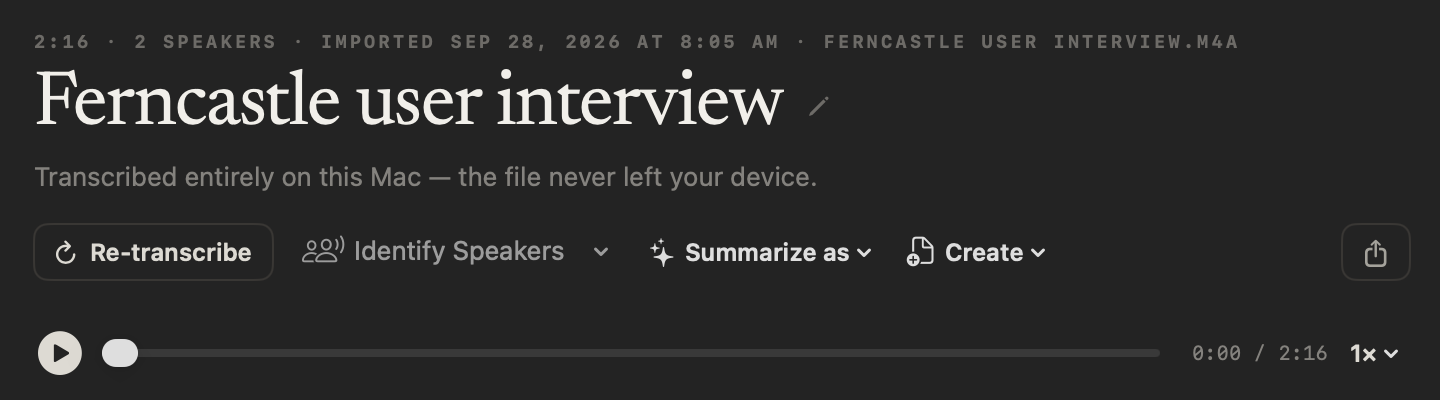
Importing recordings is part of NoteOwl Pro. Transcribe audio to text on your Mac.
How do you turn a phone screen into screening notes?
With a template you make once. NoteOwl has no built-in screening template, so add one in Templates with the fields you need, then choose it from Summarize as after each screening call. NoteOwl writes what the candidate said; the assessment stays yours.
- 1
Make a screening template once
In Templates, click New template and paste the candidate call instruction — current role, location, notice, pay, motivation, must-haves, open questions, next steps.
- 2
Choose Summarize as
Open the call and pick your template from Summarize as. NoteOwl writes the notes from what was said, on your Mac.
- 3
Copy them into your ATS
Paste the notes into the candidate’s record, then tap fn and dictate your own assessment there. Dictation is free.
Templates for recruiters
- Candidate call notes template: role, location, notice, pay, motivation, must-haves, open questions and next steps, with an instruction to paste into NoteOwl.
- Candidate submittal template: the write-up you send the client, with the recommendation left for you.
Recording calls, importing recordings and templates are part of NoteOwl Pro: $79 for one Mac, no subscription, with a 7-day free trial in the app. Dictation into any app is free.
Which way works best for phone screens?
Calling from the Mac, when you can: your voice and the candidate’s stay apart in the transcript. Use the speakerphone when the candidate expects your mobile number, and import when the call was recorded already.
Whichever way the call reaches NoteOwl, it stays on your Mac: no bot joins, there’s no bridge number to dial, and the audio, transcript and notes are never uploaded. More for recruiters on NoteOwl, the AI note taker for recruiters.
FAQ
Questions about phone screen notes
Can NoteOwl take notes on a regular phone call?
Yes, when your Mac can hear it. Put the phone on speaker beside the Mac and start a meeting in NoteOwl with ⌥Space: the Mac’s microphone records both sides, and NoteOwl writes the transcript and notes on your Mac. NoteOwl can’t hear a call that plays only on your phone’s earpiece.
How does NoteOwl label the voices on a speakerphone call?
NoteOwl labels everything the Mac’s microphone hears You, so on a speakerphone call the transcript puts your voice and the candidate’s under You. The notes still hold what the candidate said. For a transcript that keeps the candidate’s words apart, make the call from the Mac or import a recording.
Does NoteOwl work with Google Voice, Zoom Phone or a dialer app?
Yes, when the call runs on your Mac. NoteOwl records your microphone and the Mac’s audio, so a call in a browser, Zoom, Microsoft Teams or a dialer’s Mac app is recorded with your words under You and the candidate’s under Others. In apps NoteOwl doesn’t detect, start with ⌥Space.
Can I import a phone screen recorded on my phone?
Yes. Save the recording to your Mac as an mp3, wav, m4a, aiff, flac, aac or mp4 file and import it on NoteOwl’s Transcripts screen. NoteOwl transcribes the phone screen on your Mac, labels the voices and writes the notes. Importing recordings is part of NoteOwl Pro.
Which permissions does NoteOwl need to record a phone screen?
Microphone, and Screen & System Audio Recording, which is how macOS shares the Mac’s audio with an app. NoteOwl needs both to start any meeting, a speakerphone call included, and takes only the audio.
Are phone screens uploaded anywhere by NoteOwl?
No. NoteOwl transcribes phone screens and writes the notes on your Mac with on-device AI models, so the audio, the transcript and the notes stay on your Mac and are never uploaded. No bot joins the call, and there’s no bridge number.
How much does NoteOwl cost for phone screens?
Recording calls, importing recordings and templates are part of NoteOwl Pro: $79 lifetime for one Mac, no subscription, with a 7-day free trial in the app. Dictation into any app is free.
Related
- Candidate call notes template The screening template to paste into NoteOwl, with an example.
- Candidate submittal template The write-up you send the client after the screen.
- AI note taker for recruiters Screens, intake calls and debriefs, private on your Mac.
- Transcribe audio to text Import a call recording and get a transcript with speakers.
Keep exploring
What this guide recommends
- Candidate call notes templateA candidate call notes template for screening calls: role, location, notice, pay, motivation and must-haves in the candidate’s words, an example, and an instruction for NoteOwl
- Candidate submittal templateA candidate submittal template to copy, a recruiter candidate write-up example, and how NoteOwl drafts a submittal from a screening call with the recommendation left to you
- AI meeting notes without a botHow NoteOwl records calls from your Mac with no bot joining, and what you get when the call ends
- Audio to textTranscription software for your Mac: drop in an audio or video file and get a speaker-labelled transcript with timestamps, unlimited, with nothing uploaded
- AI note taker for recruitersCandidate screens and hiring-manager calls with no bot: interview notes from the Interview template, a profile per candidate, free dictation for scorecards
More guides
- Record Mac audioHow to record the sound your Mac plays (system audio) with Apple’s own tools, and how NoteOwl records calls without a bot
- Tracking action itemsHow to capture, assign and follow up action items after a meeting, by hand and with NoteOwl
- Cornell notesThe Cornell note-taking method: the cue column, notes and summary, the five steps, a template to copy, an example, and how it fits a recorded lecture
Free tools
- Mic testA free online mic test: a live level meter, a microphone picker and a 5-second recording to play back, in your browser
- Audio to text converterTranscribe audio to text free: drop in an MP3, M4A, WAV or other recording and get an AI transcript with times, as text, SRT, VTT or Word; nothing is stored
- M4A to MP3 converterConvert M4A to MP3 in your browser, iPhone and Mac voice memos included, at 128, 192 or 320 kbps; nothing is uploaded
Phone screens, noted privately on your Mac
Free to download. Runs entirely on your Mac.
macOS 26 or later · Apple Silicon (M1 or newer) · 16 GB memory minimum, 24 GB recommended
About NoteOwl
NoteOwl is private AI meeting notes and memory for the Mac. It captures meetings without a bot joining the call, labels every speaker, writes summaries and action items, and builds a memory of every conversation that you can chat with — fully offline, because the speech recognition and the AI run on the Mac itself. Dictation into any app is free; Pro is a lifetime licence.
NoteOwl pricing: what’s free and what Pro adds
Last updated