Dictate in Messages · iPhone and Mac · Free
Voice to text in iMessage, on your iPhone and Mac
For voice to text, iMessage on iPhone works with the free NoteOwl keyboard: switch to it in a conversation, tap the microphone and talk, and your words type into the message as you speak. On a Mac, click in the message field in Messages and tap fn.
Either way, what you send is an ordinary text, not a recording, and nothing goes until you send it. NoteOwl turns your speech into text on the device and never uploads it. Dictating is free and unlimited on both.
How do you dictate an iMessage on iPhone?
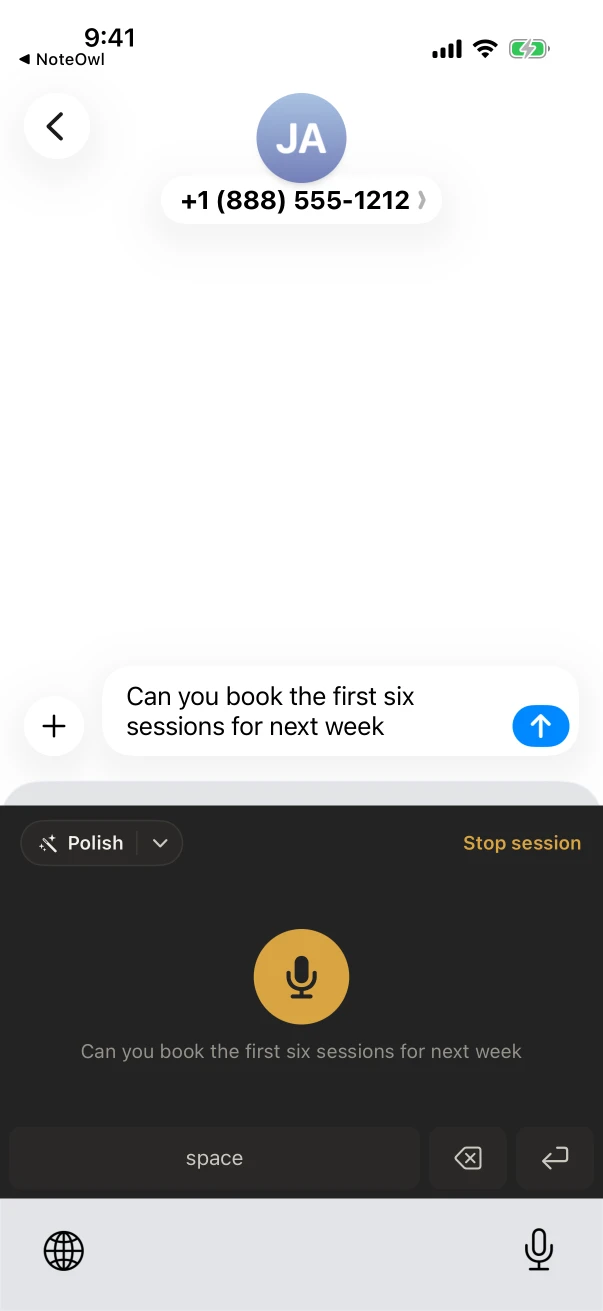
Open the conversation, tap the message field and switch to the NoteOwl keyboard with the globe key. Tap the microphone; the first time, NoteOwl opens for a moment to start listening, so come back to Messages and talk. Your words type into the message as you say them.
After that, the dictation session stays on until five minutes pass without dictation, so in the next conversation the microphone listens straight away. Adding the keyboard takes a minute in the Settings app, with Allow Full Access: how to add the NoteOwl keyboard.
In Messages on iPhone
- 1
Tap the message field
Open the conversation and tap where you would type, so a keyboard comes up.
- 2
Switch to NoteOwl
Tap the globe key and choose NoteOwl. Its keyboard is a microphone, with space, delete and return.
- 3
Tap the microphone
The first time, NoteOwl opens for a moment to start listening. Come back to Messages with ◀ in the top-left corner.
- 4
Say the message
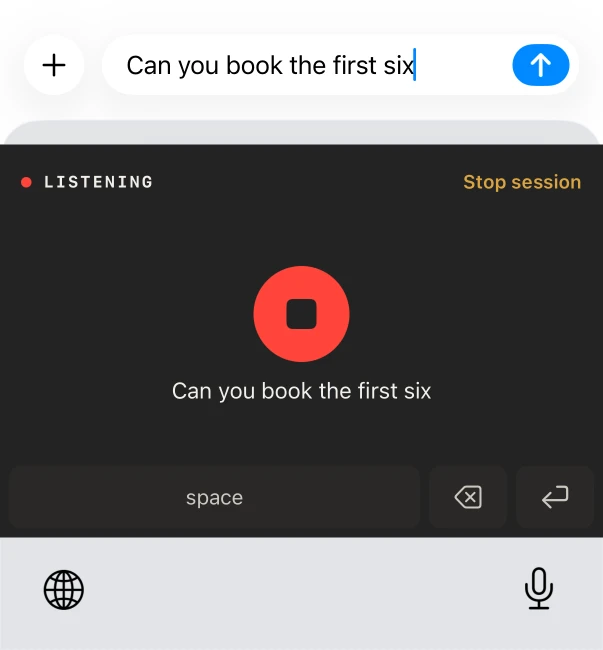
The keyboard shows LISTENING, and the words land in the message field as you talk.
- 5
Stop, read, send
Tap the red stop button, read the message over, and send it the way you always do.
How do you dictate messages on a Mac?
Click in the message field in Messages, tap fn and talk. Your words type at the cursor as you speak, and a pause doesn’t cut you off. Tap fn again or press Stop, then press Return to send. NoteOwl just needs to be running in the menu bar.
iMessage brings a conversation to every Apple device you’ve set up for it[1], so you can answer by voice on whichever one is in front of you.
In Messages on a Mac
- 1
Click in the message field
At the bottom of the conversation, where you would start typing.
- 2
Tap fn and talk
The NoteOwl panel opens at the top of the screen, and the words type into your message as you say them.
- 3
Tap fn again
Or press Stop in the panel. Read it over, then press Return to send.
On the Mac, NoteOwl understands 34 languages and works out which one you’re speaking, even when you move between Hindi and English in one sentence, the way plenty of people text. Speech to text on a Mac has the rest.
Can NoteOwl make a dictated text sound casual?
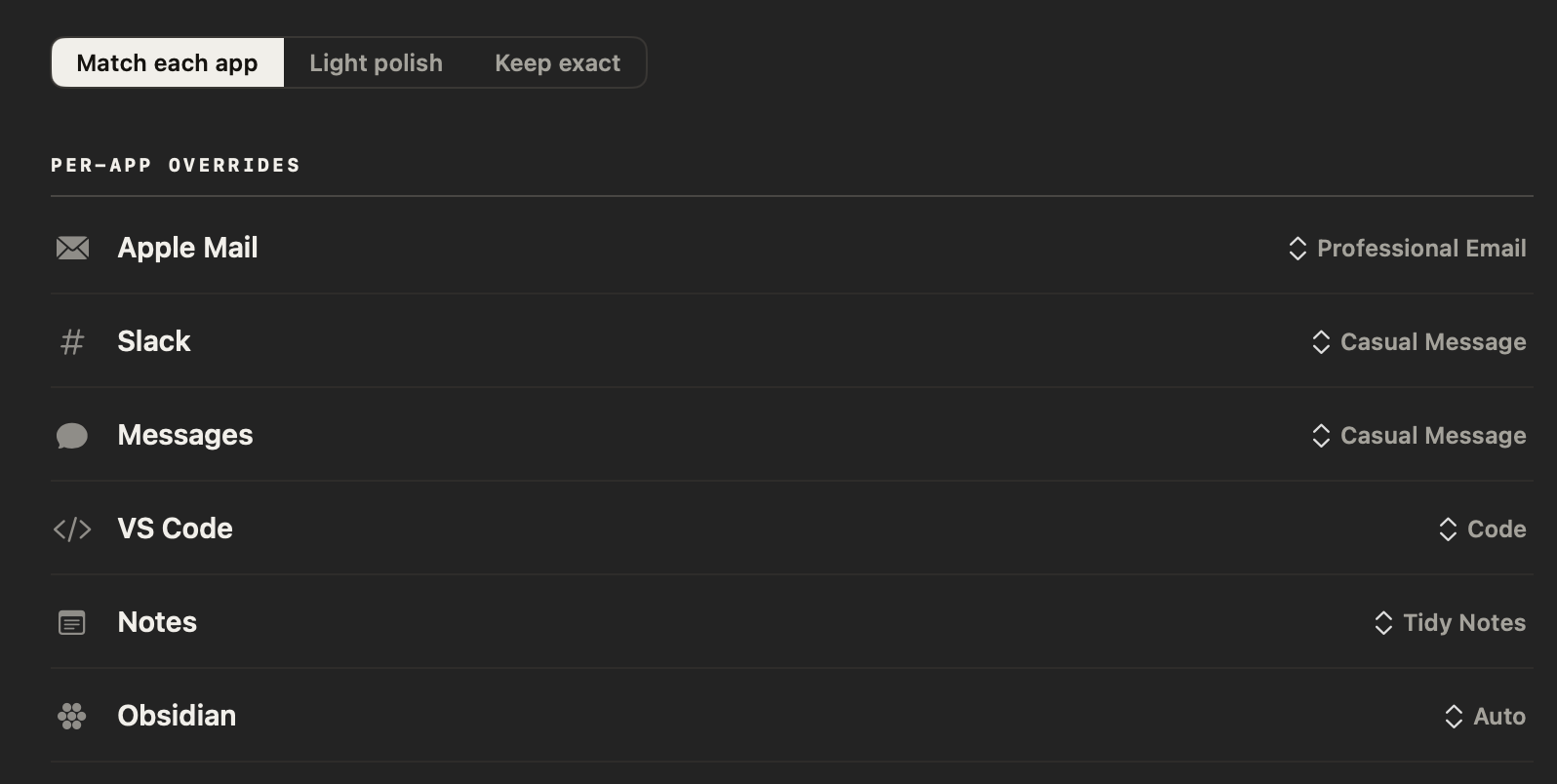
Yes. On iPhone 15 Pro or later, tap the arrow beside Polish after you stop and choose Casual message. On a Mac, set Messages to Casual Message in Settings → Auto-Context, and Polish uses it every time. Both are free, and your own words stay a tap away.
Casual message is written for texting: short and relaxed, with your own slang and short forms kept, no greeting or sign-off you didn’t say, and no emoji added. On iPhone, make it the Default style in NoteOwl’s Settings › Keyboard and the button reads Polish: Casual message.
Only the Mac sets a tone for each app. There, Messages starts on Auto, which means Polish: filler words and false starts out, punctuation in, your tone left alone.
What are the other ways to send a message by voice?
Two come with the iPhone: the microphone on Apple’s keyboard, which dictates text, and audio messages, which send a recording. The NoteOwl keyboard types text too, keeps a copy of every dictation in NoteOwl, and has the same voice typing waiting in Messages on your Mac.
Apple’s Dictation
Audio messages
The NoteOwl keyboard
- Ordinary text in the message field, to read over before you send.
- Each dictation kept in NoteOwl under Notes › Dictations, your exact words beside a tidied copy.
- Polish in one tap on iPhone 15 Pro or later.
- The same voice typing in Messages on your Mac, with fn.
What’s free, and what does NoteOwl Pro add?
Dictating messages is free and unlimited on iPhone and Mac, and so are Polish’s cleanup styles and the copy of every dictation. NoteOwl Pro adds custom vocabulary for names and nicknames, the Rewrite styles on iPhone, and rewriting by voice on the Mac.
Free
- Dictating into Messages on iPhone and Mac, with no word limit
- Polish, Professional email, Casual message, Tidy notes and Code, on iPhone 15 Pro or later
- A tone for Messages on the Mac, and Polish, Shorten, Clarify, Make formal and Make friendly there
- Every dictation kept, your exact words beside the tidied copy
NoteOwl Pro
- Custom vocabulary, so names and nicknames come out your way
- Rewrite styles on iPhone: Shorten, Clarify, Make formal, Make friendly, Fix grammar only
- Rewriting selected text by voice on the Mac (⌥X)
- Meeting notes, summaries, memory and Chat
NoteOwl Pro is $20 lifetime on iPhone and $79 lifetime on a Mac, with no subscription.
- Where speech becomes text
- On your iPhone or Mac; NoteOwl never uploads it
- Languages on iPhone
- Auto-detect, English, Hindi, Spanish, French and German
- Languages on Mac
- 34, detected automatically
- Without internet
- Dictation works once the speech model is on the device (about 600 MB on iPhone); sending still needs a connection
- Needs
- iPhone: iOS 26 or later, the NoteOwl keyboard and Allow Full Access. Mac: macOS 26 or later, Apple Silicon (M1 or newer)
FAQ
Questions about voice to text in iMessage
Is voice to text in iMessage free with NoteOwl?
Yes. Dictating into Messages with the NoteOwl keyboard on iPhone, or with fn on a Mac, is free with no word limit, and Polish’s cleanup styles are free too. NoteOwl Pro, $20 lifetime on iPhone, adds custom vocabulary and the Rewrite styles.
Does NoteOwl send the message for me?
No. NoteOwl types the words into the message field and stops there. You read the message over, fix anything you want, and send it yourself, so nothing reaches the other person until you do.
Can I type and dictate in the same message?
Yes. The NoteOwl keyboard has a microphone, space, delete and return, but no letter keys. Tap the globe key to switch to your usual keyboard and type a word, then switch back to NoteOwl to keep talking.
Which languages can I dictate messages in?
On iPhone, the NoteOwl keyboard takes Auto-detect, English, Hindi, Spanish, French and German, chosen in NoteOwl’s Settings › Keyboard. On a Mac, NoteOwl understands 34 languages, detects the one you’re speaking, and follows Hindi and English in one sentence.
Does dictating in Messages work without internet?
Yes. NoteOwl turns your speech into text on the device, so once its speech model is downloaded (about 600 MB on iPhone), dictating needs no connection. Sending the message still needs Wi-Fi or cellular data, as any message does.
Can NoteOwl learn the names of the people I text?
Yes, with NoteOwl Pro. Add the names to custom vocabulary in NoteOwl’s settings, such as “When I say” → “Replace with” on iPhone, and NoteOwl writes them your way in every dictation from then on, in Messages and everywhere else.
Sources
Last checked . Apple’s own pages, for what its apps and Dictation do.
- [1]Apple, About iMessage (iOS 26)
- [2]Apple, Dictate text on iPhone (iOS 26)
- [3]Apple, Send and receive audio messages in Messages on iPhone (iOS 26)
Keep exploring
Made for dictating
- iPhone dictation keyboardThe free NoteOwl keyboard: voice typing in any iPhone app, how to add it, its languages, Polish and Rewrite styles, and Notes › Dictations
- Free dictation into any appFree, unlimited speech to text in every app on your Mac (tap fn, talk, and the words type at your cursor; one tap polishes them in the right tone) and on iPhone with the NoteOwl keyboard
- Custom vocabularyTeach NoteOwl names, jargon and spellings once, and every dictation, meeting and import uses them
- Best dictation app for iPhoneEight iPhone dictation apps compared on six tests (works in every app, where your voice is processed, offline, price, languages, limits), from each maker’s own pages, with NoteOwl’s free keyboard first
Text by voice on your iPhone and Mac, free
Free to download. Runs entirely on your Mac or iPhone.
Mac: macOS 26 or later · Apple Silicon (M1 or newer) · 16 GB memory minimum, 24 GB recommended · iPhone: iOS 26 or later
About NoteOwl
NoteOwl is private AI meeting notes and memory for Mac and iPhone. It captures meetings without a bot joining the call, labels every speaker, writes summaries and action items, and builds a memory of every conversation that you can chat with — fully offline, because the speech recognition and the AI run on the Mac or iPhone itself. Dictation into any app is free; Pro is a lifetime licence.
NoteOwl pricing: what’s free and what Pro adds
Last updated