Guide · iPhone · iOS 26
How to use voice to text on iPhone
Here’s how to use voice to text on iPhone: tap in any text field, tap the microphone on the keyboard and speak: your words appear as you talk. If there’s no microphone, turn on Dictation in Settings › General › Keyboard › Enable Dictation. Say “comma” or “new line” as you go, and tap the microphone again to stop.
That’s Apple’s Dictation, built into iOS. The free NoteOwl keyboard is another way: it types into any app with no word limit, turns your voice into text on the iPhone, and keeps every dictation in NoteOwl, so nothing you said is lost if a message doesn’t send.
Apple’s Dictation · iOS 26
- 1
Turn on Dictation
Go to Settings › General › Keyboard and turn on Enable Dictation. If a prompt appears, tap Enable Dictation.[1]
- 2
Tap where you want the text
Tap in a message, a note, an email or any other text field to place the cursor.[1]
- 3
Tap the microphone and talk
Tap the Dictate button on the keyboard. When it appears by the cursor, start speaking; the keyboard stays open, so you can type too.[1]
- 4
Stop
Tap the microphone again or say “Stop dictation”. Dictation also stops by itself after 30 seconds without speech.[1]
How do you turn on voice to text on iPhone?
Open Settings › General › Keyboard and turn on Enable Dictation, then tap Enable Dictation if iOS asks. The microphone appears on the keyboard in every app; tap it in any text field and start talking[1].
The keyboard stays open while you dictate, so you can type a word, then go back to talking. To dictate in another language, add a keyboard for it in Settings › General › Keyboard › Keyboards › Add New Keyboard and switch to it before you tap the microphone[1,3]. Microphone missing, or nothing happens? Apple’s fixes when dictation isn’t working. Dictating into one app in particular? Voice to text in Messages, Reminders and Apple’s other apps.
What can you say while you dictate on iPhone?
Punctuation, line breaks, capitals and emoji, by name: “comma”, “new paragraph”, “all caps”, “heart emoji”. In U.S. English on iPhone 12 and later, except iPhone SE, you can also edit by voice with “change … to …” and “delete …”[2].
- Punctuation
- Say“period”, “comma”, “question mark”, “exclamation point”, “colon”
- You get. , ? ! :
- Quotes and brackets
- Say“quote” … “end quote”, “open parenthesis” … “close parenthesis”
- You get“ ” ( )
- Lines
- Say“new line”, “new paragraph”
- You getA line break or a new paragraph
- Capitals
- Say“cap”, “all caps”, “caps on” … “caps off”
- You getCapitalizes the next word or the words between
- Emoji
- Say“heart emoji”, “smiley emoji”, “fingers crossed emoji”
- You getThe emoji, in supported languages
- Edits
- Say“change … to …”, “select …”, “delete …”, “undo”
- You getU.S. English, on iPhone 12 and later (not iPhone SE)
| Say | You get | |
|---|---|---|
| Punctuation | “period”, “comma”, “question mark”, “exclamation point”, “colon” | . , ? ! : |
| Quotes and brackets | “quote” … “end quote”, “open parenthesis” … “close parenthesis” | “ ” ( ) |
| Lines | “new line”, “new paragraph” | A line break or a new paragraph |
| Capitals | “cap”, “all caps”, “caps on” … “caps off” | Capitalizes the next word or the words between |
| Emoji | “heart emoji”, “smiley emoji”, “fingers crossed emoji” | The emoji, in supported languages |
| Edits | “change … to …”, “select …”, “delete …”, “undo” | U.S. English, on iPhone 12 and later (not iPhone SE) |
How do you use the NoteOwl keyboard for voice to text?
Add it in Settings, turn on Allow Full Access, then switch to it with the globe key in any app and tap its microphone. It’s free with no word limit, and your speech becomes text on the iPhone, so it works offline.
It speaks English, Hindi, Spanish, French and German, with Auto-detect, and needs iOS 26 or later. Every dictation is kept in NoteOwl under Notes › Dictations, raw words included. The NoteOwl dictation keyboard
- 1
Get NoteOwl and open it once
It downloads its speech model, about 600 MB, once. After that, the keyboard works with no connection.
- 2
Add the keyboard
In Settings › General › Keyboard › Keyboards › Add New Keyboard, choose NoteOwl, then tap it and turn on Allow Full Access.
- 3
Switch to it in any app
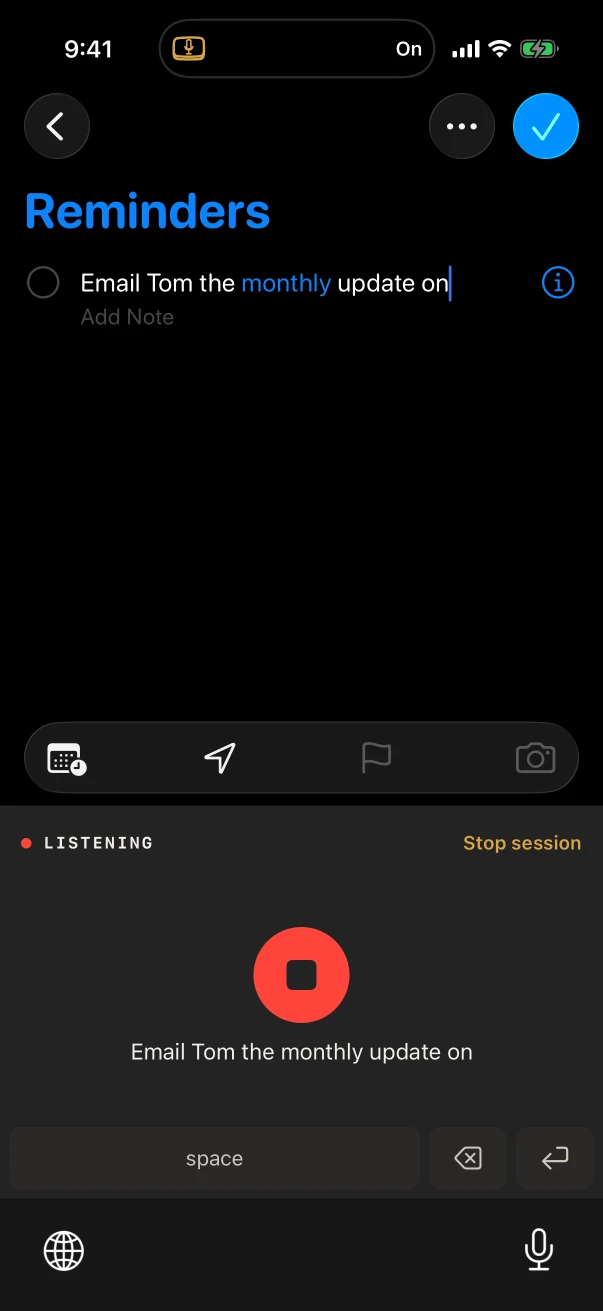
Tap the globe key, choose NoteOwl, and tap the microphone. NoteOwl opens for a moment to start listening; go back to your app and talk.
- 4
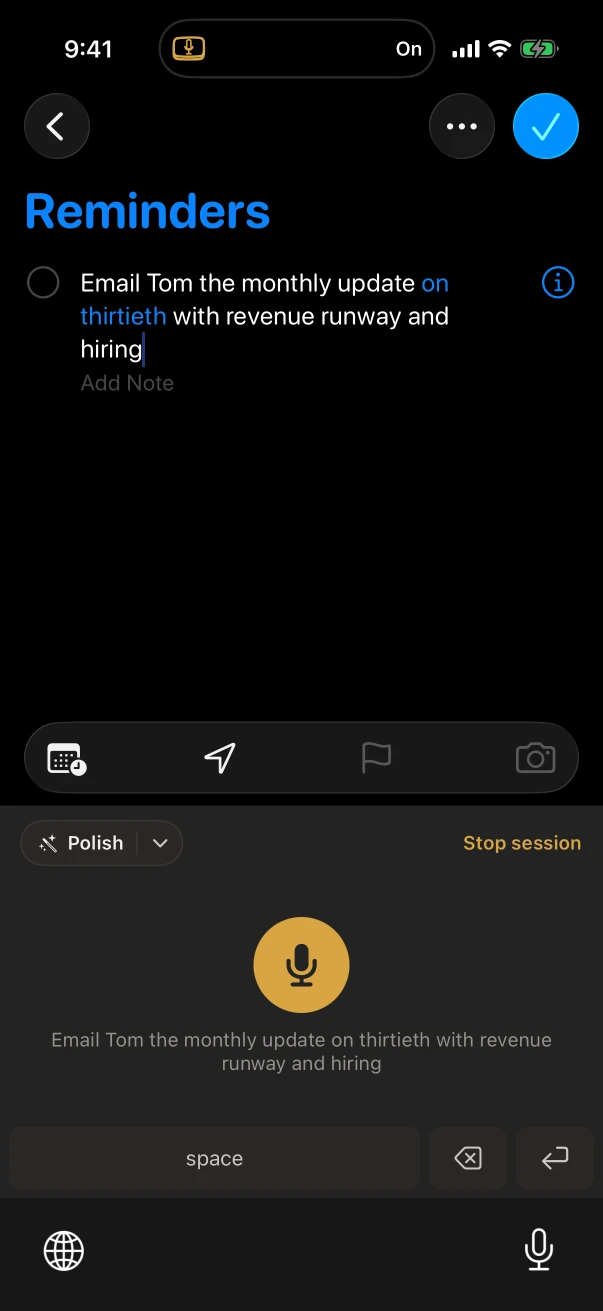
Talk, then tap Stop session when you’re done
Your words type as you speak. The session also ends by itself after five minutes without dictation.
Why does a voice keyboard ask for Allow Full Access?
Because iOS doesn’t let keyboards use the microphone. NoteOwl’s app listens and turns your speech into text, and Full Access is what lets its keyboard receive those words. The keyboard itself has no code that connects to the internet.
What the switch allows a keyboard to do, from Apple’s own documentation, and exactly what NoteOwl’s keyboard does with it: what Allow Full Access means on iPhone.
Apple’s Dictation or the NoteOwl keyboard: which should you use?
Apple’s Dictation for quick replies: it’s already there, edits by voice in U.S. English, and works offline in many languages. The NoteOwl keyboard when you pause to think as you talk, for Hindi, or when you want every dictation kept in one place.
- Where it works
- Apple’s DictationAnywhere you can type
- NoteOwl keyboardAny app, as a keyboard
- Where your voice becomes text
- Apple’s DictationOn the iPhone in many languages; a search box may send the text to the search provider
- NoteOwl keyboardIn the NoteOwl app, on the iPhone; nothing is uploaded
- Languages
- Apple’s DictationThe languages of the keyboards you add, where Dictation is offered
- NoteOwl keyboardAuto-detect, English, Hindi, Spanish, French and German
- When it stops
- Apple’s DictationAfter 30 seconds without speech
- NoteOwl keyboardAfter five minutes without dictation, or Stop session
- History
- Apple’s DictationNot mentioned in Apple’s guide
- NoteOwl keyboardEvery dictation kept in Notes › Dictations
- Price
- Apple’s DictationBuilt into iOS
- NoteOwl keyboardFree, no word limit; NoteOwl Pro, $20 lifetime, adds Rewrite styles and vocabulary
| Apple’s Dictation | NoteOwl keyboard | |
|---|---|---|
| Where it works | Anywhere you can type | Any app, as a keyboard |
| Where your voice becomes text | On the iPhone in many languages; a search box may send the text to the search provider | In the NoteOwl app, on the iPhone; nothing is uploaded |
| Languages | The languages of the keyboards you add, where Dictation is offered | Auto-detect, English, Hindi, Spanish, French and German |
| When it stops | After 30 seconds without speech | After five minutes without dictation, or Stop session |
| History | Not mentioned in Apple’s guide | Every dictation kept in Notes › Dictations |
| Price | Built into iOS | Free, no word limit; NoteOwl Pro, $20 lifetime, adds Rewrite styles and vocabulary |
FAQ
Questions about voice to text on iPhone
How do I turn on talk to text on my iPhone?
Go to Settings › General › Keyboard and turn on Enable Dictation; if a prompt appears, tap Enable Dictation. Then tap in any text field and tap the microphone on the keyboard to talk instead of typing.
How do I add punctuation when I use voice to text?
Say it: “comma”, “period”, “question mark” or “exclamation point”. Say “new line” or “new paragraph” for a break. In supported languages, Apple’s Dictation also adds commas, periods and question marks by itself unless you turn off Auto-Punctuation in Settings › General › Keyboard.
Does voice to text work without the internet?
Apple says Dictation requests are processed on your device in many languages, with no internet connection required. The NoteOwl keyboard works offline too, once its speech model has downloaded, in English, Hindi, Spanish, French and German.
How do I stop voice to text on iPhone?
Tap the microphone again or say “Stop dictation”. Apple’s Dictation also stops by itself after 30 seconds without speech. On the NoteOwl keyboard, tap Stop session, or let it end after five minutes without dictation.
Can I use voice to text in Hindi on iPhone?
Yes, with the NoteOwl keyboard: set its spoken language to Hindi, or to Auto-detect, in NoteOwl’s Settings › Keyboard. It speaks Auto-detect, English, Hindi, Spanish, French and German, and writes the text on the iPhone.
Is the NoteOwl voice to text keyboard free?
Yes. Dictating with the NoteOwl keyboard is free in any app, with no word or time limit. NoteOwl Pro, $20 lifetime with no subscription, adds Rewrite styles and custom vocabulary.
Sources
Last checked . Apple’s steps are from the iPhone User Guide for iOS 26.
- [1]Apple, Dictate text on iPhone (iOS 26)
- [2]Apple, Commands for dictating text on iPhone (iOS 26)
- [3]Apple, Add or change keyboards on iPhone (iOS 26)
Related
- NoteOwl’s dictation keyboard How to add it, its languages, Polish and Notes › Dictations.
- iPhone dictation not working? Apple’s fixes for iOS 26, in order.
- The best dictation app for iPhone Eight keyboards compared on privacy, price and limits.
- What Allow Full Access means What a keyboard can do with it, and what NoteOwl’s does.
Keep exploring
What this guide recommends
- iPhone dictation keyboardThe free NoteOwl keyboard: voice typing in any iPhone app, how to add it, its languages, Polish and Rewrite styles, and Notes › Dictations
- iPhone dictation fixesApple’s fixes when iPhone dictation isn’t working on iOS 26 (Enable Dictation, language, the 30-second stop, microphone, Screen Time, restart, update), each sourced, then the NoteOwl keyboard as an on-device option
- Free dictation into any appFree, unlimited speech to text in every app on your Mac (tap fn, talk, and the words type at your cursor; one tap polishes them in the right tone) and on iPhone with the NoteOwl keyboard
More guides
- Voice Memos transcription fixesSeven fixes from Apple’s iOS 26 pages when Voice Memos shows no transcript (iPhone model, language, region, where the transcript is, older recordings, microphone, restart and update), then NoteOwl for Hindi and speakers
- Summarize a voice memoTwo ways to summarize a voice memo on iPhone: Apple Intelligence’s Writing Tools on the Voice Memos transcript, or NoteOwl’s summary, action items and 22 templates, step by step
- Voice memos, iPhone to MacMove voice memos from iPhone to Mac with iCloud, AirDrop or Save to Files (Apple’s steps for iOS 26 and macOS 26), why they don’t show up, and a transcript with speakers in NoteOwl on the Mac or the iPhone
Talk instead of typing, in any app on your iPhone
Free to download. Runs entirely on your Mac or iPhone.
Mac: macOS 26 or later · Apple Silicon (M1 or newer) · 16 GB memory minimum, 24 GB recommended · iPhone: iOS 26 or later
About NoteOwl
NoteOwl is private AI meeting notes and memory for Mac and iPhone. It captures meetings without a bot joining the call, labels every speaker, writes summaries and action items, and builds a memory of every conversation that you can chat with — fully offline, because the speech recognition and the AI run on the Mac or iPhone itself. Dictation into any app is free; Pro is a lifetime licence.
NoteOwl pricing: what’s free and what Pro adds
Last updated