Guide · iPhone · iOS 26
How to transcribe a video on iPhone
Here’s how to transcribe a video on iPhone: open it in Photos, tap the Share button and choose NoteOwl, then tap Open NoteOwl. NoteOwl takes the video’s sound and writes a transcript with each speaker’s turns and the time each one starts, on the iPhone, so the video is never uploaded anywhere.
Importing a video is part of NoteOwl Pro, $20 lifetime with a 7-day free trial, and you can export the transcript as text, PDF or subtitles. For a quick, free copy of what a video says while it plays, Apple’s Live Captions can caption the iPhone’s audio.
Can an iPhone transcribe a video?
Yes. NoteOwl transcribes a video saved on the iPhone into a transcript you can keep, with speakers and times. Apple’s Live Captions writes captions of a video while it plays, which you can copy[1].
- What you get
- NoteOwlA saved transcript with speakers and times
- Live CaptionsLive captions you can copy
- Video files
- NoteOwlMP4 and MOV, from Photos, Files or NoteOwl
- Live CaptionsAny video playing on the iPhone
- Languages
- NoteOwlAuto-detect, English, Hindi, Spanish, French, German
- Live CaptionsNot all languages, countries or regions
- Export
- NoteOwlText, Markdown, PDF, Subtitles (.srt)
- Live CaptionsCopy Captions, then paste
- iPhone
- NoteOwliOS 26 or later
- Live CaptionsiPhone 11 or later
- Price
- NoteOwlNoteOwl Pro, $20 lifetime
- Live CaptionsBuilt into iOS
| NoteOwl | Live Captions | |
|---|---|---|
| What you get | A saved transcript with speakers and times | Live captions you can copy |
| Video files | MP4 and MOV, from Photos, Files or NoteOwl | Any video playing on the iPhone |
| Languages | Auto-detect, English, Hindi, Spanish, French, German | Not all languages, countries or regions |
| Export | Text, Markdown, PDF, Subtitles (.srt) | Copy Captions, then paste |
| iPhone | iOS 26 or later | iPhone 11 or later |
| Price | NoteOwl Pro, $20 lifetime | Built into iOS |
How do you transcribe a video from Photos?
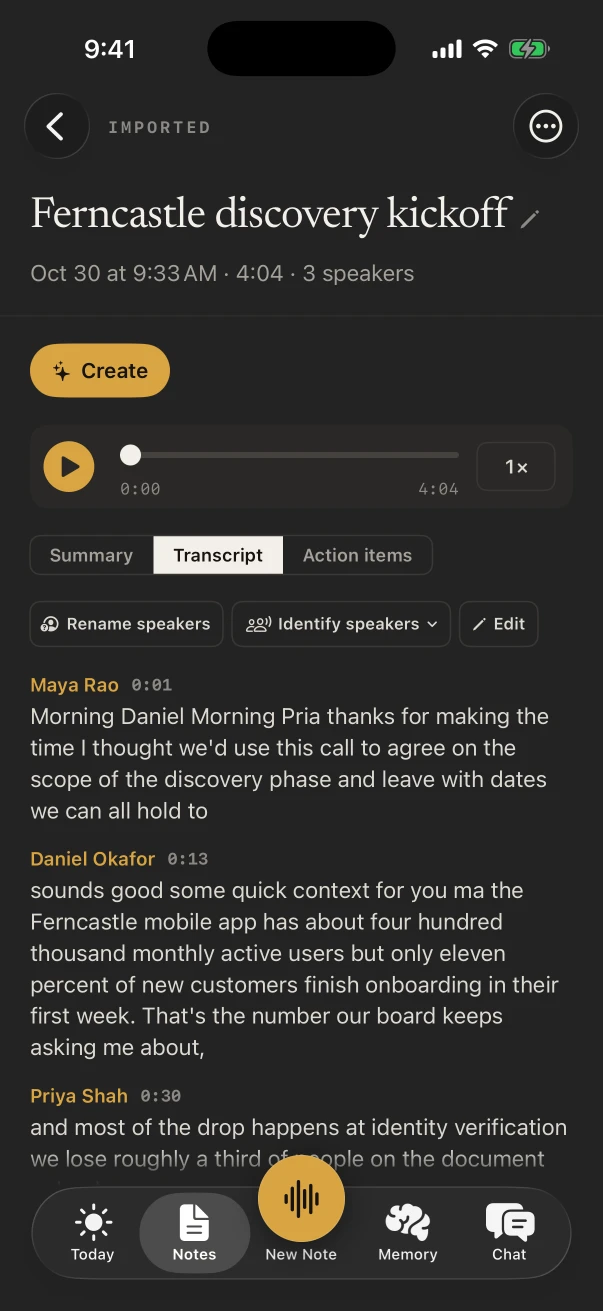
Open the video, tap Share, choose NoteOwl and tap Open NoteOwl. NoteOwl takes the sound and transcribes it on the iPhone, then finds the speakers and writes a summary. The video stays in Photos.
Importing is part of NoteOwl Pro on iPhone: $20 lifetime, no subscription, with a 7-day free trial.
Photos › Share › NoteOwl
- 1
Open the video in Photos
Find the video you want as text and open it.
- 2
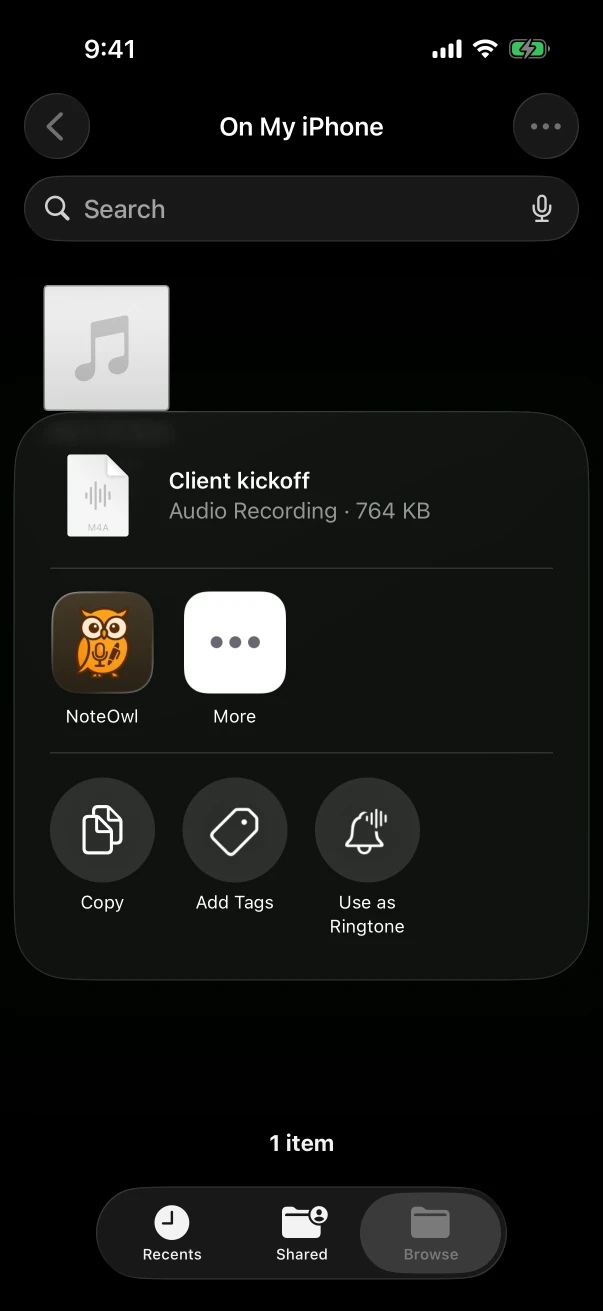
Tap Share, then NoteOwl
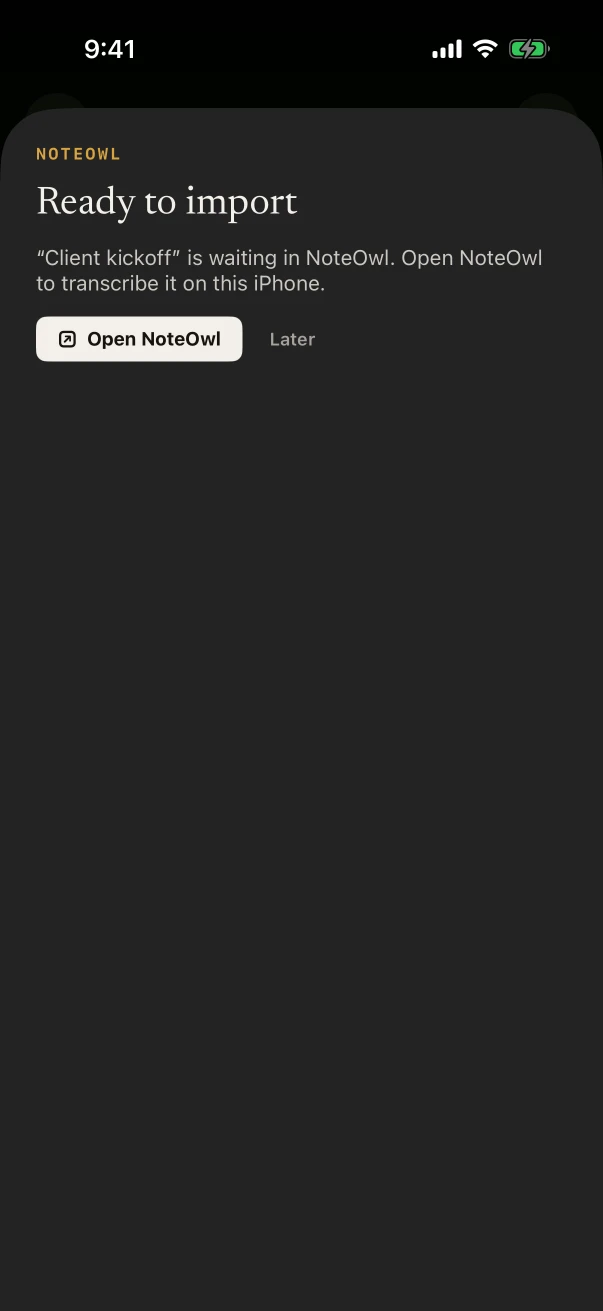
NoteOwl is in the row of apps; tap More if it isn’t shown. The sheet says “Ready to import”.
- 3
Tap Open NoteOwl
NoteOwl takes the sound from the video and transcribes it on the iPhone, then finds the speakers.
- 4
Read the transcript
The video becomes a note with each speaker’s turns and when they start, plus a summary and the action items.
How do you transcribe a video from Files or another app?
The same way: tap Share on the video and choose NoteOwl. Or, inside NoteOwl, touch and hold New Note and choose Import audio or video. NoteOwl reads MP4 and MOV videos, one at a time.
Files
Open the folder, touch and hold the video, tap Share and choose NoteOwl.
Inside NoteOwl
Touch and hold New Note, choose Import audio or video, and pick the file.
Other apps
Any app that shares a video file through the share sheet can send it to NoteOwl.
What do you get from a transcribed video?
A note with the video’s words, each line with its speaker and time, then a summary and the action items, all written on the iPhone. Export it as text, Markdown, PDF or an SRT subtitle file, on every plan.
Pro
Speakers and times
Each speaker’s turn shows who spoke and when; rename a speaker once and, where it can, NoteOwl knows that voice.
Pro
Summary and action items
Written when the transcript is done, in the template you choose.
Free
Text, PDF or Markdown
Tap ⋯ › Share and pick a format; Markdown and PDF put the summary first, then the transcript, and plain text is the transcript.
Free
Subtitles (.srt)
A subtitle file timed to the speech, ready for a video editor.
Making subtitles? How to make an SRT file on iPhone.
How do you get live captions of a video on iPhone?
With Live Captions · iOS 26
- 1
Turn on Live Captions
Go to Settings › Accessibility › Live Captions and turn it on.[1]
- 2
Play the video
Open it in any app and play it with the sound on.
- 3
Tap Live Captions, then iPhone Audio
The captions of what the video says appear in a window as it plays.[1]
- 4
Copy the captions
Tap the More Options button, then Copy Captions, and paste them into Notes or a message.[1]
FAQ
Questions about transcribing videos on iPhone
Can I transcribe a video on iPhone for free?
Live Captions is built into iOS and free: play the video, tap Live Captions › iPhone Audio, then Copy Captions. NoteOwl’s saved transcript with speakers is part of NoteOwl Pro, $20 lifetime, and its 7-day free trial includes video imports.
What video formats does NoteOwl transcribe?
MP4 and MOV videos, including the ones the iPhone’s camera records, as well as audio files such as M4A, MP3, WAV and AIFF. NoteOwl takes one file at a time; the next can follow once it’s done.
Does NoteOwl upload my video to transcribe it?
No. Sharing a video copies it into NoteOwl on the same iPhone, and NoteOwl transcribes its sound there with on-device AI models. NoteOwl never uploads what you record or import.
Can I make subtitles from a video on iPhone?
Yes. Transcribe the video in NoteOwl, open the note, tap ⋯ › Share › Subtitles (.srt), and save the file or send it on. Each subtitle is timed to the speech, with the speaker’s name when NoteOwl knows it.
Can NoteOwl transcribe a video in Hindi?
Yes. In NoteOwl, set Settings › Keyboard › Spoken language to Hindi before you import the video, and the transcript is written in Hindi on the iPhone. Spanish, French and German work the same way, and Auto-detect picks the language for you.
Sources
Last checked . Apple’s steps are from the iPhone User Guide for iOS 26.
Keep exploring
What this guide recommends
- Voice memos to text on iPhoneShare a recording from Voice Memos, Files or Photos to NoteOwl on iPhone for a transcript with speakers and times and a summary (NoteOwl Pro), with the steps
- Audio to textTranscription software for Mac and iPhone: drop in or share an audio or video file and get a speaker-labelled transcript with timestamps, unlimited, with nothing uploaded
- Subtitle generatorTurn a recording into an SRT subtitle file with timecodes and speaker names, on your Mac or iPhone
More guides
- Allow Full Access, explainedWhat Allow Full Access lets a third-party keyboard do on iPhone, from Apple’s developer documentation, how to turn it off, and exactly what NoteOwl’s keyboard does with it, from its source
- SRT file on iPhoneMake an SRT subtitle file on iPhone with NoteOwl’s Share › Subtitles (.srt): free from your own recordings, from a video with NoteOwl Pro, with timecodes and speaker names
- Dictation on MacApple’s built-in Dictation on macOS 26: settings, shortcuts, fixes when it isn’t working, and when an app helps
Free tools
- Video to textTurn video to text free: drop in an MP4, MOV, M4V, MKV or WebM video and get an AI transcript with times, as text, SRT, VTT or Word; only the sound is sent, nothing is stored
- MOV to MP3 converterTurn a MOV video’s sound into an MP3 in your browser: iPhone videos, QuickTime and Mac screen recordings; nothing is uploaded
Turn videos into text on your iPhone
Free to download. Runs entirely on your Mac or iPhone.
Mac: macOS 26 or later · Apple Silicon (M1 or newer) · 16 GB memory minimum, 24 GB recommended · iPhone: iOS 26 or later
About NoteOwl
NoteOwl is private AI meeting notes and memory for Mac and iPhone. It captures meetings without a bot joining the call, labels every speaker, writes summaries and action items, and builds a memory of every conversation that you can chat with — fully offline, because the speech recognition and the AI run on the Mac or iPhone itself. Dictation into any app is free; Pro is a lifetime licence.
NoteOwl pricing: what’s free and what Pro adds
Last updated