Guide · iPhone · Keyboards
What does Allow Full Access mean for a keyboard on iPhone?
What does Allow Full Access mean? It’s the switch in Settings › General › Keyboard › Keyboards that lets a keyboard from another app do more than type. Without it, iOS keeps the keyboard sealed off: no internet, no microphone, and your keystrokes go only to the app you’re typing in. With it, the keyboard can share data with its own app and connect to the internet.
So the switch is only as safe as the keyboard you turn it on for. Below is what Apple says it allows, how to turn it off, and exactly what NoteOwl’s dictation keyboard does with it, checked line by line in NoteOwl’s own code.
What can a keyboard do without Full Access?
Only type. Apple keeps a keyboard from another app in a sandbox with no network and no microphone, and your keystrokes go only to the app you’re typing in. It can read its own app’s shared folder, but not write to it[1].
Without Full Access
Types, and nothing more
Normal keyboard duties, autocorrect words and your text shortcuts. Keystrokes go only to the app you’re typing in.[1]
Without Full Access
No internet, no microphone
No network access, and no access to the microphone or speaker.[1]
Without Full Access
Can’t write to its app
It can read its app’s shared folder, but not write to it, and has no iCloud or in-app purchases.[1]
What can a keyboard do with Full Access?
Share a folder with its app, connect to the internet, and send what you type to its maker’s servers. Apple says that when you turn it on, your keystrokes are available to the keyboard’s developer[1].
With Full Access
A shared folder with its app
The keyboard and its app can use one shared container to pass things back and forth.[1]
With Full Access
The internet
It can send keystrokes and other input to the maker’s servers for processing.[1]
With Full Access
More, if you allow it
Location Services and Contacts if you allow them, iCloud for its settings, and purchases through its app.[1]
Apple asks developers not to keep keystroke or voice data longer than they need to give you the text back, or to run a feature they’ve explained to you. In a password field, iOS swaps in its own keyboard, so a keyboard from another app never types there[1,2].
Why do voice keyboards ask for Full Access?
Because a keyboard can’t use the microphone on its own[1]. A voice keyboard hands the listening to its app, or to its maker’s servers, and needs Full Access to get the words back. What differs between keyboards is where your voice goes.
Where eight dictation keyboards send your voice, from each maker’s own pages: the best dictation app for iPhone, compared.
What does NoteOwl’s keyboard do with Full Access?
One thing: it reaches the folder it shares with the NoteOwl app, where the app puts the words it hears. NoteOwl listens and turns speech into text on the iPhone; the keyboard types the result, and has no code that connects to the internet.
Every dictation is also kept in the NoteOwl app, under Notes › Dictations, and Delete all in Settings › Your data erases them. The NoteOwl dictation keyboard
It reaches one shared folder
Full Access lets the keyboard reach the folder it shares with the NoteOwl app. That’s what it’s for.
Only the words you’re dictating cross
The folder carries the words of the dictation in progress and whether NoteOwl is listening. Your notes, transcripts and memory never go there.
It has no microphone
The NoteOwl app listens and turns speech into text on the iPhone; the keyboard only types the words it receives.
It has no internet code
The keyboard contains nothing that connects to a server, and its privacy manifest lists no data collected and no tracking.
It has no letter keys
A microphone, space, return, delete and the globe key. There are no keystrokes to collect.
Without it, it sends nothing
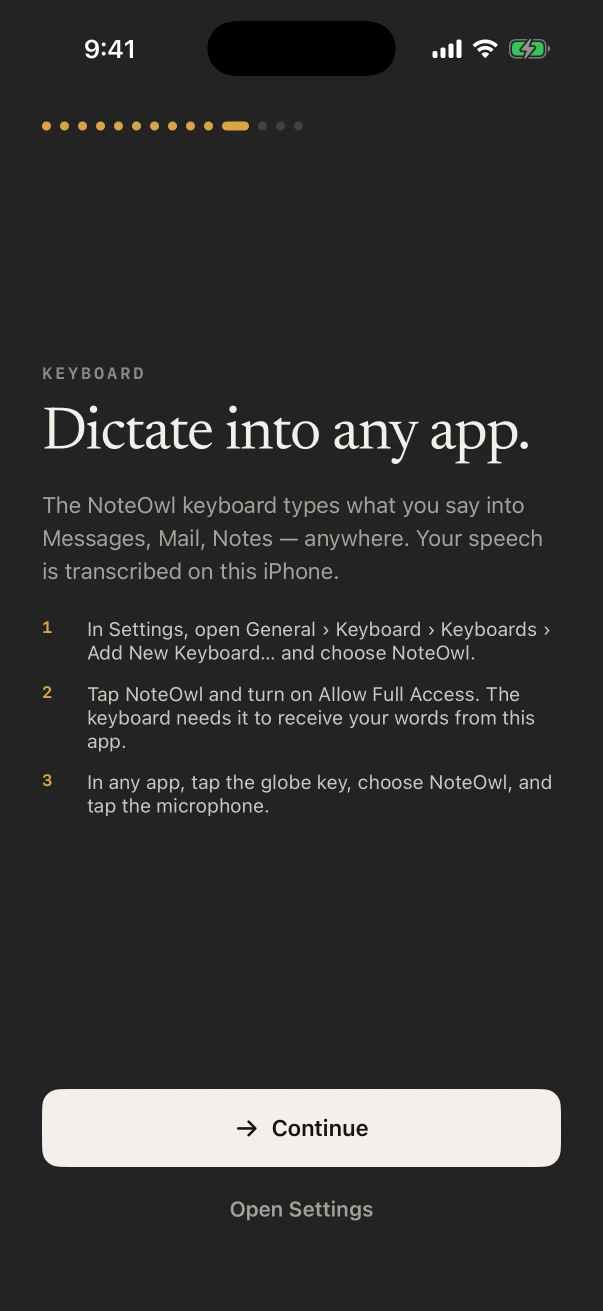
With Full Access off, the keyboard shows how to turn it on and passes nothing to NoteOwl.
How do you turn Allow Full Access on or off?
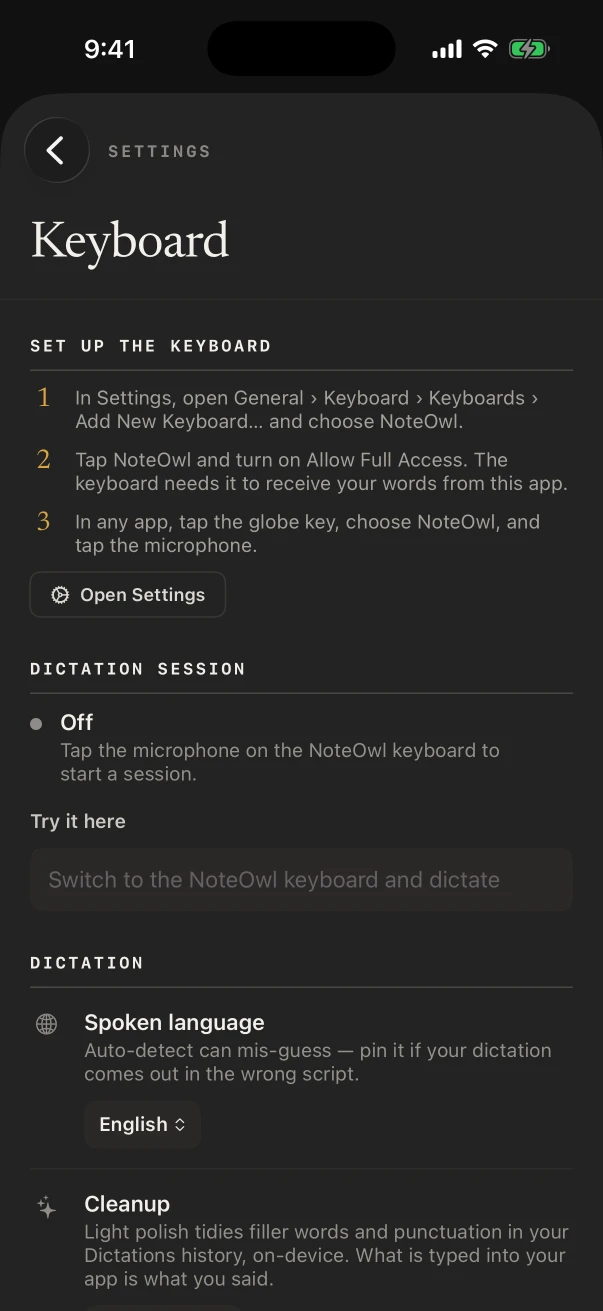
Go to Settings › General › Keyboard › Keyboards, tap the keyboard, and use the Allow Full Access switch. To remove a keyboard altogether, tap Edit in the same list, then the Delete button beside it[3].
In Settings · iOS 26
- 1
Open the keyboard list
Go to Settings › General › Keyboard › Keyboards.[3]
- 2
Tap the keyboard
Tap the third-party keyboard, such as NoteOwl, to see its settings.
- 3
Switch Allow Full Access on or off
Turn it on and confirm if iOS asks; turn it off and the keyboard goes back to its sealed-off sandbox.
- 4
Or remove the keyboard
Back in Keyboards, tap Edit, tap the Delete button next to it, then Delete and Done.[3]
FAQ
Questions about Allow Full Access
Is it safe to allow full access to a keyboard?
It’s as safe as the company that makes the keyboard. Apple says that with Full Access on, your keystrokes are available to the keyboard’s developer, who can send them to a server. Turn it on for keyboards whose makers say plainly what they send, and keep it off for the rest.
Can a keyboard with full access see my passwords?
Not in password fields. Apple’s guide for keyboard makers says that when you tap a secure text field, the kind that shows dots, iOS swaps in the system keyboard until you leave it. Keyboards from other apps can’t type into phone number pads either.
Why does the NoteOwl keyboard need Allow Full Access?
iOS doesn’t let keyboards use the microphone, so the NoteOwl app listens and transcribes, and the keyboard types what it hears. Full Access is what lets the keyboard receive those words from the app, through the folder they share on the iPhone.
Does the NoteOwl keyboard send what I say to a server?
No. The words go from the NoteOwl app to the keyboard on the same iPhone, and the keyboard has no code that connects to the internet. NoteOwl turns speech into text with on-device AI models and never uploads what you dictate.
What happens if I turn Full Access off for NoteOwl?
The keyboard stops receiving words: it shows “Allow Full Access” with the steps to turn it back on, and sends nothing to NoteOwl. Your past dictations stay in NoteOwl under Notes › Dictations.
Is Allow Full Access the same as Full Keyboard Access?
No. Allow Full Access is a switch for a keyboard from another app. Full Keyboard Access is an accessibility feature for controlling the iPhone from a physical keyboard, in Settings › Accessibility › Keyboards & Typing.
Sources
Last checked . What keyboards can do is from Apple’s documentation for keyboard developers; the Settings steps are from the iPhone User Guide for iOS 26.
- [1]Apple Developer, Configuring open access for a custom keyboard
- [2]Apple Developer, App Extension Programming Guide: Custom Keyboard (archived)
- [3]Apple, Add or change keyboards on iPhone (iOS 26)
- [4]Apple, Control iPhone with an external keyboard (iOS 26)
Related
- NoteOwl’s dictation keyboard Voice typing in any app, how to add it, and its languages.
- Set up the NoteOwl keyboard The steps, in NoteOwl’s docs.
- How to use voice to text on iPhone Apple’s Dictation and the NoteOwl keyboard, step by step.
- The best dictation app for iPhone Eight keyboards compared, including where your voice goes.
Keep exploring
What this guide recommends
- iPhone dictation keyboardThe free NoteOwl keyboard: voice typing in any iPhone app, how to add it, its languages, Polish and Rewrite styles, and Notes › Dictations
- Free dictation into any appFree, unlimited speech to text in every app on your Mac (tap fn, talk, and the words type at your cursor; one tap polishes them in the right tone) and on iPhone with the NoteOwl keyboard
- Best dictation app for iPhoneEight iPhone dictation apps compared on six tests (works in every app, where your voice is processed, offline, price, languages, limits), from each maker’s own pages, with NoteOwl’s free keyboard first
More guides
- SRT file on iPhoneMake an SRT subtitle file on iPhone with NoteOwl’s Share › Subtitles (.srt): free from your own recordings, from a video with NoteOwl Pro, with timecodes and speaker names
- Dictation on MacApple’s built-in Dictation on macOS 26: settings, shortcuts, fixes when it isn’t working, and when an app helps
- Writing meeting minutesHow to write meeting minutes step by step, with the format, an example, and how NoteOwl writes them for you
Dictate into any app on your iPhone, free
Free to download. Runs entirely on your Mac or iPhone.
Mac: macOS 26 or later · Apple Silicon (M1 or newer) · 16 GB memory minimum, 24 GB recommended · iPhone: iOS 26 or later
About NoteOwl
NoteOwl is private AI meeting notes and memory for Mac and iPhone. It captures meetings without a bot joining the call, labels every speaker, writes summaries and action items, and builds a memory of every conversation that you can chat with — fully offline, because the speech recognition and the AI run on the Mac or iPhone itself. Dictation into any app is free; Pro is a lifetime licence.
NoteOwl pricing: what’s free and what Pro adds
Last updated