Guide · iPhone · iOS 26
How to record audio on iPhone
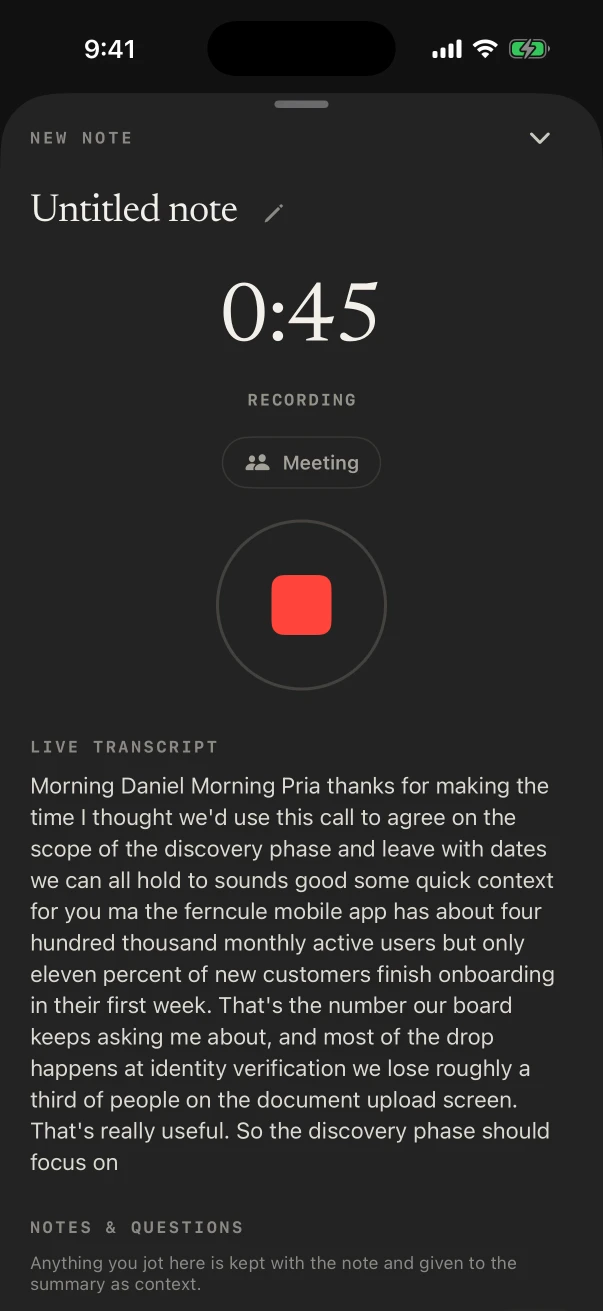
Here’s how to record audio on iPhone: open Voice Memos and tap the Record button; tap Stop when you’re done, and the recording is saved as New Recording. To record audio and read the words while you record, open NoteOwl and tap New Note: it records through the iPhone’s microphone and writes the transcript as it listens, free.
Both keep the recording on your iPhone. Below: how to pause, cut out background sound, choose stereo or Spatial Audio, keep recording in another app or with the screen locked, and start a recording in one press without opening an app first.
What is the easiest way to record audio on iPhone?
In Voice Memos on iOS 26
- 1
Open Voice Memos
It’s in the Utilities folder; move it to the Home Screen to find it faster.[1]
- 2
Tap the Record button
To change the level, move the iPhone closer to what you’re recording, or farther away.[1]
- 3
Pause and resume if you need to
Swipe up from the top of the waveform for the full controls, tap Pause, then Resume to carry on.[1]
- 4
Tap Done
The recording is saved as New Recording, or with your location’s name if Location Services is on. Tap the name to change it.[1]
How do you make an iPhone recording sound better?
Get the iPhone close to whoever is speaking, then use Voice Memos’ own settings: Voice Isolation cuts background sound, Recording Mode switches to stereo or Spatial Audio, and an external microphone helps in a big room[1].
Cut background sound
With Voice Memos open, open Control Center, tap Voice Memos and choose Voice Isolation. Wide Spectrum keeps the room in, on models that have it.[1]
Stereo or Spatial Audio
Settings › Apps › Voice Memos › Recording Mode: Mono, Stereo or Spatial Audio, which not every iPhone offers.[1]
A better microphone
Voice Memos records from a supported headset or an external microphone as well as the built-in one.[1]
No start and stop tones
Turn on Silent mode in Control Center and the tones are muted.[1]
How do you record audio on iPhone without Voice Memos?
With NoteOwl: tap New Note and it records through the iPhone’s microphone, writing the transcript as it listens. Recording and the transcript are free and unlimited, and stay on the iPhone. Apple’s Notes app can record audio too[3].
NoteOwl needs iOS 26 or later. With NoteOwl Pro, $20 lifetime, a recording also gets speakers, a summary and a title. NoteOwl as a voice recorder
In NoteOwl for iPhone (iOS 26 or later)
- 1
Let NoteOwl download its models once
The first time you open NoteOwl, it downloads its on-device AI models, about 3.2 GB. After that, recording and transcripts need no connection.
- 2
Tap New Note
NoteOwl starts recording through the iPhone’s microphone straight away, and the transcript appears as it listens.
- 3
Lock the phone or switch apps
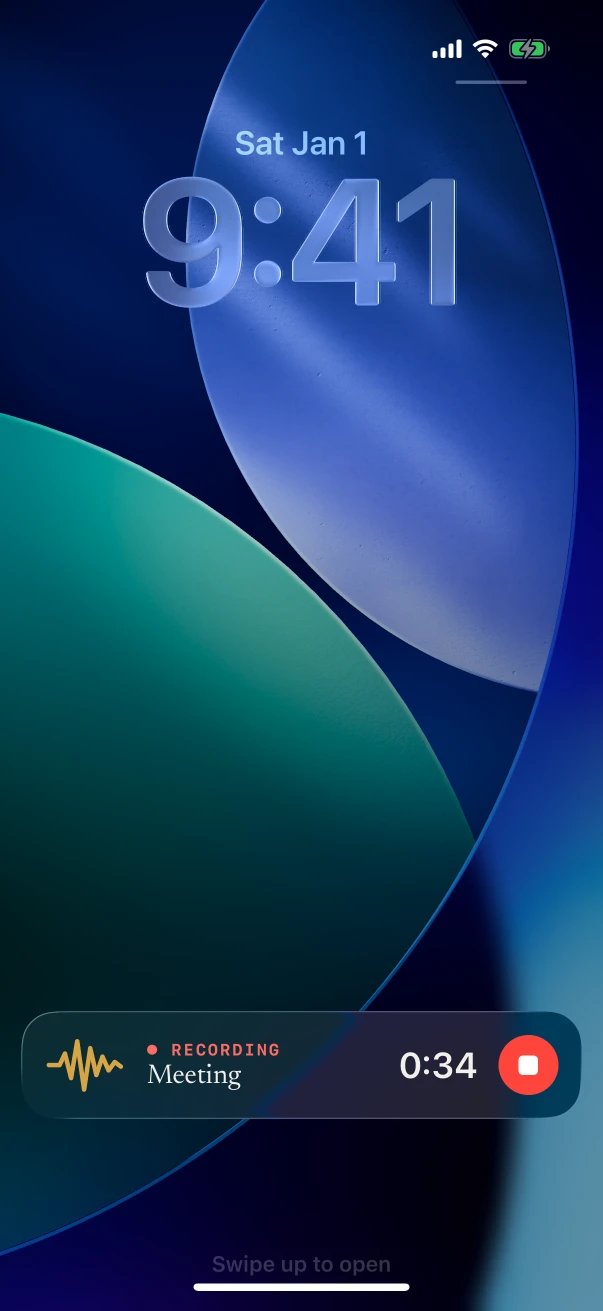
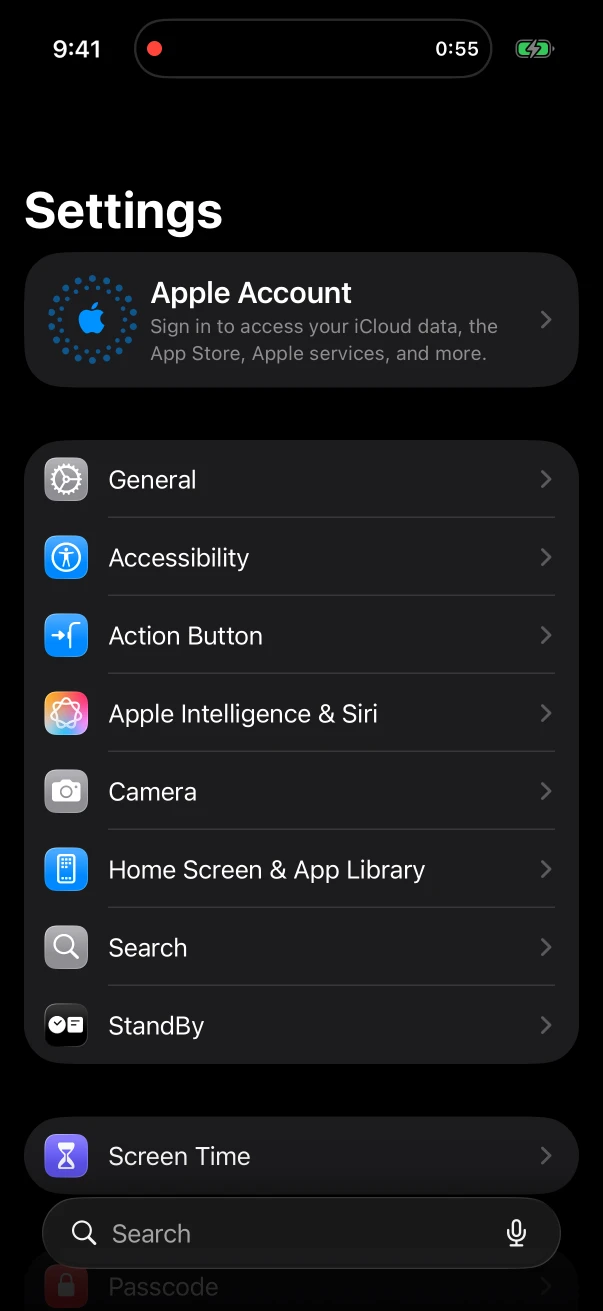
The recording keeps going. The timer stays on the Lock Screen and in the Dynamic Island, with a Stop button.
- 4
Tap Stop
The audio and its transcript are saved on the iPhone, free. With NoteOwl Pro, speakers, a summary and a title follow.
Can you keep recording while you use other apps?
Yes, in both. Voice Memos keeps recording while you use an app that doesn’t play sound, and stops if one does[1]. NoteOwl keeps recording with the screen locked, and pauses if another app takes the audio, then carries on in the same note.
How do you start recording in one press?
Give NoteOwl’s New note control a place on the Action button, in Control Center or on the Lock Screen, or put its widget on the Home Screen. A press starts recording without opening the app, on every plan.
Action button
In Settings › Action Button, choose Controls, then NoteOwl’s New note. A press starts recording.
Control Center and Lock Screen
Add NoteOwl’s New note control. A tap records without opening NoteOwl.
Widgets
The Capture widget on the Home Screen starts a new note in one tap.
Siri and Shortcuts
Say “Start recording in NoteOwl”, or use the same action in the Shortcuts app. It opens NoteOwl and records.
Each set-up step: the Action button, Control Center and Siri and NoteOwl’s iPhone widgets.
FAQ
Questions about recording audio on iPhone
How do I record audio on iPhone for free?
Both ways are free: Voice Memos is built into iOS, and recording in NoteOwl, with its transcript, is free and unlimited. NoteOwl Pro, $20 lifetime with no subscription, adds speakers, a summary and a title to each recording.
How do I record audio on iPhone without Voice Memos?
Open NoteOwl and tap New Note, and it records with the transcript on screen. Apple’s Notes app records too: in a note, tap the Attachments button, then Record Audio, and on iPhone 12 or later it shows a transcript for supported languages.
Does recording keep going if I lock my iPhone?
In NoteOwl, yes: the recording carries on with the screen locked, and the timer and a Stop button stay on the Lock Screen and in the Dynamic Island. If another app takes the audio, NoteOwl pauses and says so; tap Resume to carry on.
Why did my iPhone recording stop by itself?
In Voice Memos, another app probably started playing sound: Apple says Voice Memos stops recording when that happens. NoteOwl pauses in the same case and keeps everything recorded so far. It carries on in the same note by itself when iOS hands the audio back, as after a declined call; otherwise tap Resume.
How do I get a transcript of an iPhone recording?
NoteOwl writes it while you record, in English, Hindi, Spanish, French or German, or with Auto-detect. Voice Memos shows one on iPhone 12 or later in ten languages: tap the recording, then ••• › View Transcript.
Where are my iPhone recordings saved?
Voice Memos keeps them in its list, and in iCloud if Voice Memos is on there; Save to Files makes an .m4a copy. NoteOwl keeps recordings in its Notes list on the iPhone, and never uploads them.
Sources
Last checked . Apple’s steps are from the iPhone User Guide for iOS 26.
Related
Keep exploring
What this guide recommends
- AI voice recorder for iPhoneRecord in the room on iPhone with a live transcript (free), then speakers, a summary and action items with Pro; the timer on the Lock Screen and in the Dynamic Island
- iPhone Action button and SiriStart a NoteOwl recording, dictation or a question from the Action button, Control Center, the Lock Screen, Back Tap, Siri or the Shortcuts app
- iPhone widgetsNoteOwl’s iPhone widgets (New note, Keyboard, Capture, Last capture, Due today, Up next), what each does and needs, and its Live Activities in the Dynamic Island
- Voice notes on your MacVoice notes and dictations saved as searchable text on your Mac or iPhone, with the raw words beside the polished version on the Mac; free
More guides
- Transcribe a video on iPhoneTranscribe a video on iPhone by sharing it from Photos or Files to NoteOwl (speakers, times, a summary and SRT, with NoteOwl Pro), or copy Apple’s Live Captions while it plays
- Allow Full Access, explainedWhat Allow Full Access lets a third-party keyboard do on iPhone, from Apple’s developer documentation, how to turn it off, and exactly what NoteOwl’s keyboard does with it, from its source
- SRT file on iPhoneMake an SRT subtitle file on iPhone with NoteOwl’s Share › Subtitles (.srt): free from your own recordings, from a video with NoteOwl Pro, with timecodes and speaker names
Free tools
- Online voice recorderRecord your voice in the browser with a level meter, timer and pause, play it back, and save it as MP3 or WAV; nothing is uploaded
- Mic testA free online mic test: a live level meter, a microphone picker and a 5-second recording to play back, in your browser
- M4A to MP3 converterConvert M4A to MP3 in your browser, iPhone and Mac voice memos included, at 128, 192 or 320 kbps; nothing is uploaded
Record and read it back, on your iPhone
Free to download. Runs entirely on your Mac or iPhone.
Mac: macOS 26 or later · Apple Silicon (M1 or newer) · 16 GB memory minimum, 24 GB recommended · iPhone: iOS 26 or later
About NoteOwl
NoteOwl is private AI meeting notes and memory for Mac and iPhone. It captures meetings without a bot joining the call, labels every speaker, writes summaries and action items, and builds a memory of every conversation that you can chat with — fully offline, because the speech recognition and the AI run on the Mac or iPhone itself. Dictation into any app is free; Pro is a lifetime licence.
NoteOwl pricing: what’s free and what Pro adds
Last updated