Guide · iPhone · iOS 26
Voice Memos transcription not working on iPhone? How to fix it
Voice Memos transcription not working? Check the three things Apple lists first: transcripts need iPhone 12 or later, speech in one of ten supported languages, and a country or region where the feature is offered. Then look in the right place: tap the recording, tap the More button (•••) and choose View Transcript.
If the transcript is still missing, work through the seven fixes below, each from Apple’s own pages for iOS 26. For a language Voice Memos doesn’t transcribe, such as Hindi, or for a transcript that says who spoke, NoteOwl transcribes the memo on the iPhone.
The fixes, in order · iOS 26
- 01Check that your iPhone can transcribe
- 02Check the language of the recording
- 03Check your country or region
- 04Look for the transcript in the right place
- 05Open an older recording and give it a moment
- 06Check the microphone
- 07Restart and update your iPhone
Why is my Voice Memos transcript not showing?
Usually one of three things: the iPhone is older than iPhone 12, the speech isn’t in one of the ten languages Apple lists, or transcription isn’t offered where you are. If none applies, the transcript may be a tap away: tap the recording, then ••• › View Transcript[1].
iPhone 12 or later
Earlier models record but don’t transcribe.[1]
Ten languages
English, Spanish, Portuguese, Italian, French, German, Japanese, Korean and both forms of Chinese.[1]
Your country or region
Not every country or region has audio transcription.[1]
Speech in the recording
Older memos are transcribed when opened, if there is speech to transcribe.[1]
How do you fix Voice Memos transcription on iPhone?
Try these seven fixes in order, each from Apple’s pages for iOS 26: the iPhone model, the language, your region, where the transcript lives, older recordings, the microphone, then a restart and an update.
Search works on transcripts too: swipe down on the list of recordings and type a word to find every memo that says it[1].
Apple’s fixes, for iOS 26
- 1
Check that your iPhone can transcribe
Voice Memos transcribes recordings on iPhone 12 or later. On an earlier iPhone, a recording has no transcript to show.[1]
- 2
Check the language of the recording
Apple lists English (all variants), Spanish, Portuguese, Italian, French, German, Japanese, Korean, Simplified Chinese and Traditional Chinese. Speech in a language that isn’t on the list gets no transcript.[1]
- 3
Check your country or region
Apple says audio transcription isn’t available in all countries or regions, so a supported iPhone and language can still show no transcript.[1]
- 4
Look for the transcript in the right place
Tap the recording, tap the More button (•••), then View Transcript or Copy Transcript. While you record, swipe up from the top of the waveform and tap the Transcription button.[1]
- 5
Open an older recording and give it a moment
A recording made in iOS 17 or earlier is transcribed automatically when you open it, as long as it has speech in it.[1]
- 6
Check the microphone
Remove any screen protector, film or case, and clear the openings. Then record a short memo and play it back: you should hear your voice clearly.[3]
- 7
Why did Voice Memos stop recording?
Because another app started playing sound. Apple says you can use other apps while Voice Memos records, as long as they don’t play audio; if one does, Voice Memos stops recording[2]. What was recorded before that is kept, with its transcript.
What else turns a voice memo into text on iPhone?
NoteOwl. Share the memo to it from Voice Memos and it writes the transcript on the iPhone, with a speaker and a time on every line, in English, Hindi, Spanish, French or German. Importing is part of NoteOwl Pro, $20 lifetime.
Recording in NoteOwl itself is free: tap New Note instead of opening Voice Memos, and the transcript is written as you record. Voice memos to text with NoteOwl
- 1
Set the language once
In NoteOwl, open Settings › Keyboard › Spoken language and choose the language of your memos: Auto-detect, English, Hindi, Spanish, French and German.
- 2
Share the memo to NoteOwl
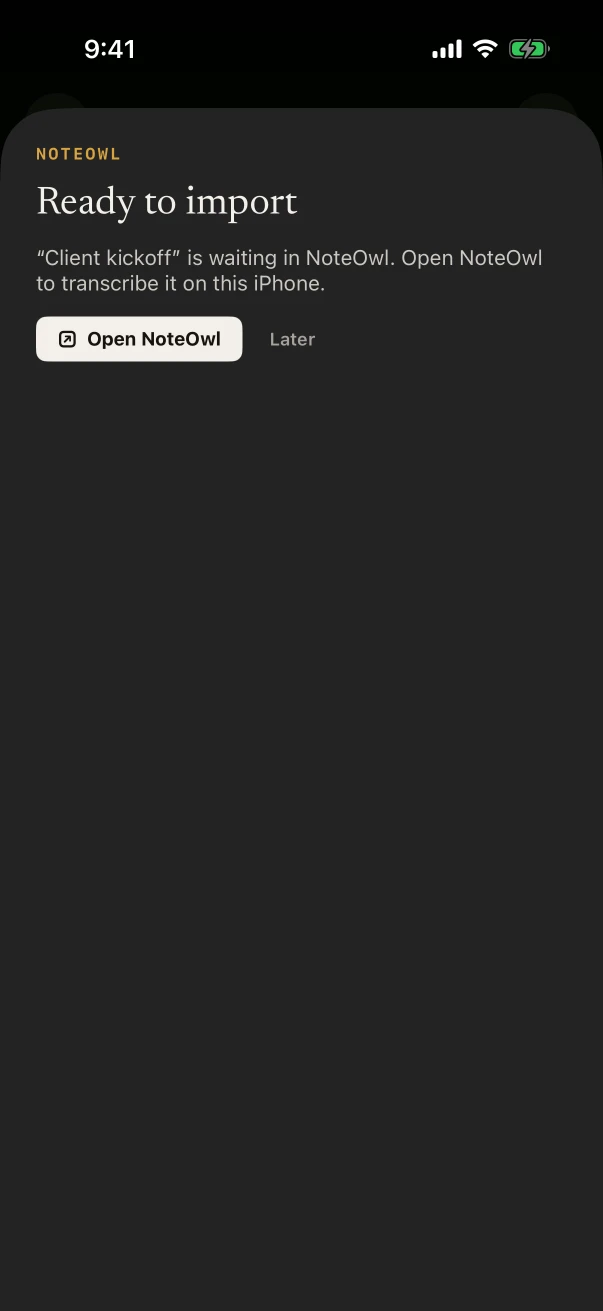
In Voice Memos, tap the recording, tap the More Actions button (•••), tap Share and choose NoteOwl. The sheet says “Ready to import”.
- 3
Tap Open NoteOwl
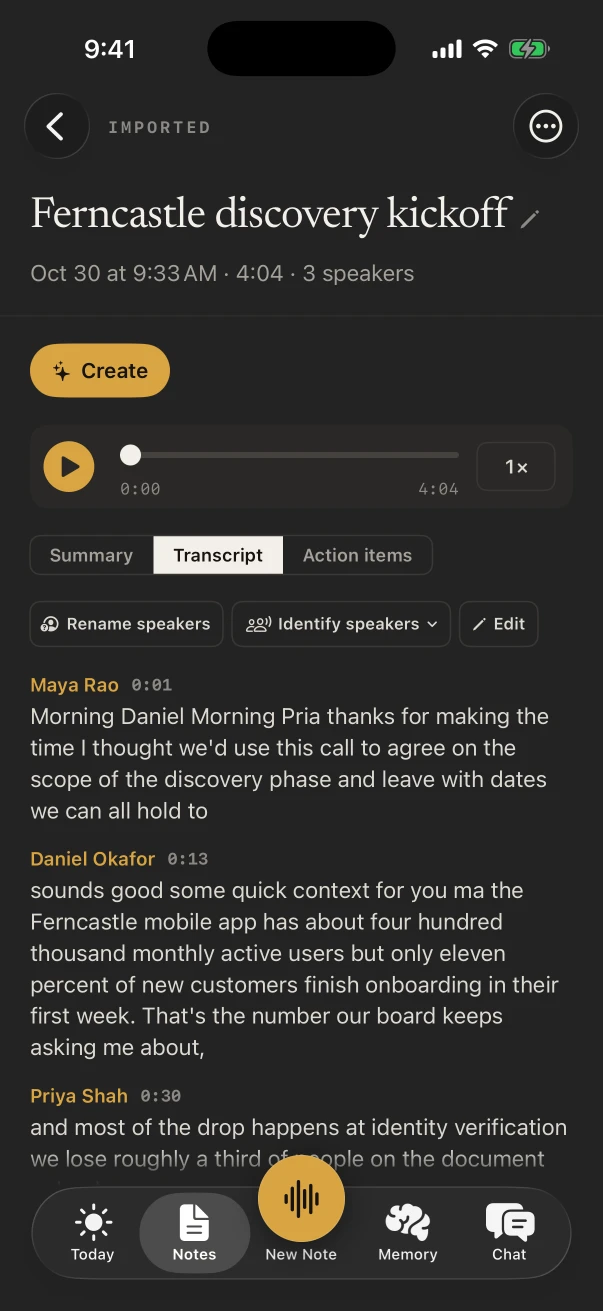
NoteOwl transcribes the memo on the iPhone, with a speaker and a time on every line, then writes a summary and the action items.
Can Voice Memos tell speakers apart?
Apple’s Voice Memos guide doesn’t mention speaker labels: its transcript is the words in order[1]. NoteOwl Pro puts a speaker on every line; rename a speaker once and NoteOwl knows that voice next time.
How does a Voice Memos transcript compare with NoteOwl’s?
Voice Memos is built in and free, and its transcript is plain text you can copy. NoteOwl adds Hindi, who said what, a summary and action items, and files to export; Voice Memos covers more languages, and importing a memo into NoteOwl needs NoteOwl Pro.
- iPhones
- Voice MemosiPhone 12 or later
- NoteOwlAny iPhone with iOS 26 or later
- Languages
- Voice MemosTen, listed by Apple; not Hindi
- NoteOwlAuto-detect, English, Hindi, Spanish, French and German
- Who said what
- Voice MemosNot mentioned in Apple’s guide
- NoteOwlA speaker on every line (Pro)
- Summary and action items
- Voice MemosWriting Tools can summarize, with Apple Intelligence
- NoteOwlWritten when the import finishes (Pro)
- Getting the text out
- Voice MemosView or Copy Transcript
- NoteOwlCopy, or Markdown, PDF, plain text or Subtitles (.srt)
- Price
- Voice MemosBuilt into iOS
- NoteOwlRecording in NoteOwl free; importing with NoteOwl Pro, $20 lifetime
| Voice Memos | NoteOwl | |
|---|---|---|
| iPhones | iPhone 12 or later | Any iPhone with iOS 26 or later |
| Languages | Ten, listed by Apple; not Hindi | Auto-detect, English, Hindi, Spanish, French and German |
| Who said what | Not mentioned in Apple’s guide | A speaker on every line (Pro) |
| Summary and action items | Writing Tools can summarize, with Apple Intelligence | Written when the import finishes (Pro) |
| Getting the text out | View or Copy Transcript | Copy, or Markdown, PDF, plain text or Subtitles (.srt) |
| Price | Built into iOS | Recording in NoteOwl free; importing with NoteOwl Pro, $20 lifetime |
FAQ
Questions about Voice Memos transcripts
Why won’t Voice Memos transcribe my recording?
Usually because the iPhone is older than iPhone 12, the speech isn’t in one of the ten languages Apple lists, or transcription isn’t offered in your country or region. If none of those applies, open the recording and tap ••• › View Transcript, then restart and update the iPhone.
Does Voice Memos transcribe Hindi?
Hindi isn’t among the ten languages Apple lists for Voice Memos transcription. NoteOwl transcribes Hindi on the iPhone: choose Hindi or Auto-detect in Settings › Keyboard › Spoken language, then record in NoteOwl, which is free, or share the memo to NoteOwl with NoteOwl Pro.
How do I copy a Voice Memos transcript?
Tap the recording, tap the More button (•••) and choose Copy Transcript to copy all of it. For part of it, choose View Transcript, select the text and tap Copy, then paste it into a message, a note or a document.
Can I search voice memos by what was said?
Yes. Swipe down on the list of recordings to show the search field and type a word: Voice Memos lists the recordings with that word in the title or the transcript. Tap a word in a transcript to jump to that point in the audio.
Will an old voice memo get a transcript?
Yes, if it has speech in a supported language. Apple says a recording made in iOS 17 or earlier is transcribed automatically when you open it on an iPhone that transcribes.
Does NoteOwl upload my voice memo to transcribe it?
No. Sharing a memo copies it into NoteOwl on the same iPhone, and NoteOwl transcribes it there with on-device AI models. NoteOwl never uploads what you record or import.
Sources
Last checked . Apple’s steps are from the iPhone User Guide for iOS 26 and Apple Support.
- [1]Apple, View a Voice Memos transcription on iPhone (iOS 26)
- [2]Apple, Make a recording in Voice Memos on iPhone (iOS 26)
- [3]Apple Support, If the microphones on your iPhone aren’t working
- [4]Apple, Turn iPhone on or off (iOS 26)
- [5]Apple, Update iOS on iPhone (iOS 26)
Related
- Voice memos to text, with speakers Share a memo to NoteOwl for a transcript and a summary on the iPhone.
- Summarize a voice memo on iPhone With Apple Intelligence or a NoteOwl template.
- Transcribe a voice memo on Mac Voice Memos’ transcript on macOS 26, and NoteOwl with speakers.
- Import audio into NoteOwl on iPhone Voice memos, files and videos, step by step.
Keep exploring
What this guide recommends
- Voice memos to text on iPhoneShare a recording from Voice Memos, Files or Photos to NoteOwl on iPhone for a transcript with speakers and times and a summary (NoteOwl Pro), with the steps
- Speaker recognitionTranscripts that say who said what: speakers separated automatically, and a voice named once is recognised in later meetings, on your Mac or iPhone
- Voice memo to textHow to turn a Voice Memos recording into text on a Mac, with Apple’s own tools and with NoteOwl
More guides
- Summarize a voice memoTwo ways to summarize a voice memo on iPhone: Apple Intelligence’s Writing Tools on the Voice Memos transcript, or NoteOwl’s summary, action items and 22 templates, step by step
- Voice memos, iPhone to MacMove voice memos from iPhone to Mac with iCloud, AirDrop or Save to Files (Apple’s steps for iOS 26 and macOS 26), why they don’t show up, and a transcript with speakers in NoteOwl on the Mac or the iPhone
- Record audio on iPhoneRecord audio on iPhone with Voice Memos (start, pause, Voice Isolation, stereo and Spatial Audio) or with NoteOwl’s live transcript, keep recording in other apps, and start in one press
Turn voice memos into text on your iPhone
Free to download. Runs entirely on your Mac or iPhone.
Mac: macOS 26 or later · Apple Silicon (M1 or newer) · 16 GB memory minimum, 24 GB recommended · iPhone: iOS 26 or later
About NoteOwl
NoteOwl is private AI meeting notes and memory for Mac and iPhone. It captures meetings without a bot joining the call, labels every speaker, writes summaries and action items, and builds a memory of every conversation that you can chat with — fully offline, because the speech recognition and the AI run on the Mac or iPhone itself. Dictation into any app is free; Pro is a lifetime licence.
NoteOwl pricing: what’s free and what Pro adds
Last updated