Action button, Siri and Shortcuts · iPhone
Set the Action button to record audio, dictate or ask your notes
Press and hold the Action button, record audio, and stop from the Dynamic Island: NoteOwl’s New note control starts a recording without opening the app. Set it in the iPhone’s Settings › Action Button, under Controls.
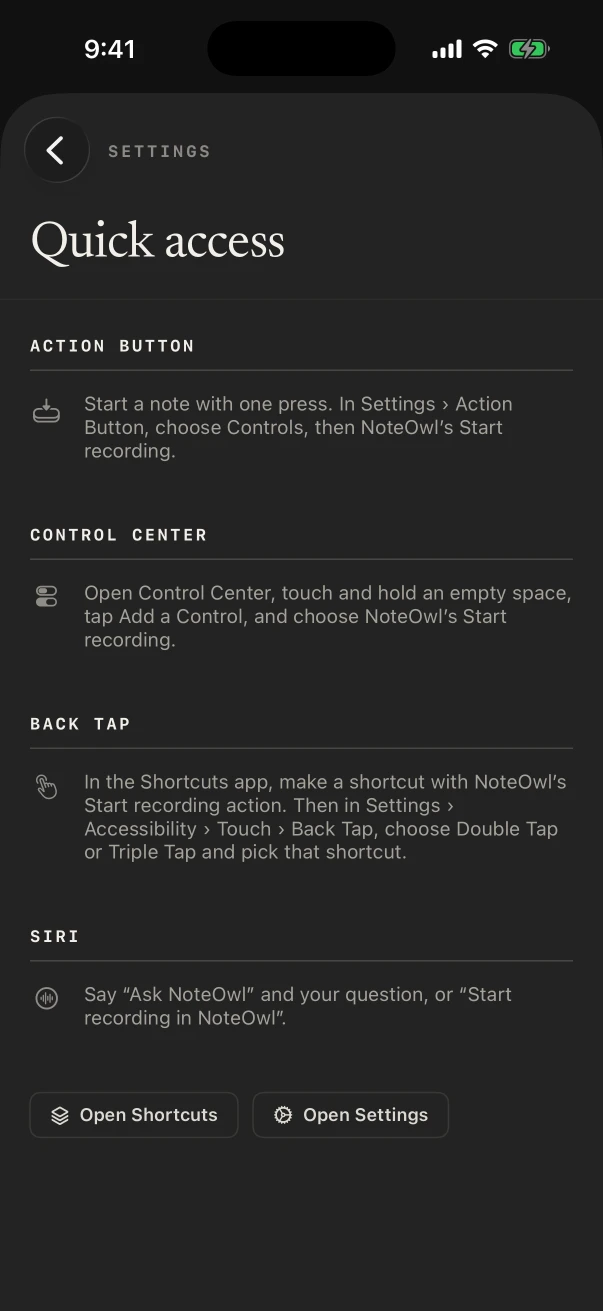
The same control works in Control Center and on the Lock Screen, a Dictation control turns on the NoteOwl keyboard, and Siri and the Shortcuts app can start a recording or ask your notes a question. Back Tap runs a shortcut with a double or triple tap.
How do you set the Action button to record audio?
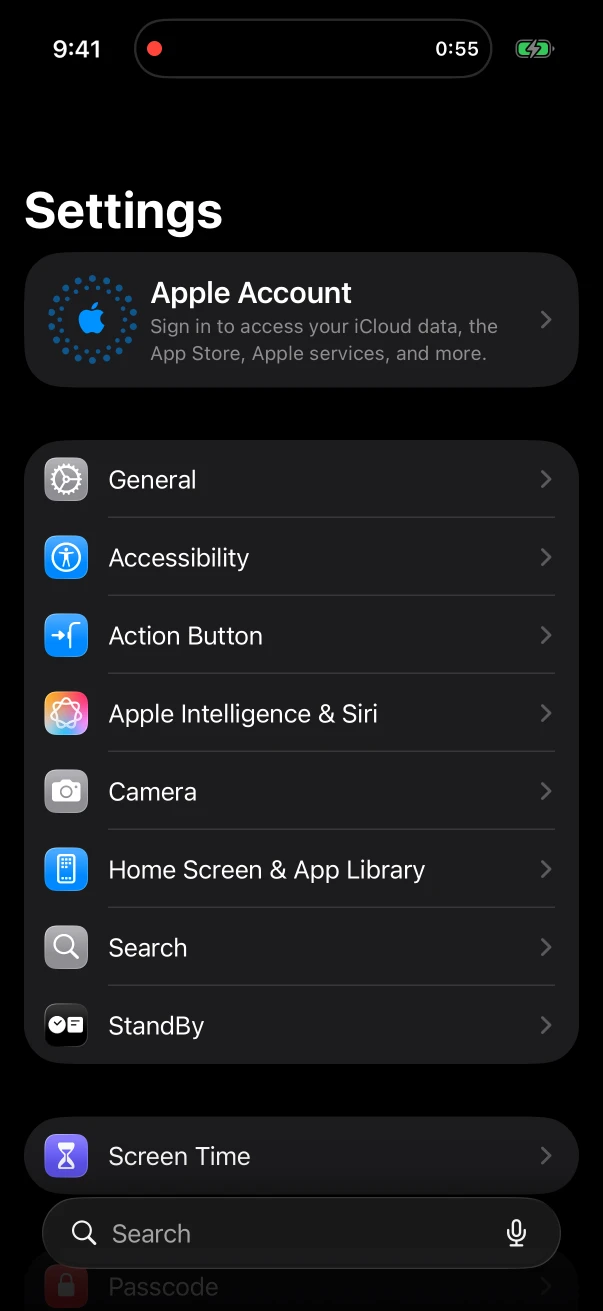
In the iPhone’s Settings app, tap Action Button, swipe to Controls, tap the button below it and choose NoteOwl’s New note. Then press and hold the Action button: NoteOwl records in the background, with the timer in the Dynamic Island.[1]
- 1
Open Action Button settings
In the iPhone’s Settings app, tap Action Button and swipe to Controls.
- 2
Choose NoteOwl’s control
Tap the button below Controls and choose NoteOwl’s New note, the control NoteOwl’s Quick access screen calls Start recording.
- 3
Press and hold to record
Press and hold the Action button. NoteOwl starts recording in the background, and the timer appears in the Dynamic Island.
- 4
Stop when you’re done
Tap Stop in the Dynamic Island or on the Lock Screen, or open NoteOwl and tap the red Stop button.
Can the iPhone Action button start dictation?
Yes. Choose NoteOwl’s Dictation control instead, and pressing the Action button turns on the NoteOwl keyboard’s dictation without opening the app. Switch to the NoteOwl keyboard in any app and talk; it stays ready until five minutes pass without dictation.
For iPhone Action button dictation you also need the keyboard itself: see how to add the NoteOwl keyboard. A “Dictation on” Live Activity shows it is ready, with Stop.
Which NoteOwl actions work from Control Center, Siri and Shortcuts?
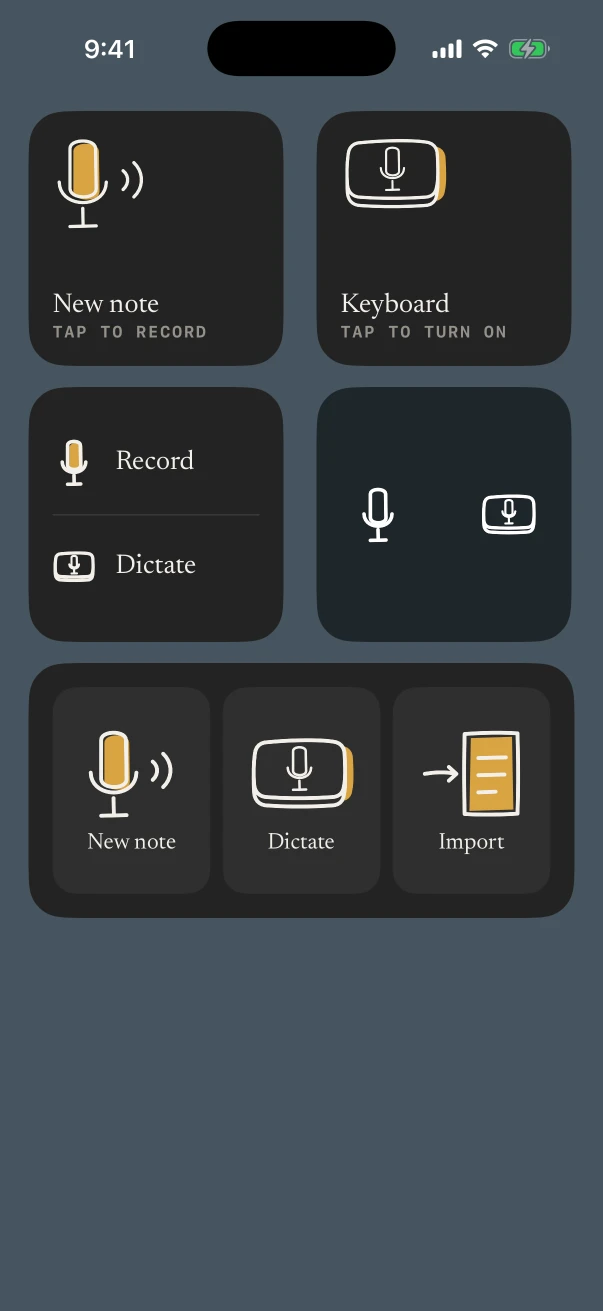
Five. Three controls, New note, Dictation and Ask, go in Control Center, on the Lock Screen or on the Action button. Two actions, Start recording and Ask NoteOwl, work with Siri and in the Shortcuts app, so any shortcut can run them, including one for Back Tap.[2]
- New note
- What it doesStarts recording, with the timer in the Dynamic Island
- Where you add itAction button, Control Center, Lock Screen
- Opens NoteOwl?No
- Dictation
- What it doesTurns on the NoteOwl keyboard’s dictation for any app
- Where you add itAction button, Control Center, Lock Screen
- Opens NoteOwl?No
- Ask
- What it doesOpens Chat with the microphone listening for your question
- Where you add itAction button, Control Center, Lock Screen
- Opens NoteOwl?Yes
- Start recording
- What it doesStarts recording
- Where you add itSiri, the Shortcuts app, Back Tap through a shortcut
- Opens NoteOwl?Yes
- Ask NoteOwl
- What it doesAsks for your question and answers it in Chat, from your notes
- Where you add itSiri, the Shortcuts app
- Opens NoteOwl?Yes
| Action | What it does | Where you add it | Opens NoteOwl? |
|---|---|---|---|
| New note | Starts recording, with the timer in the Dynamic Island | Action button, Control Center, Lock Screen | No |
| Dictation | Turns on the NoteOwl keyboard’s dictation for any app | Action button, Control Center, Lock Screen | No |
| Ask | Opens Chat with the microphone listening for your question | Action button, Control Center, Lock Screen | Yes |
| Start recording | Starts recording | Siri, the Shortcuts app, Back Tap through a shortcut | Yes |
| Ask NoteOwl | Asks for your question and answers it in Chat, from your notes | Siri, the Shortcuts app | Yes |
New note and Dictation open NoteOwl only when the microphone or the speech model isn’t set up yet. Prefer tapping? The same actions sit on NoteOwl’s Home Screen and Lock Screen widgets.
Which Siri phrases start a NoteOwl recording?
Say “Start recording in NoteOwl” or “Record with NoteOwl”: NoteOwl opens and starts recording. “Ask NoteOwl” asks what you want to know and answers in Chat from your notes, which needs NoteOwl Pro.
“Start recording in NoteOwl”
or “Record with NoteOwl”
Opens NoteOwl and starts recording.
“Ask NoteOwl”
or “Ask NoteOwl a question”
Asks what you want to know, then answers in Chat from your notes, with NoteOwl Pro.
How do you start a NoteOwl recording with Back Tap?
Make a shortcut in the Shortcuts app with NoteOwl’s Start recording action. Then in Settings › Accessibility › Touch › Back Tap, choose Double Tap or Triple Tap and pick that shortcut. Tapping the back of the iPhone then opens NoteOwl and starts recording.
- 1
Make the shortcut
In the Shortcuts app, make a new shortcut and add NoteOwl’s Start recording action.
- 2
Turn on Back Tap
In Settings › Accessibility › Touch › Back Tap, choose Double Tap or Triple Tap and pick that shortcut.
- 3
Tap the back of the iPhone
NoteOwl opens and starts recording.
FAQ
Questions about the Action button, Siri and Shortcuts
Does the Action button need NoteOwl Pro?
No. Starting a recording or the keyboard’s dictation from the Action button, Control Center, Siri or Back Tap works on every plan, and the transcript is free. The Ask control opens Chat, which is part of NoteOwl Pro.
Can I add NoteOwl to Control Center?
Yes. Open Control Center, touch and hold an empty space, tap Add a Control, and choose NoteOwl’s New note, Dictation or Ask. A tap on New note then starts recording without opening NoteOwl.
What happens if I press the Action button while NoteOwl is recording?
The recording carries on. NoteOwl records one thing at a time, so a second press, or “Start recording in NoteOwl”, leaves the running recording alone. Stop it from the Dynamic Island, the Lock Screen or NoteOwl.
Can a shortcut ask NoteOwl a question?
Yes. The Ask NoteOwl action in the Shortcuts app takes a question, opens NoteOwl and answers it in Chat from your notes, listing the notes it used. Chat is part of NoteOwl Pro.
Why does NoteOwl open the first time I press the Action button?
The control records in the background once NoteOwl’s setup is done: the microphone turned on for NoteOwl and the speech model downloaded. Until then, NoteOwl opens so you can finish setting up; after that, a press records without opening the app.
Sources
Last checked .
Related
- Widgets for the Home Screen The same New note and Keyboard actions as tap-to-start widgets.
- The NoteOwl keyboard What the Dictation control turns on: free voice typing in any app.
- Chat with your notes What Ask answers from, on Mac and iPhone.
- Voice notes Speak a thought and keep the audio and the text.
Keep exploring
More on iPhone
- NoteOwl for iPhoneThe private AI note taker for iPhone: recording in the room with a live transcript, the free dictation keyboard, widgets and the Action button, Mac vs iPhone, Free vs Pro and requirements
- AI voice recorder for iPhoneRecord in the room on iPhone with a live transcript (free), then speakers, a summary and action items with Pro; the timer on the Lock Screen and in the Dynamic Island
- iPhone dictation keyboardThe free NoteOwl keyboard: voice typing in any iPhone app, how to add it, its languages, Polish and Rewrite styles, and Notes › Dictations
On Mac
- Free dictation into any appFree, unlimited speech to text in every app on your Mac (tap fn, talk, and the words type at your cursor; one tap polishes them in the right tone) and on iPhone with the NoteOwl keyboard
- Chat with your meetingsAsk your own meetings a question on your Mac or iPhone, even offline; every answer cites its sources
- Voice notes on your MacVoice notes and dictations saved as searchable text on your Mac or iPhone, with the raw words beside the polished version on the Mac; free
In these situations
- Site visitsSite visit notes spoken on iPhone as you walk (Action button, Lock Screen), the Project Log and To-Do List templates for a report and a punch list, sharing as PDF, and dictating the write-up on a Mac
- Ideas on the goRecord an idea by voice in one press on iPhone (Action button, widgets) on a walk or a commute, keep the audio and a searchable transcript, Brainstorm or Quick Summary with Pro, and voice notes on Mac
- Sermons and Bible studyRecord a sermon on iPhone from your seat and keep every word, the Presentation template, Vocabulary for names, Bible study and small-group notes with who said what, and services watched online on a Mac
Start your next recording with one press
Free to download. Runs entirely on your Mac or iPhone.
Mac: macOS 26 or later · Apple Silicon (M1 or newer) · 16 GB memory minimum, 24 GB recommended · iPhone: iOS 26 or later
About NoteOwl
NoteOwl is private AI meeting notes and memory for Mac and iPhone. It captures meetings without a bot joining the call, labels every speaker, writes summaries and action items, and builds a memory of every conversation that you can chat with — fully offline, because the speech recognition and the AI run on the Mac or iPhone itself. Dictation into any app is free; Pro is a lifetime licence.
NoteOwl pricing: what’s free and what Pro adds
Last updated