Guide · iPhone and Mac
How to transfer voice memos from iPhone to Mac
The easiest way to transfer voice memos from iPhone to Mac is iCloud: turn on Voice Memos in iCloud on both, signed in to the same Apple Account, and every recording appears in Voice Memos on the Mac by itself. For one or two memos, use AirDrop: tap the recording, the More Actions button (•••), Share, then AirDrop and your Mac.
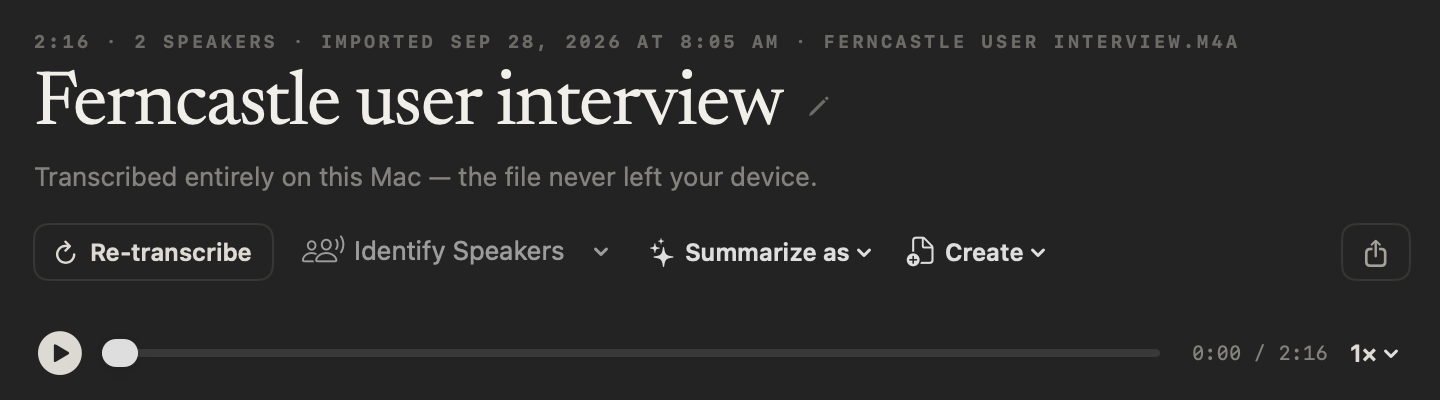
Once a memo is on your Mac, drag it from Voice Memos to a Finder window to keep it as a file, or drop it into NoteOwl for a transcript with speakers and a summary, written on the Mac. NoteOwl does the same on the iPhone, if you’d rather not move the memo at all.
With iCloud · iOS 26 and macOS 26
- 1
Turn on Voice Memos in iCloud on your iPhone
Go to Settings › [your name] › iCloud, tap See All, then turn on Voice Memos.[1]
- 2
Turn it on on your Mac
Choose Apple menu › System Settings, click your name, click iCloud, click See All next to Saved to iCloud, and turn on Voice Memos.[2]
- 3
Open Voice Memos on the Mac
Your iPhone recordings appear there by themselves. If Voice Memos isn’t in the Mac’s iCloud list, open the app once, then look again.[2]
What is the best way to move voice memos to a Mac?
- Best for
- iCloudEvery memo, from now on
- AirDropOne memo, or a few
- Save to FilesA copy kept as a file
- What it needs
- iCloudVoice Memos on in iCloud on both, same Apple Account
- AirDropWi‑Fi and Bluetooth on, within 30 feet
- Save to FilesThe Files app, and a folder such as iCloud Drive
- Where it appears on the Mac
- iCloudIn Voice Memos
- AirDropThe Downloads folder, for some items
- Save to FilesWherever you saved it
- File type
- iCloudDrag it to Finder to get a file
- AirDrop.m4a with Rendered
- Save to Files.m4a by default
| iCloud | AirDrop | Save to Files | |
|---|---|---|---|
| Best for | Every memo, from now on | One memo, or a few | A copy kept as a file |
| What it needs | Voice Memos on in iCloud on both, same Apple Account | Wi‑Fi and Bluetooth on, within 30 feet | The Files app, and a folder such as iCloud Drive |
| Where it appears on the Mac | In Voice Memos | The Downloads folder, for some items | Wherever you saved it |
| File type | Drag it to Finder to get a file | .m4a with Rendered | .m4a by default |
How do you AirDrop a voice memo to your Mac?
Turn on AirDrop on the Mac, then on the iPhone tap the recording, ••• › Share, choose Rendered under Options, and tap AirDrop and your Mac. On the same Apple Account, the Mac accepts it without asking[3,5].
Several at once: tap Select above the list, choose the recordings, then Share, Options and AirDrop[3].
With AirDrop · iOS 26 and macOS 26
- 1
Turn on AirDrop on your Mac
Click Control Center in the menu bar, then AirDrop. Keep Wi‑Fi and Bluetooth on, with the iPhone within 30 feet (10 meters).[5]
- 2
Share the memo from your iPhone
In Voice Memos, tap the recording, tap the More Actions button (•••), then tap Share.[3]
- 3
Choose Rendered
Tap Options and choose Rendered for a single .m4a file, or Editable to keep layers and effects. Tap Done.[3]
- 4
Tap AirDrop, then your Mac
On the same Apple Account the Mac accepts it by itself; some items are saved straight to the Downloads folder.[5]
How do you save a voice memo as a file?
On the iPhone, tap the recording, ••• › Share, scroll down and tap Save to Files, then pick a folder such as iCloud Drive. It’s saved as .m4a, with layers flattened, unless you choose Editable under Options[4].
On the Mac, a memo that synced through iCloud becomes a file the same way: drag it from Voice Memos to a Finder window and it’s saved in that folder. You can also drag it straight into an email, a note or a message[6].
Why aren’t my voice memos showing up on my Mac?
Same Apple Account
Recordings sync only between devices signed in to the same Apple Account.[2]
Voice Memos on, on both
Turn it on under iCloud › See All on the iPhone and on the Mac.[1,2]
Open the app once
On a Mac that has never opened Voice Memos, it may be missing from the iCloud list.[2]
Layered recordings
On macOS 15.1 or earlier, layered recordings from an iPhone don’t appear.[2]
What can you do with a voice memo once it’s on your Mac?
Keep it as a file, read its transcript in Voice Memos, or drop it into NoteOwl. Voice Memos transcribes on macOS 15 or later on a Mac with Apple silicon[7]; NoteOwl adds who said what, a summary and action items, on the Mac.
Importing recordings is part of NoteOwl Pro for Mac, $79 lifetime. The full guide to voice memo transcripts on a Mac
- 1
Save the memo as a file
In Voice Memos on the Mac, drag the recording to a Finder window, or use the file you AirDropped.
- 2
Drop it on NoteOwl’s Transcripts
Or click Import Recording in the title bar and choose it. NoteOwl takes one file at a time.
- 3
Read who said what
NoteOwl transcribes the memo on your Mac, labels the speakers, and writes a summary with action items. Export it as text, SRT subtitles, Markdown or PDF.
Do you need a Mac to transcribe a voice memo?
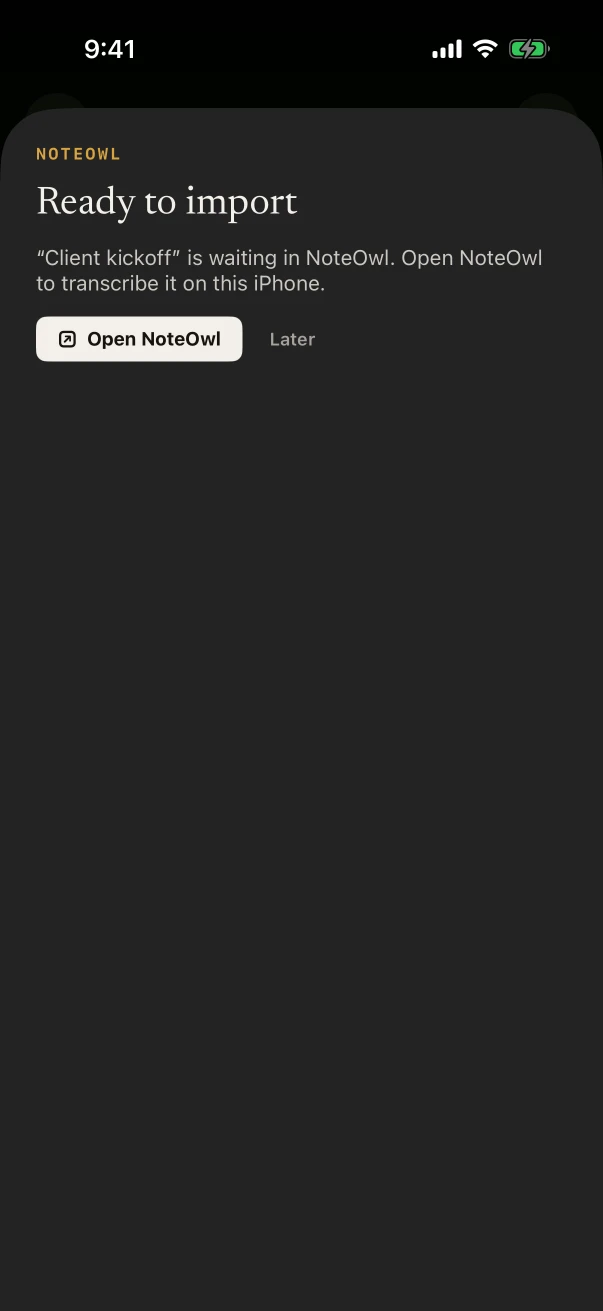
No. NoteOwl for iPhone transcribes a memo where it was recorded: in Voice Memos, tap ••• › Share › NoteOwl, then Open NoteOwl. You get the transcript with speakers and a summary on the phone, and the memo stays put.
Importing is part of NoteOwl Pro on iPhone, $20 lifetime. Voice memos to text on iPhone
FAQ
Questions about moving voice memos to a Mac
How do I transfer all my voice memos from iPhone to Mac?
Turn on Voice Memos in iCloud on the iPhone and the Mac, signed in to the same Apple Account: every recording then appears in Voice Memos on the Mac. To send a batch once instead, tap Select in Voice Memos, choose the recordings, tap Share and choose AirDrop.
Can I transfer voice memos without iCloud?
Yes. Share a recording from Voice Memos and choose AirDrop and your Mac, or send it by Mail or Messages, or tap Save to Files. Apple says AirDrop is best for a small selection of files.
What format are voice memos when I transfer them?
Shared with the Rendered option, a voice memo is a single .m4a file, which is also what Save to Files makes by default. Editable keeps layers and effects, in QuickTime Audio format, for a device and software that can open them.
Where do AirDropped voice memos go on a Mac?
Apple says that on a Mac some items are saved automatically in the Downloads folder, and for others you can choose where to save them. Between your own devices on the same Apple Account, the item is accepted without asking.
Why don’t my iPhone voice memos show up on my Mac?
Check that both are signed in to the same Apple Account and that Voice Memos is on under iCloud › See All on each. On a Mac, open Voice Memos once if it’s missing from the list. Layered recordings don’t appear on macOS 15.1 or earlier.
Do I have to move a voice memo to my Mac to get a transcript?
No. On the iPhone, share the memo to NoteOwl and it’s transcribed there, with speakers and a summary. Importing is part of NoteOwl Pro on iPhone, $20 lifetime; on the Mac, it’s part of NoteOwl Pro for Mac, $79 lifetime.
Sources
Last checked . Apple’s steps are from the iPhone User Guide for iOS 26 and the Voice Memos User Guide for macOS Tahoe 26.
- [1]Apple, Keep recordings up to date in Voice Memos on iPhone (iOS 26)
- [2]Apple, See your recordings on all your Apple devices (macOS Tahoe 26)
- [4]Apple, Export a Voice Memos recording to Files on iPhone (iOS 26)
- [5]Apple, Use AirDrop to send items to nearby Apple devices (iOS 26)
- [7]Apple, View a Voice Memos transcription on Mac (macOS Tahoe 26)
Related
- Transcribe a voice memo on Mac Voice Memos’ own transcript on macOS 26, and NoteOwl with speakers.
- Voice memos to text on iPhone Share a memo to NoteOwl and read it with speakers on the phone.
- Transcription on Mac and iPhone Audio and video files to speaker-labelled text.
- Summarize a voice memo on iPhone Apple Intelligence or a NoteOwl template.
Keep exploring
What this guide recommends
- Voice memo to textHow to turn a Voice Memos recording into text on a Mac, with Apple’s own tools and with NoteOwl
- Voice memos to text on iPhoneShare a recording from Voice Memos, Files or Photos to NoteOwl on iPhone for a transcript with speakers and times and a summary (NoteOwl Pro), with the steps
- Audio to textTranscription software for Mac and iPhone: drop in or share an audio or video file and get a speaker-labelled transcript with timestamps, unlimited, with nothing uploaded
More guides
- Record audio on iPhoneRecord audio on iPhone with Voice Memos (start, pause, Voice Isolation, stereo and Spatial Audio) or with NoteOwl’s live transcript, keep recording in other apps, and start in one press
- Transcribe a video on iPhoneTranscribe a video on iPhone by sharing it from Photos or Files to NoteOwl (speakers, times, a summary and SRT, with NoteOwl Pro), or copy Apple’s Live Captions while it plays
- Allow Full Access, explainedWhat Allow Full Access lets a third-party keyboard do on iPhone, from Apple’s developer documentation, how to turn it off, and exactly what NoteOwl’s keyboard does with it, from its source
Turn your voice memos into notes on your Mac or iPhone
Free to download. Runs entirely on your Mac or iPhone.
Mac: macOS 26 or later · Apple Silicon (M1 or newer) · 16 GB memory minimum, 24 GB recommended · iPhone: iOS 26 or later
About NoteOwl
NoteOwl is private AI meeting notes and memory for Mac and iPhone. It captures meetings without a bot joining the call, labels every speaker, writes summaries and action items, and builds a memory of every conversation that you can chat with — fully offline, because the speech recognition and the AI run on the Mac or iPhone itself. Dictation into any app is free; Pro is a lifetime licence.
NoteOwl pricing: what’s free and what Pro adds
Last updated