Dictate in Reminders · iPhone and Mac · Free
Voice to text reminders on your iPhone and Mac
NoteOwl makes voice to text reminders free on your iPhone and Mac: say the to-do and it types into Apple’s Reminders app as you speak, with the NoteOwl keyboard on iPhone or a tap of fn on the Mac. Then give it a date, a time or a place in Reminders, as you would a typed one.
Your speech is turned into text on the device, and NoteOwl never uploads it. Every reminder you dictate is also kept in NoteOwl, your exact words beside a tidied copy, for when you want to know what you said.
How do you dictate a reminder on iPhone?
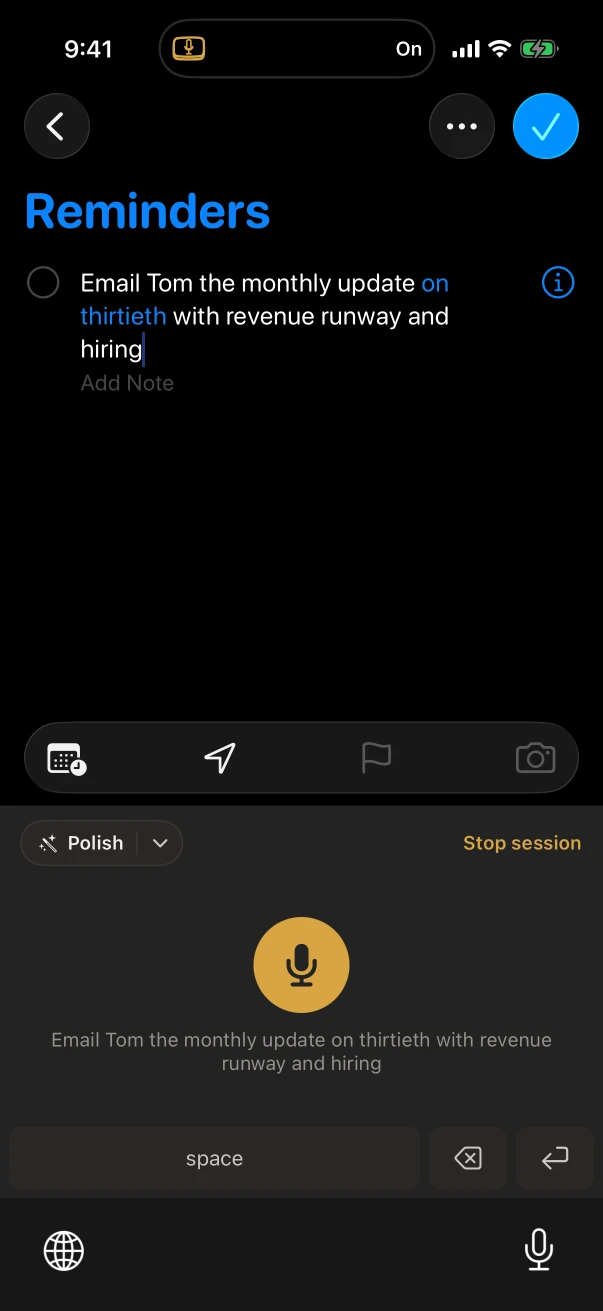
Turn dictation on first with NoteOwl’s Keyboard widget or its Dictation control. Then tap New Reminder in Reminders, switch to the NoteOwl keyboard with the globe key and tap the microphone: it starts listening right there. Say the to-do, add details under Add Note, and tap the red button.
While the session is on, the Dynamic Island shows it, and it stays on until five minutes pass without dictation, so you can say one reminder after another. First time? Add the NoteOwl keyboard and turn on Allow Full Access in the Settings app.
In Reminders on iPhone
- 1
Turn dictation on
Tap NoteOwl’s Keyboard widget on the Home Screen or Lock Screen, or its Dictation control in Control Center or on the Action button. NoteOwl stays in the background.
- 2
Start a reminder
Open Reminders, pick a list and tap New Reminder.
- 3
Switch to NoteOwl and talk
Tap the globe key, choose NoteOwl and tap the microphone. Say the to-do; it types into the line as you speak.
- 4
Add the details
Tap Add Note under the reminder and keep talking: the address, the amount, what to bring.
- 5
Stop
Tap the red stop button. Stop session turns dictation off until you need it again.
How do you dictate reminders on a Mac?
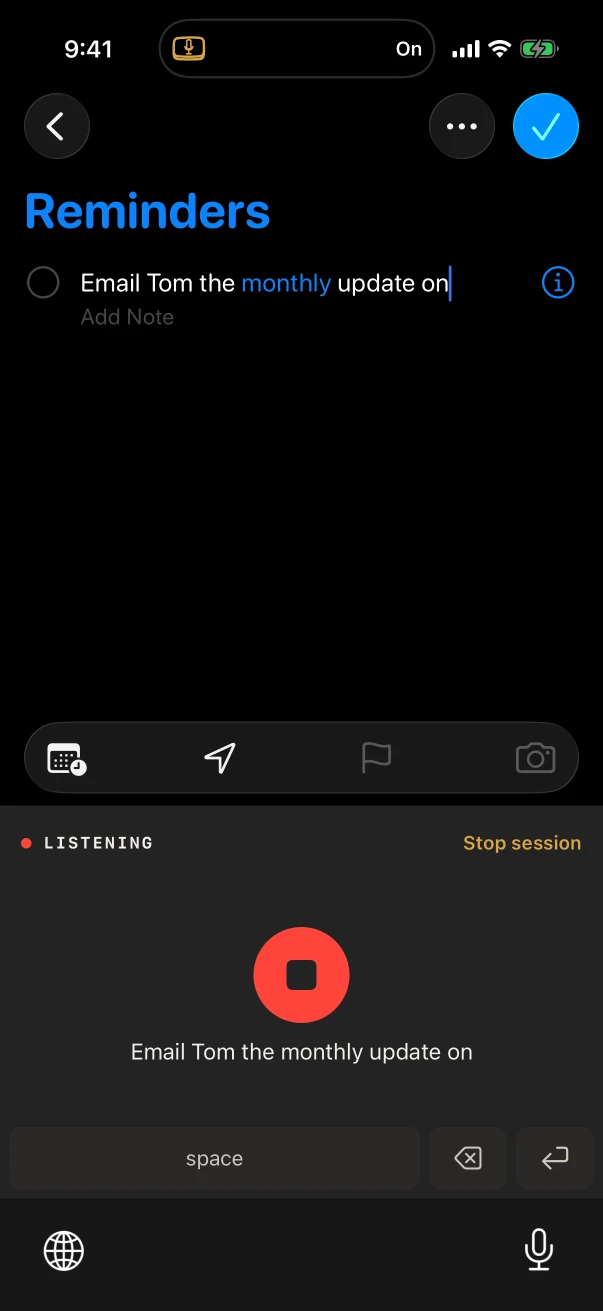
In Reminders on your Mac, start a new reminder, tap fn and say it; the words type at the cursor as you talk. Tap fn again or press Stop. Reminders follows the setting at the top of Settings → Auto-Context: with Match each app, that’s Polish.
Polish takes out filler words and false starts and fixes punctuation, without changing your tone or turning a line into a list. With iCloud Reminders, a reminder you dictate on the Mac is on your iPhone too[1].
Should you use Siri or dictation for reminders?
Use Siri when you want Reminders to set the time or place for you, as in Apple’s example “Remind me when I get home to check the mail.”[1] Dictate when you want to write it yourself: a longer line, the note under it, or several in a row.
And NoteOwl isn’t one more voice to text reminder app to keep up with: what you say goes into Apple’s Reminders, where your lists, dates and alerts already are.
Siri
Apple’s Dictation
The NoteOwl keyboard
- Types what you say into the reminder and its note, where you can watch it arrive.
- Saves each dictation in NoteOwl as well, raw and tidied.
- Tidies a reminder with Polish on iPhone 15 Pro or later.
- Works the same way on your Mac: tap fn in Reminders.
What should you say when you dictate a reminder?
Start with the action and the person, such as “Email Tom the monthly update”, and keep the reminder to one line. Put everything else in the note under it. Then set the day, time or place with the reminder’s Date and Time and Location buttons[1].
Getting more out of it
- One to-do per reminder: tap New Reminder for the next one and tap the microphone again, while the session is still on.
- A list, such as what to pack, fits in the note. On iPhone 15 Pro or later, tap the arrow beside Polish and choose Tidy notes to put each item you said on its own line.
- Want a nudge the next time you text someone? In the reminder’s details, turn on When Messaging and choose the person[3]. Then answer with voice to text in iMessage.
- Names coming out wrong? Custom vocabulary, part of NoteOwl Pro, spells them your way in every dictation.
Is dictating reminders free?
Yes, on iPhone and Mac, with no limit: the keyboard, fn, Polish’s cleanup styles and a copy of every dictation. NoteOwl Pro adds custom vocabulary, the Rewrite styles on iPhone, rewriting by voice on the Mac, and action items from your meetings, with what’s due on a widget.
NoteOwl Pro is $20 lifetime on iPhone and $79 lifetime on a Mac, with no subscription. More on action items from your meetings.
- Price
- Free and unlimited on iPhone and Mac
- Where speech becomes text
- On your iPhone or Mac; NoteOwl never uploads it
- Languages on iPhone
- Auto-detect, English, Hindi, Spanish, French and German
- Languages on Mac
- 34, detected automatically
- Offline
- Yes, once the speech model is on the device (about 600 MB on iPhone)
- Polish
- Free; on iPhone it needs iPhone 15 Pro or later
- Needs
- iPhone: iOS 26 or later, the NoteOwl keyboard and Allow Full Access. Mac: macOS 26 or later, Apple Silicon (M1 or newer)
FAQ
Questions about dictating reminders
Can NoteOwl set a reminder’s date and time?
No. NoteOwl types the words, and Reminders keeps the date, time and place: set them with the reminder’s Date and Time or Location buttons, or ask Siri, which can schedule a reminder from one sentence.
Why turn dictation on before opening Reminders?
With a dictation session already on, the NoteOwl keyboard starts listening as soon as you tap the microphone, with no trip into NoteOwl and back. The Keyboard widget and the Dictation control turn a session on in one tap, and it stays on until five minutes pass without dictation.
Can I dictate into Reminders on a Mac?
Yes. Start a new reminder, tap fn and talk, and NoteOwl types the words at the cursor; tap fn again to stop. It is free and unlimited, like dictating into any other app on the Mac.
Does dictating a reminder work offline?
Yes. NoteOwl turns your speech into text on the device, so once its speech model is downloaded (about 600 MB on iPhone), dictating needs no connection. Getting the reminder onto your other devices is up to Reminders and iCloud.
Which languages can I dictate reminders in?
On iPhone, the NoteOwl keyboard takes Auto-detect, English, Hindi, Spanish, French and German; pick one in NoteOwl’s Settings › Keyboard. On a Mac, NoteOwl understands 34 languages and detects the one you’re speaking.
Does NoteOwl keep a copy of my reminders?
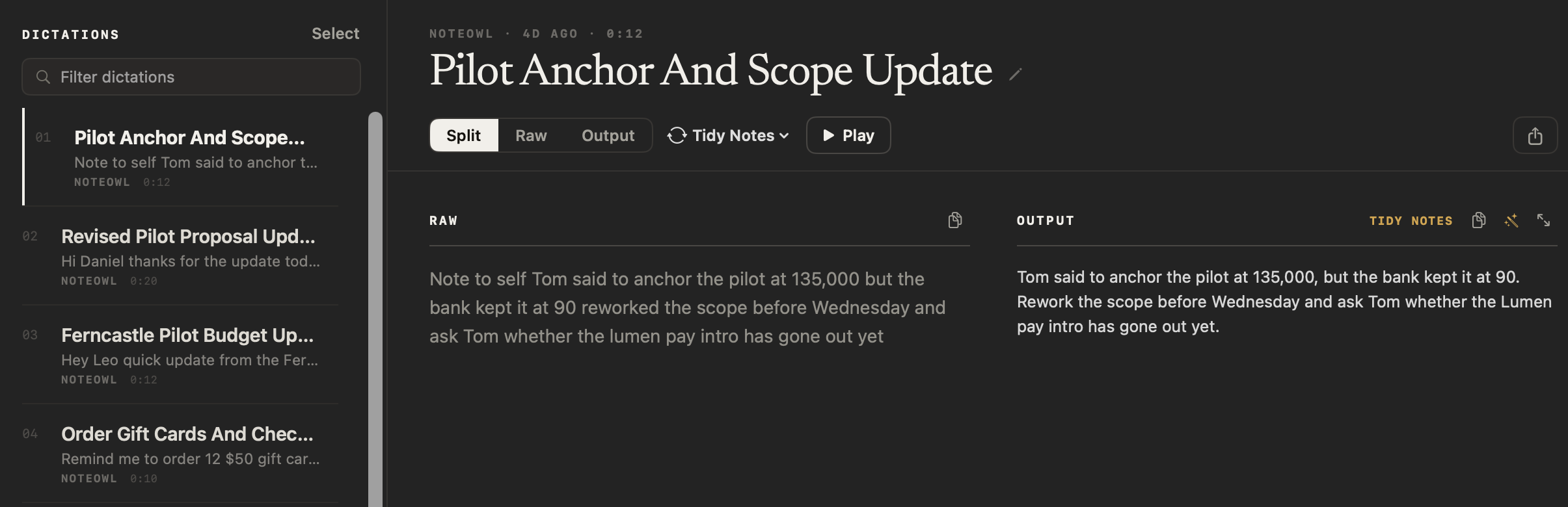
It keeps every dictation, not the reminders themselves: on iPhone under Notes › Dictations, on the Mac in Dictations, each with your exact words beside a tidied copy. Reminders stays in charge of the reminder, its date and whether it’s done.
Sources
Last checked . Apple’s own pages, for what its apps and Dictation do.
- [1]Apple Support, Use Reminders on your iPhone, iPad, or iPod touch
- [2]Apple, Dictate text on iPhone (iOS 26)
- [3]Apple, Add details in Reminders on iPhone (iOS 26)
Related
- NoteOwl widgets for iPhone The Keyboard widget turns dictation on in one tap.
- Dictation on the Action button The Dictation control, in Control Center or on the Action button.
- Voice to text in iMessage Dictate a text on iPhone, or in Messages on a Mac.
- To-do list template Priorities, owners and deadlines, written from a meeting.
Keep exploring
Made for dictating
- iPhone dictation keyboardThe free NoteOwl keyboard: voice typing in any iPhone app, how to add it, its languages, Polish and Rewrite styles, and Notes › Dictations
- Free dictation into any appFree, unlimited speech to text in every app on your Mac (tap fn, talk, and the words type at your cursor; one tap polishes them in the right tone) and on iPhone with the NoteOwl keyboard
- iPhone widgetsNoteOwl’s iPhone widgets (New note, Keyboard, Capture, Last capture, Due today, Up next), what each does and needs, and its Live Activities in the Dynamic Island
- iPhone Action button and SiriStart a NoteOwl recording, dictation or a question from the Action button, Control Center, the Lock Screen, Back Tap, Siri or the Shortcuts app
- To-do list templateA to-do list template to copy, what each section holds, an example, and how NoteOwl writes it
Say your to-dos on your iPhone and Mac, free
Free to download. Runs entirely on your Mac or iPhone.
Mac: macOS 26 or later · Apple Silicon (M1 or newer) · 16 GB memory minimum, 24 GB recommended · iPhone: iOS 26 or later
About NoteOwl
NoteOwl is private AI meeting notes and memory for Mac and iPhone. It captures meetings without a bot joining the call, labels every speaker, writes summaries and action items, and builds a memory of every conversation that you can chat with — fully offline, because the speech recognition and the AI run on the Mac or iPhone itself. Dictation into any app is free; Pro is a lifetime licence.
NoteOwl pricing: what’s free and what Pro adds
Last updated