Guide · iPhone · iOS 26
iPhone dictation not working? How to fix it
iPhone dictation not working? First check that it’s on: go to Settings › General › Keyboard and turn on Enable Dictation. Then tap in a text field and tap the microphone on the keyboard. If voice to text is still missing or does nothing, work through Apple’s fixes below, one at a time.
They cover the language you dictate in, the 30-second pause, the microphone itself, Screen Time, a restart and an update. And if you’d rather dictate with a keyboard that turns your voice into text on the iPhone, offline, the free NoteOwl keyboard is at the end.
The fixes, in order · iOS 26
- 01Turn on Enable Dictation
- 02Check the language
- 03Keep talking, or start again
- 04Check the microphone
- 05Check microphone access for keyboard apps
- 06Check Screen Time
- 07Restart your iPhone
- 08Update iOS
How do you turn on dictation on iPhone?
Go to Settings › General › Keyboard and turn on Enable Dictation; if a prompt appears, tap Enable Dictation. Then tap in any text field and tap the microphone on the keyboard to start dictating[1].
How do you fix dictation on iPhone?
Try these in order: turn on Enable Dictation, check the language, keep talking within 30 seconds, check the microphone and its access, check Screen Time, then restart the iPhone and update iOS. Each step is from Apple’s own support pages for iOS 26.
Apple notes that when you dictate in a search box, the text may be sent to the search provider, and that cellular data charges may apply[1].
Apple’s fixes, for iOS 26
- 1
Turn on Enable Dictation
Go to Settings › General › Keyboard and turn on Enable Dictation. If a prompt appears, tap Enable Dictation. Then tap in a text field and tap the microphone on the keyboard.[1]
- 2
- 3
Keep talking, or start again
Dictation stops by itself when you stop speaking for 30 seconds. Tap the microphone again to carry on.[1]
- 4
Check the microphone
Remove any screen protector, film or case, and clear any debris from the microphone openings. Then record a short voice memo and play it back: you should hear your voice clearly.[3]
- 5
- 6
Check Screen Time
If Content & Privacy Restrictions are on, go to Settings › Screen Time › Content & Privacy Restrictions and look at Allowed Apps & Features, where built-in apps and features can be turned off, and at Intelligence & Siri.[5]
- 7
- 8
Update iOS
Go to Settings › General › Software Update. If an update is available, tap Download and Install.[8]
Why is the dictation microphone missing on my iPhone?
Why does iPhone dictation stop by itself?
Because it stops automatically when you stop speaking for 30 seconds. Tap the microphone again to carry on; to stop it yourself, tap the microphone or say “Stop dictation”[1].
Does iPhone dictation need the internet?
Not in many languages. Apple says Dictation requests are processed on your device in many languages, with no internet connection required; in a search box, the dictated text may be sent to the search provider[1].
What else can you use to dictate on iPhone?
A dictation keyboard such as NoteOwl’s. It’s free, types into any app with no word limit, and turns your voice into text on the iPhone with on-device AI models, so it works offline once its speech model has downloaded.
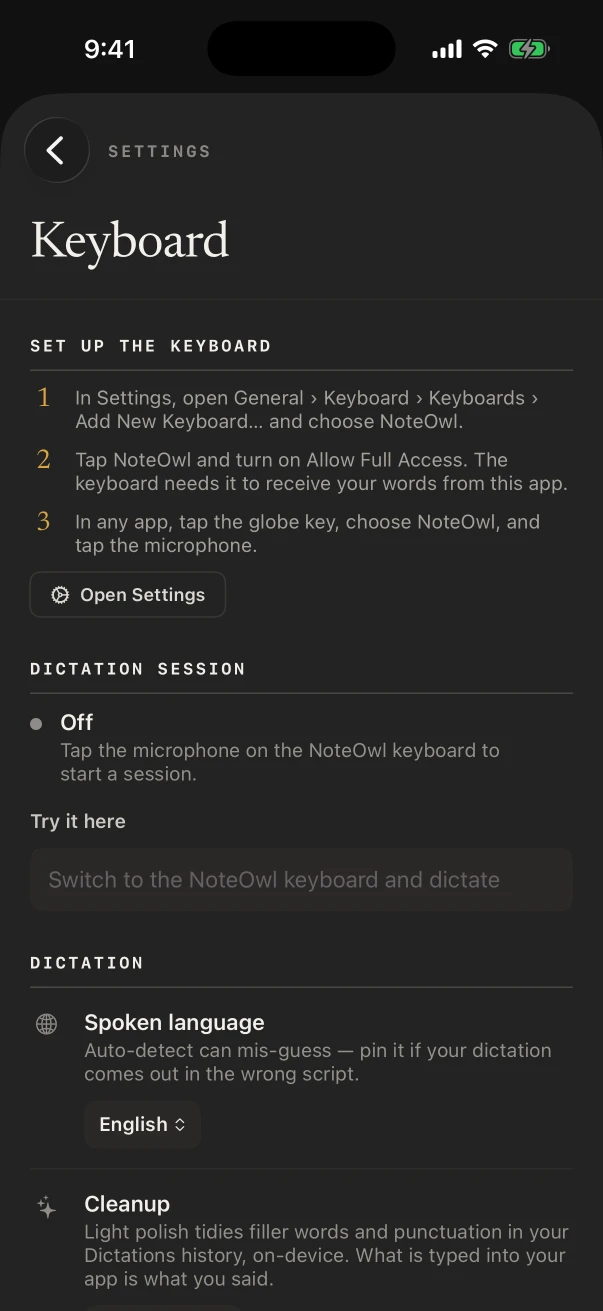
It needs Allow Full Access and iOS 26 or later, and NoteOwl opens for a moment to start listening. It speaks English, Hindi, Spanish, French and German, with Auto-detect, and keeps every dictation in Notes › Dictations. The NoteOwl dictation keyboard
- 1
Get NoteOwl and open it once
It downloads its speech model, about 600 MB, once; after that the keyboard works offline.
- 2
Add the keyboard
In Settings › General › Keyboard › Keyboards › Add New Keyboard, choose NoteOwl, then turn on Allow Full Access.
- 3
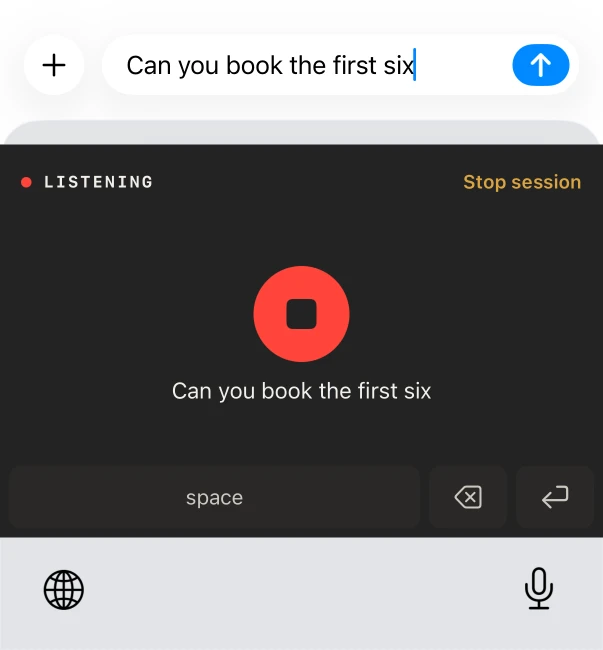
Dictate in any app
Switch to the NoteOwl keyboard and tap its microphone. NoteOwl opens for a moment to start listening; then speak, and your words type as you talk.
Comparing keyboards first? The best dictation app for iPhone, eight picks compared.
Sources
Last checked . Apple’s steps are from the iPhone User Guide for iOS 26 and Apple Support.
- [1]Apple, Dictate text on iPhone (iOS 26)
- [2]Apple, Add or change keyboards on iPhone (iOS 26)
- [3]Apple Support, If the microphones on your iPhone aren’t working
- [4]Apple, Control access to hardware features on iPhone (iOS 26)
- [5]Apple, Block apps, app downloads, websites, and purchases on iPhone (iOS 26)
- [6]Apple, Turn iPhone on or off (iOS 26)
- [7]Apple, Force restart iPhone (iOS 26)
- [8]Apple, Update iOS on iPhone (iOS 26)
FAQ
Questions about iPhone dictation
Why is my iPhone dictation not working?
Start with two checks: that Enable Dictation is on in Settings › General › Keyboard, and that Dictation is available for your language, country or region. Then try Apple’s other fixes: check the microphone and Screen Time restrictions, restart the iPhone and update iOS.
How do I get the microphone back on my iPhone keyboard?
Go to Settings › General › Keyboard and turn on Enable Dictation; if a prompt appears, tap Enable Dictation. The microphone then appears on the keyboard when you tap in a text field.
Why does iPhone voice typing keep stopping?
Apple’s Dictation stops by itself when you stop speaking for 30 seconds. Tap the microphone to carry on. You can also stop it yourself by tapping the microphone or saying “Stop dictation.”
Does iPhone dictation need the internet?
Not in many languages. Apple says Dictation requests are processed on your device in many languages, with no internet connection required; in a search box, the dictated text may be sent to the search provider. Apple also notes that cellular data charges may apply.
How do I dictate in another language on iPhone?
Add a keyboard for that language in Settings › General › Keyboard › Keyboards › Add New Keyboard, switch to it, and tap the microphone. Apple says Dictation isn’t available in all languages, countries or regions.
Is there another dictation keyboard for iPhone that works offline?
Yes. The NoteOwl keyboard is free, dictates into any app with no word limit and turns your voice into text on the iPhone, offline after a one-time download. It needs Allow Full Access and iOS 26 or later; it speaks English, Hindi, Spanish, French and German, with Auto-detect.
Related
- NoteOwl’s dictation keyboard for iPhone Voice typing in any app, on the phone: how to add it, and its languages.
- The best dictation app for iPhone Eight picks compared: privacy, offline use, price and limits.
- How to use dictation on Mac Apple’s Dictation on macOS 26, set up and fixed.
- Free dictation on Mac Tap fn in any Mac app and talk; your words type at the cursor.
Keep exploring
What this guide recommends
- iPhone dictation keyboardThe free NoteOwl keyboard: voice typing in any iPhone app, how to add it, its languages, Polish and Rewrite styles, and Notes › Dictations
- Best dictation app for iPhoneEight iPhone dictation apps compared on six tests (works in every app, where your voice is processed, offline, price, languages, limits), from each maker’s own pages, with NoteOwl’s free keyboard first
- Dictation on MacApple’s built-in Dictation on macOS 26: settings, shortcuts, fixes when it isn’t working, and when an app helps
More guides
- Record lectures on iPhoneHow to record a lecture on iPhone with Voice Memos or NoteOwl (recording and transcript free), and turn it into study notes with the Student Lecture template in NoteOwl Pro
- Best voice recorder for iPhoneSeven AI voice recorder apps for iPhone compared on six tests (keeps recording, live transcript, notes afterwards, where your audio goes, price, limits), from each maker’s own pages, with NoteOwl first
- Best transcription app for iPhoneSeven transcription apps for iPhone compared on files, where they transcribe, speakers and times, exports such as SRT, languages and price, from each maker’s own pages, with NoteOwl first
Dictate into any app, offline, on your iPhone
Free to download. Runs entirely on your Mac or iPhone.
Mac: macOS 26 or later · Apple Silicon (M1 or newer) · 16 GB memory minimum, 24 GB recommended · iPhone: iOS 26 or later
About NoteOwl
NoteOwl is private AI meeting notes and memory for Mac and iPhone. It captures meetings without a bot joining the call, labels every speaker, writes summaries and action items, and builds a memory of every conversation that you can chat with — fully offline, because the speech recognition and the AI run on the Mac or iPhone itself. Dictation into any app is free; Pro is a lifetime licence.
NoteOwl pricing: what’s free and what Pro adds
Last updated