Guide · iPhone · Subtitles
How to make an SRT file on iPhone
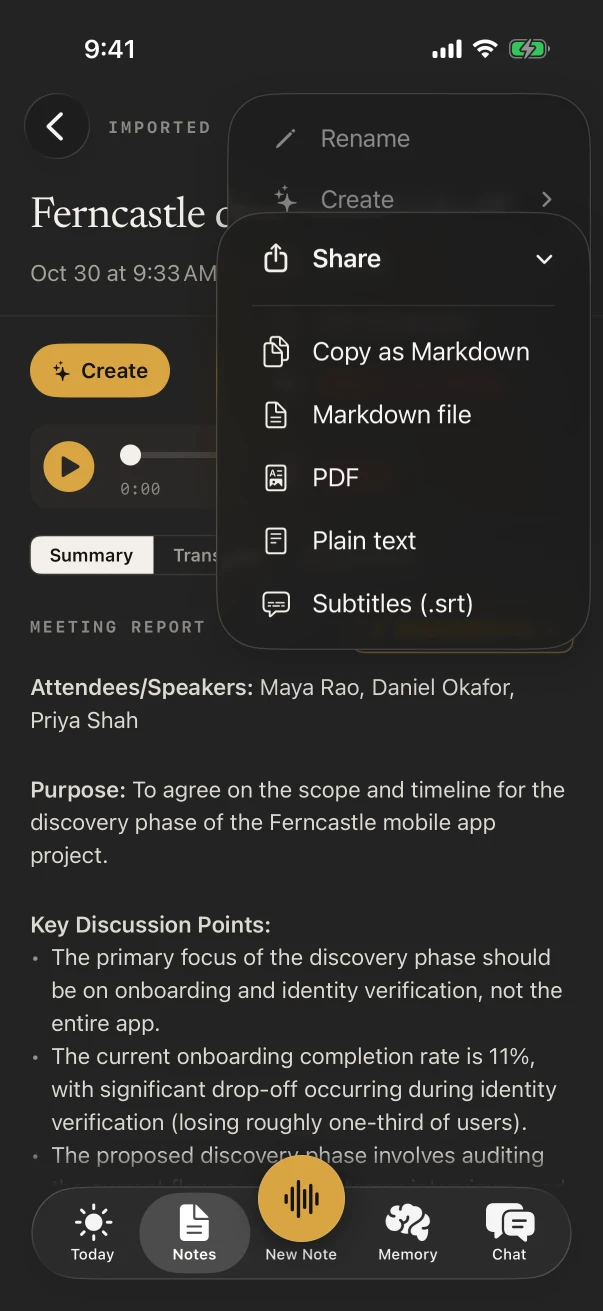
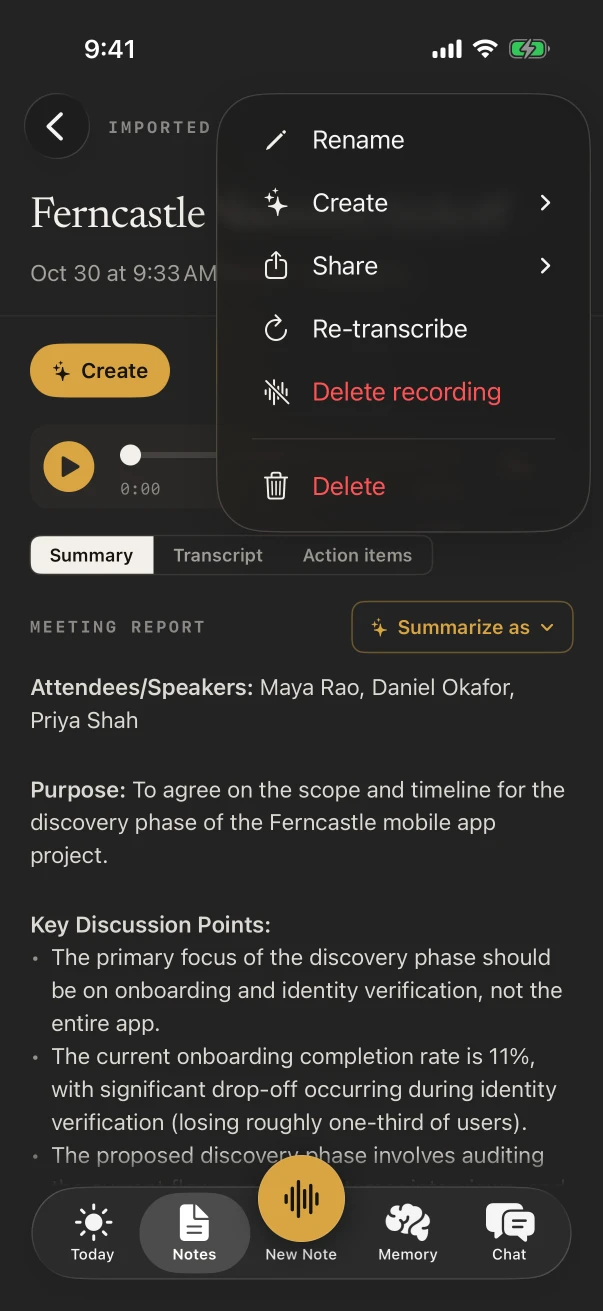
Here’s how to make an SRT file on iPhone: open a note in NoteOwl, tap the ⋯ menu, then Share › Subtitles (.srt), and choose where the file goes: Save to Files, AirDrop, Mail or any app in the share sheet. NoteOwl writes one numbered subtitle for each phrase it transcribed, timed to the moment it was said.
Exporting is free on every plan, so for your own recordings the whole thing is free: tap New Note, record, tap Stop, and share the subtitles. For a video or an audio file you already have, importing it into NoteOwl is part of NoteOwl Pro, $20 lifetime.
What does an SRT file look like?
A plain text file of numbered subtitles. Each one has a line of start and end times, then the words to show, then a blank line. Video players and editors read it to put captions on screen at the right moment.
The format in full, and how it differs from VTT: the SRT file explained
1
00:00:01,200 --> 00:00:04,800
Maya Rao: Let’s start with the onboarding numbers.

2
00:00:05,100 --> 00:00:09,350
Daniel Okafor: Completion is at eleven percent, and most people drop out at the ID check.

3
00:00:09,900 --> 00:00:12,400
Maya Rao: Then that’s where the pilot starts.
How do you make an SRT file from a recording on iPhone?
Record it in NoteOwl, tap Stop, then open the note and tap ⋯ › Share › Subtitles (.srt). The share sheet opens with the file, ready to save to Files or send on. Every step is free, with no limit on how much you record.
In NoteOwl for iPhone (iOS 26 or later)
- 1
Record in NoteOwl
Tap New Note and speak, or put the iPhone near whoever is talking. The transcript appears as NoteOwl listens.
- 2
Tap Stop
The recording and its transcript are saved on the iPhone, with the time of each phrase.
- 3
Open the ⋯ menu and tap Share
In the note, tap ⋯ at the top right, then Share.
- 4
Choose Subtitles (.srt)
NoteOwl writes the file and opens the share sheet. Tap Save to Files, AirDrop it to your Mac, or send it to an app.
How do you make subtitles for a video on iPhone?
Share the video from Photos or Files to NoteOwl, tap Open NoteOwl, and when the transcript is ready, tap ⋯ › Share › Subtitles (.srt). Then add the file to your video in an editor that takes SRT subtitles.
Importing a video is part of NoteOwl Pro, $20 lifetime with a 7-day free trial. Transcribing a video on iPhone
From a video, with NoteOwl Pro
- 1
Share the video to NoteOwl
In Photos or Files, tap Share on the video and choose NoteOwl, then tap Open NoteOwl.
- 2
Let NoteOwl transcribe it
NoteOwl takes the sound, transcribes it on the iPhone, and labels each speaker’s turns.
- 3
Share the subtitles
Open the note, tap ⋯ › Share › Subtitles (.srt), and save the file where your video editor can open it.
What is in NoteOwl’s SRT file?
One numbered subtitle for each line of the transcript, with start and end times taken from when it was said, and the speaker’s name in front when NoteOwl knows it. Lines without a time are left out, and NoteOwl tells you how many.
One numbered cue per phrase
Each phrase NoteOwl transcribed becomes a subtitle, numbered from 1 with no gaps.
Timecodes from the speech
Start and end times come from each phrase’s own timing, written as hours, minutes, seconds and milliseconds.
Speaker names
When NoteOwl knows who spoke, the cue starts with the name, such as “Maya Rao:”.
Nothing invented
A line with no timing is left out, and NoteOwl tells you how many were.
Where does the SRT file go?
Wherever you send it from the share sheet: Save to Files, AirDrop to your Mac, Mail, Messages or another app. The file is named after the note, and NoteOwl deletes its own copy as soon as the share sheet closes.
Need WebVTT instead? Open the SRT file in NoteOwl’s free SRT to VTT converter. On a Mac, NoteOwl exports the same SRT file from any timed transcript: subtitles from a recording on Mac.
FAQ
Questions about SRT files on iPhone
Can I make an SRT file on iPhone for free?
Yes, from anything you record in NoteOwl: recording, the transcript and the Subtitles (.srt) export are all free. Turning a video or an audio file you already have into subtitles needs NoteOwl Pro, $20 lifetime, because importing is part of Pro.
Why don’t I see Subtitles (.srt) in NoteOwl’s Share menu?
NoteOwl offers subtitles only for a note whose transcript has timings, so a typed note has none. If a transcript turns out to have no timings at all, NoteOwl says so instead of writing an empty file.
Does the SRT file include who is speaking?
Yes, when NoteOwl knows: each subtitle starts with the speaker’s name, such as “Maya Rao:”. Telling speakers apart is part of NoteOwl Pro; without it, the subtitles carry the words and times only.
Can I make a VTT file on iPhone?
NoteOwl for iPhone exports SRT. To get WebVTT, open the SRT file in NoteOwl’s free SRT to VTT converter on the web, which turns one into the other.
Where does NoteOwl save the SRT file?
Wherever you choose in the share sheet: Save to Files, AirDrop, Mail, Messages or another app. NoteOwl names the file after the note and removes its own copy when the share sheet closes.
Does NoteOwl make SRT files on the Mac?
Yes. NoteOwl on the Mac exports a timed transcript as an SRT file, with timecodes and speaker names: click the Share button and choose Save Subtitles.
Related
- What is an SRT file? The subtitle format, with an example and how it differs from VTT.
- Transcribe a video on iPhone From Photos or Files to a transcript with speakers.
- Subtitles from a recording, on Mac The same SRT export on the Mac.
- SRT to VTT converter Turn the file into WebVTT, free, in the browser.
Keep exploring
What this guide recommends
- Subtitle generatorTurn a recording into an SRT subtitle file with timecodes and speaker names, on your Mac or iPhone
- What is an SRT fileWhat an SRT file is, what SRT stands for, the format of each cue with an example, and how to make one from a recording
- Export your notesExport meetings, dictations and notes as Markdown or PDF, imported transcripts as text or SRT, or everything as plain files; nothing is locked in
More guides
- Dictation on MacApple’s built-in Dictation on macOS 26: settings, shortcuts, fixes when it isn’t working, and when an app helps
- Writing meeting minutesHow to write meeting minutes step by step, with the format, an example, and how NoteOwl writes them for you
- Taking meeting notesHow to take meeting notes before, during and after a meeting, with or without an AI note taker
Free tools
- SRT to VTT converterConvert SRT to VTT, VTT to SRT, or either to clean text with each speaker’s lines merged, in your browser; Zoom and Teams transcripts work
- Subtitle generatorA free AI subtitle generator: drop in a video or recording and download SRT or VTT subtitles timed to the speech, two short lines per cue; only the sound is sent, nothing is stored
- Subtitle converterConvert subtitles between SRT, VTT, SBV and ASS, or to plain text, in your browser; SSA scripts and meeting transcripts work too
Make subtitles from your recordings, on your iPhone
Free to download. Runs entirely on your Mac or iPhone.
Mac: macOS 26 or later · Apple Silicon (M1 or newer) · 16 GB memory minimum, 24 GB recommended · iPhone: iOS 26 or later
About NoteOwl
NoteOwl is private AI meeting notes and memory for Mac and iPhone. It captures meetings without a bot joining the call, labels every speaker, writes summaries and action items, and builds a memory of every conversation that you can chat with — fully offline, because the speech recognition and the AI run on the Mac or iPhone itself. Dictation into any app is free; Pro is a lifetime licence.
NoteOwl pricing: what’s free and what Pro adds
Last updated