Dictate in any app with the NoteOwl keyboard
Last updated Checked against NoteOwl 0.1.0
To dictate with NoteOwl on iPhone, add the NoteOwl keyboard in the Settings app and turn on Allow Full Access. Then, in any app, switch to the NoteOwl keyboard and tap the microphone: your words type into the app as you speak. The keyboard is free and unlimited, and your speech is transcribed on the iPhone.
How do I add the NoteOwl keyboard?
In the Settings app, add NoteOwl as a keyboard, then turn on Allow Full Access for it. NoteOwl shows the same three steps during setup and in its own Settings › Keyboard, where Open Settings takes you to the Settings app.
- Open the Settings app and go to General › Keyboard › Keyboards › Add New Keyboard…, then choose NoteOwl.
- Tap NoteOwl in your list of keyboards and turn on Allow Full Access. If iOS asks you to confirm, tap Allow.
- In any app, tap the globe key, choose NoteOwl, and tap the microphone.
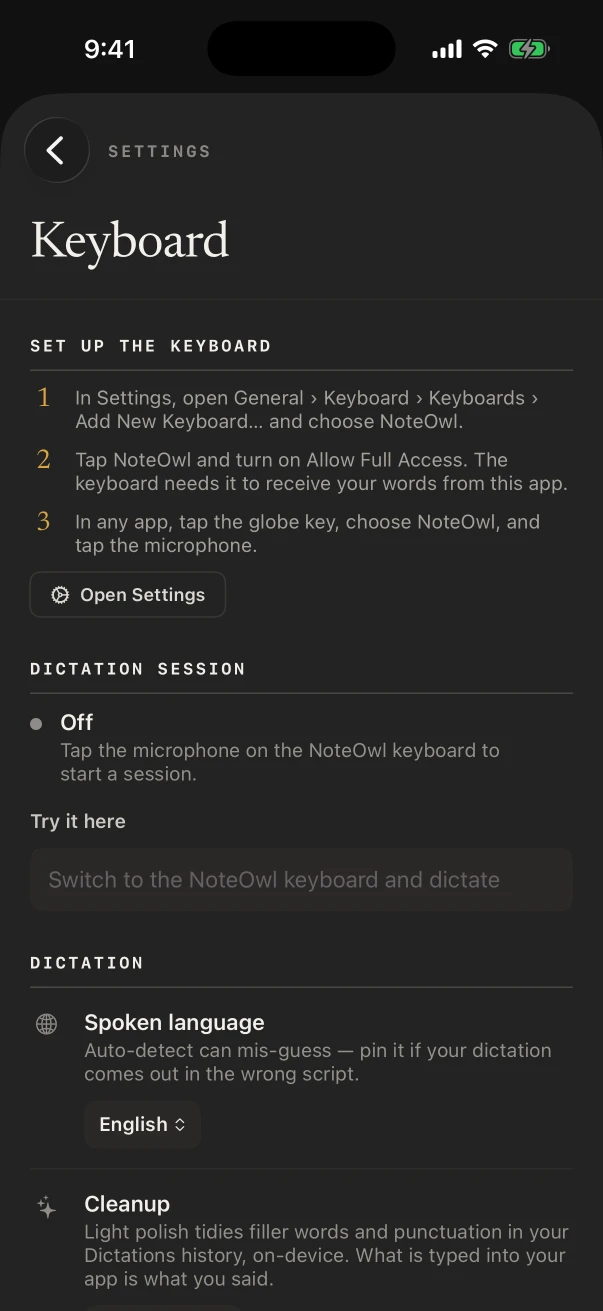
Why does the NoteOwl keyboard need Full Access?
To receive your words from the NoteOwl app. iOS doesn't let keyboards use the microphone, so the NoteOwl app listens and transcribes, and the keyboard types what it hears. Full Access is what lets the keyboard and the app pass those words between them.
What passes between them is the words you're dictating and the state of the dictation session. Your notes, recordings and memory stay inside the NoteOwl app. The keyboard doesn't connect to the internet, and it has no letter keys: just the microphone, space, delete and return.
Without Full Access, the keyboard shows Allow Full Access in place of the microphone, with an Open NoteOwl button that opens NoteOwl's Settings › Keyboard.
How do I dictate with the NoteOwl keyboard?
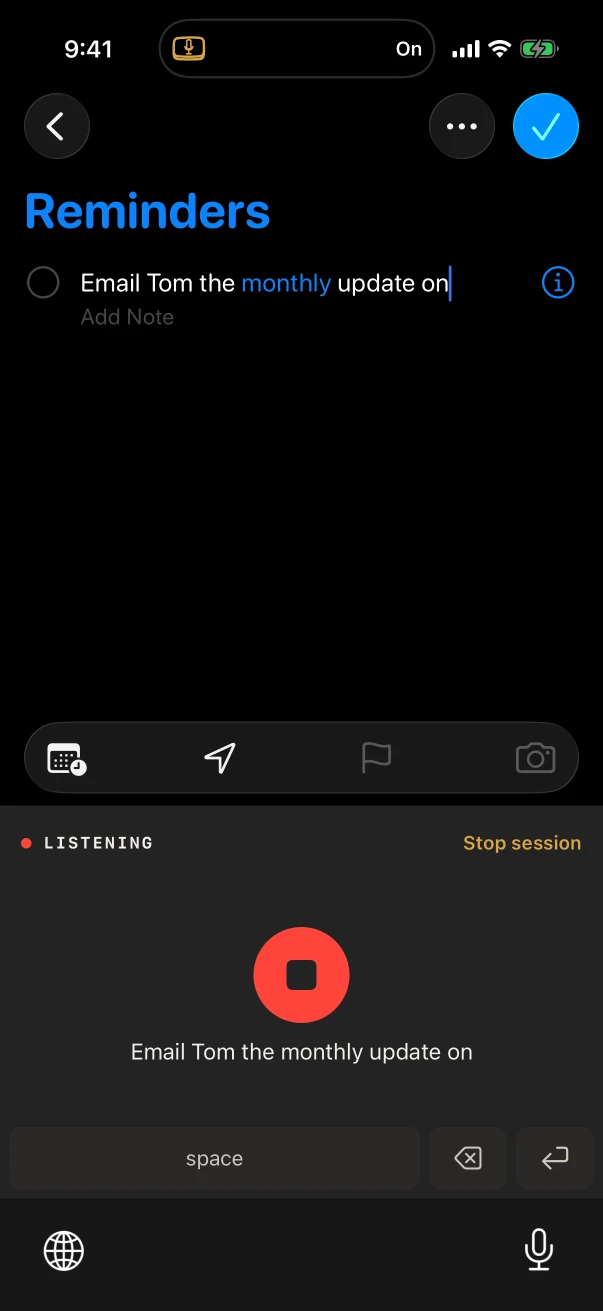
Tap in a text field, switch to the NoteOwl keyboard and tap the microphone. The first time, NoteOwl opens to start listening: go back to your app and speak. Your words appear in the text field as you talk. Tap the red stop button when you've finished.
- Tap in a text field in any app, such as Messages, Mail, Notes or Reminders.
- Switch to the NoteOwl keyboard with the globe key. It says Tap to dictate. NoteOwl opens to start listening — then go back to your app.
- Tap the microphone. NoteOwl opens and starts listening.
- Go back to the app you were typing in: tap ◀ in the top-left corner, or swipe right along the bottom edge.
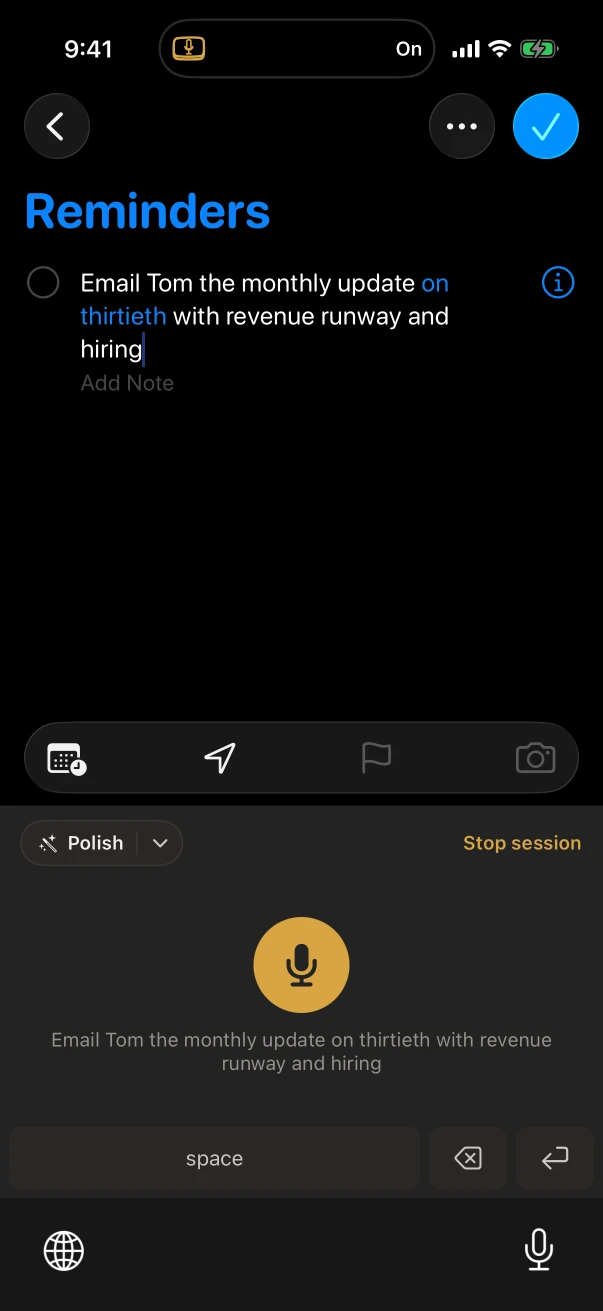
- Speak. The keyboard says LISTENING, and your words type into the field as you talk.
- Tap the red stop button to finish.
If you move the cursor or edit the text while you're dictating, NoteOwl stops typing there and says the rest is saved in NoteOwl. A dictation stops by itself when it hears no speech for a while; for the last 15 seconds the keyboard counts down with Still listening — auto-stops in and the seconds left.
What is a dictation session?
The time NoteOwl keeps the microphone open for the keyboard. While a session is on, tapping the keyboard's microphone starts a dictation straight away, without opening NoteOwl. The session ends after 5 minutes without dictation, or when you tap Stop session.
While a session is on:
- The keyboard says SESSION ON, with Stop session at the top right.
- iOS shows its microphone indicator, because NoteOwl keeps the microphone open. Sound between dictations isn't transcribed or kept.
- With Live Activities on, the Lock Screen and the Dynamic Island show DICTATION ON, NoteOwl keyboard is ready and a Stop button.
- In NoteOwl, a banner says Dictation session on, and Settings › Keyboard shows the session's state.
A phone call or another app that takes the microphone also ends the session. To start a session without opening NoteOwl, use the Keyboard widget, Dictate in the Capture widget, or the Dictation control: see widgets, Live Activities and shortcuts on iPhone.
What does Polish do in the NoteOwl keyboard?
After a dictation, Polish tidies or restyles the words the keyboard just typed, on the iPhone. It needs iPhone 15 Pro or later. The Cleanup styles are free; the Rewrite styles are part of NoteOwl Pro.
- Tap Polish to use your default style, or tap the arrow beside it to choose a style.
- While it works, the keyboard says Polishing…, with Cancel. When it's done, it says Polished.
- Tap Undo to put back the words you said.
| Group | Styles | Plan |
|---|---|---|
| Cleanup | Polish, Professional email, Casual message, Tidy notes, Code | Free |
| Rewrite | Shorten, Clarify, Make formal, Make friendly, Fix grammar only | NoteOwl Pro |
To choose what one tap of Polish does, open Settings › Keyboard and pick a Default style. On an iPhone older than iPhone 15 Pro, Keyboard polish in that screen says Keyboard polish needs iPhone 15 Pro or later., and the keyboard shows no Polish button. Polish also tells you when it doesn't work in your spoken language yet.
Which languages does the NoteOwl keyboard understand?
Auto-detect, English, Hindi, Spanish, French and German. Choose one under Spoken language in Settings › Keyboard. It starts as your iPhone's language. The same setting is used for recordings.
If dictation comes out in the wrong script, pick your language instead of Auto-detect: NoteOwl's own tip is "Auto-detect can mis-guess — pin it if your dictation comes out in the wrong script." English, Spanish, French and German share one speech model, and Hindi and Auto-detect use another. When you switch between them, NoteOwl asks you to download the other model once, right there in Settings › Keyboard.
Where are my dictations saved?
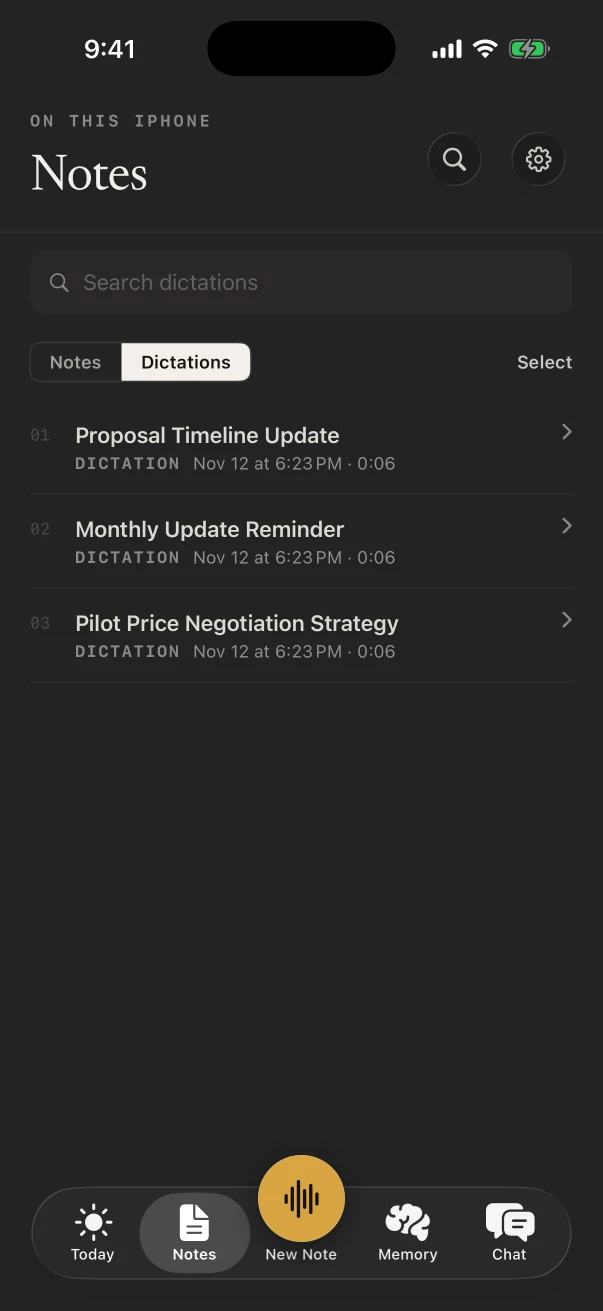
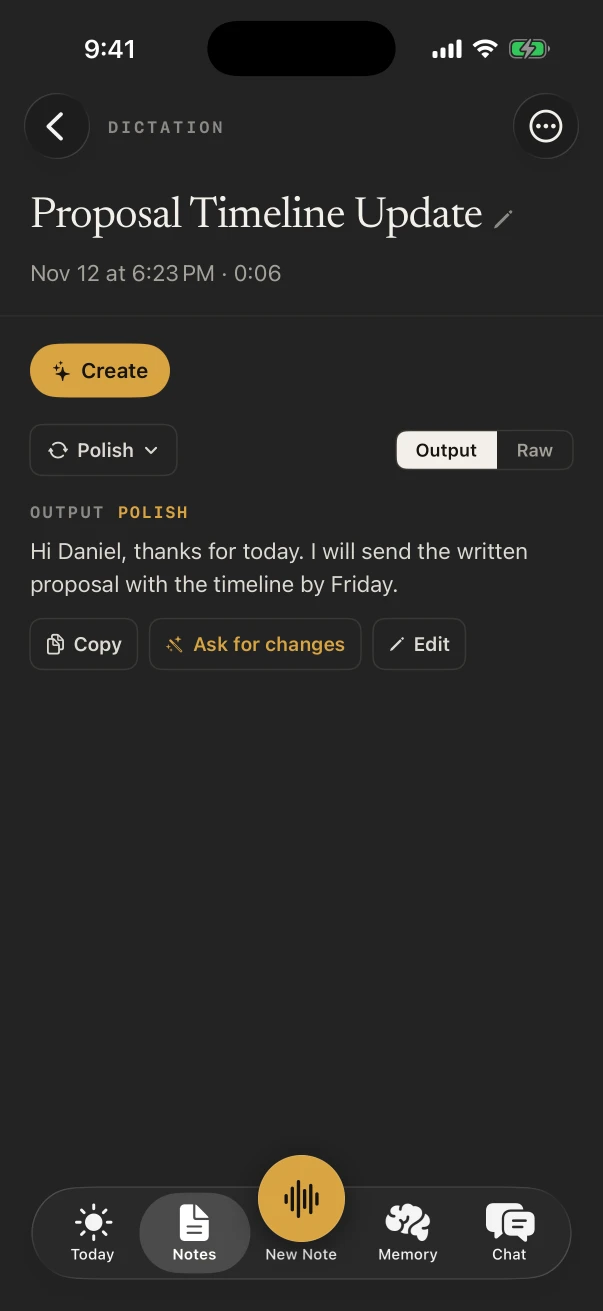
In NoteOwl, under Notes › Dictations. Each dictation keeps the words exactly as you said them (Raw) and a tidied copy (Output). The tidied copy stays in NoteOwl: what the keyboard types into your app is what you said, unless you tap Polish.
- Open the Notes tab and tap Dictations at the top. You can also tap Dictations in Settings › Keyboard.
- Tap a dictation to open it. Switch between Output and Raw.
- Use Copy, Edit, or Ask for changes (NoteOwl Pro). The style chip, such as Polish, re-does the Output in another style.
The tidied copy comes from Cleanup in Settings › Keyboard: Light polish tidies filler words and punctuation, and Keep exact keeps no tidied copy. To rename, share or delete a dictation, use ⋯ on the dictation, or touch and hold it in the list. Search with Search dictations at the top of the list.
Common questions
Is the NoteOwl keyboard free?
Yes. Dictating with the NoteOwl keyboard is part of NoteOwl Free, with no limit. The Cleanup styles in Polish are free too; the Rewrite styles, such as Shorten and Make formal, need NoteOwl Pro.
Does the NoteOwl keyboard work offline?
Yes. Once the speech model is on your iPhone (about 600 MB, downloaded once during setup), NoteOwl turns your speech into text on the iPhone, with no internet connection.
Why does NoteOwl open when I tap the microphone?
iOS doesn't let keyboards use the microphone, so the NoteOwl app does the listening. It opens once to start a dictation session; until the session ends, the keyboard dictates without opening it again.
Can I type with the NoteOwl keyboard?
No. It has a microphone, space, delete and return, but no letter keys. To type, switch back to your usual keyboard with the globe key.
Get started with NoteOwl on iPhone
Install NoteOwl from the App Store, follow the welcome screens and download the on-device AI models once, about 3.2 GB. No account needed.
Record a meeting or lecture on iPhone
Tap New Note to record a meeting, lecture or voice note in the room with NoteOwl on iPhone. The transcript appears as you talk, even with the screen locked.