Import audio from Voice Memos or Files
Last updated Checked against NoteOwl 0.1.0
To import audio into NoteOwl on iPhone, share it from Voice Memos, Files or another app and choose NoteOwl, or touch and hold New Note and choose Import audio or video. NoteOwl transcribes it on the iPhone, then adds speakers, a summary, action items and a title. Importing is part of NoteOwl Pro.
How do I import a voice memo into NoteOwl?
Share it from Voice Memos and choose NoteOwl. The share sheet says Ready to import: tap Open NoteOwl, and NoteOwl transcribes the memo on the iPhone.
- In the Voice Memos app, tap the recording, then tap the More Actions button (•••).
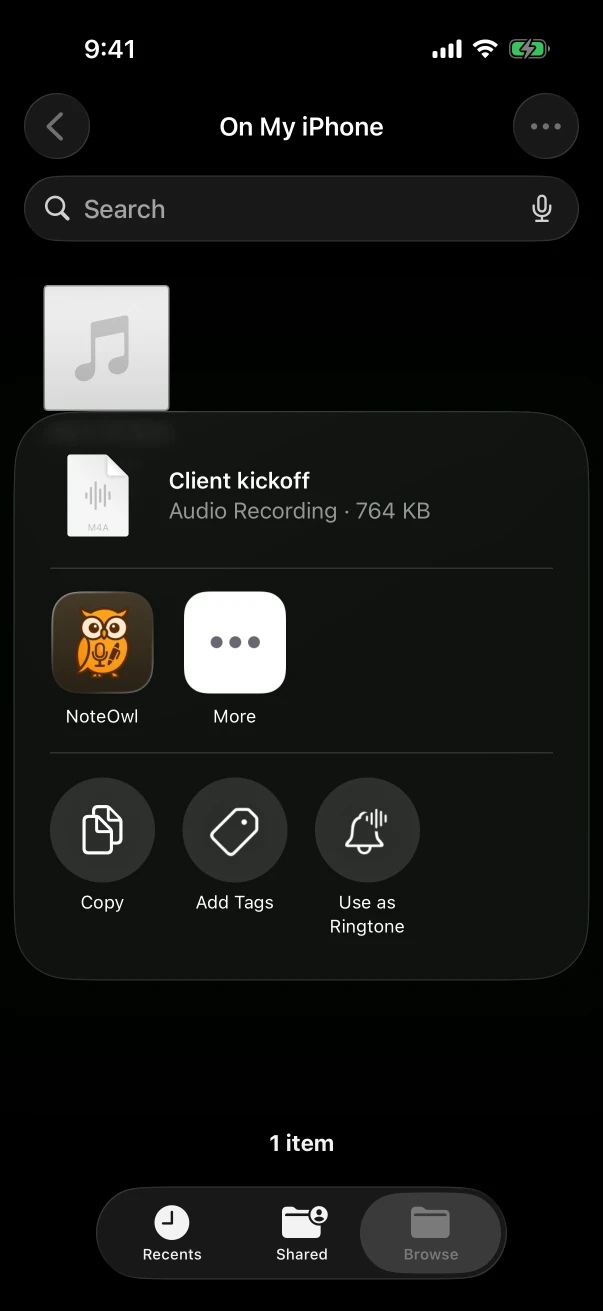
- Tap Share and choose NoteOwl. The sheet says Ready to import and that the file is waiting in NoteOwl.
- Tap Open NoteOwl. NoteOwl opens on Notes and starts the import.
- Wait while the import row shows each step, from Transcribing on-device… to Indexing…. When it says Imported, tap Open.
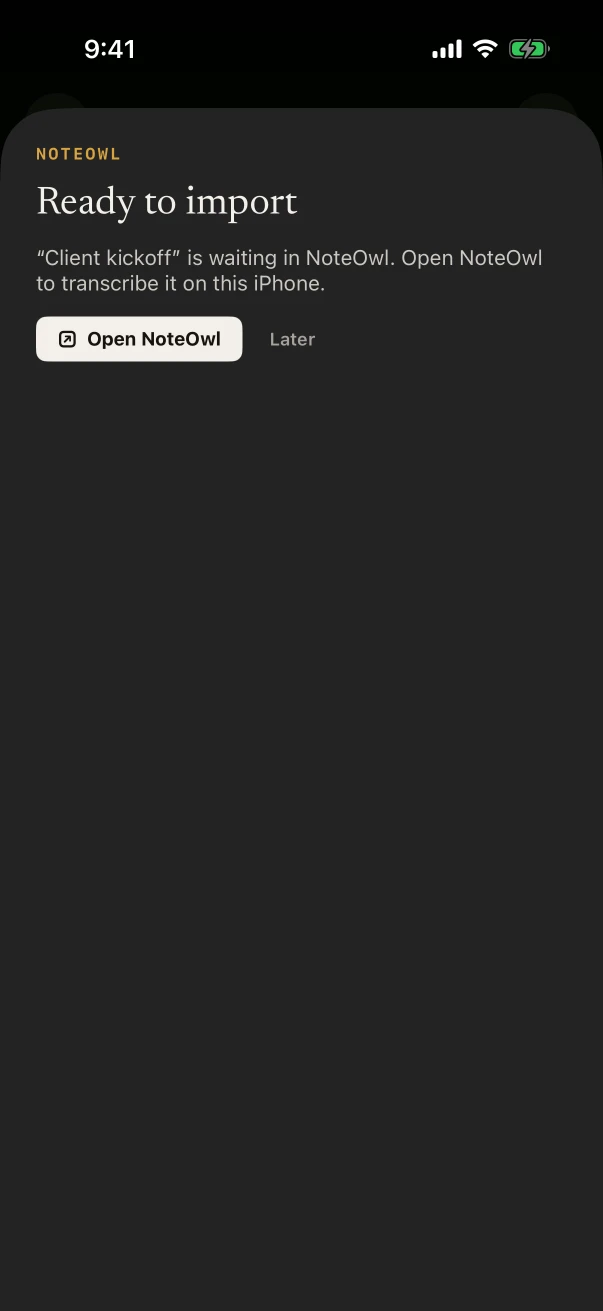
If you tap Later, the file waits, and NoteOwl imports it the next time you open NoteOwl.
How do I import a file from the Files app?
Share it the same way: in Files, touch and hold the file, tap Share, and choose NoteOwl. Or start in NoteOwl: touch and hold New Note, choose Import audio or video, and pick the file.
- From Files or another app: share the file and choose NoteOwl, then tap Open NoteOwl. Apps that offer Open in can also hand a file to NoteOwl.
- From Photos: share a video to NoteOwl to transcribe its sound.
- Inside NoteOwl: touch and hold New Note and choose Import audio or video. The same button is at the bottom of the recording screen before you record, and on the Notes tab while it's empty.
- From a widget: the Import tile in the medium Capture widget opens the same import.
Which audio and video files can NoteOwl import?
Audio files such as M4A, MP3, WAV and AIFF, including voice memos, and videos such as MP4 and MOV, from which NoteOwl takes the sound. A file with neither audio nor video can't be shared to NoteOwl.
If the share sheet says Couldn't import, the item has no audio or video, or it couldn't be handed to NoteOwl; nothing was saved. Inside NoteOwl, a video with no sound says This video has no sound, so there's nothing to transcribe. Nothing was saved.
What happens when NoteOwl imports a file?
NoteOwl copies the file into the app and works through it on the iPhone, one step at a time: the transcript, then the speakers, then the summary, action items and a title. The note is labelled Imported.
| Step on the import row | What NoteOwl does |
|---|---|
| Transcribing on-device… with a percentage | Turns the speech into text, using your vocabulary |
| Identifying speakers… | Finds who's speaking, when Automatically identify speakers is on in Settings (it is to start with) |
| Summarizing on-device… | Writes the summary with the template set for Imported notes |
| Adding to memory… | Adds people and action items to Memory |
| Indexing… | Makes the note searchable, and gives it a title |
The note starts with the file's name as its title; NoteOwl can replace it with a title from the conversation. When the import finishes, the row says Imported, or Imported · 3 speakers, with Open. To name the speakers, see speakers, summaries and templates on iPhone.
Is importing audio part of NoteOwl Pro?
Yes. On NoteOwl Free, Import audio or video opens the NoteOwl Pro sheet for Import audio instead of the file picker, and a file shared to NoteOwl opens the same sheet when NoteOwl opens. Start the free trial or buy NoteOwl Pro there.
See NoteOwl Pro on iPhone for the price and the trial. Recording with New Note is free, so for a conversation you haven't recorded yet, record it in NoteOwl: see record a meeting or lecture on iPhone.
What if an import doesn't work?
NoteOwl imports one file at a time: while one runs, the import buttons are dimmed and shared files wait their turn. If the on-device AI models aren't downloaded yet, NoteOwl says The on-device AI models aren't downloaded yet. Download them in Settings, then import again.
Other messages say what went wrong, and nothing is saved:
- This file holds no audio to transcribe.
- This video's sound couldn't be read. Nothing was saved.
- The import was stopped. Nothing was saved.
If the transcript is saved but the summary isn't, the note says The transcript is saved; the summary failed with the reason, and offers Retry summary.
Common questions
Is importing audio free in NoteOwl on iPhone?
No. Importing audio or video is part of NoteOwl Pro, which has a free trial. Recording in NoteOwl itself, with the transcript, is free and unlimited.
Which files can NoteOwl import on iPhone?
Audio files such as M4A, MP3, WAV and AIFF, voice memos, and videos such as MP4 and MOV. For a video, NoteOwl transcribes its sound.
Does NoteOwl upload my audio to transcribe it?
No. NoteOwl transcribes the file on your iPhone with its on-device AI models, then writes the summary there too. The file isn't sent anywhere.
Can I import several files at once?
NoteOwl imports one file at a time. Files you share while an import runs wait their turn and import one after another, oldest first.
Record a meeting or lecture on iPhone
Tap New Note to record a meeting, lecture or voice note in the room with NoteOwl on iPhone. The transcript appears as you talk, even with the screen locked.
Speakers, summaries and templates on iPhone
Name the speakers in a NoteOwl note on iPhone, change the summary with Summarize as, make your own templates and track action items. NoteOwl Pro.