Export or delete your data on iPhone
Last updated Checked against NoteOwl 0.1.0
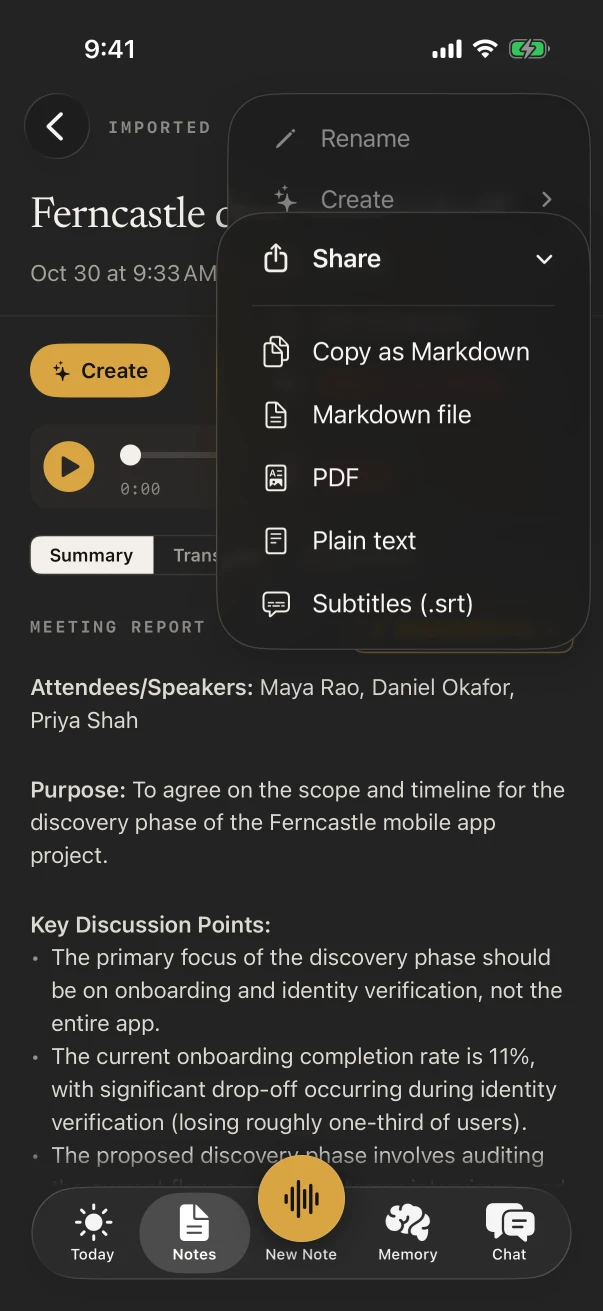
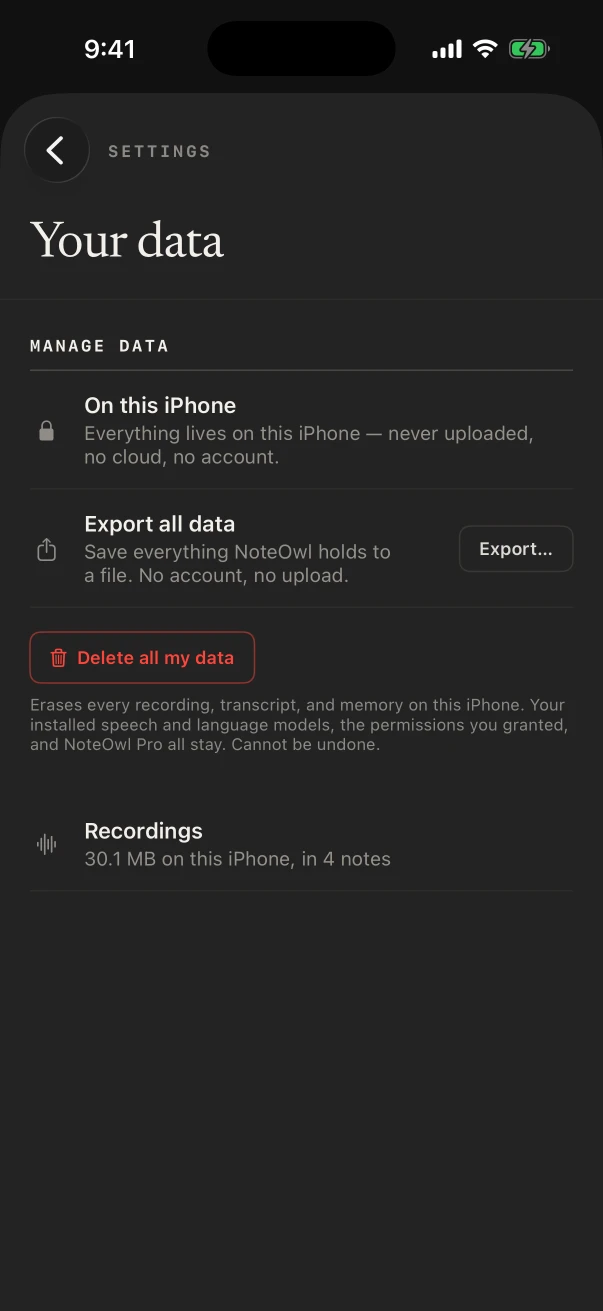
To export a note from NoteOwl on iPhone, open it, tap ⋯, then Share, and choose Markdown file, PDF, Plain text or Subtitles (.srt). To take everything at once, open Settings › Your data and tap Export… beside Export all data, which saves one zip file. Exporting and deleting are free on every plan.
How do I share or export a note?
Open the note, tap ⋯ at the top right, then Share, and choose a format. Copy as Markdown copies the note; the others make a file and open the iOS share sheet, where you can save it to Files, AirDrop it or send it.
- Open the note from Notes.
- Tap ⋯ at the top right, then Share.
- Choose a format. For a file, pick where it goes in the iOS share sheet.
You can also touch and hold a note in the Notes list and choose Share.
| Format | What you get |
|---|---|
| Copy as Markdown | The note as Markdown text, ready to paste |
| Markdown file | A .md file |
| A PDF of the note | |
| Plain text | A .txt file of the transcript |
| Subtitles (.srt) | An .srt subtitle file timed from the transcript |
Subtitles (.srt) needs a transcript with times, so it isn't offered for typed notes. A line with no time is left out rather than given one, and NoteOwl says how many it left out. Each file is named after the note's title.
How do I export all my data?
Open Settings, tap Your data, then tap Export… beside Export all data. Choose what to include and tap Export. NoteOwl saves everything to one zip file on the iPhone and opens the iOS share sheet so you can keep it where you like.
- Tap the gear at the top right of Today, Notes, Memory or Chat, then Your data.
- Beside Export all data, tap Export….
- Tick what to include. All four are ticked to start with, and at least one must stay ticked.
- Tap Export. NoteOwl shows each step, such as Exporting recording 2 of 14….
- When it says Export complete, the share sheet opens: choose Save to Files, AirDrop or another app. Save or share… opens it again.
| Choice | What's in it |
|---|---|
| Original transcripts | The words as they were spoken, with times and speakers, plus your own notes on each recording |
| Audio recordings | The recordings. For audio you imported, it's the copy NoteOwl kept for playback |
| Processed content | Summaries, tidied dictations and everything else NoteOwl made from your recordings |
| Memory and setup | People, action items, chats, vocabulary and your preferences |
The file is called NoteOwl export with the date and time, and ends in .zip. Inside, README.md explains the contents and manifest.json lists every file, with a folder for each recording and one for your memory. Left out on purpose: NoteOwl's internal database and search index, whose contents are exported in readable form instead, the on-device AI models, your learned voices, and NoteOwl Pro, which belongs to your Apple Account.
Anyone who can open the export can read everything in it, so save it somewhere you trust.
How do I delete a note on iPhone?
In Notes, swipe left on the note and tap Delete, then confirm. You can also touch and hold it and choose Delete, or open it and choose ⋯ › Delete. The note is removed for good: its transcript, outputs, recording and place in search.
- Several notes: tap Select in Notes, tick the notes, and tap Delete.
- Only the audio: open the note and choose ⋯ › Delete recording. The transcript, summary and memory stay, but you can't play it, re-transcribe it or find its speakers again.
- Old recordings: when some notes are more than 30 days old, Settings › Your data offers Delete recordings older than 30 days. Their text stays.
How do I delete all my data on iPhone?
Open Settings › Your data, tap Delete all my data, then Delete everything. NoteOwl erases every recording, transcript and memory on the iPhone and says Everything was deleted from this iPhone. It can't be undone, so export first if you want a copy.
What goes: your notes and their audio, dictations, people and action items, your learned voices, your vocabulary, your own templates, and NoteOwl's scheduled reminders. What stays: the downloaded on-device AI models, the permissions you granted, the built-in templates, and NoteOwl Pro.
Where does NoteOwl keep my data on iPhone?
In NoteOwl's own storage on your iPhone. NoteOwl doesn't upload your recordings, transcripts or memory, and there's no NoteOwl account or NoteOwl cloud. Settings › Your data shows how much space your recordings take, under Recordings.
The NoteOwl keyboard and NoteOwl's widgets share a small space with the app: it holds only the words you're dictating, files you've shared to NoteOwl until they're imported, and what the widgets show. Delete all my data clears it too.
Common questions
Is exporting free in NoteOwl on iPhone?
Yes. Sharing a note, Export all data and deleting your data work on NoteOwl Free as well as NoteOwl Pro, and they keep working if a trial ends.
Can I export a note's audio on iPhone?
Not from a note's Share menu, which shares text. Export all data includes the audio of every recording when Audio recordings is ticked; for audio you imported, it's the copy NoteOwl kept for playback.
Does Delete all my data remove NoteOwl Pro?
No. Delete all my data erases your recordings, transcripts and memory. NoteOwl Pro, the downloaded on-device AI models and the permissions you granted all stay.
Widgets, shortcuts and Siri on iPhone
Add NoteOwl widgets on iPhone, start a recording from the Action button, Control Center or Back Tap, ask Siri, and follow it all in Live Activities.
NoteOwl Pro on iPhone, price and free trial
What NoteOwl Pro adds on iPhone, its lifetime price with no subscription, how the free trial works, and what NoteOwl Free keeps unlimited.