Record a meeting or lecture on iPhone
Last updated Checked against NoteOwl 0.1.0
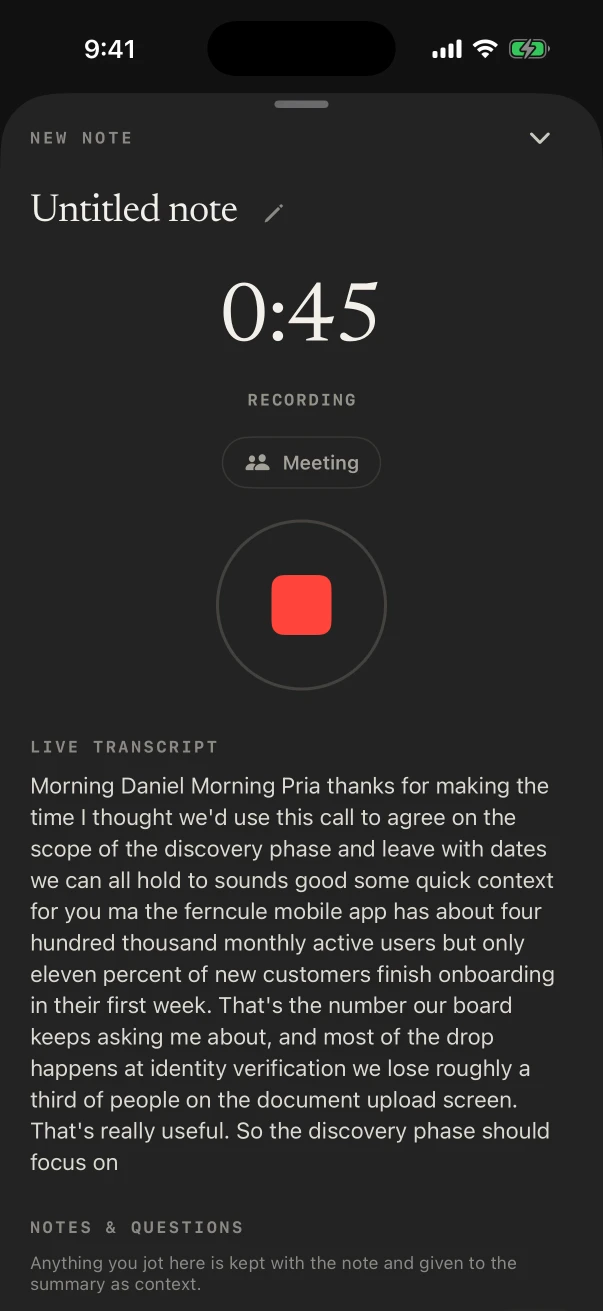
To record with NoteOwl on iPhone, tap New Note in the middle of the tab bar. NoteOwl records what's said in the room through the iPhone's microphone, shows the live transcript as it listens, and keeps going with the screen locked. Tap the red stop button when you've finished. Recording and the transcript are free and unlimited.
How do I start recording on iPhone?
Tap New Note, and recording starts at once. For a meeting with speakers and a summary, turn on the Meeting chip, a NoteOwl Pro feature. The speech model has to be on your iPhone first: see get started with NoteOwl on iPhone.
- Put your iPhone where it can hear everyone, such as on the table between you.
- Tap New Note in the middle of the tab bar. The recording screen opens and says Recording.
- For a meeting, tap Meeting to turn it on.
- Talk. The timer runs, and Live transcript shows the words as NoteOwl hears them.
- Tap the red stop button when you've finished. NoteOwl stops straight away and starts on the transcript.
To name the note while it records, tap Untitled note or the pencil and type a title.
Touch and hold New Note for more ways to start:
| Choice | What it does |
|---|---|
| New note | Records with Meeting off |
| New meeting | Records with Meeting on (NoteOwl Pro) |
| Import audio or video | Transcribes a file instead (NoteOwl Pro): see import audio from Voice Memos or Files |
| New typed note | A note you type, with a Title and Write your note… |
You can also start a recording from a widget, the Action button, Control Center or Siri: see widgets, Live Activities and shortcuts on iPhone.
What does the Meeting chip do?
It tells NoteOwl the recording is a meeting. With Meeting on, NoteOwl Pro finds who's speaking, writes a meeting summary and action items, and links the note to the calendar event happening now. With it off, the recording is a voice note, with a short summary on NoteOwl Pro.
- Turning Meeting on is part of NoteOwl Pro. On NoteOwl Free, every recording is a voice note with its full transcript.
- With NoteOwl Pro, if NoteOwl hears two or more people, it turns Meeting on when you stop and says 2+ speakers heard.
- You can still change the chip on the finished screen. Turning it on writes the meeting notes for the saved recording.
There's no separate lecture setting. Record a lecture as a voice note; with NoteOwl Pro, Summarize as › Student Lecture turns it into study notes, and Settings › Templates can make Student Lecture the default for voice notes. See speakers, summaries and templates on iPhone.
Can I lock my iPhone while NoteOwl records?
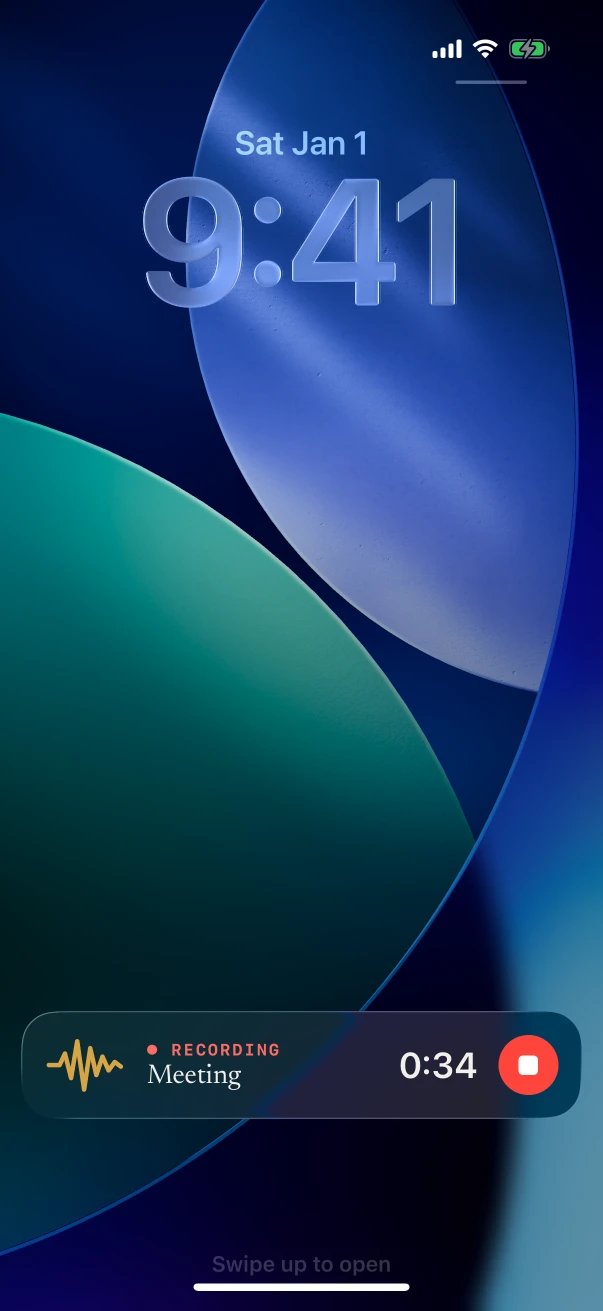
Yes. NoteOwl keeps recording with the screen locked or another app open. With Live Activities on, the Lock Screen and the Dynamic Island show the timer and a stop button, so you can stop without opening NoteOwl.
- On the Lock Screen, the recording shows ● RECORDING, the timer and a red stop button.
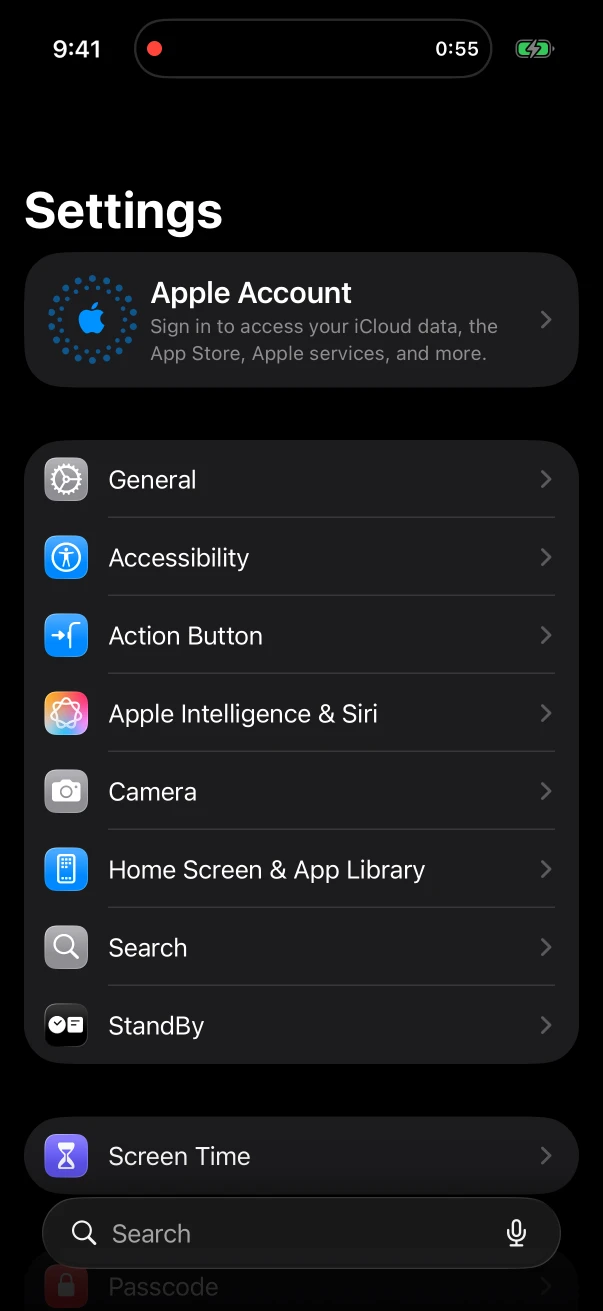
- In the Dynamic Island, a red dot and the timer show while you use other apps. Touch and hold it for the stop button.
- To use NoteOwl while it records, tap the arrow at the top of the recording screen, or swipe it down. New Note turns red: tap it to show the recording again. It doesn't stop the recording.
What are Notes & questions while recording?
A place to jot things down while NoteOwl records. Type in Note or question… and tap Add. Anything you add is kept with the note and given to the summary as context. Notes & questions is free.
With NoteOwl Pro, some iPhones also show Assist while you record, with Catch up, Ask and Actions: NoteOwl answers from what it has heard so far. Assist needs more memory than every iPhone has free during a recording; when it can't run, it says so, for example Not available on this iPhone. It needs more memory than is free during a recording. Its answers are shown, not saved.
What happens when I stop recording?
NoteOwl turns the recording into a note on the iPhone, step by step, and the screen says Saved to your notes when it's done. Tap Open the note, or find it at the top of the Notes tab.
The steps show on the recording screen, on the note's row in Notes, and on the Lock Screen:
| Step | Plan |
|---|---|
| Transcribing on-device… with a percentage | Free and NoteOwl Pro |
| Saving the recording… | Free and NoteOwl Pro |
| Identifying speakers… | NoteOwl Pro |
| Summarizing on-device… | NoteOwl Pro |
| Adding to memory… | NoteOwl Pro, meetings only |
| Indexing… | Free and NoteOwl Pro |
On NoteOwl Free, the note has its audio and full transcript; its Summary tab shows what NoteOwl Pro adds. With NoteOwl Pro, it also gets speakers, a summary, action items for a meeting, and a title, unless you named it yourself. With Live Activities on, NoteOwl Pro shows NOTES READY on the Lock Screen when the notes are written, with Open.
What if a call or another app interrupts the recording?
NoteOwl pauses the recording and keeps it in the same note. The screen says Paused — another app is using audio, the Lock Screen says PAUSED, and the timer stops. It carries on when iOS hands the audio back, as after a declined call; otherwise tap Resume.
If the microphone can't be resumed, NoteOwl says The microphone couldn't be resumed. Stop to keep what was recorded. Tap the stop button, and NoteOwl keeps everything recorded before the interruption.
What if NoteOwl closes while recording?
The audio recorded up to then is kept. The next time you open NoteOwl, the note is marked Needs attention and says NoteOwl closed while this meeting was recording. The audio captured up to then is saved — rebuild the meeting from it.
- Open the note from Notes.
- Tap Rebuild from recording. If the note already has a transcript, NoteOwl asks first: tap Rebuild.
- Wait while it says Transcribing on-device…. When it's done, it says Rebuilt from the recording.
On NoteOwl Free, the rebuild makes the transcript. With NoteOwl Pro, it also redoes speakers, the summary and memory. If a later step fails, the note offers the matching button, such as Retry summary.
Common questions
Is recording free in NoteOwl on iPhone?
Yes. Recording in the room and the transcript are part of NoteOwl Free, with no limit. Speakers, the summary, action items and an automatic title come with NoteOwl Pro.
Can NoteOwl on iPhone record a phone call or a video call?
No. NoteOwl on iPhone records what's said in the room through the iPhone's microphone, and a phone call pauses the recording.
Where are my recordings saved?
In the Notes tab, on your iPhone. Each note keeps its audio and transcript there, and NoteOwl doesn't upload them. To free space, you can delete a note's recording and keep its text.
Can I add my own notes while NoteOwl records?
Yes. Type in Notes & questions on the recording screen and tap Add. NoteOwl keeps what you jot with the note and gives it to the summary as context.
Dictate in any app with the NoteOwl keyboard
Add the NoteOwl keyboard on iPhone, turn on Allow Full Access and tap the microphone in any app. Free and unlimited, with Polish and five languages.
Import audio from Voice Memos or Files
Share a voice memo, audio file or video to NoteOwl on iPhone and it's transcribed on the iPhone, with speakers and a summary. Importing is NoteOwl Pro.