Speakers, summaries and templates on iPhone
Last updated Checked against NoteOwl 0.1.0
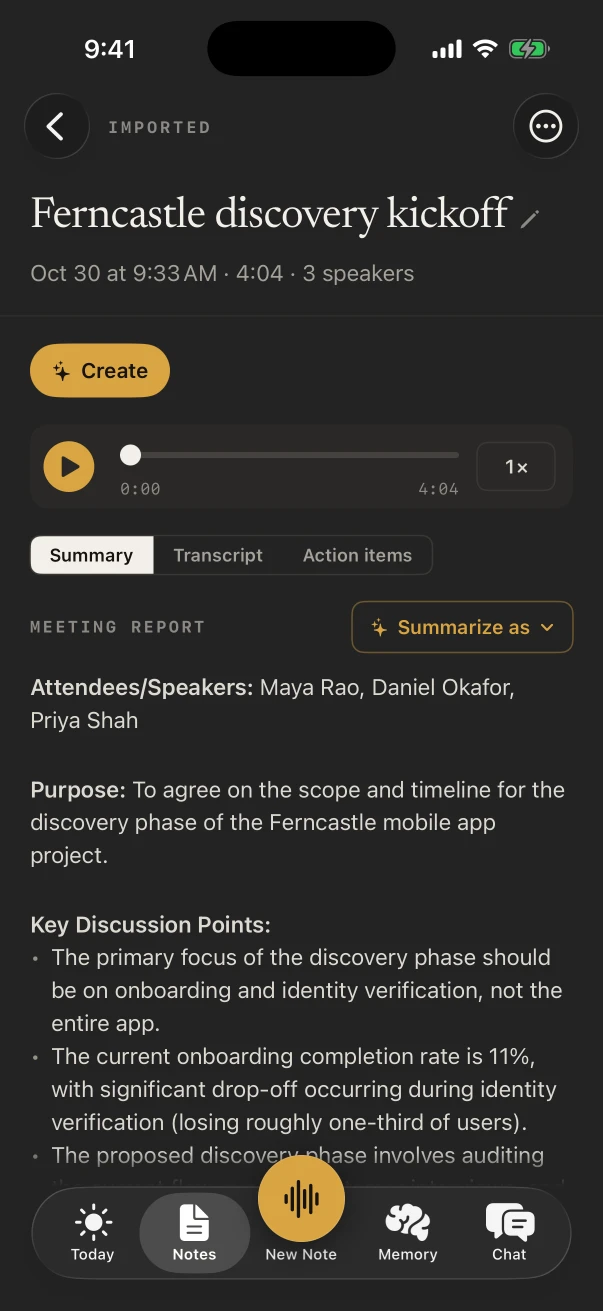
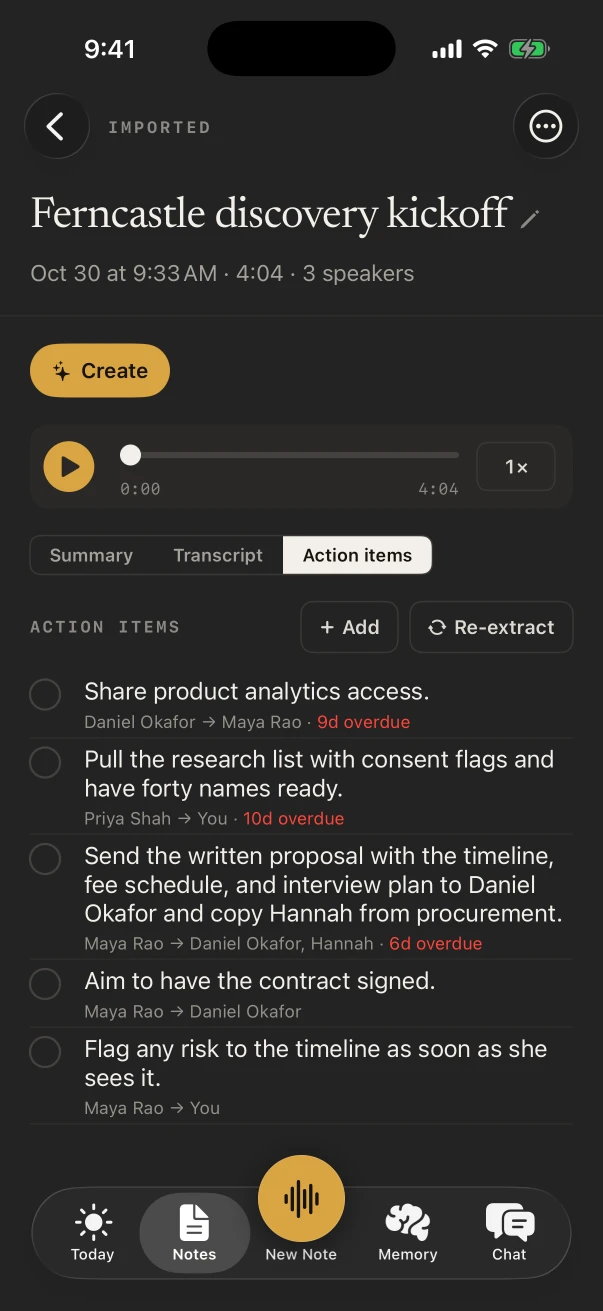
With NoteOwl Pro, a meeting or imported recording on iPhone gets speaker names, a summary in the template you choose, action items and a title, all written on the iPhone. Open the note from Notes: it has three tabs, Summary, Transcript and Action items. To name who said what, tap Rename speakers on the Transcript tab.
What's on a note's screen?
The note's kind and title at the top, then ✦ Create, the player, and three tabs: Summary, Transcript and Action items. The ⋯ button at the top right has the rest: Rename, Create, Share, Re-transcribe, Delete recording and Delete.
- Under the title: the date, the length and the number of speakers. Tap the title or its pencil to rename the note.
- The player plays the recording at 0.75× to 2×. Tap a line of the transcript to play from it.
- Re-transcribe runs speech-to-text again on the recording and replaces the transcript; the audio is kept.
How do I rename speakers on iPhone?
Open the note's Transcript tab and tap Rename speakers. Type each person's name over the label, such as Speaker 1, and tap Save. The whole transcript and the summary update, and where it can, NoteOwl learns each voice for your later notes.
- Open the note and tap Transcript.
- Tap Rename speakers.
- Type a name over each label, such as Speaker 1.
- Tap Save. NoteOwl says how many speakers it renamed and which voices it will recognise in your later notes.
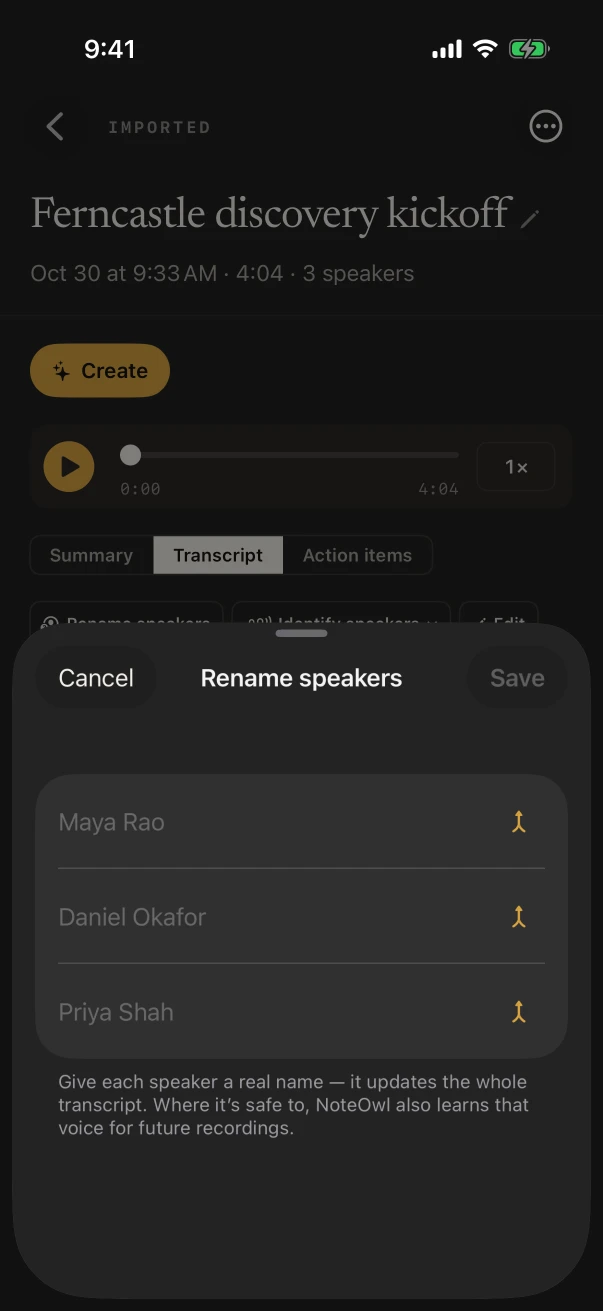
NoteOwl doesn't learn a voice from merged speakers, from a placeholder name, or from less than a second of someone speaking. To fix single lines:
- Merge two speakers: in Rename speakers, tap the merge button beside a name and choose Merge into the other speaker.
- Move one line: touch and hold the line and choose Assign to, then the speaker.
- Correct the words: touch and hold the line and choose Edit line, or tap Edit.
- Find the speakers again: tap Identify speakers and choose Automatic, or how many people were speaking, from 2 speakers to 8 speakers.
Your own lines show as "You" once NoteOwl knows your voice: see how to teach NoteOwl your voice. Settings › Speakers lists every voice NoteOwl has learned; tap the bin beside one and Delete voice to forget it. Names already in your notes stay as they are.
Finding speakers is part of NoteOwl Pro. Automatically identify speakers, in Settings, labels who's talking in new recordings and imports; when it's off, use Identify speakers on a note.
How do I change the summary template?
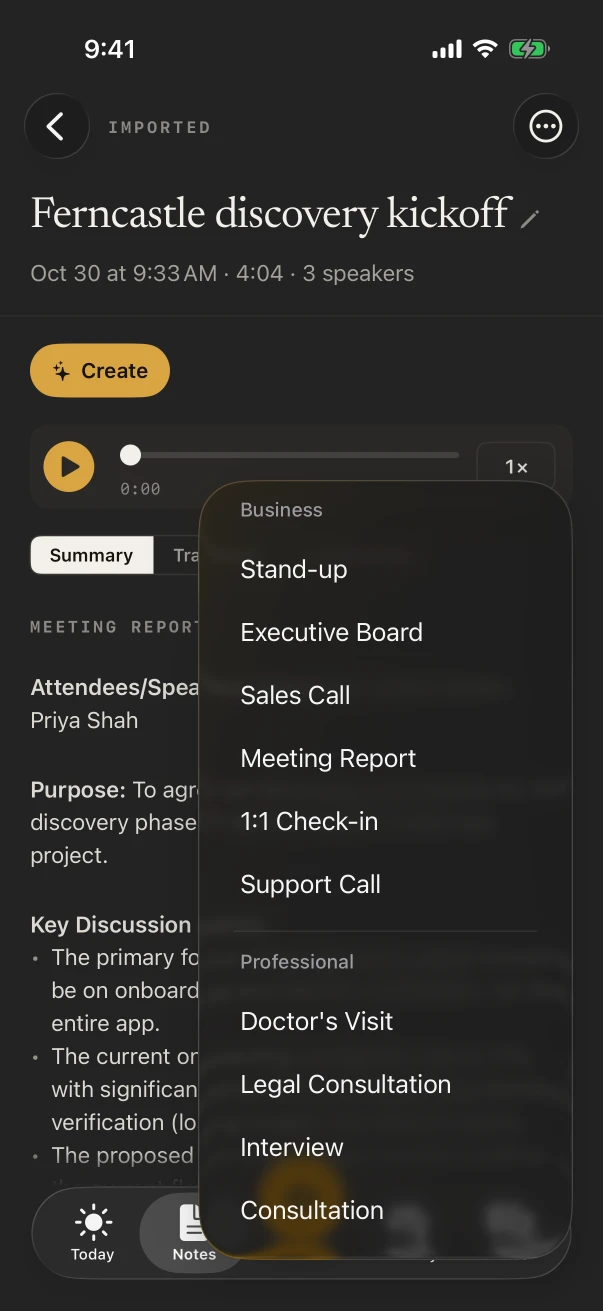
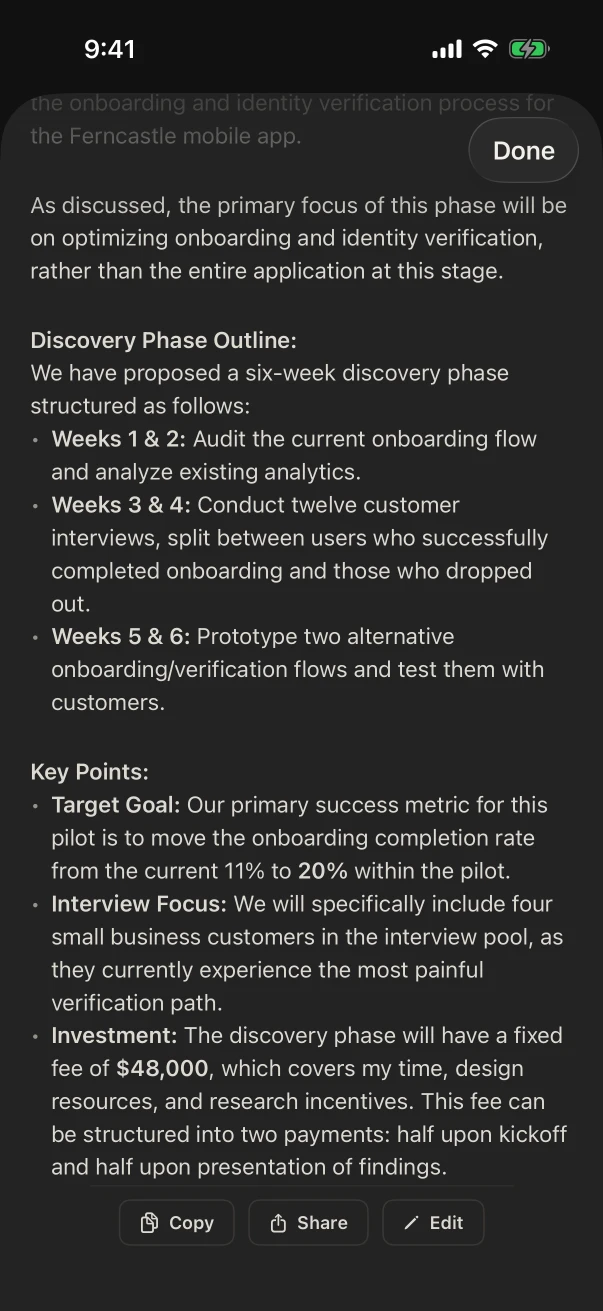
On the Summary tab, tap ✦ Summarize as and choose a template. NoteOwl writes the summary again in that format, on the iPhone, and the name of the template shows above it. To redo a summary, choose a template again.
Under the summary:
- Copy copies it.
- Ask for changes revises it the way you describe, for example "make it shorter and more formal". Tap Revise.
- Edit lets you change the words yourself. Tap Save.
Edit templates, at the end of the Summarize as menu, opens Settings › Templates.
Which summary templates are built in?
Twenty-two, in seven groups, plus the Meeting Summary that meetings and imports use to start with. Voice notes start with Quick Summary. Change the defaults in Settings › Templates, under Defaults.
| Group | Templates |
|---|---|
| Business | Stand-up, Executive Board, Sales Call, Meeting Report, 1:1 Check-in, Support Call |
| Professional | Doctor's Visit, Legal Consultation, Interview, Consultation |
| Academic | Student Lecture, Research, Training |
| Productivity | To-Do List, Project Log |
| General | Quick Summary, Brainstorm |
| Content | Podcast Show Notes, Presentation |
| Personal | Therapy Session, Journal, Memories |
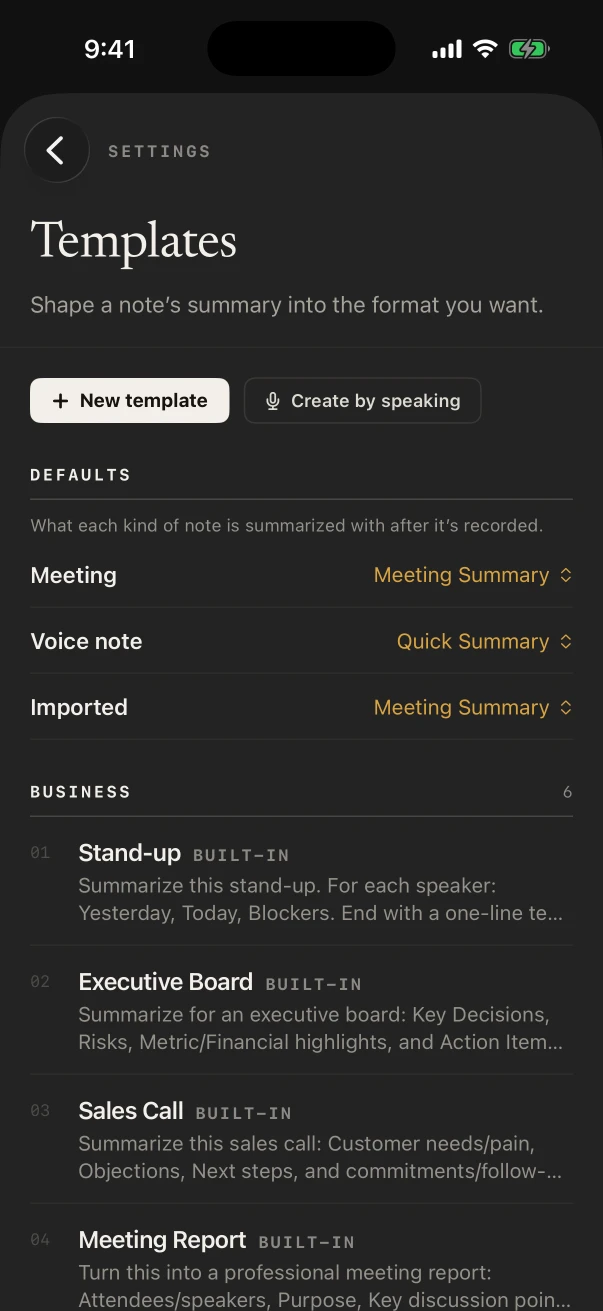
Under Defaults, choose a template for Meeting, Voice note and Imported. NoteOwl uses it for every new note of that kind; typed notes aren't summarized by themselves.
How do I make my own template?
In Settings › Templates, tap New template, give it a name, a group and a prompt that describes the layout, and tap Add. Or tap Create by speaking and say how you want your notes laid out. Your templates appear in the Custom group.
- To change a built-in template, tap it. NoteOwl saves your copy, named "(my version)", and the original stays.
- Tap ⋯ on one of your templates for Edit, Rename, Duplicate and Delete. Summaries you already made with a deleted template are kept.
Where are a note's action items?
On its Action items tab. Each one shows who owes it to whom, such as "You → Priya", and when it's due or how overdue it is. Tap the circle to mark it done, tap the item to edit it, or tap + Add. Re-extract looks for action items again.
The same action items appear in Memory › Action items, and the ones due soon on Today: see Memory, People and Chat on iPhone. For NoteOwl to tell what you owe from what's owed to you, add your name in Settings › Who you are.
What can ✦ Create make from a note?
Tap ✦ Create on a note to have NoteOwl write something from it on the iPhone: an Email draft, a Report, a Blog post, a Social post or a To-do list. Translate to writes it in English, Hindi, Spanish, French or German, and Custom makes whatever you describe.
What you make is saved under Outputs on the note, where you can open, copy, share or regenerate it. NoteOwl never sends anything: copy or share the draft, and send it yourself. Create is part of NoteOwl Pro.
Common questions
Are speakers and summaries free in NoteOwl on iPhone?
No. Telling speakers apart, summaries, templates, action items and Create are part of NoteOwl Pro. On NoteOwl Free, every recording keeps its full transcript, and reading, editing, copying and sharing a note are always free.
Does NoteOwl remember voices on iPhone?
Yes. When you rename a speaker, NoteOwl learns that voice where it can and names the person in your later notes. Settings › Speakers lists the voices it knows, and you can delete any of them there.
Can I make my own summary template on iPhone?
Yes, with NoteOwl Pro. In Settings › Templates, tap New template and write how the summary should be laid out, or tap Create by speaking and say it.
Is my note sent anywhere to write the summary?
No. NoteOwl writes the summary, the action items and the title on your iPhone with its on-device AI models.
Import audio from Voice Memos or Files
Share a voice memo, audio file or video to NoteOwl on iPhone and it's transcribed on the iPhone, with speakers and a summary. Importing is NoteOwl Pro.
Memory, People and Chat on iPhone
Find people and action items in NoteOwl's Memory tab on iPhone, keep a profile for everyone you meet, and ask your notes questions in Chat. NoteOwl Pro.